Introduction
This manual provides comprehensive instructions for the Generic M.2 NGFF USB-C SSD Enclosure, Model Generic7qxdzy09gv-12. This device allows you to convert an M.2 NGFF solid-state drive into a portable external storage solution, offering high-speed data transfer and broad compatibility. Please read this manual carefully before use to ensure proper installation and operation.
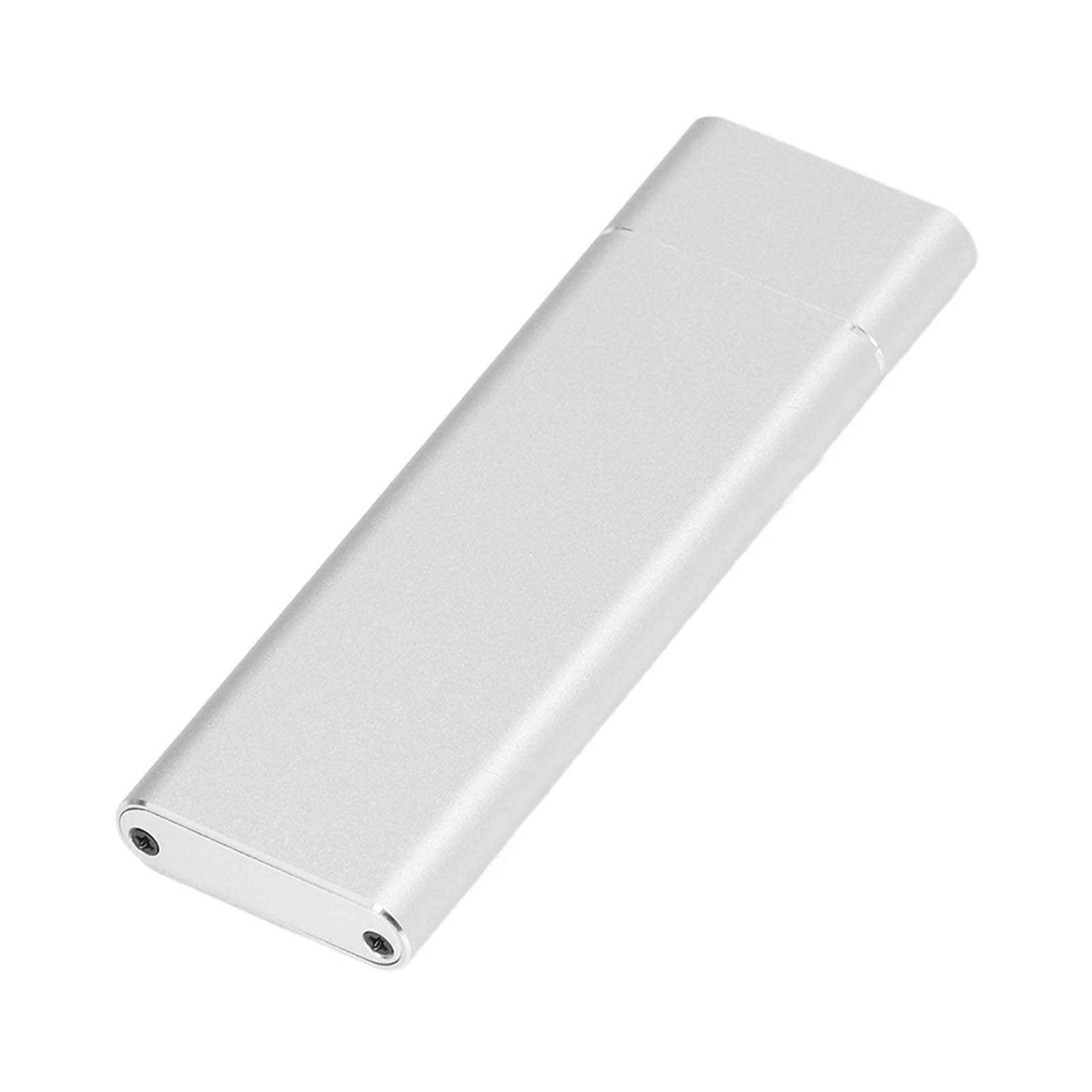
Image: The Generic M.2 NGFF USB-C SSD Enclosure, shown in a silver finish.
Setup Instructions
Follow these steps to install your M.2 NGFF SSD into the enclosure.
Package Contents:
- 1 x USB C SSD Enclosure
- 1 x Data Line (USB-C to USB-A cable)
- 1 x Screwdriver
- 3 x Screws

Image: All components included in the package: the M.2 enclosure, a USB-C to USB-A data cable, a small screwdriver, and three mounting screws.
Installation Steps:
- Disassemble the Enclosure: Use the provided screwdriver to remove the screws securing the end cap of the enclosure. Carefully slide open the enclosure to reveal the internal M.2 connector.
- Insert the M.2 NGFF SSD: Align your M.2 NGFF SSD with the internal connector inside the enclosure. Gently push the SSD into the slot until it is fully seated.
- Secure the SSD: Use one of the provided screws to secure the M.2 SSD in place at the opposite end of the connector. This prevents the SSD from dislodging.
- Reassemble the Enclosure: Slide the enclosure back together, ensuring the end cap aligns correctly. Reinsert and tighten the screws using the screwdriver to secure the enclosure.
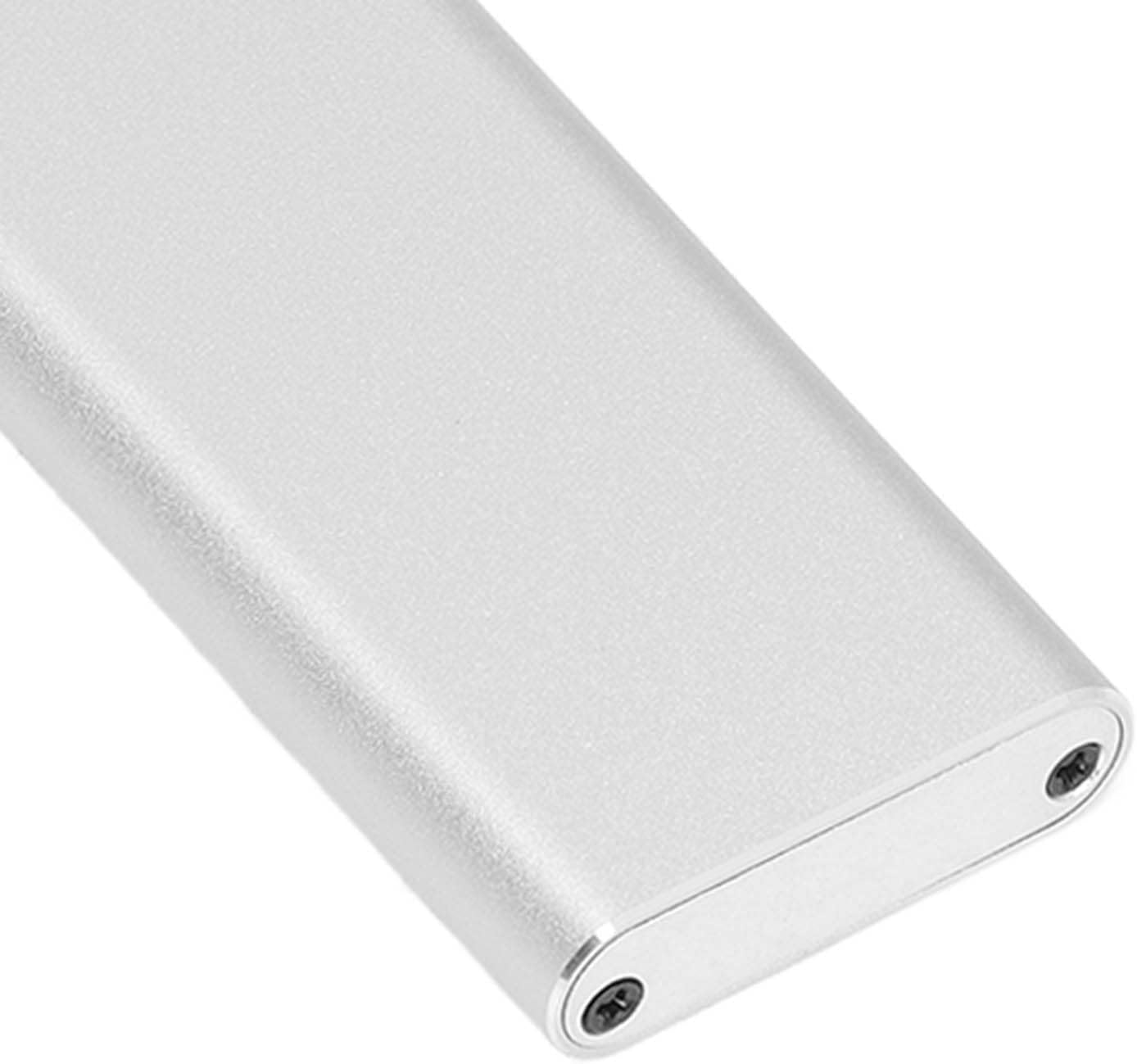
Image: A close-up view of one end of the M.2 enclosure, highlighting the two small screws that need to be removed to open the casing.
Image: A top-down view of the fully assembled M.2 enclosure, showcasing its sleek, metallic design.
Operating Instructions
Once your M.2 NGFF SSD is installed in the enclosure, it is ready for use.
Connecting to a Computer:
- Connect one end of the provided USB-C data cable to the Type-C port on the SSD enclosure.
- Connect the other end of the data cable to an available USB port on your computer (USB-A or USB-C, depending on the cable provided and your computer's ports).
- The enclosure is plug-and-play. Your operating system (Windows 7/10, macOS) should automatically detect the new external drive.
- If the SSD is new, you may need to initialize and format it through your computer's disk management utility before it appears as a usable drive.

Image: A detailed view of the USB-C port located on the end of the M.2 enclosure, ready for cable connection.
Data Transfer:
The enclosure supports high-speed data transfer:
- USB 3.1 Gen1: Up to 5Gbps
- USB 3.1 Gen2: Up to 10Gbps
Actual transfer speeds may vary depending on your SSD, computer's USB port, and the type of data being transferred.
Maintenance
To ensure the longevity and optimal performance of your M.2 NGFF USB-C SSD Enclosure, follow these maintenance guidelines:
- Cleaning: Use a soft, dry cloth to wipe the exterior of the enclosure. Avoid using liquid cleaners or solvents, as they may damage the finish or internal components.
- Heat Dissipation: The aluminum alloy construction provides good heat dissipation. Ensure the enclosure is not covered or placed in an area with poor airflow during extended use to prevent overheating.
- Storage: When not in use, store the enclosure in a cool, dry place away from direct sunlight and extreme temperatures.
- Handling: Handle the enclosure with care. Avoid dropping it or subjecting it to strong impacts, which could damage the internal SSD or the enclosure itself.
Troubleshooting
If you encounter issues with your M.2 NGFF USB-C SSD Enclosure, refer to the following common problems and solutions:
Problem: Enclosure is not detected by the computer.
- Solution 1: Ensure the USB cable is securely connected to both the enclosure and the computer's USB port.
- Solution 2: Try connecting the enclosure to a different USB port on your computer.
- Solution 3: Test with a different USB cable to rule out a faulty cable.
- Solution 4: Verify that the M.2 NGFF SSD is correctly installed and seated firmly within the enclosure's connector.
- Solution 5: Check your computer's Disk Management (Windows) or Disk Utility (macOS) to see if the drive is recognized but uninitialized or unformatted. If so, initialize and format the drive.
Problem: Slow data transfer speeds.
- Solution 1: Ensure you are using a USB 3.0/3.1 compatible port on your computer. Connecting to a USB 2.0 port will result in slower speeds.
- Solution 2: Verify that your M.2 NGFF SSD supports the expected transfer speeds.
- Solution 3: Close any unnecessary applications running in the background that might be consuming system resources.
- Solution 4: Ensure your computer's USB drivers are up to date.
Problem: Enclosure feels warm during operation.
- Solution: It is normal for the aluminum alloy enclosure to feel warm during operation, especially during high-speed data transfers, as it is designed to dissipate heat from the SSD. If it becomes excessively hot, ensure it has adequate ventilation.
Specifications
| Feature | Description |
|---|---|
| Item Type | USB C SSD Enclosure |
| Material | Aluminum Alloy |
| External Interface Type | Type C |
| Built-in Hard Disk Interface Type | M.2 NGFF |
| Transfer Rate | USB3.1 Gen1 5Gbps, USB3.1 Gen2 10Gbps |
| Applicable Equipment | M.2 NGFF (2230 / 2242 / 2260 / 2280) Hard Drive |
| Compatible System | Windows 7, Windows 10, macOS |
| Package Dimensions | 5.91 x 3.15 x 0.79 inches |
| Item Weight | 2.33 ounces |
| Model Number | Generic7qxdzy09gv-12 |
Warranty Information
This product is covered by a standard manufacturer's warranty. Please retain your proof of purchase for any warranty claims. For specific details regarding warranty duration and terms, refer to the documentation provided at the time of purchase or contact the retailer.
Customer Support
If you require further assistance or have questions not covered in this manual, please contact the manufacturer or your point of purchase for support. Ensure you have your product model number (Generic7qxdzy09gv-12) available when seeking assistance.


