
Avylet RC06HL
Avylet 9.26" Wireless Carplay & Android Auto Display User Manual
Model: RC06HL
Introduction
This user manual provides detailed instructions for the installation, operation, and maintenance of your Avylet 9.26" Wireless Carplay & Android Auto Display. Please read this manual thoroughly before using the product to ensure proper functionality and safety.
What's in the Box
- 1* 9.26-inch Carplay Display
- 1* Extension Cable + 4* Cable Ties
- 1* 3M Mount + 1* 3M Mount Adhesive Tape
- 1* Car Charger + 1* AUX Cable + 1* Plastic Pry Tool + 1* Screwdriver
- 1* Extension Adhesive Tape + 2* Extension Mount Screws

Image: All components included in the Avylet 9.26" Wireless Carplay & Android Auto Display package.
Setup and Installation
The Avylet 9.26" display is designed for easy installation without modifying your vehicle's original radio system. It can be mounted on the dashboard or windshield.
Mounting Options
Two primary mounting options are available:
- Adhesive Mount: For dashboard installation.
- Suction Cup Mount: For windshield or dashboard installation.

Image: Different installation methods for the Avylet display, including adhesive and suction cup mounts.
Power Connection
Connect the device to your vehicle's cigarette lighter socket (12-32V) using the provided car charger cable. No complex wiring is required.
Rear Camera Installation (Optional)
The device includes a 1080p waterproof (IP67) rear camera for parking assistance. To enable automatic display of the rear view when reversing:
- Connect the red wire of the rear camera to the reverse light's positive lead.
- The display will automatically show the rear camera feed when the vehicle is in reverse.
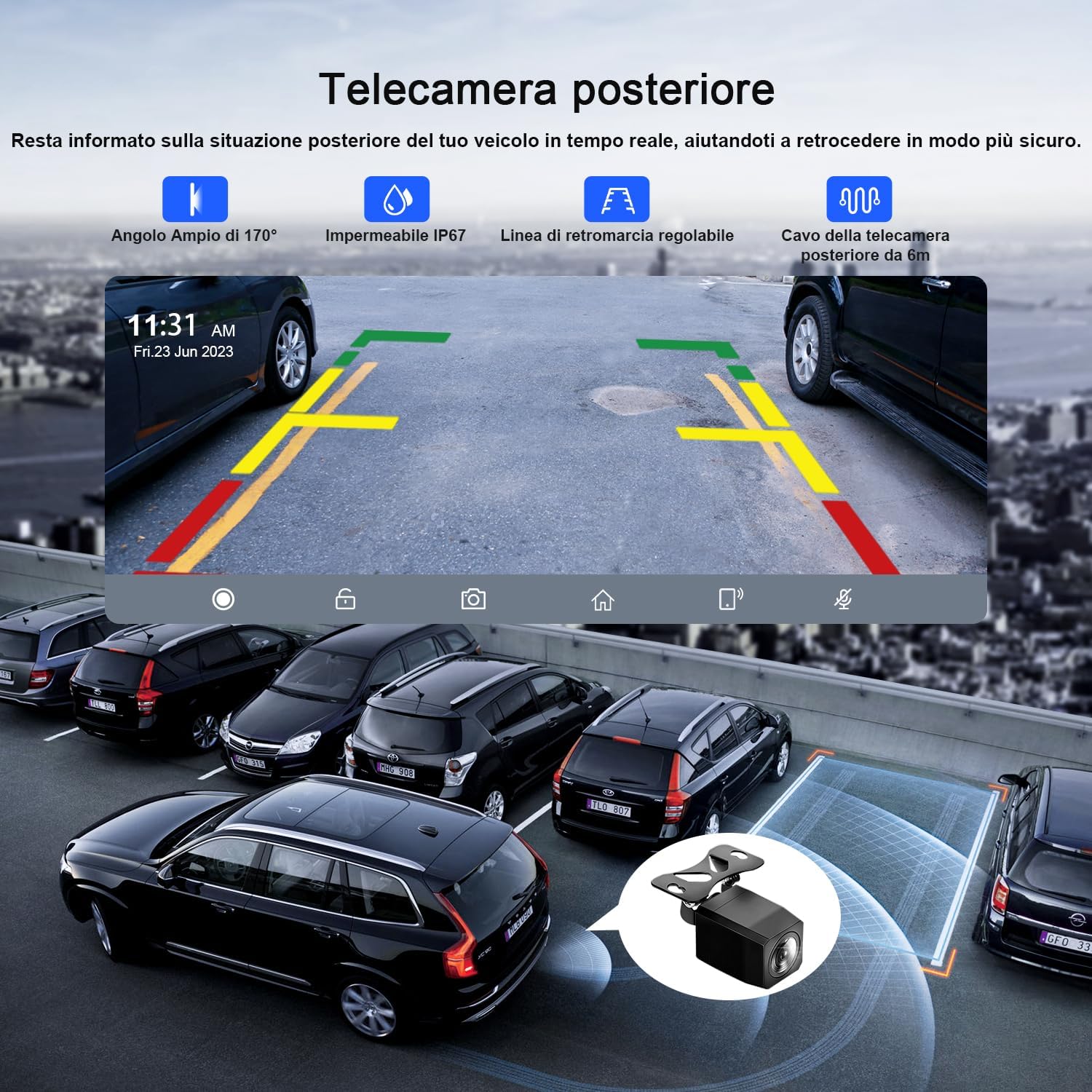
Image: Illustration of the rear camera installation process, connecting to the main unit and the vehicle's reverse light.
Operating Instructions
Wireless CarPlay and Android Auto
Connect your smartphone wirelessly to the 9.26-inch display to access phone functions like navigation, music, and calls. After the initial connection, the device will automatically reconnect.
- For Apple CarPlay: Ensure Wi-Fi and Bluetooth are enabled on your iPhone (iOS 9 or later). Select the device in Bluetooth settings and confirm pairing.
- For Android Auto: Ensure Wi-Fi and Bluetooth are enabled on your Android phone (Android 11 or later, or Google/Samsung phones with Android 10 or later). Install the Android Auto app. Select the device in Bluetooth settings and connect.

Image: The Avylet display showcasing both Apple CarPlay and Android Auto interfaces, highlighting wireless connectivity.
Voice Control and GPS Navigation
Utilize Siri or Google Assistant for hands-free control of navigation, calls, messages, and multimedia. The display integrates with Apple Maps, Google Maps, and Waze.

Image: Voice control features (Siri/Google Assistant) in action on the Avylet display, showing navigation and communication commands.
Mirror Link Functionality
The Mirror Link function allows you to mirror your smartphone's screen onto the 9.26-inch display for an enhanced visual and auditory experience.
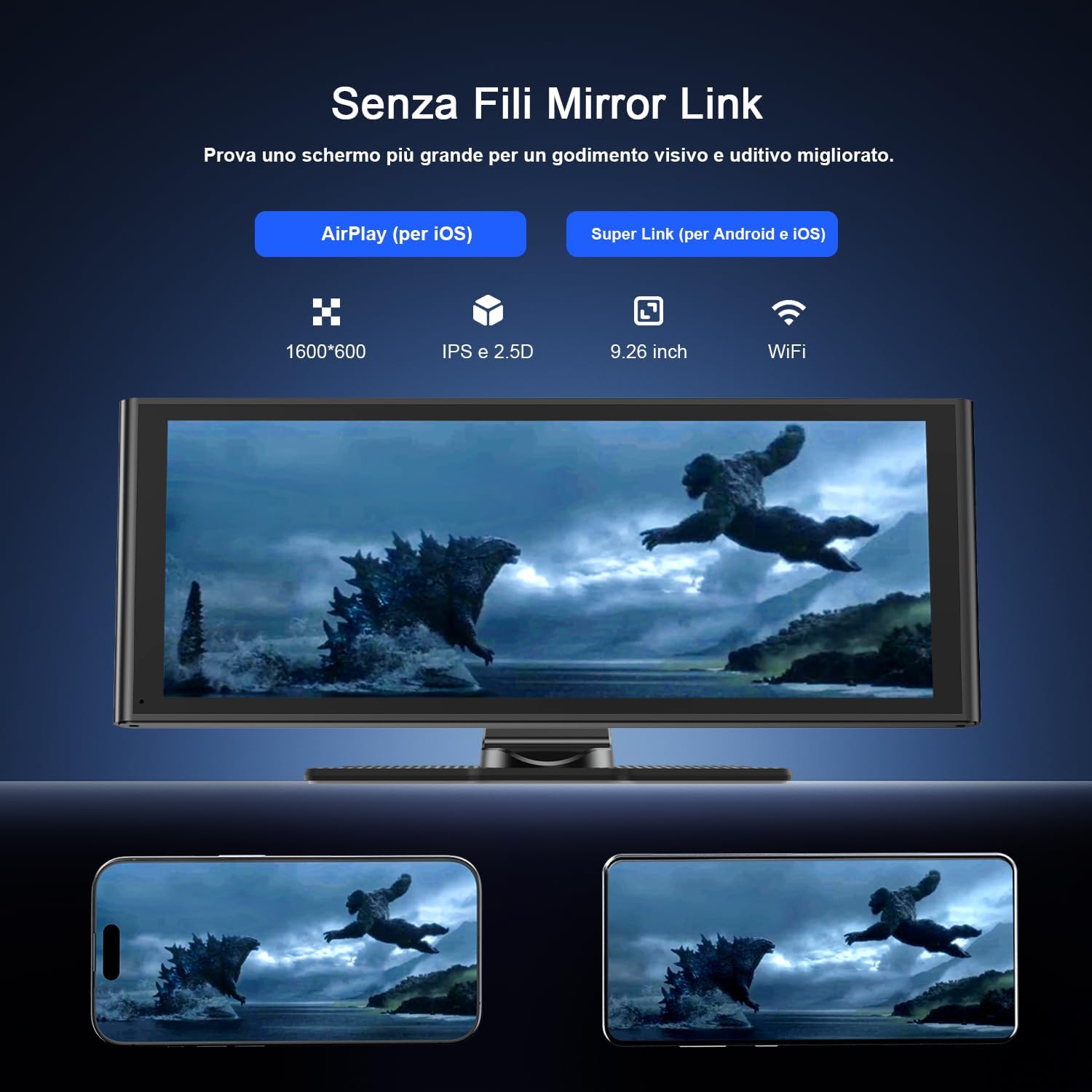
Image: The Mirror Link feature in use, displaying a smartphone's content on the Avylet screen.
Audio Output Modes
The Avylet display offers multiple audio output options:
- Built-in Speaker: For direct audio output from the unit.
- Bluetooth 5.0: Transmit audio to your car's speakers via Bluetooth (ensure your car has Bluetooth functionality).
- AUX Output: Connect via the provided AUX cable to your car's AUX input.
- FM Transmitter: Transmit audio to your car's FM radio by tuning to a specific frequency.

Image: Visual representation of the four audio output methods available on the Avylet display.
Display and Split-Screen
The 9.26-inch IPS touchscreen with 1600x600 resolution provides clear visuals. The split-screen function allows simultaneous use of multiple applications, such as navigation and music playback.
Customizable Boot Screen
You can personalize the boot screen with your preferred image (car brand, family, pets, landscapes) by contacting service@avylet.com.
Maintenance
To ensure the longevity and optimal performance of your Avylet display, follow these maintenance guidelines:
- Cleaning: Use a soft, lint-free cloth to clean the screen. Do not use abrasive cleaners or solvents.
- Temperature: Avoid exposing the device to extreme temperatures, both hot and cold.
- Storage: If storing the device for an extended period, disconnect it from power and store it in a cool, dry place.
- Cable Management: Ensure all cables are securely connected and not pinched or strained.
Troubleshooting
| Problem | Possible Cause | Solution |
|---|---|---|
| Device does not power on. | No power from cigarette lighter; loose connection. | Check the cigarette lighter socket for power. Ensure the power cable is securely plugged into both the device and the socket. |
| Wireless CarPlay/Android Auto not connecting. | Bluetooth/Wi-Fi off on phone; incorrect pairing; app not installed (Android Auto). | Ensure Bluetooth and Wi-Fi are enabled on your phone. Forget the device in your phone's Bluetooth settings and re-pair. For Android Auto, ensure the app is installed and updated. |
| No audio output. | Incorrect audio output mode selected; low volume; loose AUX cable. | Check the selected audio output mode (built-in speaker, Bluetooth, AUX, FM). Increase volume on both the device and your car stereo. Ensure AUX cable is fully inserted. For FM, verify the frequency matches. |
| Rear camera image not appearing. | Red wire not connected to reverse light; camera cable loose. | Verify the red wire from the camera is correctly connected to the vehicle's reverse light positive lead. Check all camera cable connections. |
Specifications
| Feature | Detail |
|---|---|
| Brand | Avylet |
| Manufacturer | AVYLET |
| Model | RC06HL |
| Product Dimensions | 24.7 x 9.7 x 2.4 cm; 399 grams |
| Item Model Number | RC06HL |
| Item Number | RC06HL-V2 |
| Compatible Devices | Smartphone |
| Additional Features | Android Auto, Apple CarPlay, Integrated Wi-Fi, Integrated Bluetooth, GPS Navigation |
| Included Components | 1* Extension Cable+4* Cable Ties, 1* Car Charger+1* AUX Cable+1* Plastic Pry Tool+1* Screwdriver, 1* 3M Mount+1* 3M Mount Adhesive Tape, 1* 9.26-inch Carplay Display, 1* Extension Adhesive Tape+2* Extension Mount Screws |
| Number of Items | 1 |
| Audio Output Mode | Stereo, Surround |
| Audio Output Type | Headphones, Speaker, Bluetooth, HDMI |
| Surround Configuration | 5.1 |
| Batteries Included? | No |
| Batteries Required | No |
| Connector Type | Bluetooth, Wi-Fi, AUX |
| Item Weight | 399 g |
| Software Updates Guaranteed Until | Unknown |
| ASIN | B0DM25JNBJ |
| Average Customer Review | 4.6 out of 5 stars (531 ratings) |
| Amazon Best Sellers Rank | No. 3,245 in Electronics; No. 6 in Car Stereos |
| Shipping Restrictions | This item complies with export regulations for selected countries outside the European Union. |
| Date First Available | 11 November 2024 |
| Connectivity Technology | Bluetooth, Wi-Fi, AUX |
| Controller Type | iOS, Android |
| Special Feature | Android Auto, Apple CarPlay, Integrated Wi-Fi, Integrated Bluetooth, GPS Navigation |
| Total HDMI Ports | 1 |
| Surround Sound Channel Configuration | 5.1 |
| Video Encoding | H.264, H.265/HEVC |
| Color | black |
Warranty and Support
For product support, technical assistance, or warranty inquiries, please contact Avylet customer service at service@avylet.com.
Please refer to your purchase documentation for specific warranty terms and conditions.
Related documentsRC06HL

Ask a question about this manual
Ask about setup, troubleshooting, compatibility, parts, safety, or missing instructions. Manuals+ will review the question and use this page’s manual context to help answer it.