
plimpton Kids20
plimpton 2025 Kids Tablet (Model Kids20) User Manual
Your Guide to Setup, Operation, and Care
1. Introduction
The plimpton Kids20 Tablet is designed for children, featuring a 10-inch HD IPS screen, Android 15 operating system, and robust parental controls. This manual provides essential information for setting up, operating, maintaining, and troubleshooting your tablet to ensure a safe and engaging experience for your child.
2. Getting Started
2.1 Unboxing and Package Contents
Carefully remove all items from the packaging. Verify that the following items are included:
- plimpton Kids20 Tablet (with pre-installed EVA protective case)
- Charging Cable (1.8M)
- Power Adapter
- User Manual

Image: plimpton Kids Tablet in its purple protective case, showcasing a vibrant display.
2.2 Charging the Tablet
Before first use, fully charge the tablet. Connect the charging cable to the tablet's charging port and the power adapter. Plug the adapter into a wall outlet. The battery indicator on the screen will show charging status. A full charge typically takes several hours.
2.3 Powering On/Off
- To Power On: Press and hold the Power button located on the side of the tablet until the plimpton logo appears.
- To Power Off: Press and hold the Power button, then select "Power off" from the options on the screen.
- To Restart: Press and hold the Power button, then select "Restart" from the options.
2.4 Initial Setup
Upon first power-on, follow the on-screen prompts to select your language, region, and connect to a Wi-Fi network. You will be guided through setting up a Google account, which is necessary for accessing Google Kids Space and downloading apps.
3. Key Features and Software
3.1 Android 15 Operating System
The tablet runs on an enhanced Android 15 system, offering a user-friendly interface with a focus on privacy and security. It is Google GMS certified, ensuring access to Google services.

Image: Visual representation of key Android 15 features and hardware specifications.
3.2 Google Kids Space
The tablet comes pre-installed with Google Kids Space, a dedicated mode for children aged 3 and above. This platform offers educator-endorsed apps, books, and videos, providing a safe and engaging learning environment. Content includes animal coloring, simple crafts, story listening, and puzzle games.
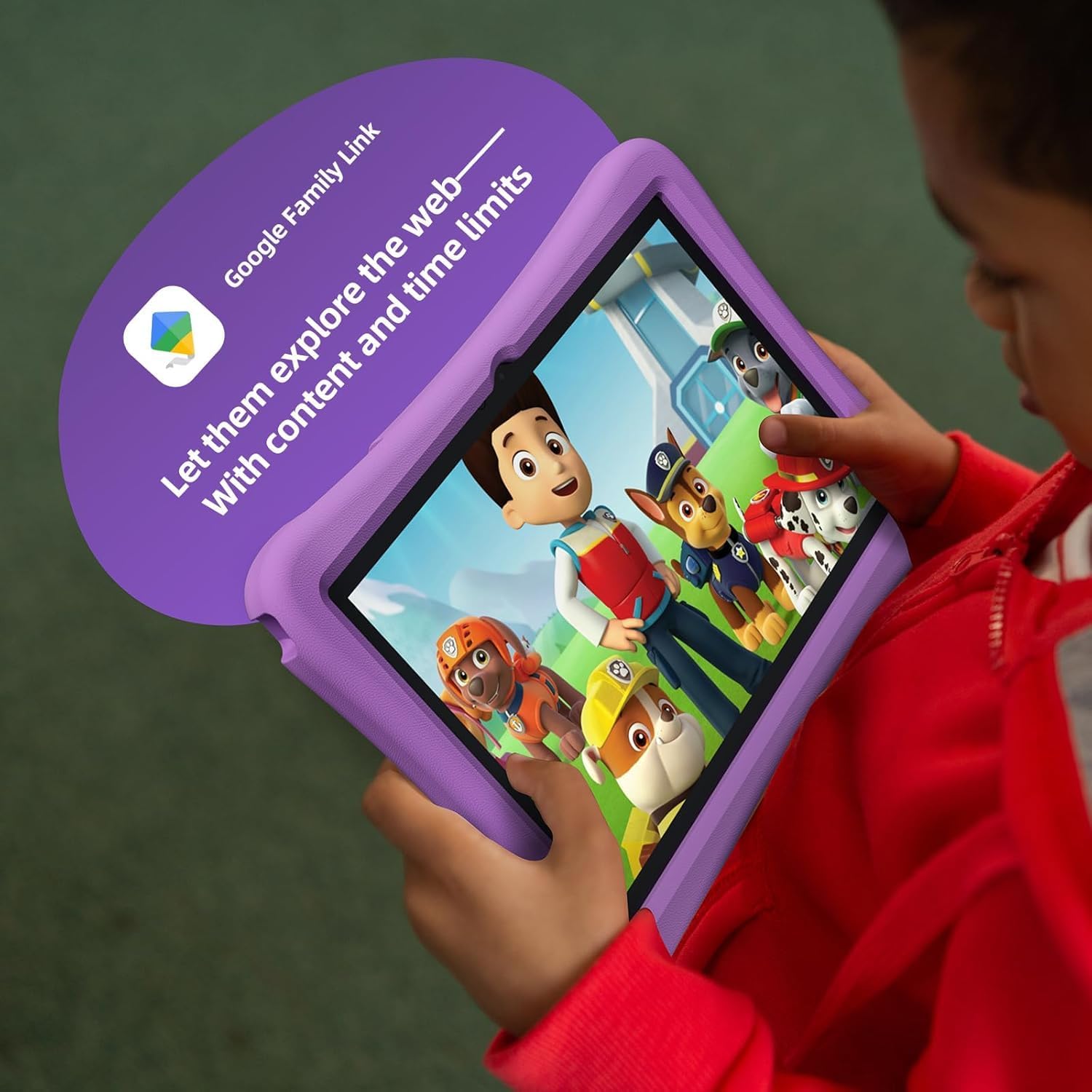
Image: A child engaging with the Google Kids Space interface on the tablet.
3.3 Parental Controls (Google Family Link)
Utilize Google Family Link to manage your child's digital experience. You can filter content, set educational targets, establish time restrictions, and monitor app usage. This feature helps create a secure online environment.

Image: Illustration of Google Family Link features for parental control and content management.
3.4 Eye Protection Mode
The 10.1-inch HD IPS glass screen features low blue light technology and an eye protection mode. Automatic brightness adjustment helps reduce eye fatigue during extended use.
3.5 Pre-installed Apps and Google Play Store
Access a wide range of applications through the Google Play Store. The tablet supports popular apps like YouTube Kids, which is customizable for various age groups.

Image: A child enjoying content on the tablet with headphones, likely using YouTube Kids.
4. Hardware Overview
4.1 Physical Buttons and Ports
Familiarize yourself with the location of the Power button, Volume buttons, USB-C charging port, and headphone jack. Refer to the diagram in the included printed manual for precise locations.

Image: Front view of the plimpton Kids Tablet in its protective case.

Image: Back view of the plimpton Kids Tablet, highlighting the integrated stand.
4.2 Protective EVA Case and Stand
The tablet is equipped with a durable, environmentally friendly EVA material protective case. This case is designed to resist drops and impacts, providing enhanced protection. The integrated 360° rotatable bracket allows for multiple viewing angles, enabling hands-free use.

Image: The durable EVA foam case designed for child safety and convenience.
5. Usage and Navigation
5.1 Basic Touch Gestures
- Tap: Select an item or open an app.
- Swipe: Navigate through screens or scroll content.
- Pinch-to-zoom: Enlarge or reduce images and web pages.
5.2 Managing Storage
The tablet has 64GB of internal storage. Storage can be expanded up to 1TB using a microSD card (sold separately). Regularly check storage usage and delete unnecessary files or apps to maintain performance.
5.3 Connecting to Wi-Fi
Go to Settings > Network & internet > Wi-Fi. Turn on Wi-Fi and select your desired network from the list. Enter the password if prompted and tap "Connect".
6. Maintenance and Care
6.1 Cleaning the Tablet
Use a soft, lint-free cloth to clean the screen and tablet body. For stubborn smudges, slightly dampen the cloth with water or a screen cleaner. Avoid harsh chemicals or abrasive materials.
6.2 Battery Care
To prolong battery life, avoid extreme temperatures. Do not leave the tablet fully discharged for extended periods. It is recommended to keep the battery level between 20% and 80% for optimal longevity.
6.3 Software Updates
Periodically check for system updates to ensure your tablet has the latest features and security patches. Go to Settings > System > System update.
7. Troubleshooting
7.1 Tablet Not Turning On
- Ensure the tablet is fully charged. Connect it to the charger for at least 30 minutes before attempting to power on again.
- Press and hold the Power button for 10-15 seconds to perform a hard reset.
7.2 Wi-Fi Connection Issues
- Verify your Wi-Fi router is working correctly.
- Restart the tablet and your Wi-Fi router.
- Forget the network in Wi-Fi settings and reconnect.
7.3 Apps Freezing or Crashing
- Close and reopen the app.
- Clear the app's cache (Settings > Apps > [App Name] > Storage & cache > Clear cache).
- If the issue persists, uninstall and reinstall the app.
7.4 Slow Performance
- Close unused apps running in the background.
- Clear cache and temporary files.
- Ensure sufficient storage space is available.
7.5 Charging Port Issues
- Ensure the charging cable is securely connected.
- Inspect the charging port for any debris. If issues persist, contact customer support.
7.6 Factory Reset
A factory reset will erase all data on the tablet and restore it to its original settings.
Warning: Back up important data before proceeding.
Go to Settings > System > Reset options > Erase all data (factory reset). Follow the on-screen instructions.
8. Specifications
| Feature | Detail |
|---|---|
| Display | 10.1-inch HD IPS (1280 x 800 pixels) |
| Processor | 2.0GHz Octa-Core (Allwinner ARM chipset) |
| Operating System | Android 15 |
| RAM | 4GB |
| Internal Storage | 64GB |
| Expandable Storage | Up to 1TB via microSD card (sold separately) |
| Battery Life | Approximately 8 hours (average use) |
| Wireless Connectivity | 802.11n Wi-Fi |
| Dimensions | 9.45 x 6.34 x 0.35 inches |
| Weight | 2.61 pounds |
| Color | Bright Purple |
9. Warranty and Support
9.1 Warranty Information
The plimpton Kids20 Tablet comes with a 2-year warranty. A 30-day worry-free return and replacement policy is also provided. Please retain your proof of purchase for warranty claims.
9.2 Customer Support
For any questions, technical assistance, or warranty claims, please contact plimpton customer service. Refer to the contact information provided in your product packaging or visit the official plimpton website for support details.
Ask a question about this manual
Ask about setup, troubleshooting, compatibility, parts, safety, or missing instructions. Manuals+ will review the question and use this page’s manual context to help answer it.