
1. Introduction
This manual provides essential information for the safe and effective operation of your Fockety Portable Handheld Inkjet Printer, Model LA50. This device is designed for versatile printing applications on various surfaces, featuring a 4.3-inch resistive touchscreen, high-resolution output, and a robust 4-core intelligent processor.

Image 1.1: The Fockety Portable Handheld Inkjet Printer with its included USB cable, stylus, and printing fixture plate.
2. Safety Information
Please read all safety instructions before operating the device to prevent injury or damage. Keep this manual for future reference.
- Do not expose the printer to water or excessive moisture.
- Use only the specified ink cartridges.
- Keep the device away from children.
- Avoid direct contact with the print head.
- Ensure proper ventilation during operation.
- Do not attempt to disassemble or repair the device yourself. Contact qualified service personnel.
3. Package Contents
Verify that all items are present in the package:
- 1 x Fockety Portable Handheld Inkjet Printer
- 1 x USB Cable
- 1 x Printing Fixture Plate
- 1 x Touch Pen
Note: An ink cartridge is not included and must be purchased separately.
4. Setup
4.1. Charging the Printer
Before first use, fully charge the printer using the provided USB Type-C cable. Connect the cable to the printer's Type-C interface and a compatible USB power adapter (not included). The battery indicator on the screen will show charging status.
4.2. Installing the Ink Cartridge
- Locate the cartridge clip design on the printer.
- Open the cartridge compartment.
- Carefully insert the compatible ink cartridge into the slot, ensuring it is seated correctly.
- Close the cartridge compartment securely.

Image 4.1: Detailed view of the inkjet synchronization wheel, metal print key, multifunctional interface, and cartridge clip design.
4.3. Powering On/Off
Press and hold the power button (usually located near the handle) to turn the printer on or off. The 4.3-inch touchscreen will illuminate upon startup.
5. Operating Instructions
5.1. Touchscreen Interface
The printer features a responsive 4.3-inch resistive touchscreen for easy navigation and input. Use the included touch pen or your finger to interact with the interface.

Image 5.1: Demonstrating interaction with the sensitive touchscreen for easy operation.
5.2. Creating Print Content
The printer supports various content types and input methods:
- Text Input: Enter Chinese or English characters using handwriting, predictive text, or USB input methods.
- Dynamic Content: Generate QR codes, barcodes, serial numbers, batch numbers, dates, and times.
- Graphics: Upload or create simple images and logos.
- Variable Data: Utilize variable database functions for sequential printing.
5.3. Adjusting Print Settings
Customize your print output through the touchscreen:
- Print Height: Adjustable from approximately 2 mm to 12.7 mm (0.08-0.5 inches).
- Print Accuracy: Select between 300-600 dpi for desired print quality.
- Language: Switch between Chinese and English interface languages.
5.4. Printing Process
To print, ensure your content is prepared and settings are adjusted. Position the printer's inkjet synchronization wheel against the surface to be printed, then press the metal print key while smoothly moving the printer across the surface. The printer will apply the ink as it rolls.

Image 5.2: The printer in action, demonstrating quick-drying print on a surface, displaying manufacturing and expiration dates.
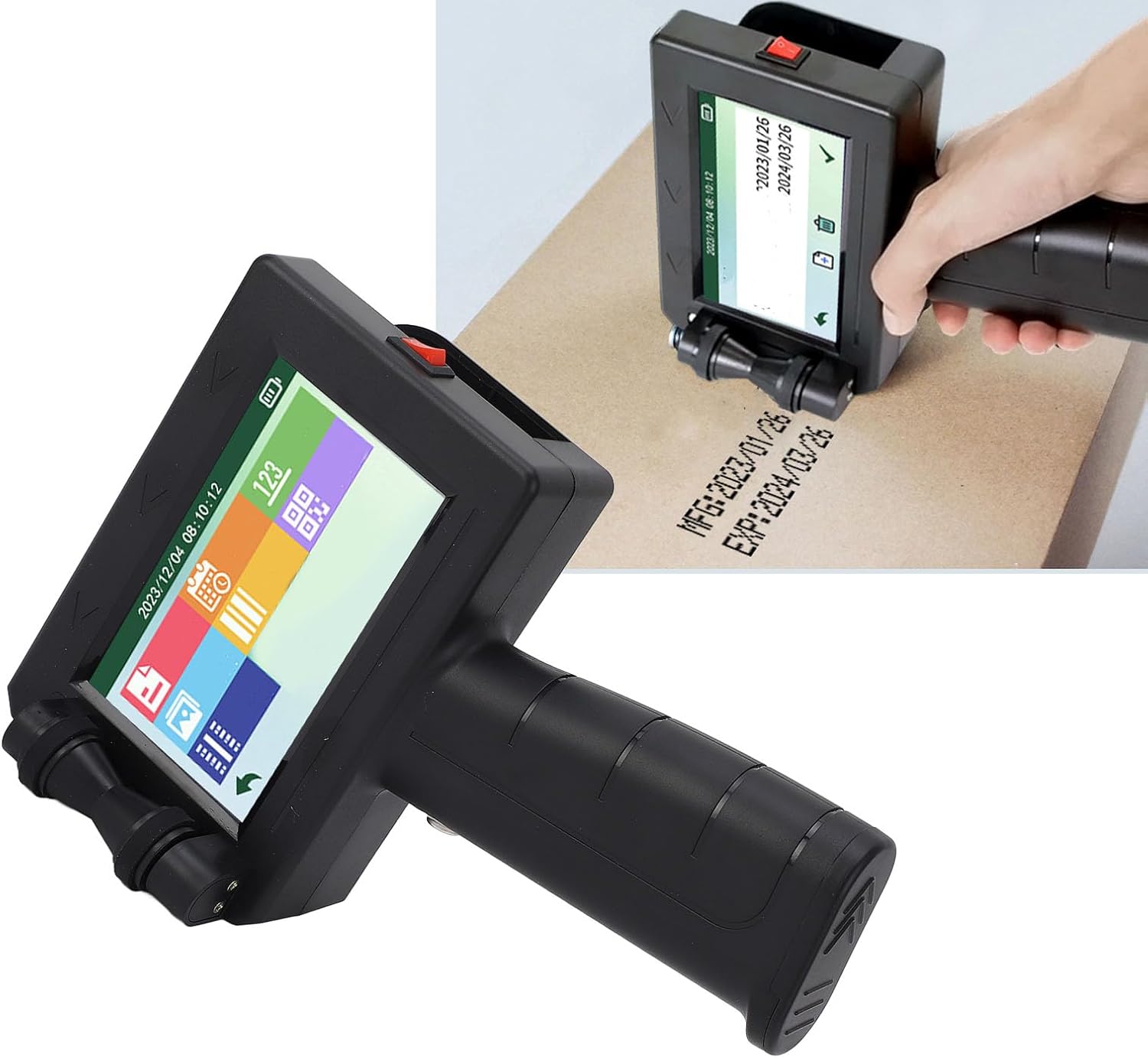
Image 5.3: The handheld printer being used to apply coding to a cardboard box.
5.5. Versatile Applications
The Fockety LA50 printer is compatible with a wide range of porous, semi-porous, and non-porous materials, including but not limited to:
- Cardboard, Wood, Fabric, Clothes, Cement
- Plastic, Metal, Aluminum, Glass, Leather, Ceramic
- Carton boxes, Polyethylene, Stone, MDF, Steel
- Tubes, Bottles, Cables, Paper, Industrial and Medical Packaging
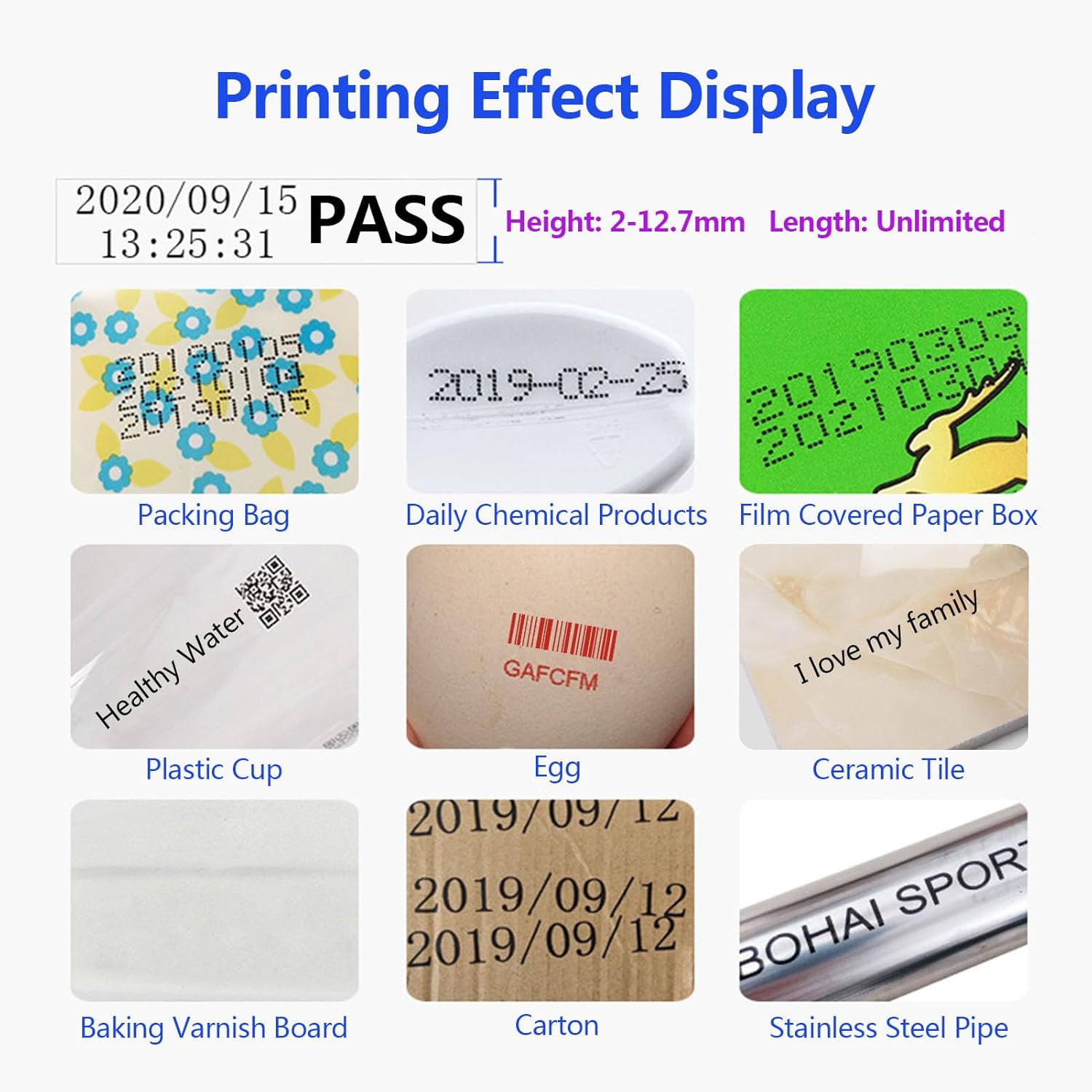
Image 5.4: Examples of printing effects on diverse materials, showcasing the printer's versatility.
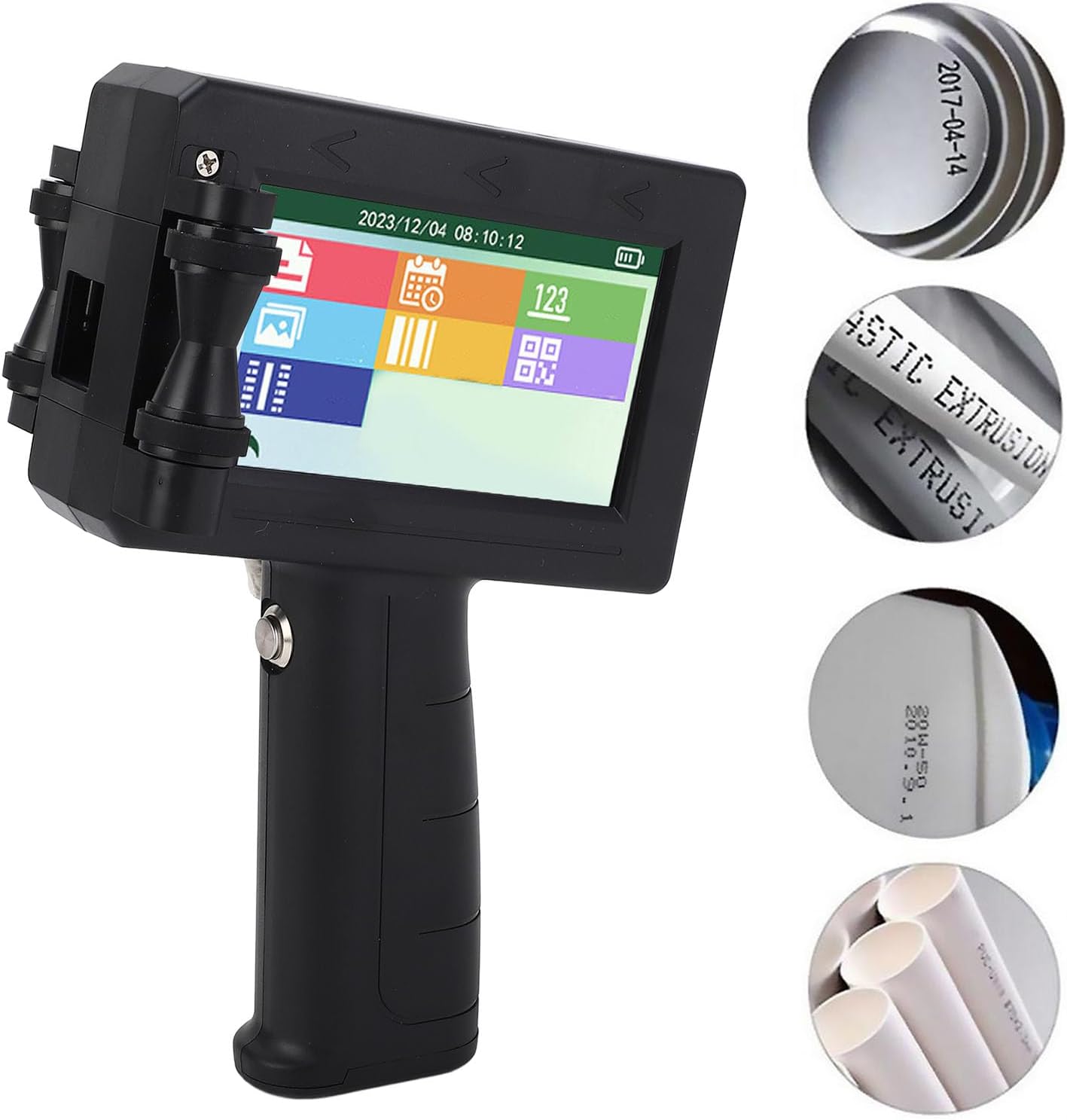
Image 5.5: The printer's capability to print on curved surfaces such as metal and plastic pipes.
6. Maintenance
6.1. Cleaning the Print Head
Regularly clean the print head with a lint-free cloth and appropriate cleaning solution (if recommended by the ink cartridge manufacturer) to ensure optimal print quality and prevent clogging. Power off the device before cleaning.
6.2. Ink Cartridge Storage
When not in use for extended periods, remove the ink cartridge and store it according to the manufacturer's instructions to prevent drying out. Ensure the print head is capped or sealed if specified.
6.3. Battery Care
To prolong battery life, avoid fully discharging the battery frequently. Store the printer in a cool, dry place when not in use.
7. Troubleshooting
This section addresses common issues you might encounter. For problems not listed here, please contact customer support.
- Poor Print Quality: Check ink cartridge level, clean the print head, ensure correct print height and accuracy settings.
- Printer Not Powering On: Ensure the battery is charged. Connect to a power source and try again.
- Touchscreen Unresponsive: Restart the device. If the issue persists, ensure the screen is clean and free of debris.
- Ink Not Drying: Verify that you are using a quick-drying ink cartridge suitable for your material. Adjust print settings if necessary.
8. Specifications
| Feature | Specification |
|---|---|
| Model | LA50 |
| Display | 4.3-inch Resistive Touchscreen |
| Print Height | 2-12.7 mm (0.08-0.5 inches) adjustable |
| Print Accuracy | 300-600 dpi adjustable |
| Inkjet Content | Text, Numbers, Symbols, Serial Numbers, QR Codes, Barcodes, Images, Time, Dates, Variable Data |
| Input Methods | Handwriting, Predictive Text, USB |
| External Interfaces | Type-C, Photoelectric interface, USB, 3.5mm interface |
| Battery | 1500 mAh Li-ion Battery |
| Operating System | Embedded RTOS |
| Dimensions (L x W x H) | 26 x 18 x 16 cm |
| Connectivity Technology | USB |
| Printing Technology | Inkjet |
9. Customer Support
For further assistance, technical support, or warranty inquiries, please refer to the contact information provided with your purchase or visit the official Fockety website.