
Introduction
Thank you for choosing the Docooler Wireless Gaming Mouse. This dual-mode 2.4G optical cordless mouse is designed for comfort and performance, featuring silent clicks, adjustable movement speeds, and vibrant LED lighting. It is ideal for various uses, from gaming to office work, providing a stable and reliable connection.

Figure 1: Docooler Wireless Gaming Mouse highlighting its 2.4G wireless connection, Nano Receiver, Type-C charging port, 650mAh lithium battery, 7-color slow flashing light, and 4-stage movement speed (800-1200-2400-3600 DPI).
This manual provides detailed instructions on how to set up, operate, maintain, and troubleshoot your new mouse to ensure optimal performance and longevity.
Package Contents
Please check the package carefully to ensure all items are present:
- 1 x Docooler Wireless Gaming Mouse
- 1 x USB Receiver
- 1 x Type-C Charging Cable
- 1 x Instruction Manual (this document)
Setup
1. Connecting the Mouse
- Locate the USB receiver, usually stored in a compartment on the underside of the mouse.
- Remove the USB receiver from its storage slot.
- Insert the USB receiver into an available USB port on your computer or laptop.
- Turn on the mouse using the power switch located on the underside. The mouse will automatically connect to the receiver. No drivers are required for installation.
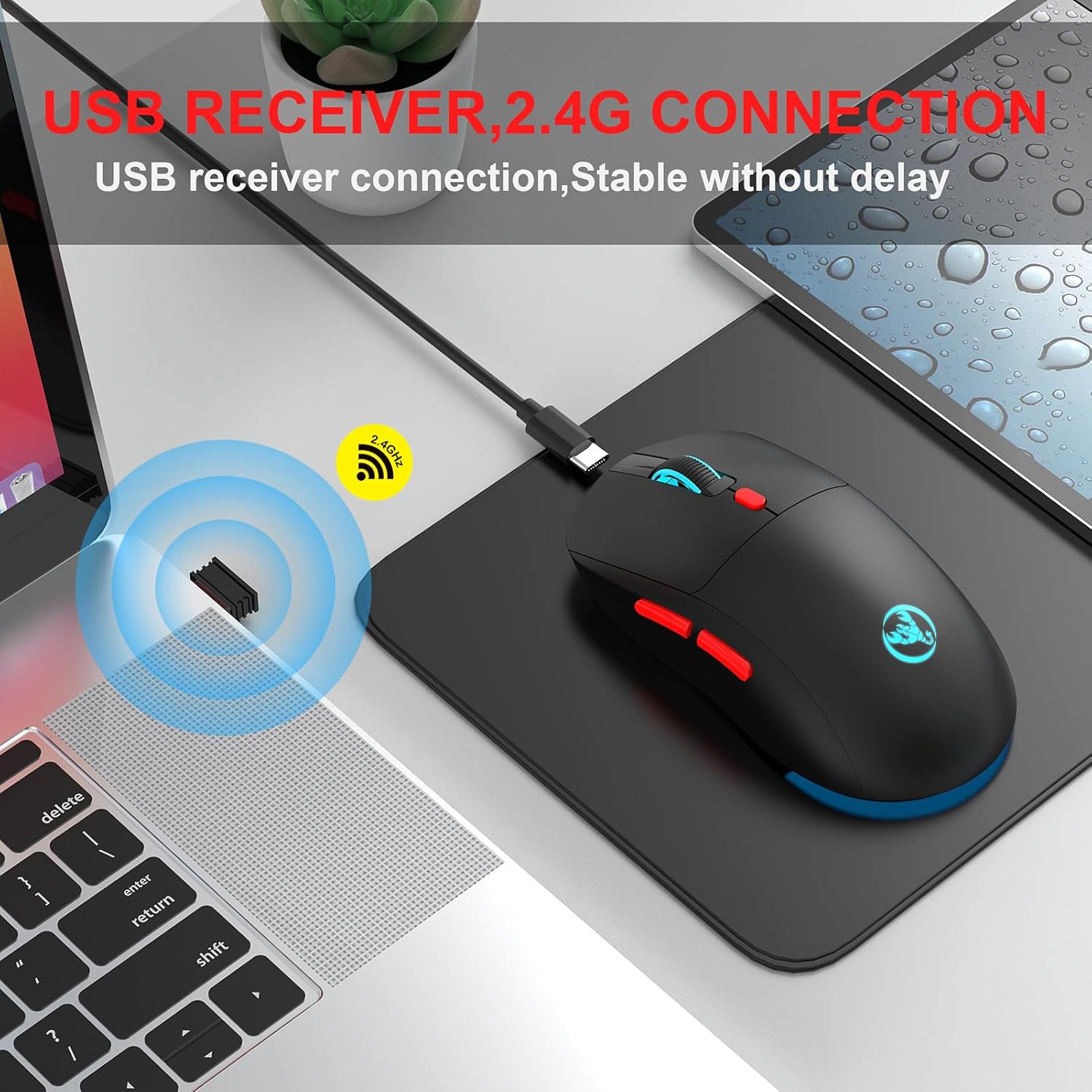
Figure 2: Illustrates the simple plug-and-play connection of the USB receiver for stable 2.4G wireless operation.
2. Charging the Mouse
The mouse is equipped with a built-in 650mAh rechargeable lithium battery. When the battery is low, the LED lights may dim or the mouse may become unresponsive.
- Connect the provided Type-C charging cable to the charging port on the front of the mouse.
- Connect the other end of the cable to a USB power source (e.g., computer USB port, USB wall adapter).
- The mouse's indicator light will show charging status (specific behavior may vary, refer to visual cues on the mouse).
- A full charge typically takes a few hours. Disconnect the cable once fully charged to preserve battery life.

Figure 3: The mouse being charged via its Type-C port, indicating its 650mAh battery capacity for long standby time.
Operating Instructions
1. Adjusting Movement Speed (DPI)
The mouse features 4 adjustable DPI levels to suit different tasks and preferences. You can switch between these levels on the fly:
- Press the DPI button (usually located behind the scroll wheel) to cycle through the available speeds: 800, 1200, 2400, and 3600 DPI.
- Each press will change the cursor sensitivity, allowing for precise control or rapid movement as needed.

Figure 4: Visual representation of the four adjustable DPI settings, suitable for both office work and gaming.
2. LED Lighting Control
The mouse features a 7-color slow flashing LED light design, adding a vibrant touch to your setup.
- The lights will cycle through 7 colors automatically.
- To save energy or if you prefer to use the mouse without lighting, press the dedicated light control button (usually located on the underside or near the DPI button) to turn the lights off. Press it again to turn them back on.

Figure 5: The mouse showcasing its colorful breathing lights, which add aesthetic appeal to your workspace.
3. Silent Clicking
This mouse is designed with silent click buttons, significantly reducing noise compared to traditional mice. This feature makes it ideal for quiet environments such as libraries, dormitories, or offices, ensuring you do not disturb others.
Maintenance
- Cleaning: Use a soft, dry cloth to clean the surface of the mouse. For stubborn dirt, a slightly damp cloth can be used, but ensure no moisture enters the internal components.
- Storage: When not in use for extended periods, store the mouse in a cool, dry place.
- Battery Care: To prolong battery life, avoid fully discharging the mouse frequently. Charge it when the low battery indicator appears. Do not expose the battery to extreme temperatures.
- Avoid Drops: Protect the mouse from drops and impacts, which can damage internal components.
Troubleshooting
| Problem | Possible Cause | Solution |
|---|---|---|
| Mouse not responding | Low battery; USB receiver disconnected; Mouse power off; Driver issue. | Charge the mouse; Re-insert USB receiver; Turn on mouse; Try a different USB port; Restart computer. |
| Cursor movement is erratic or jumpy | Dirty optical sensor; Uneven surface; Interference. | Clean the optical sensor with a soft cloth; Use on a clean, flat mouse pad; Move closer to the receiver or away from other wireless devices. |
| LED lights not working | Lights turned off; Low battery. | Press the light control button; Charge the mouse. |
| Connection frequently drops | Distance from receiver; Interference; Low battery. | Ensure mouse is within 10 meters of receiver; Reduce interference from other 2.4G devices; Charge the mouse. |
Specifications

Figure 6: Details of the PAW-3212 sensor, highlighting its tracking capabilities and performance metrics.
| Feature | Detail |
|---|---|
| Model | T20 |
| Connectivity | 2.4G Wireless (USB Receiver) |
| Sensor | PAW3212 Optical Sensor |
| Movement Speeds (DPI) | 800 / 1200 / 2400 / 3600 (Adjustable) |
| Number of Keys | 6 keys |
| Battery | 650mAh Rechargeable Lithium Battery |
| Charging Port | Type-C |
| Lighting | 7-Color Slow Flashing LED Light |
| Silent Click | Yes |
| Working Distance | Up to 10 meters |
| Item Size | 12.4 * 6.3 * 4 cm (4.88 * 2.48 * 1.57 in) |
| Item Weight | 88g (3.1oz) |
| Color | White (as per current variant) |

Figure 7: Detailed dimensions of the Docooler Wireless Gaming Mouse.
Warranty and Support
Docooler products are manufactured to high quality standards. For any issues or support inquiries, please refer to the seller's return policy or contact Docooler customer service through the platform where the product was purchased. Please retain your proof of purchase for warranty claims.