
1. Product Overview
The OMOTON Wireless Bluetooth Keyboard is designed to enhance the functionality of your Microsoft Surface Pro device, providing a comfortable typing experience with a responsive touchpad and customizable backlighting. This ultra-slim and lightweight keyboard connects wirelessly via Bluetooth and features a built-in rechargeable battery.
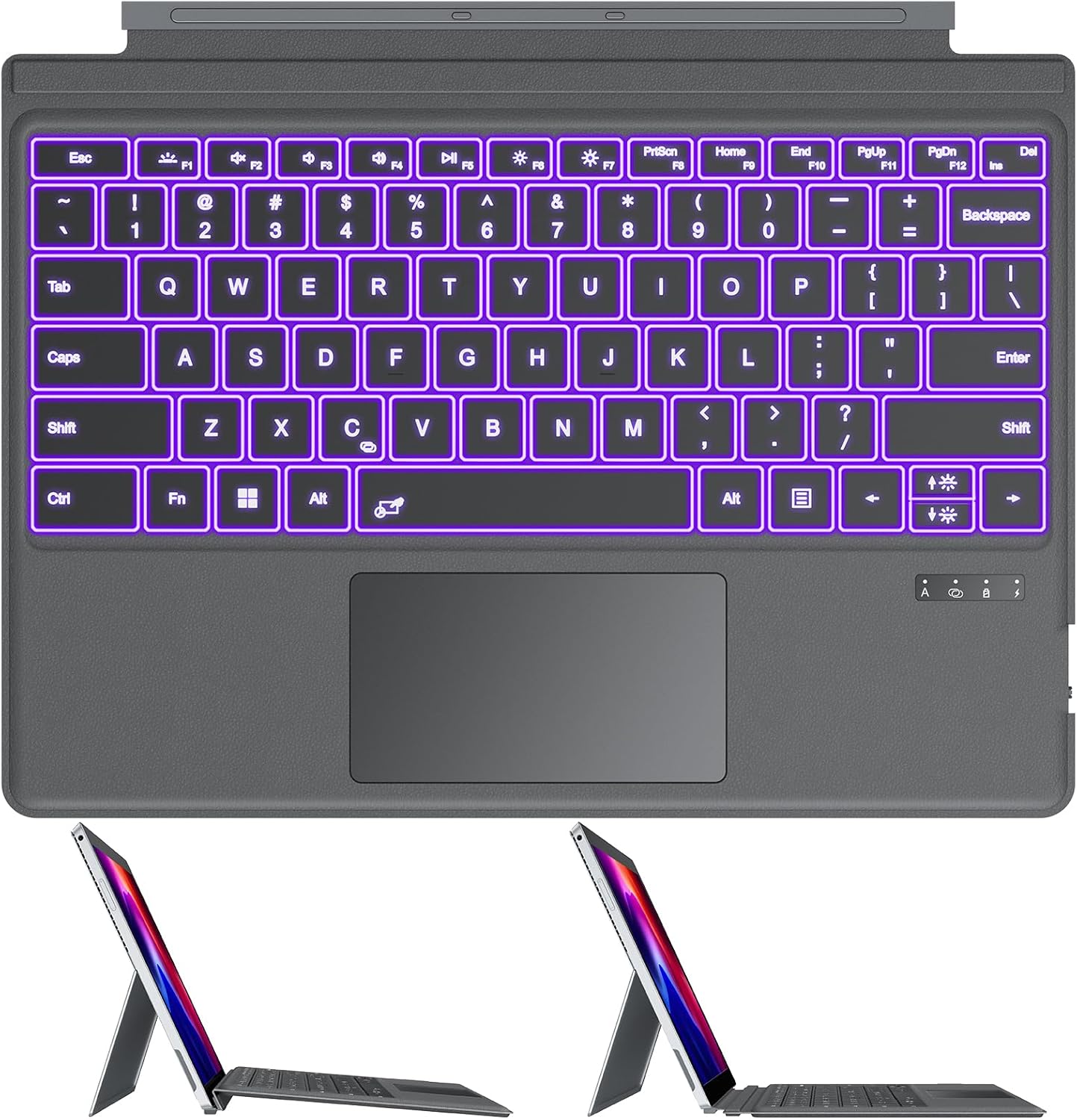
Image: Front view of the OMOTON keyboard with purple backlighting, along with two side profiles showing the keyboard attached to a Surface Pro at different angles.
2. Compatibility
This keyboard is specifically designed for Microsoft Surface Pro models with a 12.3-inch screen. Please verify your device model before use.
- Compatible Models: Surface Pro 7, Surface Pro 7+, Surface Pro 6, Surface Pro 5, Surface Pro 4, Surface Pro 3 (all 12.3 inch models).
- NOT Compatible With: Surface Pro 11/10/9/8/X (13 inch), Surface Go 4/3/2, Surface Go 1, Surface Book, and other models.
To confirm your device's model, navigate to Settings > System > About on your Surface Pro.

Image: A visual guide indicating compatibility with 12.3-inch Surface Pro models (Pro 7/7+/6/5/4/3) and explicitly stating non-compatibility with 13-inch, 10.5-inch, and 10-inch Surface devices.
3. Setup and Connection
3.1 Bluetooth Connection
Follow these steps to connect your OMOTON keyboard to your Surface Pro via Bluetooth:
- Activate Keyboard Bluetooth: Press the Fn + C keys simultaneously for 1-3 seconds to turn on the keyboard's Bluetooth. The Bluetooth indicator light on the keyboard will begin to flash, indicating it is in pairing mode.
- Open Surface Settings: On your Surface Pro, open the "Settings" application.
- Navigate to Bluetooth & Devices: In Settings, select "Bluetooth & devices".
- Enable Bluetooth: Ensure the Bluetooth toggle is set to "ON".
- Add a Device: Click on "Add a device".
- Select Bluetooth: Choose "Bluetooth" from the options.
- Select "Bluetooth Keyboard": From the list of available devices, select "Bluetooth Keyboard".
- Confirm Connection: Once connected, the indicator light on the keyboard will stop flashing, and your Surface Pro will show the keyboard as paired. Click "Done" to complete the process.

Image: A step-by-step visual representation of the Bluetooth connection process, from activating the keyboard's Bluetooth to pairing it with the Surface Pro.
3.2 Magnetic Attachment
The keyboard features a magnetic strip designed to securely attach to your Surface Pro, allowing for two adjustable typing angles. This magnetic connection is solely for physical stability and angle adjustment; it does not charge or connect the keyboard to the tablet electrically.

Image: Illustration of the two typing angles achievable by attaching the keyboard to the Surface Pro using its magnetic strip.
4. Operating Instructions
4.1 Backlight Control
The keyboard features 7 colors of backlighting and 3 brightness levels for comfortable typing in various lighting conditions.
- Change Backlight Color: Press Fn + ⌘ (the key with the lightbulb icon) to cycle through the 7 available backlight colors.
- Adjust Brightness: Press Fn + F7 to adjust the brightness levels. There are three levels of brightness to choose from.

Image: Visual instructions for changing backlight colors and adjusting brightness levels on the keyboard.
4.2 Touchpad Usage
The integrated multi-touch trackpad supports various gestures for quick and efficient operations, providing a comfortable typing experience with responsive feedback.
- Left Click: Single tap with one finger.
- Right Click: Tap with two fingers.
- Move Cursor: Slide one finger across the touchpad.
- Scroll: Move two fingers vertically or horizontally.
- Zoom In/Out: Point two fingers outward/inward.
- Open Activity Center: Four-finger tap.
- Search: Three-finger tap.
- Open All Task Windows: Three fingers moving up.
- Back to Desktop: Three fingers down.
- Toggle Active Windows: Swipe left/right with three fingers.

Image: A comprehensive guide to multi-finger gestures supported by the touchpad, including actions like moving the cursor, scrolling, zooming, and opening system functions.
5. Charging and Battery
The keyboard is equipped with a built-in 750mAh rechargeable battery.
- Charging Time: Approximately 2-3 hours for a full charge.
- Continuous Work Time: Up to 50 hours of uninterrupted use on a single charge.
- Charging Cable: A Type-C charging cable is included for convenient charging.
Connect the provided Type-C cable to the charging port on the keyboard and a suitable USB power source.

Image: Details on the keyboard's battery capacity, charging duration, and operational time, along with an illustration of the Type-C charging port.
6. Maintenance
To ensure the longevity and optimal performance of your OMOTON keyboard, follow these maintenance guidelines:
- Cleaning: Use a soft, dry, lint-free cloth to wipe the surface of the keyboard. For stubborn dirt, slightly dampen the cloth with water or a mild, non-abrasive cleaner. Avoid excessive moisture.
- Storage: Store the keyboard in a cool, dry place away from direct sunlight and extreme temperatures.
- Avoid Liquids: Do not expose the keyboard to liquids. In case of spills, immediately disconnect it and allow it to dry completely before reuse.
- Handle with Care: Avoid dropping the keyboard or subjecting it to strong impacts.
7. Troubleshooting
If you encounter issues with your OMOTON keyboard, refer to the following common solutions:
- Keyboard Not Connecting/Lagging:
- Ensure the keyboard is charged. Low battery can affect Bluetooth performance.
- Re-pair the keyboard: Go to your Surface Pro's Bluetooth settings, forget the "Bluetooth Keyboard" device, and then follow the connection steps in Section 3.1.
- Ensure Bluetooth is enabled on your Surface Pro.
- Restart both your Surface Pro and the keyboard.
- Ensure no other Bluetooth devices are causing interference.
- Keys Not Responding:
- Check battery level.
- Ensure the keyboard is properly connected via Bluetooth.
- Clean around the affected keys to remove any debris.
- Backlight Not Working:
- Ensure the keyboard is charged.
- Try pressing Fn + ⌘ and Fn + F7 to cycle through colors and brightness levels.
8. Specifications
| Feature | Detail |
|---|---|
| Product Dimensions | 11.57 x 8.54 x 0.26 inches |
| Item Weight | 1.15 pounds |
| Manufacturer | OMOTON |
| Batteries | 1 Lithium Polymer battery (included) |
| Compatible Devices | Surface Pro 7/Pro 7+ /Pro 6 /Pro 5 /Pro 4 /Pro 3 (12.3 inch) |
| Connectivity Technology | Bluetooth |
| Keyboard Description | Touchpad, Multimedia |
| Special Feature | 7 Colors Backlit, Trackpad |
| Color | Grey |
| Keyboard Backlighting Color Support | RGB |
| Material | Polycarbonate |
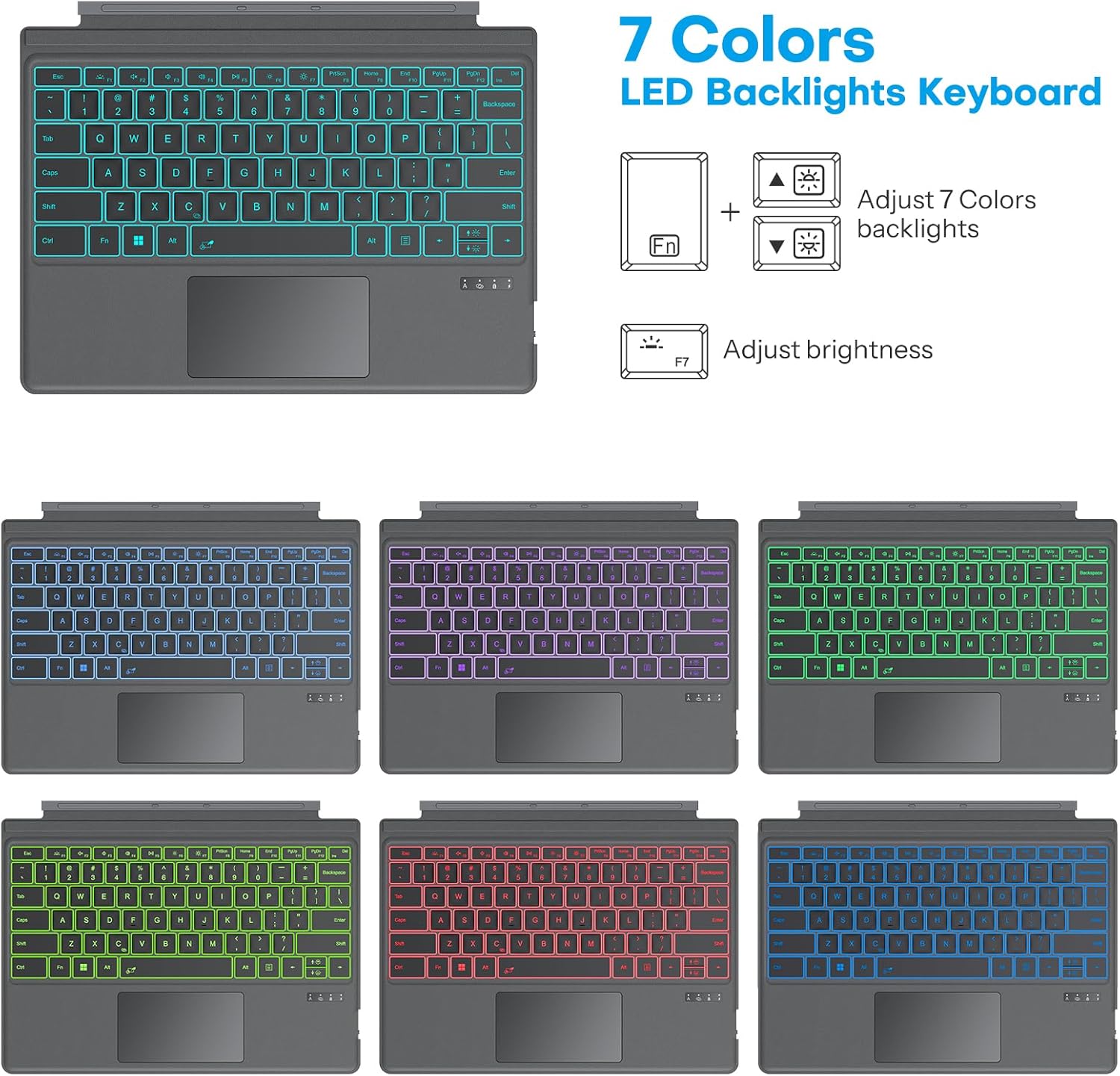
Image: A visual representation of the keyboard's dimensions, highlighting its ultra-slim and lightweight profile.
9. What's in the Box
Upon unboxing your OMOTON Keyboard, you should find the following items:
- 1 x OMOTON Wireless Bluetooth Keyboard
- 1 x Type-C Charging Cable
- 1 x User Manual (this document)
10. Warranty and Support
For warranty information, technical support, or any inquiries regarding your OMOTON product, please refer to the official OMOTON website or contact their customer service directly. You can also visit the OMOTON Store on Amazon for more information and support resources.


