
Introduction
This manual provides detailed instructions for the installation, operation, and maintenance of your SIXTOP Double Din Car Stereo. Please read this manual thoroughly before using the product to ensure proper function and safety. Keep this manual for future reference.
1. Setup
1.1 Package Contents
Verify that all items are present in the package:
- SIXTOP Double Din Car Stereo Unit
- Universal Bare Wire Harness
- Rear View Camera
- Remote Control
- Microphone (MIC)
- Camera Cable
- Antenna Head
- User Manual (this document)
- 2 Din Frame

Image: Overview of the SIXTOP Double Din Car Stereo package contents, showing the main unit, remote control, rear camera, various cables (camera, horn, power), antenna head, microphone, user manual, and 2 Din frame.
1.2 Dimensions and Installation
The universal 7-inch dual din radio is designed to fit most cars. Before installation, measure your car's center console to ensure compatibility.
- Screen Size: 178mm (L) x 100mm (H) / 7.0 inches (L) x 4.0 inches (H)
- Installation Size: 178mm (L) x 100mm (H) x 70mm (D)
A frame is included to assist with fitting the unit into your car's dashboard opening.

Image: Detailed diagram showing the dimensions of the car stereo unit (178mm x 100mm x 70mm) and a visual list of accessories such as the remote, rear camera, microphone, and various cables.
1.3 Wiring Diagram
Connect the universal bare wire harness according to your vehicle's wiring. It is recommended to consult a professional for installation if you are unfamiliar with car audio wiring.

Image: Comprehensive wiring diagram illustrating connections for the car stereo, including speaker outputs (Purple, Grey, White, Green wires), power connections (+12V, ACC, Ground), steering wheel control, and the rear camera input.
1.4 Rear Camera Installation
The included waterproof 12 LED rear view camera provides a clear reversing image. Install the camera on your license plate holder or a suitable location at the rear of your vehicle.
- Connect the camera's video output cable to the 'CAMIN' input on the stereo unit.
- Connect the camera's power cable to the vehicle's reversing light power source (positive pole) and ground (negative pole).
- Connect the reversing control wire (marked 'Back' on the power cord) to the positive pole of the reversing light. This enables automatic switching to the camera view when reversing.

Image: The car stereo display showing the rear view camera feed with colored parking assist lines, indicating the camera's functionality during reversing.
2. Operating Instructions
2.1 Wireless CarPlay / Android Auto
This unit supports both wired and wireless CarPlay for iPhone and Android Auto for Android phones.
- Ensure your phone's Bluetooth is enabled.
- Connect your phone to the stereo via Bluetooth or USB cable.
- Select the 'Carplay' or 'Android Auto' application on the stereo's touchscreen.
- The stereo will synchronize your phone's messages, calls, navigation, and music applications.
- Voice assistant control is supported.

Image: The car stereo screen displaying both Apple CarPlay (left) and Android Auto (right) interfaces, showing various compatible applications like maps, music, and messaging.
2.2 Mirror Link Function
The Mirror Link function allows you to project your iPhone or Android phone screen onto the stereo display via a wired USB connection.
- Connect your phone to the stereo using a USB cable.
- Select the 'Phonelink' application on the stereo.
- Your phone's screen content will be mirrored on the stereo, allowing for real-time viewing of videos or navigation.

Image: A smartphone screen displaying a car racing game is mirrored onto the car stereo's display via a wired connection, demonstrating the Mirror Link feature.
2.3 FM Radio Operation
Access FM radio to listen to broadcasts, news, and weather information.
- Select the 'Radio' application from the main menu.
- Use the scan function to find available stations or manually tune to a frequency.
- Save your favorite stations to preset buttons for quick access.
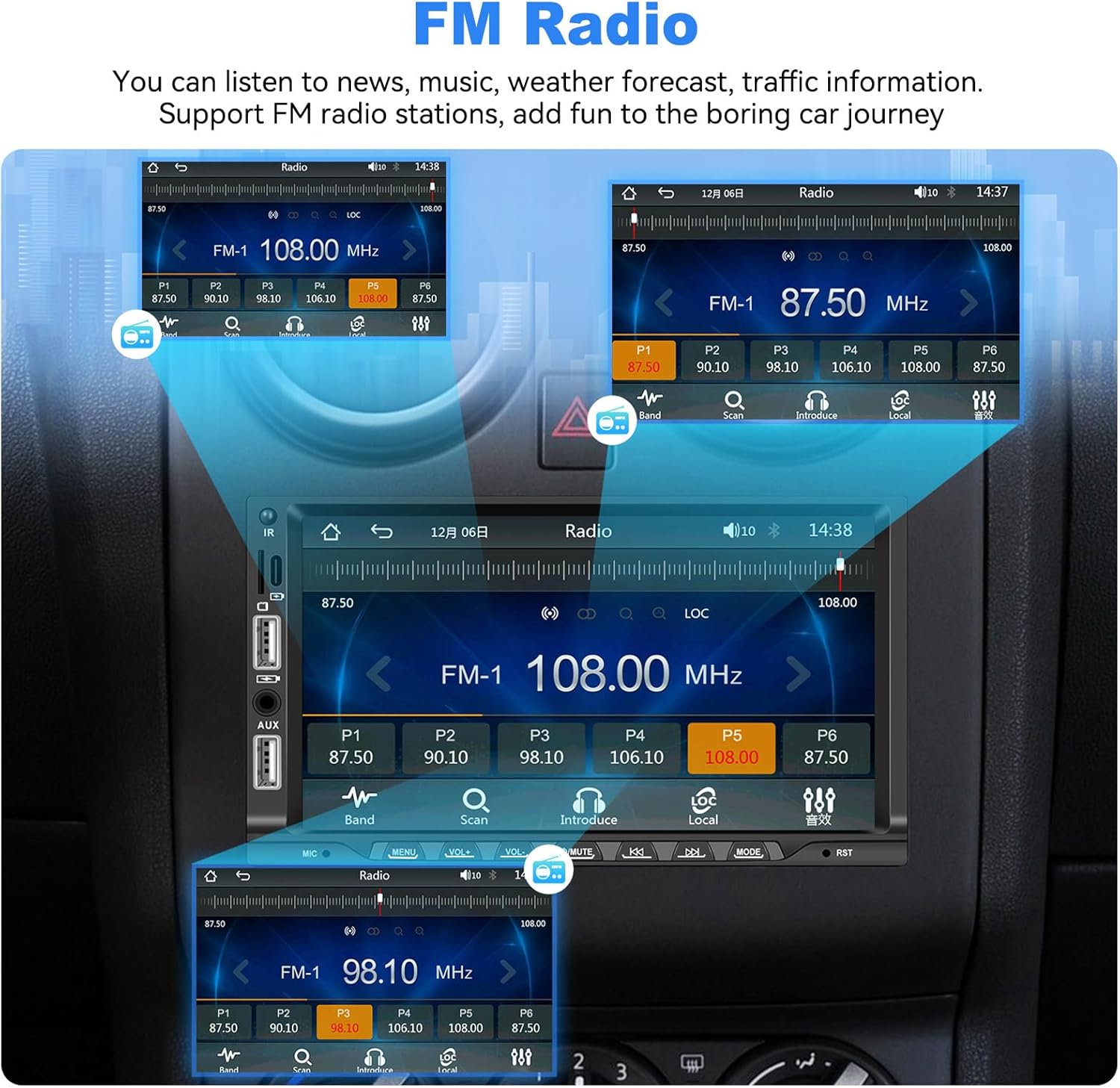
Image: The car stereo display showing the FM radio interface with frequency display, scan options, and multiple preset buttons for storing radio stations.
2.4 Bluetooth 5.1 Connectivity
The built-in Bluetooth 5.1 module supports hands-free calls and music playback.
- Enable Bluetooth on your mobile phone and search for the stereo unit.
- Pair your phone with the stereo.
- Once connected, you can make/receive calls, play music, and access your phone book directly from the stereo.

Image: The car stereo display showing the Bluetooth interface, including a dial pad for making calls, contact list access, and controls for Bluetooth music playback.
2.5 Steering Wheel Control (SWC)
Control the car audio functions using your vehicle's steering wheel buttons for convenience and safety.
- Access the 'Steering Wheel Control' settings in the stereo's menu.
- Follow the on-screen instructions to program your steering wheel buttons to control functions like volume, track skipping, and mode selection.
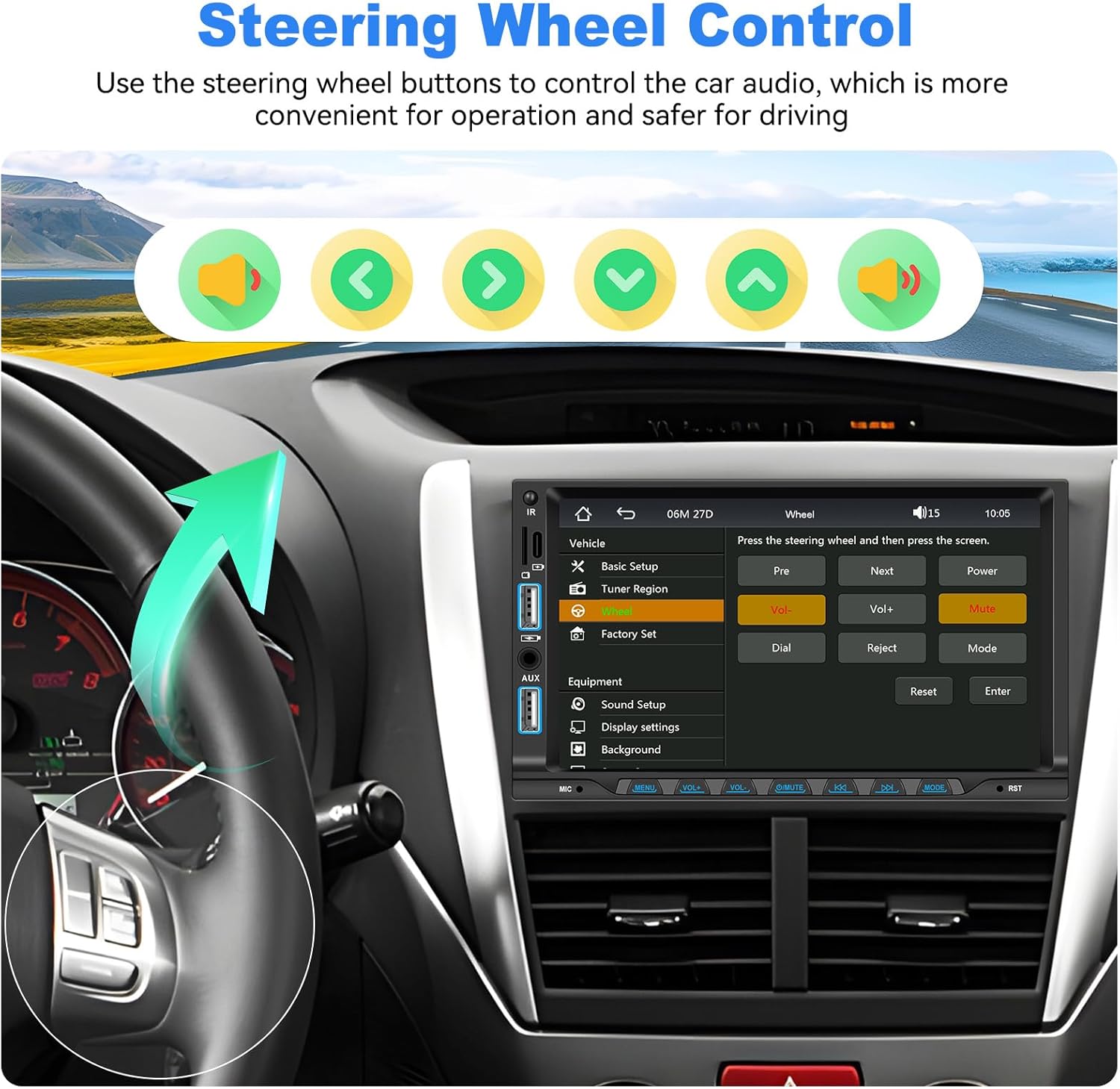
Image: The car stereo screen displaying the Steering Wheel Control setup menu, where users can assign functions to their vehicle's steering wheel buttons.
2.6 Audio Equalizer (EQ) Adjustment
Adjust sound effects and balance speaker volume to customize your audio experience.
- Navigate to the 'Sound Setup' or 'EQ' menu.
- Adjust settings for bass, treble, and balance (front/rear, left/right) to suit your preferences.
2.7 USB Ports & TF/AUX Input
The unit features USB ports, a TF card slot, and an AUX input for various media playback and phone charging.
- USB Input: Supports media playback from USB drives and phone charging.
- TF Card Slot: Supports media playback from TF (MicroSD) cards.
- AUX Input: Connect external audio devices via a 3.5mm audio cable.

Image: Visual representation of the USB, TF card, and AUX input options, along with an illustration of a phone being charged via USB.
2.8 Colorful Button Lights
Customize the aesthetic of your car stereo by selecting from seven different button backlight colors.
- Access the 'Display Settings' or 'Button Light' menu.
- Choose your preferred color to match your car's interior or personal style.
3. Maintenance
3.1 Cleaning the Unit
To maintain the clarity of the touchscreen and the overall appearance of the unit:
- Use a soft, dry, lint-free cloth to wipe the screen and exterior surfaces.
- For stubborn smudges, lightly dampen the cloth with water or a screen-safe cleaner.
- Avoid using abrasive cleaners, solvents, or harsh chemicals, as these can damage the screen and finish.
3.2 Software Updates
Periodically check the manufacturer's website or contact customer support for information on available software updates. Updates can improve performance, add new features, or fix bugs.
4. Troubleshooting
If you encounter issues with your car stereo, refer to the following common problems and solutions:
| Problem | Possible Cause | Solution |
|---|---|---|
| No power | Incorrect wiring; Blown fuse; Vehicle battery issue | Check power connections (B+, ACC, GND). Verify vehicle fuses. Ensure vehicle battery is charged. |
| No sound | Speaker wiring incorrect; Volume too low; Mute function active | Check speaker connections. Increase volume. Deactivate mute. Check EQ settings. |
| Screen unresponsive or unclear | Software glitch; Screen protector interference; Low contrast setting | Restart the unit. Ensure screen is clean. Adjust brightness/contrast in settings. |
| CarPlay/Android Auto not connecting | Bluetooth/USB connection issue; Phone compatibility; App not updated | Ensure Bluetooth is on and paired. Try a different USB cable. Update phone OS and CarPlay/Android Auto apps. |
| Rear camera not displaying | Camera wiring incorrect; 'Back' trigger wire not connected | Verify camera power and video connections. Ensure the 'Back' wire is correctly connected to the reversing light. |
If the problem persists after attempting these solutions, please contact customer support.
5. Specifications
- Model Number: 202205
- Brand: SIXTOP
- Screen Size: 7 inches
- Installation Size: 178mm x 100mm x 70mm
- Connectivity Technology: Bluetooth 5.1, USB Type A, USB Type-C, TF Card, AUX Input
- Special Features: Built-In Bluetooth, FM Tuner, Music Streaming, Rear View Camera Input, Wireless CarPlay and Android Auto, Wired Mirror Link, EQ Adjustment, Colorful Button Lights, Steering Wheel Control
- Compatible Devices: Smartphone
- Audio Output Mode: Stereo
- Surround Sound Channel Configuration: 4.0
- Output Power: 180 Watts (45 Watts per channel)
- Video Encoding Support: MKV, AVI, TS, TP, MP4, M4V
- Audio Format Support: AVI, WAV, WMA
- Control Method: Touchscreen
- Country of Origin: China
6. Warranty Information
This SIXTOP Double Din Car Stereo comes with a 1-Year Warranty from the date of purchase. This warranty covers manufacturing defects and malfunctions under normal use. Please retain your proof of purchase for warranty claims. For detailed warranty terms and conditions, refer to the product packaging or contact customer support.
7. Customer Support
For technical assistance, troubleshooting, or warranty inquiries, please contact SIXTOP customer support:
- Manufacturer Contact: xinshunhang
- Online Support Email: SIXTOP123@163.com
You can also visit the SIXTOP store on Amazon or use the 'Ask a question' feature on the product page for direct assistance.


Image: Visuals indicating various support options including email contact, steps to ask a question on Amazon, and key support benefits like 24/7 response and lifetime technical support.

