1. Introduction
This manual provides detailed instructions for the installation, operation, and maintenance of your Jansite 4K WiFi Rear View Mirror Dash Camera. Please read this manual thoroughly before using the product to ensure proper function and safety. Keep this manual for future reference.
2. Package Contents
Please check the package contents upon unboxing. If any items are missing or damaged, contact customer support.
- Jansite 4K Rear View Mirror Dash Camera (Main Unit)
- Rear Camera
- 6M Extension Cord for Rear Camera
- Car Charger (12V Cigarette Lighter Adapter)
- 64GB TF Card
- User Manual

Image 2.1: Contents of the Jansite 4K WiFi Rear View Mirror Dash Camera package, including the main mirror unit, rear camera, cables, car charger, and 64GB TF card.

Image 2.2: Visual representation of the mirror dash cam's dimensions (approximately 10 inches) and the various components included in the box, such as the 64G card, 6M extension cord, rear camera, and car charger.
3. Product Overview
The Jansite 4K WiFi Rear View Mirror Dash Camera integrates a front-facing camera, a rear-facing camera, and a touch screen display into a single unit designed to replace or clip over your existing rearview mirror. It offers advanced features for comprehensive driving recording and safety.
Key Features:
- 4K UHD Front Camera: Captures high-resolution video of the road ahead.
- 1080P Rear Camera: Records the view behind your vehicle and assists with reversing.
- WDR Technology: Wide Dynamic Range for balanced exposure in varying light conditions.
- Super Night Vision: Enhanced clarity for low-light driving.
- WiFi Connectivity: Allows seamless connection to a mobile application for video management.
- Loop Recording: Continuously records by overwriting the oldest files.
- G-Sensor: Automatically locks video files upon detecting sudden impacts or collisions.
- 24H Parking Monitor: Records incidents when parked (requires separate hardware kit).
- 10-inch Touch Screen: Intuitive interface for easy operation.
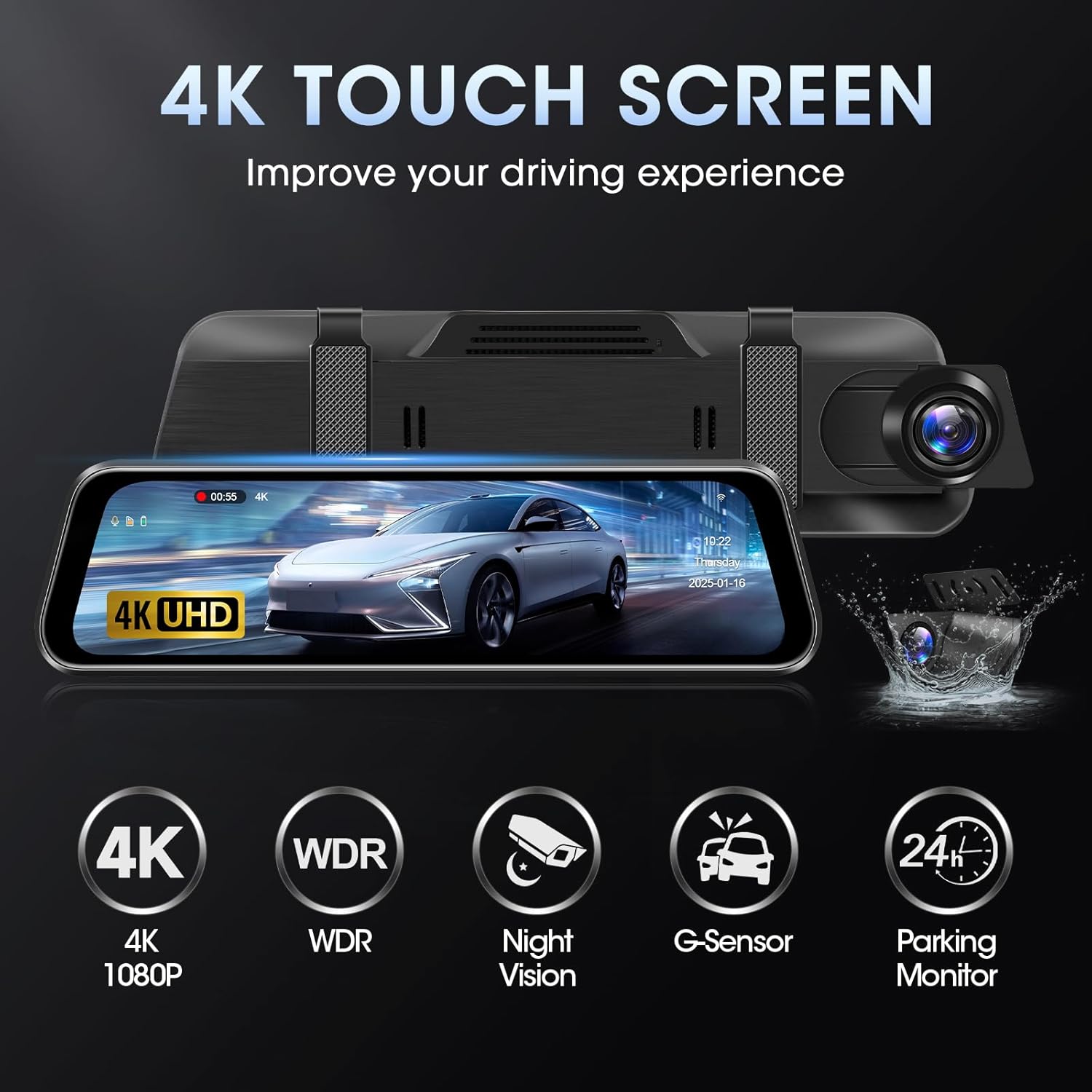
Image 3.1: The 10-inch touch screen mirror dash cam highlighting its main features: 4K/1080P recording, WDR, Night Vision, G-Sensor, and Parking Monitor.
4. Installation
Follow these steps to properly install your Jansite Mirror Dash Camera.
4.1 Mounting the Main Unit
- Secure the mirror dash cam over your existing rearview mirror using the included rubber straps. Ensure it is firmly attached and does not obstruct your view.
- Adjust the front camera lens to capture the desired view of the road ahead.
4.2 Installing the Rear Camera
- Mount the rear camera on the exterior rear of your vehicle, typically above the license plate, using the provided adhesive or screws. Ensure the camera has a clear view and is centered.
- Route the rear camera's extension cable from the rear of the vehicle to the main mirror unit. Conceal the cable along the vehicle's headliner and A-pillars for a neat installation.
- Connect the rear camera cable to the designated port on the main mirror unit.
4.3 Power Connection
- Insert the 64GB TF card into the designated slot on the main unit.
- Connect the car charger to the Type-C power input on the mirror dash cam.
- Plug the other end of the car charger into your vehicle's 12V cigarette lighter socket.
- Start your vehicle. The dash cam should power on automatically and begin recording.
Note: The mirror dash cam is powered by a 12V cigarette lighter. If the device fails to boot or the screen restarts, please check if the car voltage is within the normal range. If the car charger is damaged, contact customer support for a replacement.
5. Operation
The Jansite Mirror Dash Camera features a user-friendly touch screen interface for easy control.
5.1 Basic Functions
- Power On/Off: The device typically powers on and off with your vehicle's ignition. You can also manually power it on/off using the power button.
- Recording: Recording starts automatically when the device powers on. A red indicator usually signifies active recording.
- Display Modes: Swipe left or right on the screen to switch between front camera view, rear camera view, or dual-camera split view.
- Screen On/Off: Press the power button briefly to turn the screen off while recording continues in the background. Tap the screen to turn it back on.

Image 5.1: A hand demonstrating interaction with the touch screen interface of the mirror dash cam.
5.2 Reversing Aid Line
When the vehicle is shifted into reverse, the display will automatically switch to the rear camera view, showing dynamic parking assist lines to help with safe parking. Ensure the rear camera is correctly connected for this feature to function.

Image 5.2: The mirror dash cam displaying the rear camera feed with green, yellow, and red reversing aid lines, assisting with parking maneuvers.
6. Settings
Access the settings menu by tapping the gear icon on the touch screen. Here you can configure various options:
- Video Resolution: Adjust front and rear camera recording quality (e.g., 4K, 1080P).
- Loop Recording: Set the duration of video segments (e.g., 1, 2, or 5 minutes).
- G-Sensor Sensitivity: Adjust the sensitivity for impact detection (Low, Medium, High).
- Parking Monitor: Enable or disable this feature and adjust settings if a hardwire kit is installed.
- Date/Time: Set the correct date and time for accurate timestamps on recordings.
- Screen Saver: Configure the screen to turn off after a set period to avoid distraction.
- WiFi: Turn WiFi on/off to connect to the mobile application.
7. WiFi Connection & App
The integrated WiFi feature allows you to connect your dash cam to a mobile application for convenient video management.
- Enable WiFi: Go to the dash cam's settings menu and enable the WiFi function. The screen will display the WiFi network name (SSID) and password.
- Download App: Download the designated mobile application (e.g., "Viidure App" as indicated in product images) from your smartphone's app store (App Store for iOS, Google Play for Android).
- Connect: On your smartphone, go to WiFi settings, find the dash cam's SSID, and enter the password to connect.
- Access Footage: Open the mobile application. You can now view live footage, browse recorded videos, download files to your phone, and share them.

Image 7.1: Illustration of the WiFi connectivity feature, showing the dash cam footage accessible via a mobile app on a smartphone and laptop. The app allows for easy viewing and downloading of recordings.
8. Parking Monitor & G-Sensor
8.1 G-Sensor
The built-in G-Sensor detects sudden movements or impacts. When a collision is detected, the current video file is automatically locked to prevent it from being overwritten by loop recording. This ensures critical incident footage is preserved.
8.2 24H Parking Monitor
When enabled, the parking monitor allows the dash cam to automatically start recording a short, locked video (approximately 20 seconds) if the G-Sensor detects a collision while your vehicle is parked. This feature requires a separate hardwire kit (not included) to provide continuous power to the dash cam when the vehicle is off.

Image 8.1: A visual representation of the 24-hour parking monitoring feature, which protects your vehicle by recording incidents while parked. This function requires an additional hardwire kit.
9. Loop Recording
The dash cam records video in continuous loops of 1, 2, or 5 minutes (configurable in settings). When the memory card is full, the oldest unlocked video files are automatically overwritten by new recordings. This ensures uninterrupted recording without manual management of storage space. Files locked by the G-Sensor or manually locked will not be overwritten.
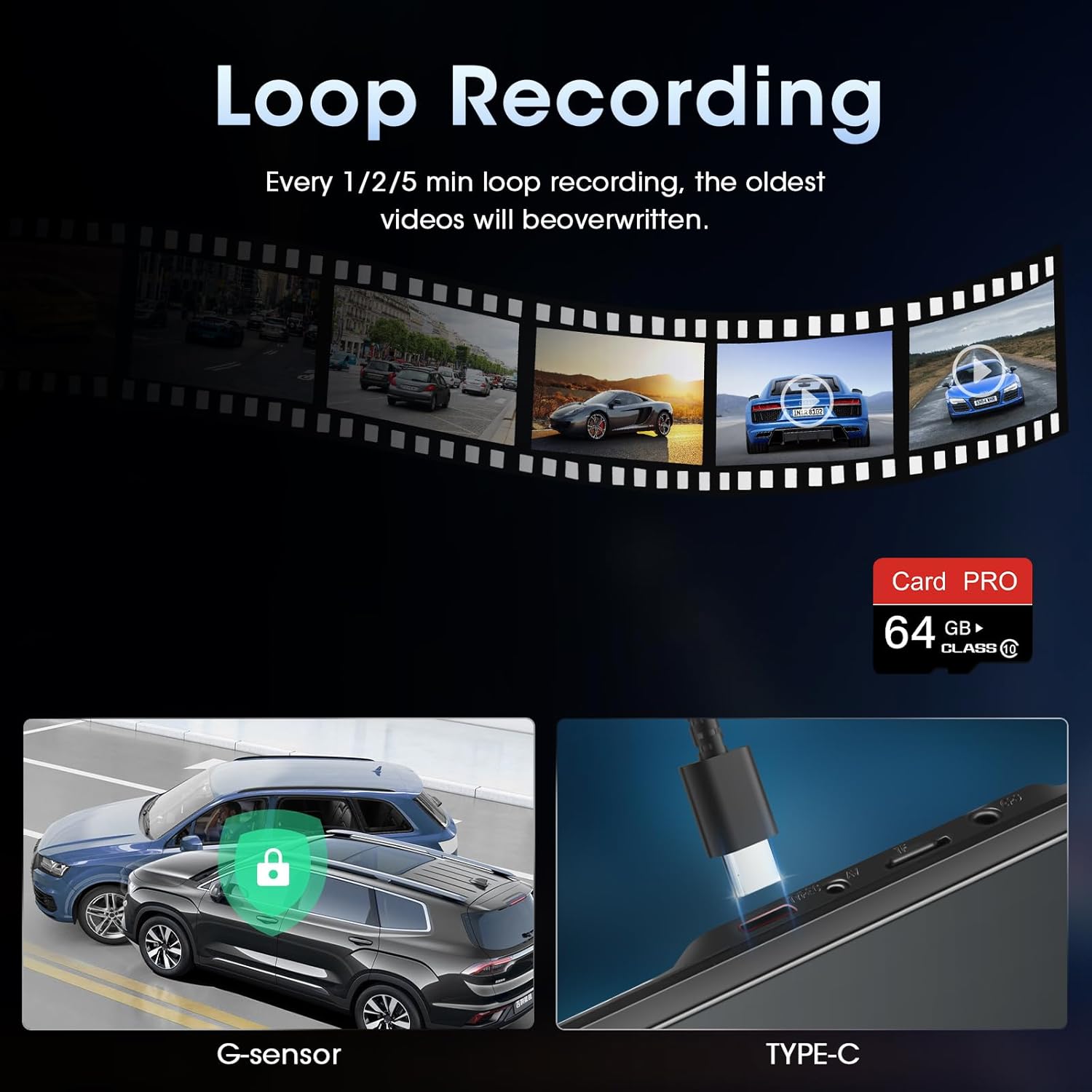
Image 9.1: An illustration depicting the loop recording process, where older video segments are replaced by new ones. It also shows the G-sensor locking a file during an event and the Type-C port for connectivity.
10. Specifications
| Feature | Specification |
|---|---|
| Product Dimensions | 10.01 x 3 x 3 inches |
| Item Weight | 2.09 pounds |
| Front Camera Resolution | 4K (2160p) |
| Rear Camera Resolution | 1080P |
| Front Camera Field of View | 170 Degrees |
| Rear Camera Field of View | 140 Degrees |
| Connectivity Technology | Type-C, Wireless (WiFi) |
| Special Features | Night Vision, WDR, G-Sensor, Loop Recording, Parking Monitor |
| Included Storage | 64GB TF Card |
| Mounting Type | Rearview Mirror Mount |
| Power Source | 12V Cigarette Lighter |
| Battery | 1 Lithium Polymer battery (included) |

Image 10.1: Visual representation of the camera's field of view, indicating a 170-degree wide angle for the front 4K camera and a 140-degree angle for the rear 1080P camera.
11. Troubleshooting
If you encounter issues with your Jansite Mirror Dash Camera, refer to the following common problems and solutions:
- Device does not power on or restarts frequently:
- Ensure the car charger is securely connected to both the dash cam and the 12V cigarette lighter socket.
- Verify that your vehicle's 12V cigarette lighter socket is functioning correctly.
- Check the car's voltage to ensure it is within the normal operating range for 12V accessories.
- If the car charger is damaged, contact customer support for a replacement.
- Poor video quality or glare on screen:
- Ensure the protective film is removed from the lens and screen.
- Clean the camera lenses and the mirror screen regularly.
- Adjust the screen brightness and WDR settings in the menu.
- For glare issues, especially during daylight, the mirror's reflective surface might interfere with the screen display. This is a characteristic of mirror dash cams.
- WiFi connection issues:
- Ensure WiFi is enabled in the dash cam's settings.
- Confirm you have downloaded the correct mobile application (e.g., "Viidure App").
- Verify the WiFi password entered on your phone matches the one displayed on the dash cam.
- Some users may need to re-enable WiFi in the dash cam settings each time the car starts to connect to the phone.
- Parking Monitor not working:
- Confirm that the 24H Parking Monitor feature is enabled in the settings.
- Remember that the 24H Parking Monitor requires a separately purchased hardwire kit for continuous power when the vehicle is off. Without this kit, the feature will not function.
- SD card error or recording stops:
- Ensure the 64GB TF card is inserted correctly.
- Format the TF card periodically within the dash cam's settings to maintain optimal performance.
- Use a high-speed (Class 10 or U3) TF card for reliable recording.
12. Warranty & Support
Jansite provides technical assistance seven days a week, twenty-four hours a day. If you have any questions, concerns, or require support, please contact our customer care team. Refer to the contact information provided with your product or visit the official Jansite website for support details.


