
Introduction
This manual provides comprehensive instructions for the safe and efficient use of your imokin 65W Portable Charger (Model MOPB0202). Please read this manual thoroughly before using the product and retain it for future reference.

Figure 1: imokin 65W Portable Charger with built-in USB-C and iOS cables, and digital display.
Product Features
- 65W Fast Charging: Supports high-speed charging and recharging for various devices, including laptops.
- Integrated Cables: Features dual detachable built-in USB-C and iOS cables for convenience.
- Multiple Outputs: Equipped with a USB-A port, a USB-C port, and the two built-in cables, providing a total of four output options.
- Smart Digital Display: Monitors remaining battery life, output/input status, real-time voltage, and current.
- Portable Design: Compact and lightweight with a built-in carrying strap for easy transport.
- Safety Protections: Includes short circuit protection and overload protection.
- High Capacity: 18400mAh battery capacity (4 x 4600mAh cells).
Setup
1. Unboxing
Carefully remove the imokin 65W Portable Charger from its packaging. Verify that all components are present: the power bank itself and this instruction manual.
2. Initial Charge
Before first use, it is recommended to fully charge the power bank. Connect the power bank to a suitable power adapter (not included) using its built-in USB-C cable or a separate USB-C cable via the USB-C input port. The digital display will show the charging progress.
Operating Instructions
1. Charging Your Devices
The imokin 65W Portable Charger offers multiple ways to charge your devices:
- Using Built-in Cables: Extend the integrated USB-C or iOS cable and connect it directly to your compatible device.
- Using USB-A Port: Connect your device's USB-A charging cable to the power bank's USB-A output port.
- Using USB-C Port: Connect your device's USB-C charging cable to the power bank's USB-C output port.
The power bank can charge up to four devices simultaneously. The digital display will indicate the output status.
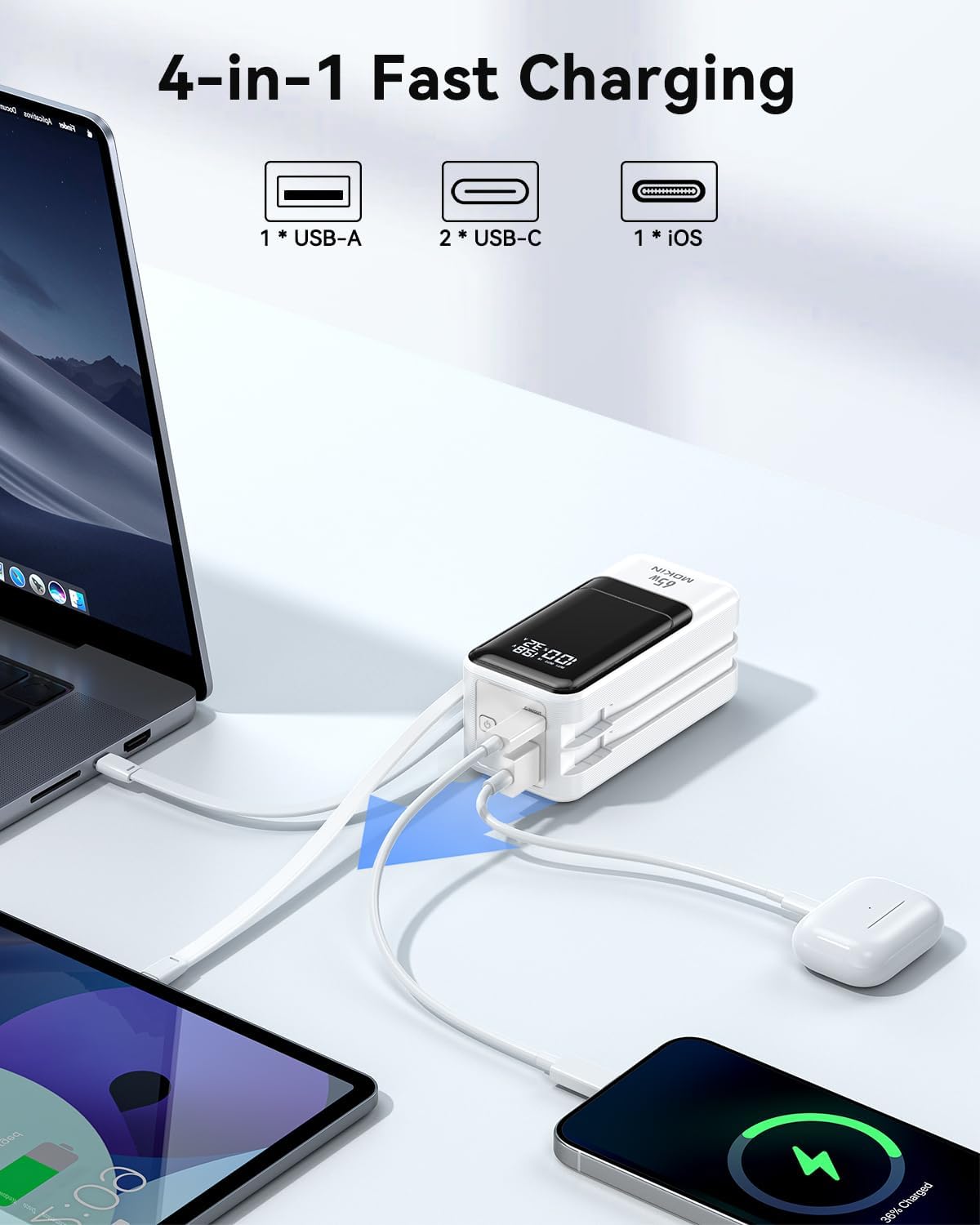
Figure 2: The imokin 65W Portable Charger simultaneously charging a MacBook, iPad, iPhone, and AirPods, demonstrating its 4-in-1 fast charging feature.

Figure 3: imokin 65W Portable Charger connected to a MacBook Pro 16", illustrating fast charging capabilities.
2. Recharging the Power Bank
To recharge the power bank, connect it to a power source using its built-in USB-C cable or a separate USB-C cable via the USB-C input port. The digital display will show the charging percentage and input status.
3. Understanding the Digital Display
The integrated LED digital display provides real-time information:
- Battery Level: Shows the remaining battery percentage.
- Output/Input Status: Indicates whether the device is charging (IN) or discharging (OUT).
- Real-time Voltage (V): Displays the current voltage.
- Real-time Current (A): Displays the current amperage.

Figure 4: Close-up of the imokin 65W Portable Charger's LED digital display, showing real-time battery level, voltage, and current.
4. Low-Power Device Charging
The power bank supports charging low-power devices. Ensure the device is connected, and the power bank will automatically adjust its output.
Maintenance
1. Cleaning
Wipe the power bank with a soft, dry cloth. Do not use liquid cleaners or abrasive materials, as they may damage the surface or internal components.
2. Storage
Store the power bank in a cool, dry place away from direct sunlight, extreme temperatures, and humidity. If storing for extended periods, charge the power bank to approximately 50-75% every three months to maintain battery health.
3. Battery Care
Avoid fully discharging the power bank frequently, as this can reduce its overall lifespan. Do not expose the power bank to water or other liquids. Do not attempt to disassemble or repair the device yourself.
Troubleshooting
- Device not charging:
- Ensure the power bank has sufficient charge.
- Verify that the cable is securely connected to both the power bank and the device.
- Try a different cable or port.
- Power bank not recharging:
- Check the connection to the power adapter and wall outlet.
- Ensure the power adapter is functioning correctly and provides adequate power (e.g., a 65W adapter for optimal speed).
- Try a different USB-C cable.
- Digital display not working:
- Attempt to charge a device or recharge the power bank to activate the display.
- If the issue persists, contact customer support.
Specifications
| Feature | Detail |
|---|---|
| Model Number | MOPB0202 |
| Battery Capacity | 18400 Milliamp Hours (4 x 4600mAh cells) |
| Product Dimensions | 7.68 x 2.32 x 5.2 inches |
| Item Weight | 14.1 ounces |
| Connector Types | USB Type A, USB Type C, iOS Cable (built-in), USB-C Cable (built-in) |
| Special Features | Built-in Cables, Digital Display, Fast Charging, Over Charging Protection, Pocket Size |
| Manufacturer | C-Smartlink Information Technology Co.,Ltd. |
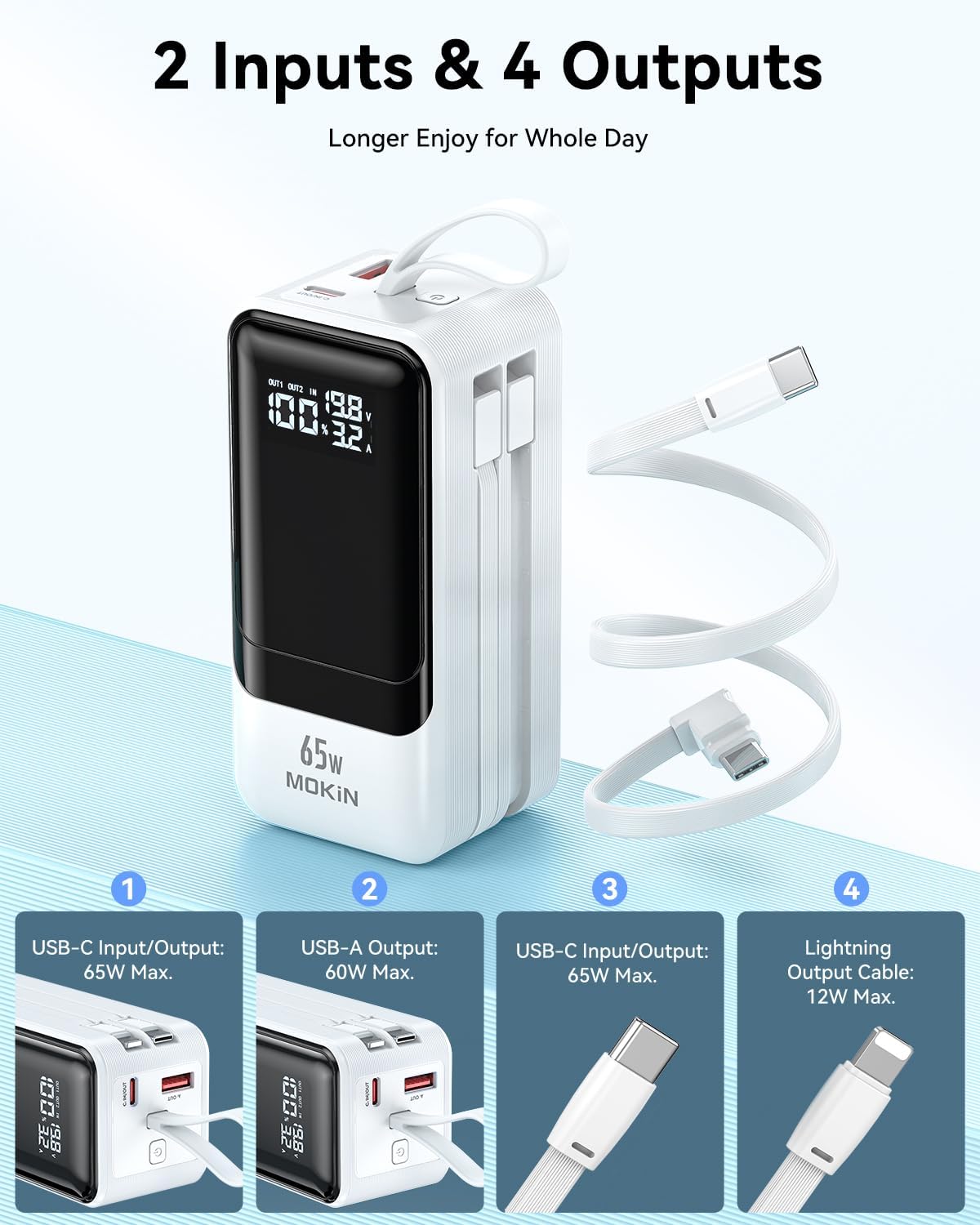
Figure 5: Diagram illustrating the two input and four output ports of the imokin 65W Portable Charger, detailing power specifications for each.

Figure 6: Detailed diagrams showing various output configurations for the imokin 65W Portable Charger when using 1, 2, 3, or 4 ports simultaneously.
Safety Information
- Do not expose the power bank to fire, water, or extreme temperatures.
- Do not drop, puncture, or disassemble the device.
- Keep out of reach of children.
- Use only compatible charging cables and adapters.
- Discontinue use if the power bank becomes excessively hot, swells, or shows any signs of damage.
- This device is flight-approved for travel.

Figure 7: A person at an airport with luggage, using the imokin 65W Portable Charger, indicating its flight-approved status and suitability for travel.
Warranty and Support
Your imokin 65W Portable Charger comes with a worry-free 36-month warranty. For any product-related inquiries, technical support, or warranty claims, please contact our customer service team. We offer 24-hour friendly customer service to assist you.
Please refer to the contact information provided on the product packaging or the official imokin website for support details.