
Introduction
This user manual provides detailed instructions for the Arvitek 4K 4x4 HDMI Matrix Seamless Switch. This versatile device functions as a seamless HDMI matrix, a video wall controller, and an HDMI multiviewer, offering advanced display and control capabilities for various audio-visual setups. Please read this manual thoroughly before operation to ensure proper installation and optimal performance.
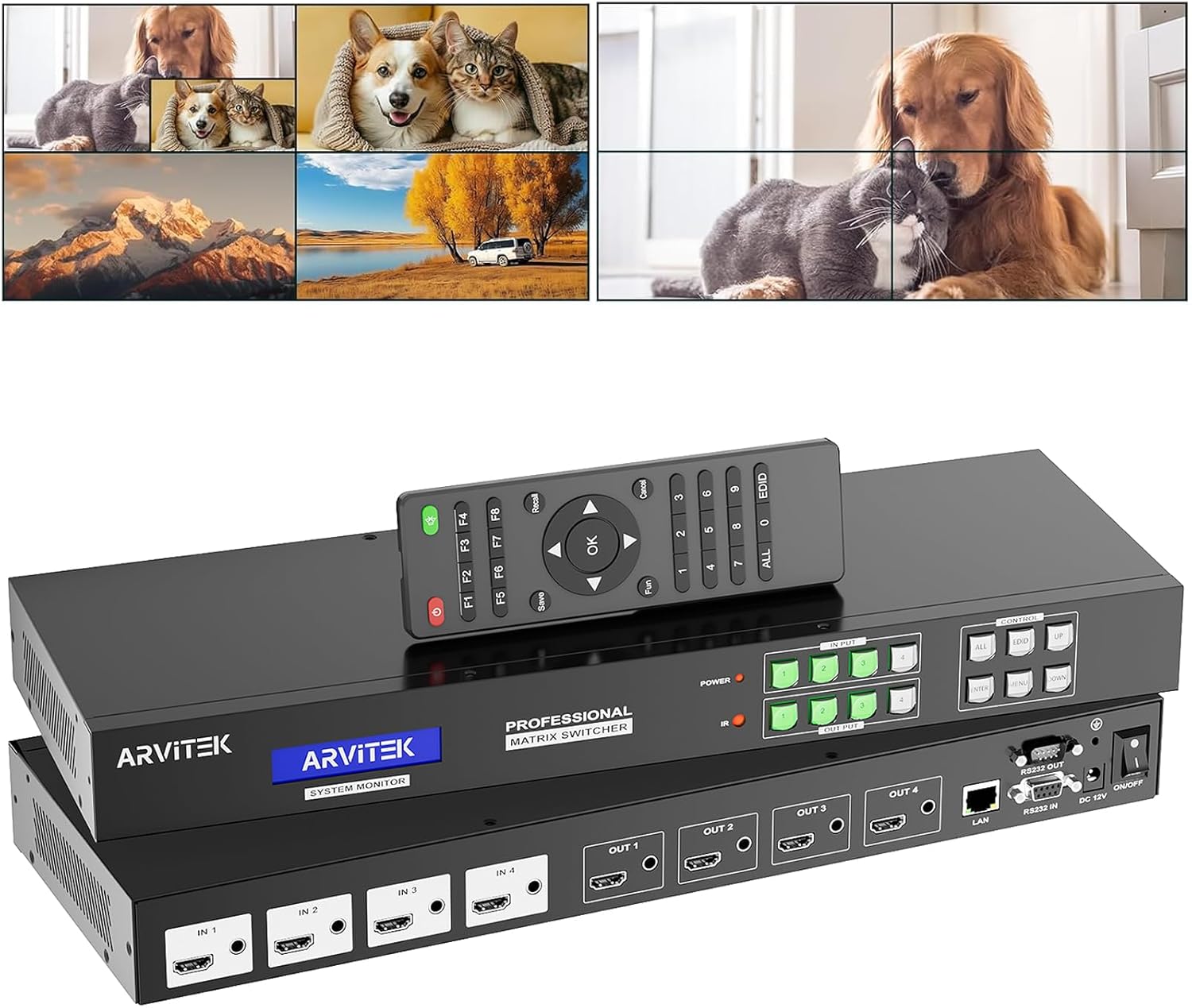
Figure 1: Arvitek 4K 4x4 HDMI Matrix Seamless Switch with included remote control.
Product Features
- Seamless HDMI Matrix Switch 4x4: Supports seamless matrix, bypass matrix, and splitter modes. Seamless switching is available only in seamless matrix mode. Supports resolutions up to 4K@30Hz, with EDID HDCP decoding and compatibility with Blu-ray/3D. Includes 3.5mm audio embedding and de-embedding, supporting PCM, Dolby AC3, DTS5.1, DTS7.1, and DSD audio formats.
- Video Wall Controller 2x2 Matrix: Supports multiple splicing modes including 2x2, 2x1, 3x1, 4x1, 1x2, 1x3, and 1x4. Features four mirror modes in splicing mode: No Mirror, Horizontal Mirror, Vertical Mirror, and Horizontal Vertical Mirror. Resolution up to 1080P in splicing mode.
- HDMI Multiviewer: Only Output 1 supports split functions with 23 types of split modes, such as Picture-in-Picture (PIP), Picture-on-Picture (POP), and Quad-view. Single screen mode on Output 1 supports 0°, 90°, 180°, and 270° rotation. Resolutions up to 1080P and 720P.
- Multiple Control Methods: Offers five control methods: WEB GUI, Panel buttons, RS-232, LAN, IR remote, Software, and Android APP. Supports customized scene preset management (up to 16 scenes) for recall and scene rotation.
Package Contents
Verify that all items listed below are included in your package:
- 1 x HDMI Matrix Switch 4x4
- 1 x RS232 Cable
- 1 x IR Remote Control
- 1 x Rack Ears & Screws Set
- 1 x Power Adapter
- 1 x Ground Wire
- User Manual and Software (accessible via scan code)

Figure 2: Included accessories and the main unit.
Setup and Connections
Follow these steps to set up your Arvitek HDMI Matrix Switch:
- Power Off: Ensure all devices (source devices, displays, and the matrix switch) are powered off before making any connections.
- Connect Input Sources: Connect your HDMI source devices (e.g., PC, laptop, TV box) to the HDMI IN ports (IN 1-4) on the matrix switch using high-quality HDMI cables. If using 3.5mm audio input, connect it to the corresponding audio input port.
- Connect Output Displays: Connect your HDMI displays (e.g., TV, monitor, projector, splicing screens) to the HDMI OUT ports (OUT 1-4) on the matrix switch. If using 3.5mm audio output, connect it to your audio system.
- Network Connection (Optional): For WEB GUI or LAN control, connect an Ethernet cable from your network router/switch to the LAN port on the matrix switch.
- RS-232 Connection (Optional): For RS-232 control, connect the RS-232 cable from your control system to the RS-232 IN port.
- Power On: Connect the power adapter to the DC 12V input on the matrix switch, then plug it into a power outlet. Power on the matrix switch, followed by your displays and source devices.

Figure 3: Connection diagram for the HDMI Matrix Switch.
Operating Modes
1. Seamless Matrix Mode
In seamless matrix mode, you can switch between any of the 4 input sources to any of the 4 output displays without any black screen or delay. This mode ensures a smooth transition between different video feeds.

Figure 4: Various display modes including Matrix and Splitter.
2. Video Wall Controller Mode (2x2 Matrix)
The device supports creating video walls with multiple splicing modes. This allows a single input source to be displayed across multiple screens, forming a larger, unified display.
- Splicing Modes: Supported configurations include 2x2, 2x1, 3x1, 4x1, 1x2, 1x3, and 1x4.
- Mirror Modes: Within splicing mode, you can apply mirror effects: No Mirror, Horizontal Mirror, Vertical Mirror, and Horizontal Vertical Mirror.

Figure 5: Illustration of various display combinations and cross-switching capabilities.
3. HDMI Multiviewer Mode
Only Output 1 supports the multiviewer function, allowing you to display multiple input sources on a single screen in various layouts.
- Split Modes: Choose from 23 different split modes, including Picture-in-Picture (PIP), Picture-on-Picture (POP), and Quad-view.
- Rotation: In single screen split mode for Output 1, you can rotate the display by 0°, 90°, 180°, or 270°.

Figure 6: PIP and Split modes with rotation capabilities for Output 1.
Video 1: This video demonstrates how to rotate an input signal for the 4x4 HDMI Video Wall Matrix, specifically showing the steps to achieve 90, 180, and 270-degree rotations for individual inputs within the multiviewer mode.
4. Scene Preset Management
The matrix switch allows you to save and recall up to 16 customized scene presets. This feature is useful for quickly switching between complex display configurations without manual re-setup.

Figure 7: Customized scene preset management for quick configuration changes.
Control Methods
The Arvitek HDMI Matrix Switch offers multiple ways to control its functions:
- Panel Buttons: Direct control using the buttons on the front panel of the device.
- IR Remote: Use the included infrared remote control for convenient operation from a distance.
- RS-232: Integrate the switch into a professional control system via the RS-232 serial port.
- LAN (Web GUI): Access the device's web-based graphical user interface (GUI) through a local area network for comprehensive control and configuration.
- Software/APP: Utilize dedicated software or an Android application for advanced control and management.

Figure 8: Overview of the available control methods.

Figure 9: Visual representation of the five control modes.
Maintenance
To ensure the longevity and optimal performance of your Arvitek HDMI Matrix Switch, follow these maintenance guidelines:
- Cleaning: Use a soft, dry cloth to clean the exterior of the device. Avoid using liquid cleaners or aerosols, as they may damage the unit.
- Ventilation: Ensure proper ventilation around the device. Do not block any ventilation openings. Overheating can lead to malfunction.
- Cable Management: Keep HDMI and other cables neatly organized to prevent strain on ports and accidental disconnections.
- Power Supply: Use only the provided power adapter. Disconnect power during electrical storms or when unused for long periods.
- Environment: Store and operate the device in a cool, dry place, away from direct sunlight, heat sources, and excessive humidity.
Troubleshooting
If you encounter issues with your Arvitek HDMI Matrix Switch, refer to the following common troubleshooting steps:
- No Signal/Black Screen:
- Verify all HDMI cables are securely connected to both the source devices, the matrix switch, and the displays.
- Ensure all devices (source, switch, display) are powered on.
- Try a different HDMI cable to rule out cable failure.
- Check the input selection on your display and the output selection on the matrix switch.
- Test with a different source device or display to isolate the problem.
- Distorted or Poor Image Quality:
- Ensure you are using high-quality HDMI cables, especially for 4K resolutions.
- Check the resolution settings on your source device and ensure they are compatible with your display and the matrix switch.
- Verify EDID settings on the matrix switch. Incorrect EDID can cause display issues.
- Rotation Issues in Multiviewer Mode:
- Rotation is only supported on Output 1 in single screen split mode. Ensure you are attempting rotation on the correct output and mode.
- Refer to the video demonstration in the "Operating Modes" section for detailed steps on configuring rotation via the web interface.
- Ensure the software/web interface settings for rotation are correctly applied and saved.
- Control Method Not Responding:
- IR Remote: Check battery, ensure line of sight to the IR receiver on the switch, and remove any obstructions.
- WEB GUI/LAN: Verify network cable connection, check IP address settings, and ensure your computer is on the same network segment as the switch.
- RS-232: Confirm cable connection and correct serial port settings (baud rate, data bits, parity, stop bits).
Specifications
| Brand | Arvitek |
| Model Number | 4x4 Matrix + Video Wall + PIP |
| Color | Black |
| Connector Type | HDMI |
| Compatible Devices | Monitor, Television |
| Cable Type | HDMI |
| Package Dimensions | 19.2 x 7.3 x 4.1 inches |
| Item Weight | 5.41 pounds |
Warranty and Support
For warranty information, technical support, or further assistance with your Arvitek 4K 4x4 HDMI Matrix Seamless Switch, please contact Arvitek customer service or visit the official Arvitek store.
Arvitek Store: Visit the Arvitek Store on Amazon