
1. Overview
The Arvitek 8x8 4K Seamless HDMI Matrix Switch is a versatile device designed for advanced audio-visual setups. It functions as a seamless HDMI matrix, a customized video wall controller, and an HDMI splitter. This device supports resolutions up to 4K@30Hz and offers multiple control methods for flexible operation in various environments.
2. Package Contents
Please check the package for the following items:
- 1 x HDMI Matrix Switch 8x8 with Video Wall
- 1 x IR Remote
- 1 x User Manual
- 1 x USB disk for software
- 1 x RS232 Cable
- 1 x Ground wire
- 1 x Power adapter
- 1 x Rack Mount Accessories
- 1 x Non-slip Pad

Figure 1: Package Contents of the Arvitek 8x8 HDMI Matrix Switch.
3. Product Features
- Seamless HDMI Matrix 8x8: Supports 8 HDMI inputs and 8 HDMI outputs with seamless switching, up to 4K@30Hz resolution.
- Customized Video Wall Controller: Offers flexible splicing modes such as 4x2, 2x4, 2x2, 1x8, and 8x1. Output resolution is 1080p@60Hz in splicing mode for high-definition display on large screens.
- Multiple Control Methods: Control the device via WEB GUI, front panel buttons, IR remote, RS-232, LAN, and an Android app. Supports customized scene preset management (up to 16 scenes) with recall and scene rotation functions.
- HDMI Switcher Splitter with Audio Out: Features 3.5mm audio embedding and de-embedding. Supports PCM, Dolby AC3, DTS5.1, DTS7.1, and DSD audio formats. Each signal supports HDCP decoding, Blu-ray, and 3D content.
- Durable Construction: Housed in a robust metal chassis, suitable for 1U rack mounting.
4. Setup
Follow these steps to set up your Arvitek 8x8 HDMI Matrix Switch:
- Connect HDMI Sources: Connect your HDMI input devices (e.g., PC, laptop, TV box) to the HDMI IN 1-8 ports on the rear of the matrix switch using high-quality HDMI cables.
- Connect HDMI Displays: Connect your HDMI display devices (e.g., TV, monitor, projector, splicing screens) to the HDMI OUT 1-8 ports on the rear of the matrix switch using high-quality HDMI cables.
- Connect Audio Devices (Optional): If using external audio systems, connect them to the 3.5mm audio output ports.
- Connect Control Interfaces (Optional):
- LAN: Connect an Ethernet cable from your network router/switch to the LAN port for WEB GUI or app control.
- RS-232: Connect the RS-232 cable from a control PC to the RS-232 IN port for serial control.
- IR Remote: Ensure the IR remote has batteries and is pointed towards the IR receiver on the front panel.
- Connect Power: Connect the provided power adapter to the DC 12V input port on the rear of the matrix switch, then plug the adapter into a power outlet. Turn on the power switch.
- Grounding (Recommended): Connect the included ground wire to the grounding stud on the unit and to a suitable earth ground point.

Figure 2: Arvitek 8x8 HDMI Matrix Switch Connection Diagram.
5. Operating Modes
The Arvitek 8x8 HDMI Matrix Switch supports three primary operating modes:
- Seamless HDMI Matrix Mode: Allows any of the 8 HDMI input sources to be routed to any of the 8 HDMI output displays independently, with smooth, seamless transitions.
- Customized Video Wall Mode: Combine multiple output displays to create a single large video wall. Supports various configurations like 4x2, 2x4, 2x2, 1x8, and 8x1. The output resolution in this mode is 1080p@60Hz.
- HDMI Splitter Mode: Route a single HDMI input source to multiple HDMI output displays simultaneously.
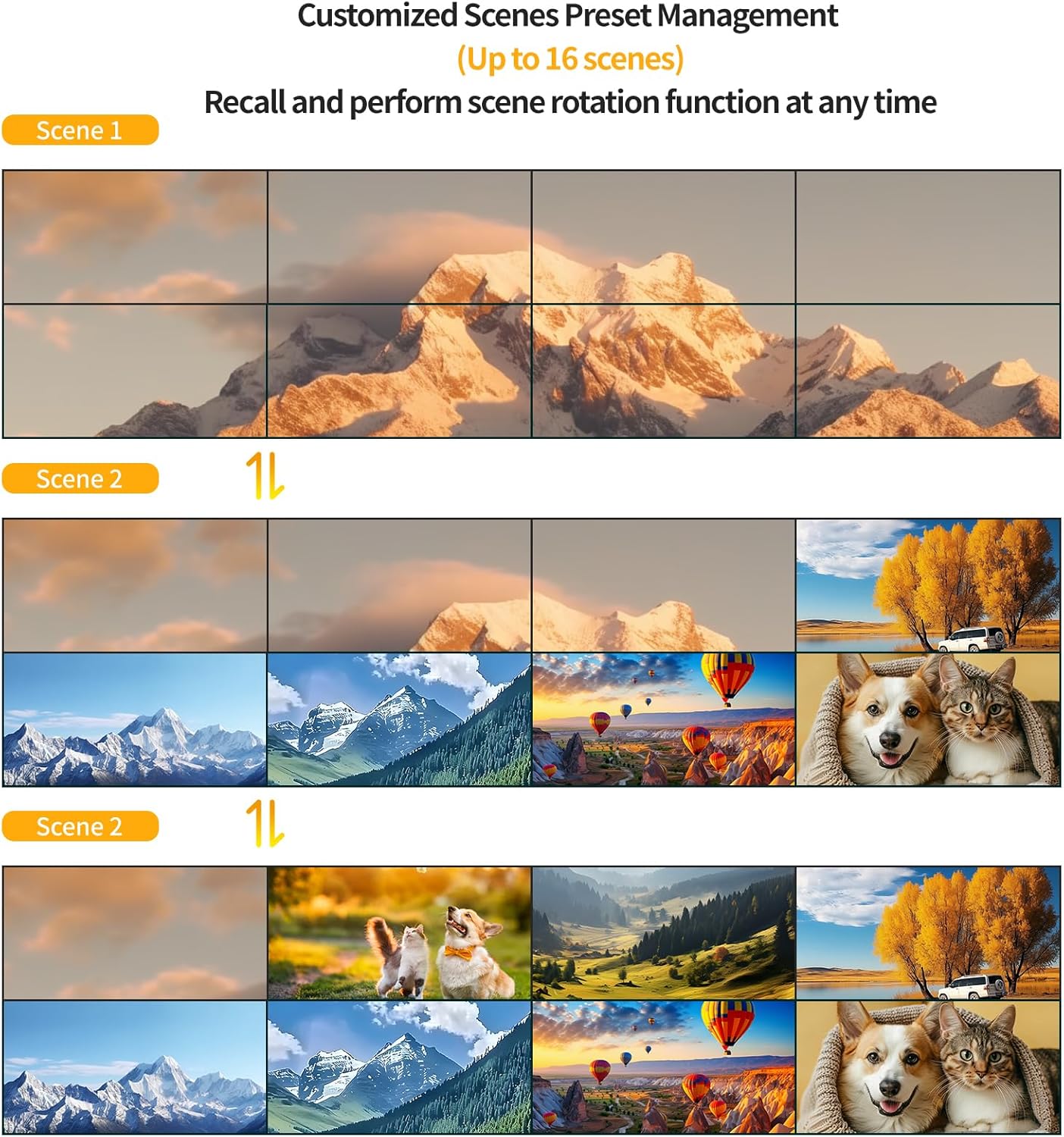
Figure 3: Multiple Display Modes.
Video 1: Demonstrates various display modes for the HDMI matrix with video wall switcher, including seamless matrix and video wall configurations.
Video 2: Illustrates different switching modes for the HDMI Matrix Extender, applicable to 4x4 and 8x8 models.
6. Control Methods
The matrix switch offers several ways to control its functions:
- WEB GUI: Access the device's web-based graphical user interface via a browser by connecting to the LAN port. This allows for comprehensive control and configuration.
- Front Panel Buttons: Use the physical buttons on the front panel for direct input/output selection and menu navigation.
- IR Remote: The included infrared remote control provides convenient wireless control for switching inputs/outputs and accessing settings.
- RS-232: Connect a computer via the RS-232 port for serial command control, often used in professional installations.
- LAN: Control the device over your local area network using specialized software provided on the USB disk or an Android app.
- Android App: An application is available for Android devices to control the matrix switch over the network.
The device also supports customized scene preset management, allowing you to save up to 16 different configurations and recall or rotate through them as needed.

Figure 4: Multiple Control Methods.

Figure 5: Customized Scenes Preset Management.
Video 3: Demonstrates how to switch inputs on the HDMI Matrix using the front panel buttons.
Video 4: Provides a general overview of the Arvitek HDMI Matrix Switch and its capabilities.
7. Audio Output
The matrix switch includes 3.5mm audio output ports, allowing for separate control of audio and video. It supports various audio formats including PCM, Dolby AC3, DTS5.1, DTS7.1, and DSD. This feature enables you to extract audio from the HDMI signal and route it to an external audio system for enhanced sound quality.

Figure 6: Separate Control for Audio & Video with 3.5mm AUX Audio.
8. Maintenance
To ensure optimal performance and longevity of your Arvitek HDMI Matrix Switch, follow these maintenance guidelines:
- Keep the device in a well-ventilated area to prevent overheating.
- Clean the exterior with a soft, dry cloth. Avoid using liquid cleaners or aerosols.
- Ensure all cable connections are secure and free from damage.
- Avoid exposing the device to extreme temperatures, humidity, or direct sunlight.
9. Troubleshooting
If you encounter issues with your matrix switch, refer to the following common problems and solutions:
- No Display/Signal Loss: Check all HDMI cable connections. Ensure power is supplied to both the matrix switch and all connected devices. Verify input and output selections are correct.
- Snowflake/Moire/Long Cable Issues: These can occur with long HDMI cable runs or signal degradation. Ensure you are using high-quality, certified HDMI cables. For very long distances, consider using HDMI extenders or fiber optic cables. The device may have adjustment settings to compensate for signal issues.
- Incorrect Resolution/Display Mode: Verify the display mode settings (Matrix, Video Wall, Splitter) are correctly configured via the WEB GUI or front panel. Ensure your displays support the selected resolution.
Video 5: Provides guidance on how to solve common display issues such as no display, long cable effects, snowflake, or moire patterns.
Video 6: Demonstrates how to rotate the input signal for a 4x4 HDMI Video Wall Matrix, which can be useful for correcting display orientation issues.
10. Specifications
| Specification | Detail |
|---|---|
| Model Number | 8 In 8 Out |
| Brand | Arvitek |
| Color | Black |
| Connector Type | HDMI |
| Cable Type | HDMI |
| Compatible Devices | Blu-Ray Player, DVD Player, Gaming Console, Monitor, Personal Computer, Satellite Receiver, Television |
| Item Weight | 6.21 pounds |
| Package Dimensions | 19.4 x 7.2 x 4.1 inches |
11. Warranty and Support
For warranty information and technical support, please refer to the documentation included in your package or contact Arvitek customer service directly. Details can typically be found on the manufacturer's website or through the provided contact information in the user manual.