
1. Product Overview
The Genérico MF253L 4G LTE Router is designed to provide stable and secure wireless network connectivity, especially in areas with limited wired internet access. This device allows you to interlink wireless networks, ensuring high-speed information transfer for various devices.
Key features include:
- Continuous signal with 300 Mbps speed.
- Wireless connectivity for flexible use in home or office environments.
- Triple-band width for simultaneous task execution and efficient file transfer.
- 4G LTE technology (150/50 Mbps) and 3G (850/1900/2100MHz) frequency support.
- GSM Quadriband (850/900/1800/1900 MHz) support.
2. Package Contents
Please verify that all items are present in your package:
- 1x Genérico MF253L 4G LTE Router
- 1x External Antenna
- 1x Power Adapter (110v / 220v compatible)
- 1x RJ45 Network Cable
3. Setup Instructions
3.1. Inserting the SIM Card
- Locate the SIM card slot on the router. This is typically found on the side or bottom of the device.
- Carefully insert your activated 4G SIM card into the slot until it clicks into place. Ensure the SIM card is oriented correctly as indicated by the diagram near the slot.
3.2. Connecting the Antenna
- Attach the provided external antenna to the designated antenna port on the router. Screw it on clockwise until it is finger-tight.
- Position the antenna vertically for optimal signal reception.

Figure 1: Side view of the router with the external antenna connected.
3.3. Powering On the Router
- Connect the power adapter to the router's power input port.
- Plug the power adapter into a standard electrical outlet (110v or 220v).
- Wait for the router's indicator lights to stabilize. The 4G/3G signal light should turn solid, indicating a successful network connection.
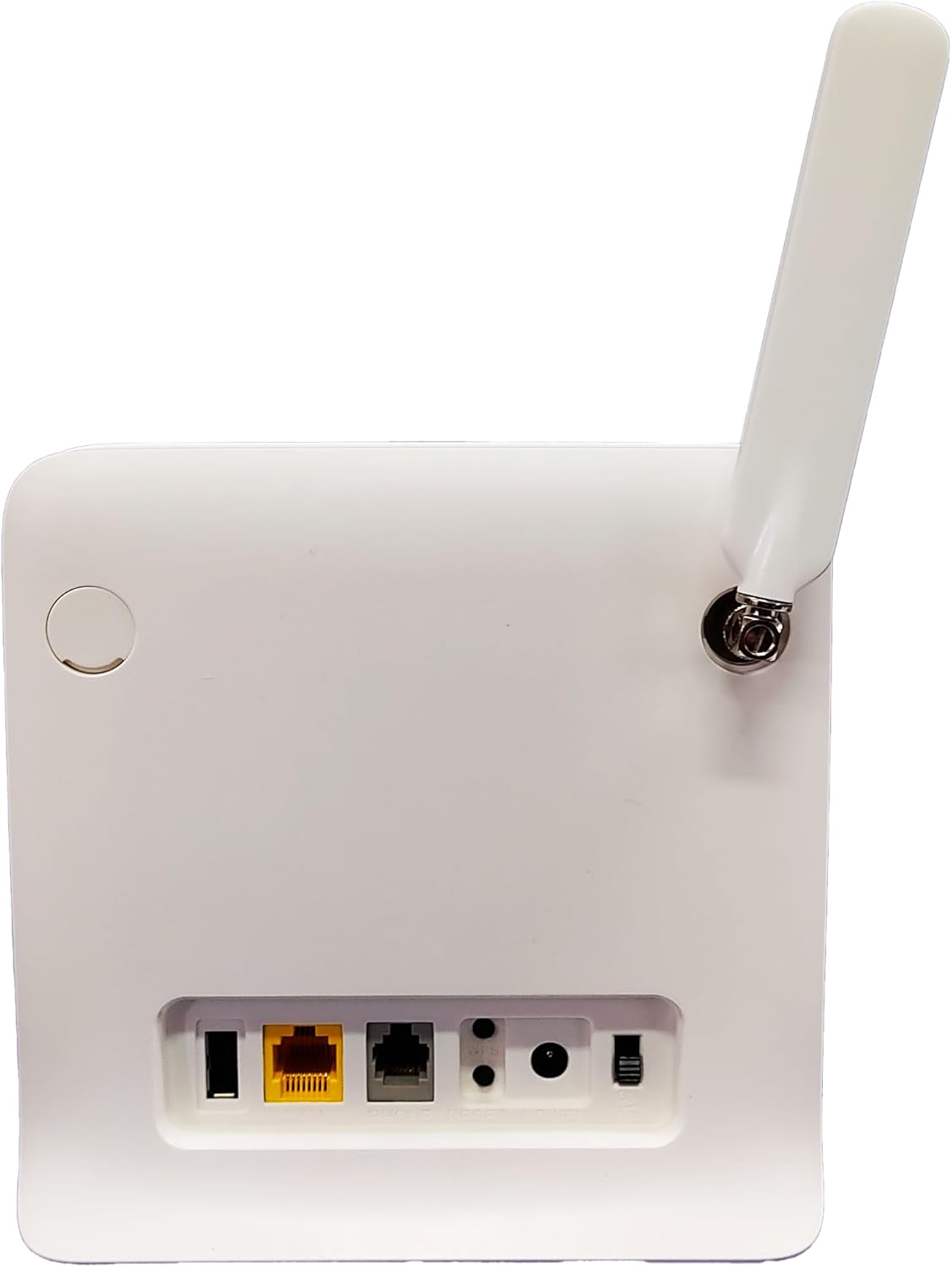
Figure 2: Rear panel of the router with power and network ports.
3.4. Connecting Devices
You can connect devices via Wi-Fi or Ethernet cable:
- Wi-Fi Connection: Locate the Wi-Fi network name (SSID) and password printed on a label on the router (usually on the bottom). Connect your computer, smartphone, or tablet to this network.
- Ethernet Connection: Use the provided RJ45 network cable to connect your computer or other network-enabled device to one of the LAN ports on the router.

Figure 3: Front view of the router showing indicator lights and typical device connections.
4. Operating Instructions
4.1. Accessing the Web Interface
- Open a web browser on a device connected to the router.
- Enter the default IP address (e.g., 192.168.1.1 or 192.168.0.1) into the address bar and press Enter. This address is usually found on the router's label.
- Enter the default username and password (also on the router's label) to log in.
4.2. Basic Settings
- Change Wi-Fi Name and Password: Navigate to the Wireless Settings section to customize your SSID and password for enhanced security.
- Network Mode: The router automatically detects the best network mode (4G/3G). You can manually select it if needed in the Network Settings.
- APN Settings: In most cases, the APN settings are automatically configured by the SIM card. If you experience connectivity issues, you may need to manually enter the APN details provided by your mobile carrier.
4.3. Indicator Lights
Familiarize yourself with the router's LED indicators:
- Power: Solid green indicates the device is powered on.
- Wi-Fi: Solid green indicates Wi-Fi is active. Blinking indicates data transfer.
- Signal (SIG): Indicates the strength of the 4G/3G signal. More bars/lights usually mean stronger signal.
- 3G/4G: Indicates the current network type.
- LAN: Solid green indicates a device is connected via Ethernet. Blinking indicates data transfer.
5. Specifications
| Feature | Description |
|---|---|
| Model Name | MF253L |
| Connectivity Technology | LTE (4G) |
| 4G LTE Frequencies | 150/50 Mbps (850/2600 MHz) |
| 3G Frequencies | 850/1900/2100 MHz |
| GSM Frequencies | Quadriband (850/900/1800/1900 MHz) |
| Wireless Communication Standard | 802.11.be |
| Data Transfer Rate | 300 Megabits Per Second |
| Max Upload Data Rate | 50 Megabits Per Second |
| LAN Port Bandwidth | 300 Mbps |
| Number of Ports | 1 (LAN) |
| Number of Antennas | 1 (External) |
| Compatible Devices | Personal Computer, Notebook, Smartphone, Tablet |
| Security Protocol | WPA2 |
| Control Method | Touch (via web interface) |
| Coverage | Standard wireless for home or small office |
6. Troubleshooting
- No Internet Connection:
- Check if the SIM card is correctly inserted and activated.
- Verify the 4G/3G signal strength indicator on the router. If the signal is weak, try repositioning the router or antenna.
- Ensure the APN settings in the router's web interface match your mobile carrier's requirements.
- Restart the router by unplugging and re-plugging the power adapter.
- Slow Wi-Fi Speed:
- Ensure your devices are within optimal range of the router.
- Reduce interference by keeping the router away from other electronic devices (microwaves, cordless phones).
- Limit the number of active devices or bandwidth-intensive activities.
- Cannot Access Web Interface:
- Confirm your device is connected to the router's Wi-Fi or via Ethernet.
- Double-check the IP address, username, and password.
- Try clearing your browser's cache or using a different browser.
7. Maintenance
- Regular Cleaning: Keep the router clean and free from dust to ensure proper ventilation. Use a soft, dry cloth.
- Firmware Updates: Periodically check the manufacturer's website for firmware updates. Updating the firmware can improve performance, add new features, and fix bugs.
- Optimal Placement: Place the router in a central location, away from obstructions and potential sources of interference, to maximize Wi-Fi coverage.
8. Warranty and Support
This product comes with a 3-month warranty against manufacturing defects. For warranty claims or technical support, please contact your retailer or the manufacturer's customer service.
9. Product Video Overview
Video: A general overview of a 4G modem/router setup and features. While not specific to the MF253L model, it provides useful visual context for similar devices.