
Gracioso CD19
Gracioso Desktop CD Player User Manual
Model: CD19
Introduction
This manual provides detailed instructions for operating your Gracioso Desktop CD Player (Model CD19). Please read it thoroughly to ensure proper use and maintenance of your device.
Product Overview
What's in the Box
- CD Player*1
- User Manual*1
- Remote Control*1
- Charging Cable*1
Components and Controls
Familiarize yourself with the various parts and controls of your CD player.

Front view of the Gracioso Desktop CD Player, showcasing its dual speakers, CD compartment, control panel, and included remote control.

Close-up of the rear panel of the CD player, highlighting the USB, TF card, AUX, headphone, optical, and Type-C charging ports.
Control Panel Layout
| Control | Function |
|---|---|
| FUNC Button | Switches between CD, Bluetooth, USB, TF Card, FM Radio, and Line-in modes. |
| Skip Buttons (◀◀ / ▶▶) | Skips tracks in CD/USB/TF modes; scans stations in FM mode. |
| EQ Button | Cycles through 5 built-in music equalizers: FLAT, POP, JAZZ, CLASSIC, and ROCK. |
| Play/Pause Button (▶▶/▌▌) | Plays or pauses current audio. |
| Power Button (⑁) | Press and hold to turn the device on or off. |
| Volume Knob | Rotates to adjust volume; also functions as Play/Pause. |
LCD Display
The LCD screen provides clear information about the current mode, track number, playback time, and battery status.
Video demonstrating the CD player's display and basic operation.
Setup
Charging the Battery
The CD player has a built-in 4000mAh rechargeable battery.

Illustration of the CD player connected to a power source via its Type-C charging cable, with icons indicating battery life for different playback modes (CD, USB, TF, Bluetooth).
- Connect the included Type-C cable to the charging port on the back of the device.
- Connect the other end to a compatible USB power adapter (not included).
- A full charge takes approximately 7 hours and provides up to 19 hours of playback.
Operating Instructions
Power On/Off
Press and hold the Power button on the control panel to turn the device on or off.
Volume Control
Rotate the volume knob to adjust the playback volume.
Mode Selection
Press the "FUNC" button repeatedly to cycle through the available modes: CD, Bluetooth, USB, TF Card, FM Radio, and Line-in.
Playback Modes
CD Mode
Open the transparent cover, gently place a CD onto the spindle, and close the cover. The player will automatically detect and begin playing the CD.

A woman relaxing on a couch, using the remote control to operate the CD player, which is playing a disc.
- Supports CD, MP3, CD-R, and CD-RW formats.
- Use the skip buttons to navigate between tracks.
- Press the Play/Pause button to pause or resume playback.
- The LCD screen displays track number and playback time.
Bluetooth Mode
The CD player features Bluetooth 5.3 for both transmission and reception.
Bluetooth Transmission (Connecting to Headphones/Speakers)
In Bluetooth mode, the player can transmit audio to Bluetooth headphones or speakers.
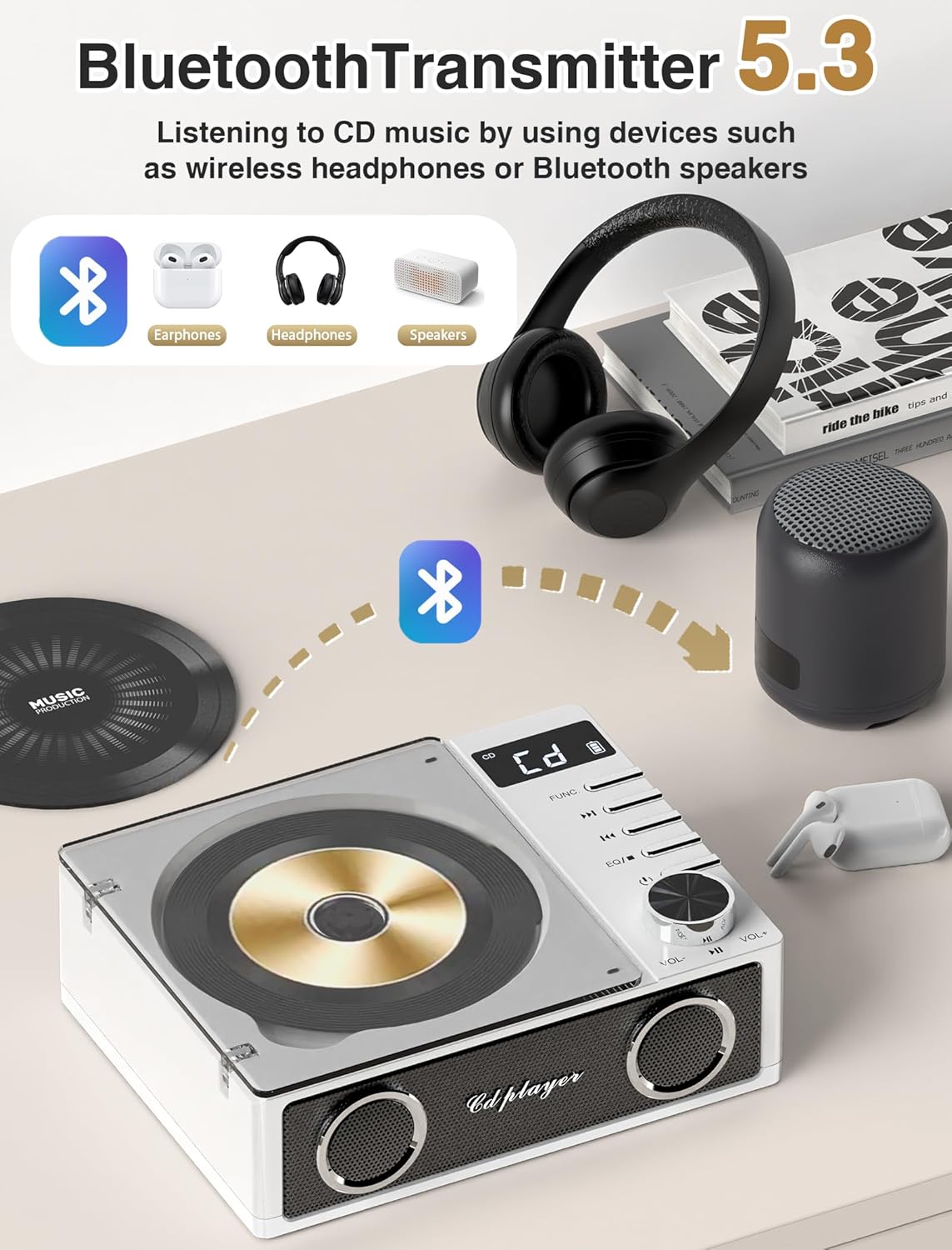
An illustration showing the CD player wirelessly connecting via Bluetooth to headphones and a small portable speaker, indicating its transmission capability.
- Ensure your Bluetooth headphones or speaker are in pairing mode.
- The CD player will automatically search for and connect to nearby devices.
- Note: This CD player cannot connect to a car's Bluetooth system.
Bluetooth Reception (Using as a Bluetooth Speaker)
The player can also receive audio from your smartphone, tablet, or computer.

A person holding a smartphone, with an arrow indicating Bluetooth connection to the CD player, demonstrating its ability to act as a Bluetooth receiver for streaming music.
- On your source device, search for "Gracioso CD Player" (or similar) in your Bluetooth settings and pair.
- The connection distance is up to 26 feet.
USB Mode
Insert a USB flash drive into the USB port on the back of the device. The player will automatically switch to USB mode and begin playing compatible audio files.
TF Card Mode
Insert a TF (Micro SD) card into the TF card slot on the back of the device. The player will automatically switch to TF Card mode and begin playing compatible audio files.
FM Radio Mode
In FM Radio mode, the LCD screen will display the frequency.
- Use the skip buttons to scan for radio stations.
- The player can receive FM radio signals between 87.5-108Mhz.
A-B Repeat Function
This function allows you to repeat a specific section of audio on a CD. Press the A-B repeat button to mark the start point (A) and press it again to mark the end point (B). The player will loop this section.
Sleep Timer
The portable CD player will automatically turn off after 15 minutes of no operation to conserve battery.
Maintenance
To ensure optimal performance and longevity of your CD player, regular maintenance is recommended.
- Keep the device clean and free from dust. Use a soft, dry cloth for external cleaning.
- For the laser head, use a special CD cleaning disc or a cotton swab to gently wipe it.
- Avoid exposing the device to extreme temperatures, humidity, or direct sunlight.
Troubleshooting
If you encounter any issues with your Gracioso CD Player, please refer to the following common solutions or contact customer support.
Why doesn't Bluetooth work?
Video explaining common reasons why Bluetooth might not connect, including interference, distance, and device settings.
- This device does not support connecting to car Bluetooth.
- There may be interference in the environment. Turn off all other Bluetooth devices nearby or disable their Bluetooth function.
- Adjust the distance. Try to bring the two devices closer together to increase the signal strength.
- Reboot the speaker or remove the battery and/or disconnect the power cord for a minute to restart the device before connecting to Bluetooth.
- Clear the paired device memory of the speaker and try pairing the device with the speaker again.
- Ensure that Bluetooth is enabled on both devices. If Bluetooth is not enabled on one of the devices, it will not be able to connect.
Why isn't the device charging?
Video detailing potential issues preventing the CD player from charging, such as loose cables or damaged ports.
- It may be that the charging interface of the tape drive is loose or damaged. Try to clean the interface or replace it.
- It may be that the charging cable is damaged or has poor contact. Replace a charging cable.
- Check if the charging port is cluttered or blocked. Make sure the charging port is not dusty or damaged. Clean or replace the port if necessary.
Why won't the CD player play my CD?
Video addressing common reasons for CD playback issues, including disc condition and laser head problems.
- Please check if the CD door is closed tightly.
- Dust and dirt inside the laser head and CD player will affect reading. Use a special cleaning disc or cotton swab to gently wipe the laser head to make sure it is clean.
- Scratches, stains, or deformation on the surface of the disc will affect reading. It is recommended to use a disc without scratches or stains and to check the quality of the disc regularly.
- If the laser head is poorly focused, it may lead to reading failure. You can try to adjust the laser focus manually, or use a special cleaning disc to clean it.
- If the above methods are ineffective, it may be that the internal parts of the CD player are damaged or aging. It is recommended that you contact a professional repairer for inspection and repair, and replace the CD player or related parts with a new one if necessary.
Specifications
| Feature | Detail |
|---|---|
| Product Dimensions | 5.98 x 2.76 x 7.56 inches |
| Item Weight | 2.07 pounds |
| Manufacturer | Dingmi |
| ASIN | B0DLWK1YMK |
| Country of Origin | China |
| Item model number | CD19 |
| Batteries | 3 Lithium Polymer batteries required. (included) |
| Customer Reviews | 4.7 out of 5 stars (66 ratings) |
| Best Sellers Rank | #13,538 in Electronics, #57 in Portable CD Players |
| Date First Available | November 4, 2024 |
| Brand | Gracioso |
| Model Name | CD19 |
| Color | white |
| Connectivity Technology | USB |
| Special Feature | CD-R/RW Compatible, Bluetooth, Rechargeable Battery, Built-In Radio, Anti-Skip Protection |
Warranty and Support
Your Gracioso CD Player comes with a 12-month after-sales service.
For further assistance or inquiries, please contact Gracioso customer support through the retailer where you purchased the product or visit the official Gracioso website for contact information.
Ask a question about this manual
Ask about setup, troubleshooting, compatibility, parts, safety, or missing instructions. Manuals+ will review the question and use this page’s manual context to help answer it.