
Introduction
This manual provides instructions for the Generic replacement infrared remote control. This remote is designed to be compatible with various Clear Touch Interactive Flat Panel LED Displays, including models CTI-6065U-UH20, CTI-7065XE-UH20, CTI-7043XE-UH20, and CTI-7086XE-UH20.
This remote control is an infrared replacement and does not require any setup or programming. It is intended to function similarly to your original remote. Please note that while it provides core functionalities, it may not replicate every single function of your original remote.
Product Overview
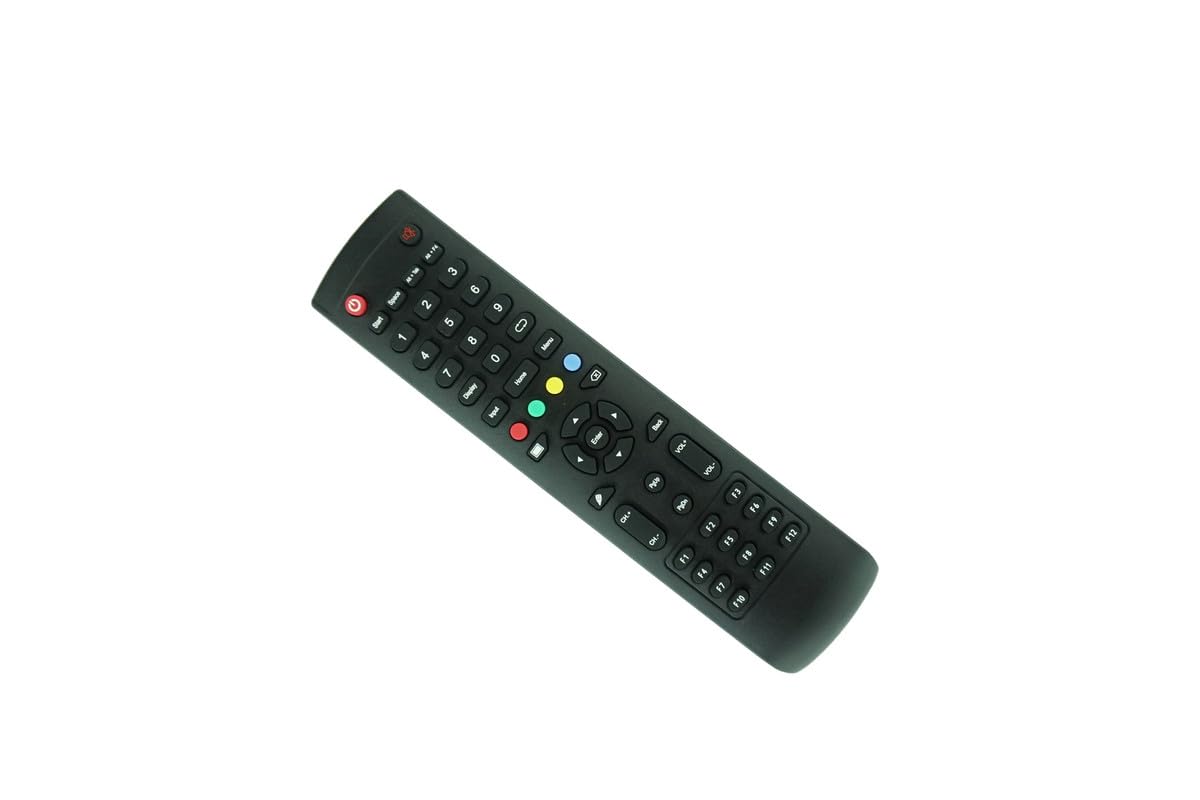
Figure 1: Front view of the remote control, displaying the power button, number pad, navigation controls, volume, channel, and function keys.
The remote control features a standard layout for easy operation of your Clear Touch Interactive Flat Panel Display. Key areas include:
- Power Button: Located at the top left, used to turn the display on or off.
- Number Pad: For direct input of channel numbers or other numerical selections.
- Navigation Controls: Directional arrows (Up, Down, Left, Right) and an Enter button for menu navigation.
- Volume and Channel Controls: Dedicated buttons for adjusting volume (VOL+/-) and changing channels (CH+/-).
- Function Keys (F1-F12): These keys may correspond to specific functions on your display, depending on the model.
- Input/Source Button: To switch between different input sources.
- Home/Menu Button: To access the display's main menu or home screen.
Setup
1. Battery Installation
The remote control requires two (2) AAA batteries (not included) for operation. Follow these steps to install the batteries:
- Locate the battery compartment on the back of the remote control.
- Press down on the tab and slide the battery cover downwards to open it.
- Insert two AAA batteries, ensuring the positive (+) and negative (-) terminals match the diagrams inside the compartment.
- Slide the battery cover back into place until it clicks securely.

Figure 2: Rear view of the remote control with the battery cover removed, illustrating the battery compartment for AAA batteries.
Important: Ensure correct battery polarity to prevent damage to the remote control.
2. Initial Use
This remote control is an infrared (IR) replacement and typically requires no programming. Once batteries are installed, it should be ready for immediate use with compatible Clear Touch Interactive Flat Panel Displays.
Point the remote control directly at the IR receiver on your display for optimal performance. The maximum effective range is approximately 8 meters (26 feet).
Operating Instructions
To operate your Clear Touch Interactive Flat Panel Display using this remote control, follow these general guidelines:
- Power On/Off: Press the Power button (red button at the top left) to turn the display on or off.
- Volume Adjustment: Use the VOL+ and VOL- buttons to increase or decrease the audio volume.
- Channel Selection: Use the CH+ and CH- buttons to navigate through channels. Alternatively, use the number pad to directly enter a channel number.
- Menu Navigation: Press the Menu or Home button to access the display's main menu. Use the directional arrow buttons (Up, Down, Left, Right) to navigate through menu options and the Enter button to confirm selections.
- Input Source: Press the Input button to cycle through available input sources (e.g., HDMI 1, HDMI 2, USB).
- Back/Exit: Use the Back button to return to the previous screen or exit a menu.
Refer to your Clear Touch Interactive Flat Panel Display's original manual for specific functions and menu structures.
Maintenance
To ensure the longevity and proper functioning of your remote control, follow these maintenance tips:
- Cleaning: Wipe the remote control with a soft, dry cloth. For stubborn dirt, lightly dampen the cloth with water or a mild cleaning solution, then wipe dry immediately. Avoid using harsh chemicals or abrasive cleaners.
- Battery Replacement: Replace batteries when the remote control's response becomes sluggish or stops working. Always replace both batteries at the same time with new AAA batteries. Do not mix old and new batteries, or different types of batteries.
- Storage: Store the remote control in a cool, dry place away from direct sunlight, extreme temperatures, and high humidity. If storing for an extended period, remove the batteries to prevent leakage.
- Avoid Drops and Impacts: Protect the remote control from physical shocks, as these can damage internal components.
Troubleshooting
| Problem | Possible Cause | Solution |
|---|---|---|
| Remote control not working. | Dead or incorrectly installed batteries. | Replace batteries with new AAA batteries, ensuring correct polarity. |
| Remote control has limited range or intermittent response. | Low batteries; Obstruction between remote and display; Remote too far from display. | Replace batteries. Remove any obstructions. Ensure remote is within 8 meters of the display and pointed directly at the IR receiver. |
| Certain functions do not work. | This replacement remote may not support all functions of the original remote. | Verify if the function is supported by this replacement model. Consult your display's original manual for specific functions. |
| Remote control is physically damaged. | Accidental drop or impact. | Physical damage is not covered under warranty. Consider purchasing a replacement. |
Specifications
- Brand: Generic
- Model Number: Easytry23119
- Connectivity Technology: Infrared (IR)
- Maximum Range: 8 meters (approximately 26 feet)
- Power Source: 2 x AAA batteries (not included)
- Compatible Devices: Clear Touch CTI-6065U-UH20, CTI-7065XE-UH20, CTI-7043XE-UH20, CTI-7086XE-UH20 4K HD Creative Touch Interactive Flat Panel LED Displays
- Color: Black
- Manufacturer: Easytry
Warranty Information
This product comes with a 90-day warranty from the date of purchase. This warranty covers manufacturing defects and ensures hassle-free returns for eligible issues.
The warranty does not cover damage caused by misuse, accident, unauthorized modification, or physical damage. Please retain your proof of purchase for warranty claims.
Support
For any questions, troubleshooting assistance, or warranty claims, please contact the seller, Easytry123, directly through the platform where the purchase was made.
When contacting support, please provide your order number and a detailed description of the issue to facilitate a quicker resolution.