
1. Introduction
Thank you for choosing the scopepick Blackhead Removal Tweezer with 1080p Camera. This precision-engineered tool is designed to provide ultimate accuracy and control for delicate tasks such as blackhead removal, ingrown hair extraction, and eyebrow shaping. Featuring a built-in 1080p camera, it offers a magnified, up-close view of the target area, ensuring meticulous grooming and extraction. This manual provides detailed instructions for setup, operation, maintenance, and troubleshooting to help you get the most out of your device.

Figure 1.1: The scopepick Blackhead Removal Tweezer with its accompanying smartphone application displaying a magnified view of the skin.
Key Features:
- 1080p HD Camera: Provides a clear, high-definition view of the target area.
- 10x Magnification: Offers enhanced visibility for precise work.
- Wireless Phone Connection: Connects seamlessly to iOS and Android devices for real-time viewing.
- Replaceable Tweezers: Allows for easy replacement and interchangeability with different tip types.
- Illuminated Tips: Features adjustable LED lights for optimal visibility in various lighting conditions.
- UV Sterilization Lamp: Automatically activates for 30 seconds after shutdown to help sanitize the tips.
- Waterproof Lens: The camera lens is designed to be waterproof for easy cleaning.
- Gyroscope Inside: Ensures precise control and image stabilization, adjusting the image according to tweezer movement.
- Portable Design: Compact and lightweight, suitable for travel and on-the-go use.

Figure 1.2: Overview of the key features of the scopepick Visual Blackhead Magnifying Tweezers.
2. Setup Guide
2.1 Package Contents
Before you begin, ensure all components are present in your package:
- scopepick Blackhead Removal Tweezer with 1080p Camera
- USB Type-C Charging Cable
- User Manual (this document)
2.2 Charging the Device
Before first use, fully charge the device. Connect the provided USB Type-C cable to the charging port on the tweezer and plug the other end into a compatible USB power adapter (not included). The indicator light will show charging status and turn off when fully charged.
2.3 App Installation and Connection
The scopepick tweezer requires a companion application for operation. Follow these steps to install and connect:
- Install the App: Download and install the "MUBY" app from your device's app store (App Store for iOS, Google Play Store for Android).
- Power On Device: Press and hold the power button on the tweezer for 2 seconds to turn on the device. The indicator light will illuminate.
- Connect to Wi-Fi: On your smartphone or tablet, go to your Wi-Fi settings. Locate and connect to the Wi-Fi network named "Muby-XXXXX" (where XXXXX is a unique identifier for your device). No password is required.
- Launch App: Open the "MUBY" app. The app should automatically detect and connect to the tweezer, displaying the live camera feed.

Figure 2.1: The device offers portable wireless phone connection for convenient use anywhere.
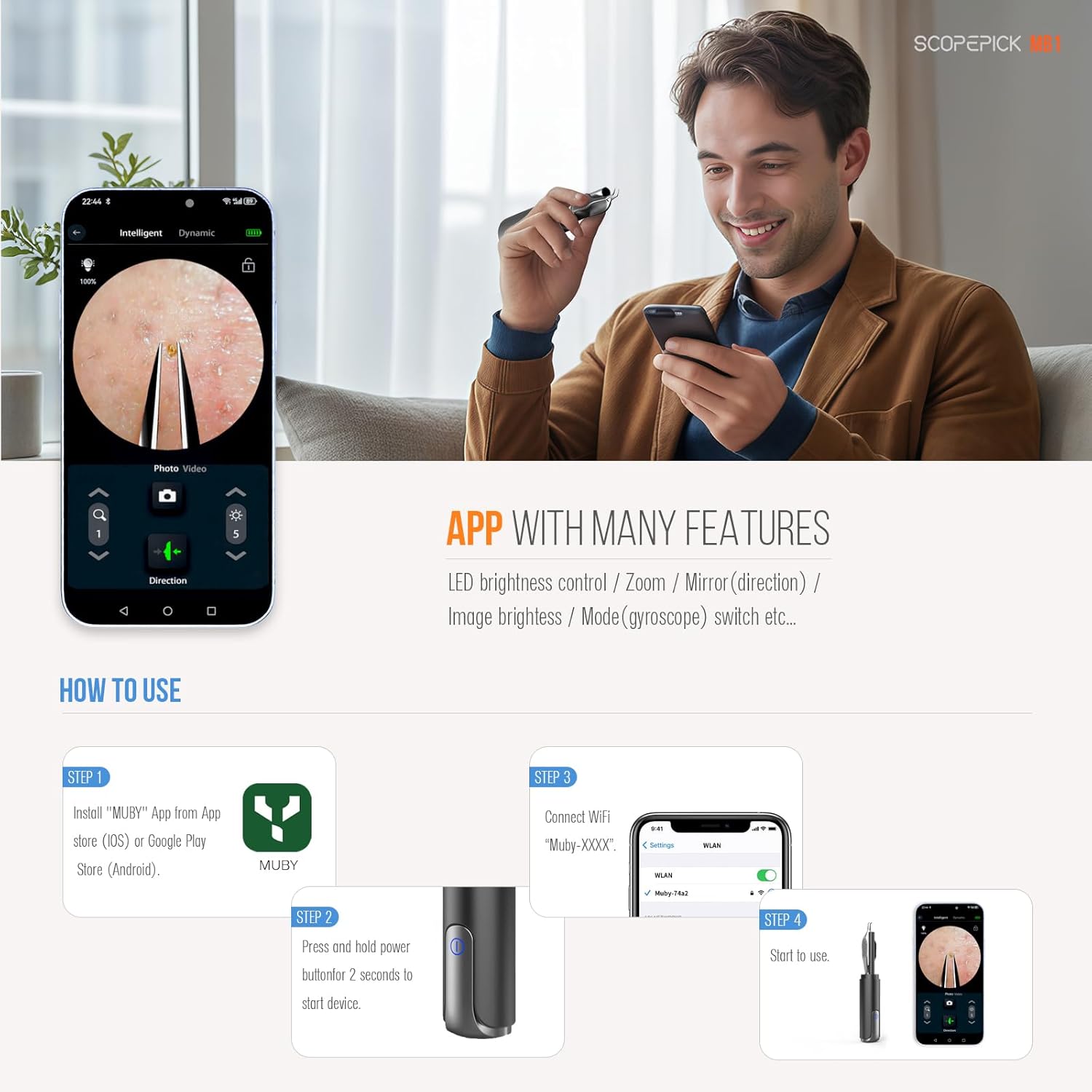
Figure 2.2: Step-by-step guide for app installation and device connection.
3. Operating Instructions
3.1 Holding the Device
For optimal control and precision, it is strongly recommended to hold the tweezers like a pen. An improper grip may lead to accidental touches on the power switch, causing unintended shutdown during use.
3.2 Using the App Features
The MUBY app provides various controls to enhance your experience:
- LED Brightness Control: Adjust the intensity of the integrated LED lights for clear illumination of the target area.
- Zoom Function: Utilize the digital zoom feature to get an even closer look at details.
- Mirror/Direction: Adjust the image orientation to match your natural hand movements, ensuring intuitive control.
- Image Brightness: Fine-tune the overall brightness of the camera feed.
- Mode (Gyroscope) Switch: The built-in gyroscope analyzes the movement of the tweezers and adjusts the image accordingly in the app, providing stable and precise control.
- Photo/Video Capture: Capture still images or record videos of the magnified view directly from the app.
3.3 Detachable Lens Hood
The device features an eye-friendly detachable lens hood. This accessory helps to avoid direct light exposure to the eyes, enhancing comfort during use, especially when working near sensitive areas.
4. Maintenance and Care
4.1 Cleaning the Tweezers and Lens
Regular cleaning is essential for hygiene and optimal performance:
- Detachable Tweezers: The tweezers are designed to be easily detachable from the main unit. This allows for thorough cleaning and sanitization.
- Cleaning Method: After each use, detach the tweezers and clean them with an alcohol wipe or a suitable sterilizing solution. Ensure they are completely dry before reattaching.
- Waterproof Lens: The camera lens tip is waterproof. You can gently wipe the lens with a soft, damp cloth. Do not submerge the entire device in water.
- UV Sterilization: The device automatically activates a UV sterilization lamp for 30 seconds after shutdown. This feature aids in sanitizing the tweezer tips.

Figure 4.1: The tweezers are removable for easy cleaning and replacement.
4.2 Storage
Store the device in a clean, dry place away from direct sunlight and extreme temperatures. Keep it out of reach of children.
5. Troubleshooting
If you encounter issues with your scopepick Blackhead Removal Tweezer, refer to the following common problems and solutions:
| Problem | Possible Cause | Solution |
|---|---|---|
| Device does not turn on. | Low battery; Device malfunction. | Charge the device fully. If issue persists, contact customer support. |
| Cannot connect to the app / No live feed. | Wi-Fi not connected; App issue; iOS compatibility. | Ensure you are connected to the device's Wi-Fi network ("Muby-XXXXX"). Restart the app and/or your phone. For iPhone users, ensure iOS is updated to the latest version and try restarting your phone. |
| Image is blurry or unclear. | Dirty lens; Incorrect focus/zoom. | Clean the camera lens gently. Adjust zoom and brightness settings within the app. |
| Battery drains quickly. | Normal wear and tear; Continuous use. | Ensure the device is fully charged before use. Avoid using while charging as it may heat up. |
| Device heats up during use/charging. | Normal operation; Overcharging. | A slight warmth is normal. If it becomes excessively hot, discontinue use and contact support. Do not use while charging. |

Figure 5.1: Specific troubleshooting advice for iPhone users experiencing connection issues.
6. Specifications
| Feature | Detail |
|---|---|
| Model Name | Blackhead Removal Tweezer With Camera |
| Item Model Number | MB1, MB2, MT1, MT2, MS1, MS2 |
| Brand | scopepick |
| Material | Metal (High-quality martensitic stainless steel for tweezers) |
| Color | Black |
| Camera Resolution | 1080p |
| Magnification | Up to 10x (Up to 20x with app) |
| Connectivity | Wireless (Wi-Fi) to iOS/Android devices |
| Working Time | Approximately 110 minutes |
| Charge Time | Approximately 100 minutes |
| Charging Port | Type-C |
| Package Dimensions | 6.61 x 3.19 x 1.42 inches |
| Item Weight | 1.6 ounces |
| Manufacturer | Muby Technology Co., LTD |
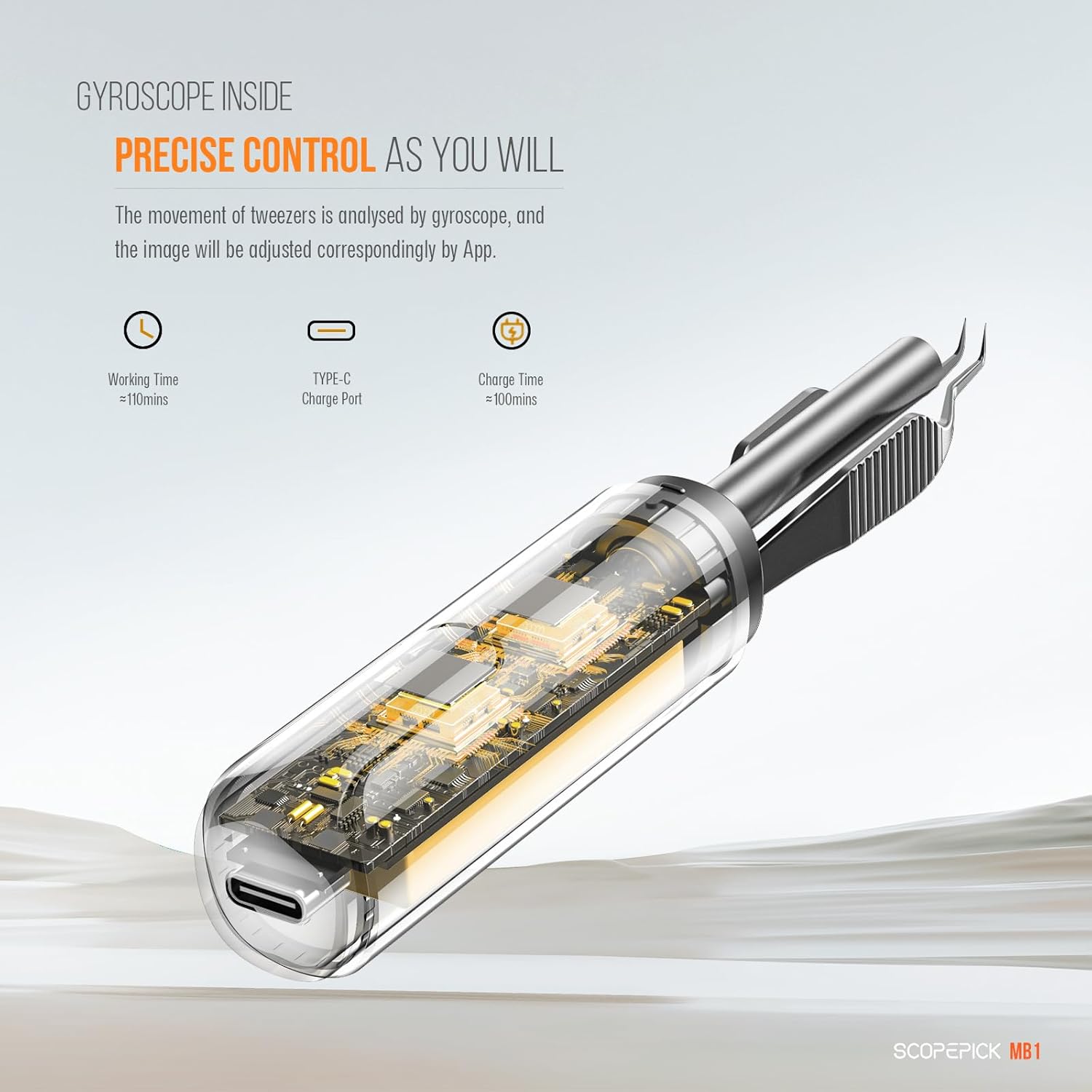
Figure 6.1: Internal components and power specifications of the device.
7. Warranty Information
This product is covered by a standard return policy, allowing for refund or replacement within 30 days of purchase. For specific warranty details and terms, please refer to the documentation provided with your purchase or contact the seller directly.
8. Customer Support
For further assistance, technical support, or inquiries regarding your scopepick Blackhead Removal Tweezer, please contact the manufacturer or seller through the platform where the product was purchased. Ensure you have your model number (MB1, MB2, MT1, MT2, MS1, MS2) and purchase details ready when contacting support.