1. Introduction
This instruction manual provides essential information for the safe and effective use of your Dell 280W Laptop Charger. Please read this manual thoroughly before using the product and retain it for future reference. This charger is designed to provide reliable power to compatible Dell and Alienware laptops.
Important Safety Information: Always ensure the charger is used in a well-ventilated area and avoid covering it. Do not expose the charger to water or extreme temperatures. Disconnect the charger from the power outlet when not in use or during electrical storms.
2. Product Overview
The Dell 280W Barrel 7.4mm tip GAN AC Adapter is a high-performance power supply unit designed for specific Dell and Alienware laptop models. It delivers a robust 280 watts of power, ensuring efficient charging and operation for demanding systems.
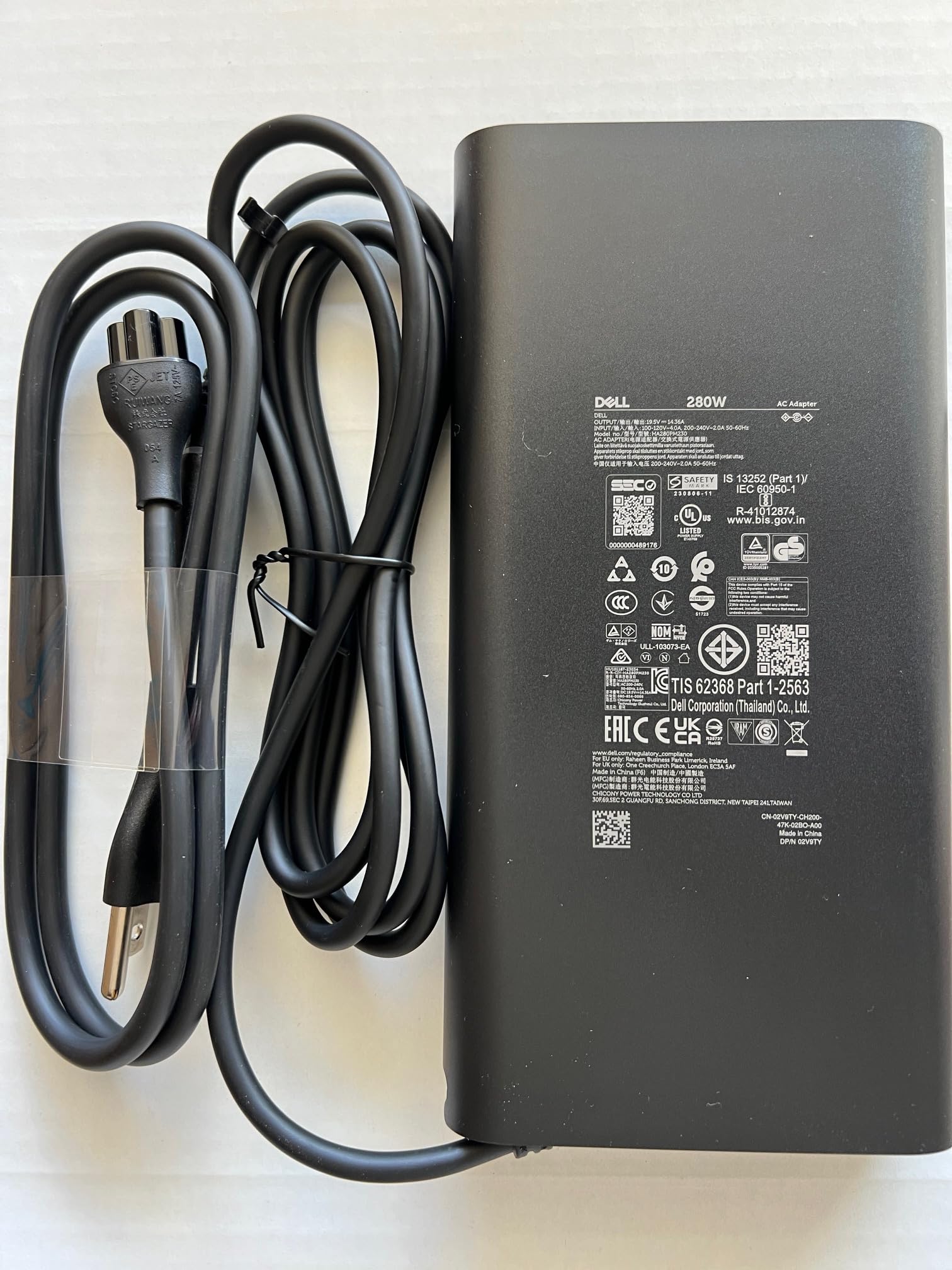
Image: The Dell 280W Laptop Charger, showing the main adapter unit and the attached power cable with a 7.4mm barrel tip connector.
2.1 Key Features
- High Power Output: Provides 280W (19.5V, 14.36A) for efficient charging of high-performance laptops.
- Wide Input Voltage Range: Supports 100-120V AC and 200-240V AC, 50-60Hz for global compatibility.
- Standard Barrel Tip: Features a 7.4mm barrel tip connector for secure and compatible connection.
- Genuine Dell Product: Ensures optimal performance and safety with Dell-certified quality.
2.2 Package Contents
- 1 x Dell 280W AC Adapter
3. Setup
Follow these steps to properly set up your Dell 280W Laptop Charger:
- Unpack the Charger: Carefully remove the charger and its power cable from the packaging.
- Connect the Power Cable: Insert the AC power cable into the charger's input port. Ensure it is firmly seated.
- Connect to Power Outlet: Plug the other end of the AC power cable into a grounded electrical outlet.
- Connect to Laptop: Insert the 7.4mm barrel tip connector of the charger into the power input port on your compatible Dell or Alienware laptop.
3.1 Compatibility
This charger is compatible with the following Dell and Alienware systems:
- Alienware 16 Area-51 AA16250
- Alienware 18 Area-51 AA18250
- Alienware M16 R2
- Alienware M18 R2
- Dell Pro Max Micro FCM2250
- Dell Pro Max Micro XE FCM2250
- G5 15 (5515)
- Precision Workstation 3280 Compact
- Precision Workstation 3280XE Compact
Compatible Model numbers for the charger include: LA280PM230, DA280PM230, 492-BDPN, JNVJJ, CWMHT, 492-BFDK.
4. Operating Instructions
Once connected, the charger will automatically begin supplying power to your laptop and charging its battery. Most Dell laptops have an indicator light near the charging port or on the power button that illuminates when power is being received.
- Ensure the charger is connected to a stable power source.
- The charger can be used to power the laptop directly or to recharge the laptop's internal battery.
- For optimal performance, use the charger in a well-ventilated area to prevent overheating.
5. Maintenance
Proper maintenance ensures the longevity and safe operation of your charger.
- Cleaning: Disconnect the charger from the power outlet and laptop before cleaning. Use a soft, dry cloth to wipe the surface of the charger. Do not use liquid cleaners or solvents.
- Storage: When not in use, store the charger in a cool, dry place. Avoid tightly wrapping the cables to prevent damage.
- Handling: Do not drop the charger or subject it to strong impacts. Avoid bending or crimping the power cable excessively.
- Inspection: Periodically inspect the charger and cables for any signs of damage, such as frayed wires or cracked casing. If damage is found, discontinue use and replace the charger.
6. Troubleshooting
If you encounter issues with your Dell 280W Laptop Charger, refer to the following common problems and solutions:
- Charger Not Supplying Power:
- Ensure both ends of the power cable are securely connected to the charger and the wall outlet.
- Verify the wall outlet is functional by plugging in another device.
- Check if the charger's barrel tip is fully inserted into the laptop's power port.
- Confirm that your laptop model is listed as compatible with this charger.
- Charger Overheating:
- Ensure the charger is placed in a well-ventilated area and not covered by anything.
- Avoid placing the charger on soft surfaces like carpets or beds that can block ventilation.
- If overheating persists, disconnect the charger and contact Dell support.
- Laptop Not Charging or Charging Slowly:
- Ensure the charger is the correct wattage (280W) for your laptop model. Using an underpowered charger can result in slow charging or no charging.
- Check the laptop's battery health in its operating system settings.
- Restart your laptop.
If these steps do not resolve the issue, please contact Dell customer support.
7. Specifications
| Feature | Detail |
|---|---|
| Brand | Dell |
| Model Number | LA280PM230 |
| Input Voltage | 100-120V AC / 200-240V AC |
| Input Frequency | 50-60Hz |
| Output Power | 280W |
| Output Voltage | 19.5V |
| Output Current | 14.36A |
| Tip Size | 7.4mm Barrel Tip |
| Item Weight | 2 pounds |
| Color | Black |
| Manufacturer | Lite-On Technology Corp. |
| Date First Available | November 3, 2024 |
8. Warranty and Support
For warranty information and technical support, please refer to the official Dell website or contact Dell customer service directly. Keep your purchase receipt and product serial number handy when seeking support.
Dell Support Website: www.dell.com/support
Dell provides comprehensive support resources, including drivers, manuals, and troubleshooting guides, to assist you with your product.


