
ORICO ORICO-DKA21-V1-JP-BK-EP
ORICO 20-in-1 Docking Station User Manual
Model: ORICO-DKA21-V1-JP-BK-EP
Introduction
The ORICO 20-in-1 Docking Station is a versatile and powerful solution designed to expand the connectivity of your laptop or computer. It provides a comprehensive array of ports, including high-speed USB-C, multiple display outputs (HDMI, DisplayPort, VGA), audio jacks, and Gigabit Ethernet, transforming your device into a full-featured workstation. This manual provides detailed instructions for setting up, operating, and maintaining your docking station.
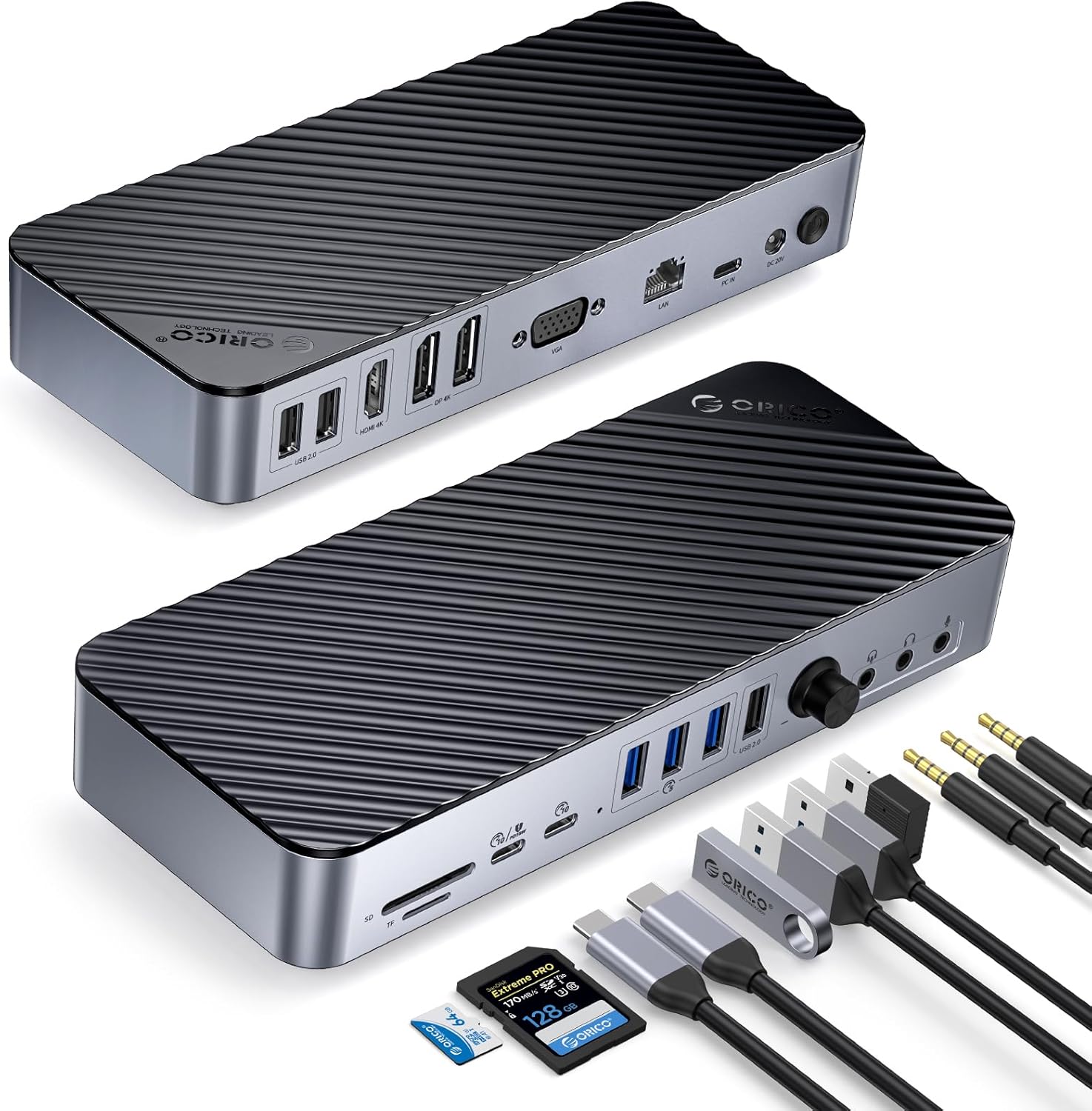
Figure 1: ORICO 20-in-1 Docking Station and accessories.
Package Contents
Please verify that all items are present in the package:
- 1 x ORICO DKA20 Docking Station
- 1 x Power Adapter
- 1 x Power Cord
- 1 x USB-C to USB-C 1M Cable
- 1 x User Manual (this document)

Figure 2: Contents included in the ORICO 20-in-1 Docking Station package.
Product Features and Ports
The ORICO 20-in-1 Docking Station offers a comprehensive set of ports to enhance your connectivity. Below is a detailed overview of the available interfaces:
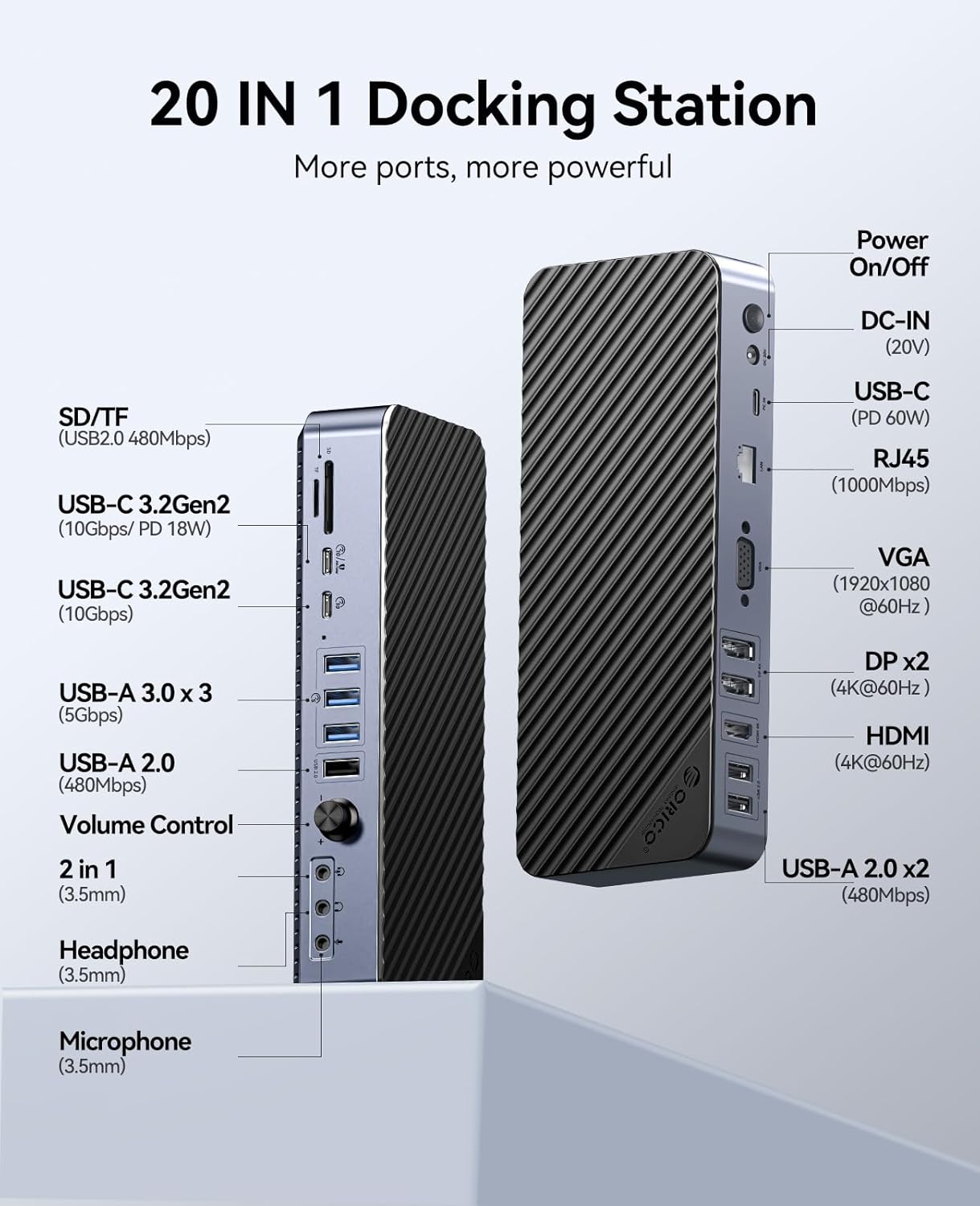
Figure 3: Front and Rear Panel Port Layout.
Front Panel Ports:
- SD/TF Card Reader: Supports SD and MicroSD cards for data transfer (USB2.0 480Mbps).
- USB-C 3.2 Gen2 (10Gbps/PD 18W): High-speed data transfer and power delivery for charging devices.
- USB-C 3.2 Gen2 (10Gbps): High-speed data transfer.
- USB-A 3.0 x 3 (5Gbps): Three USB-A ports for connecting peripherals with 5Gbps data transfer.
- USB-A 2.0 (480Mbps): Standard USB-A port for general peripherals.
- Volume Control: Knob for adjusting audio output volume.
- 2-in-1 Audio (3.5mm): Combined headphone and microphone jack.
- Headphone (3.5mm): Dedicated headphone output.
- Microphone (3.5mm): Dedicated microphone input.
Rear Panel Ports:
- HDMI (4K@60Hz): High-definition video output.
- VGA (1920x1080@60Hz): Standard video output.
- DP x 2 (4K@60Hz): Two DisplayPort outputs for high-resolution displays.
- RJ45 (1000Mbps): Gigabit Ethernet port for stable wired network connection.
- USB-C (PD 60W): Main host connection with 60W Power Delivery to charge your laptop.
- DC-IN (20V): Power input for the docking station (90W DC).
- Power On/Off Button: Controls the power to the docking station.
- USB-A 2.0 x 2 (480Mbps): Two additional USB-A ports for general peripherals.

Figure 4: High-speed data transfer capabilities.
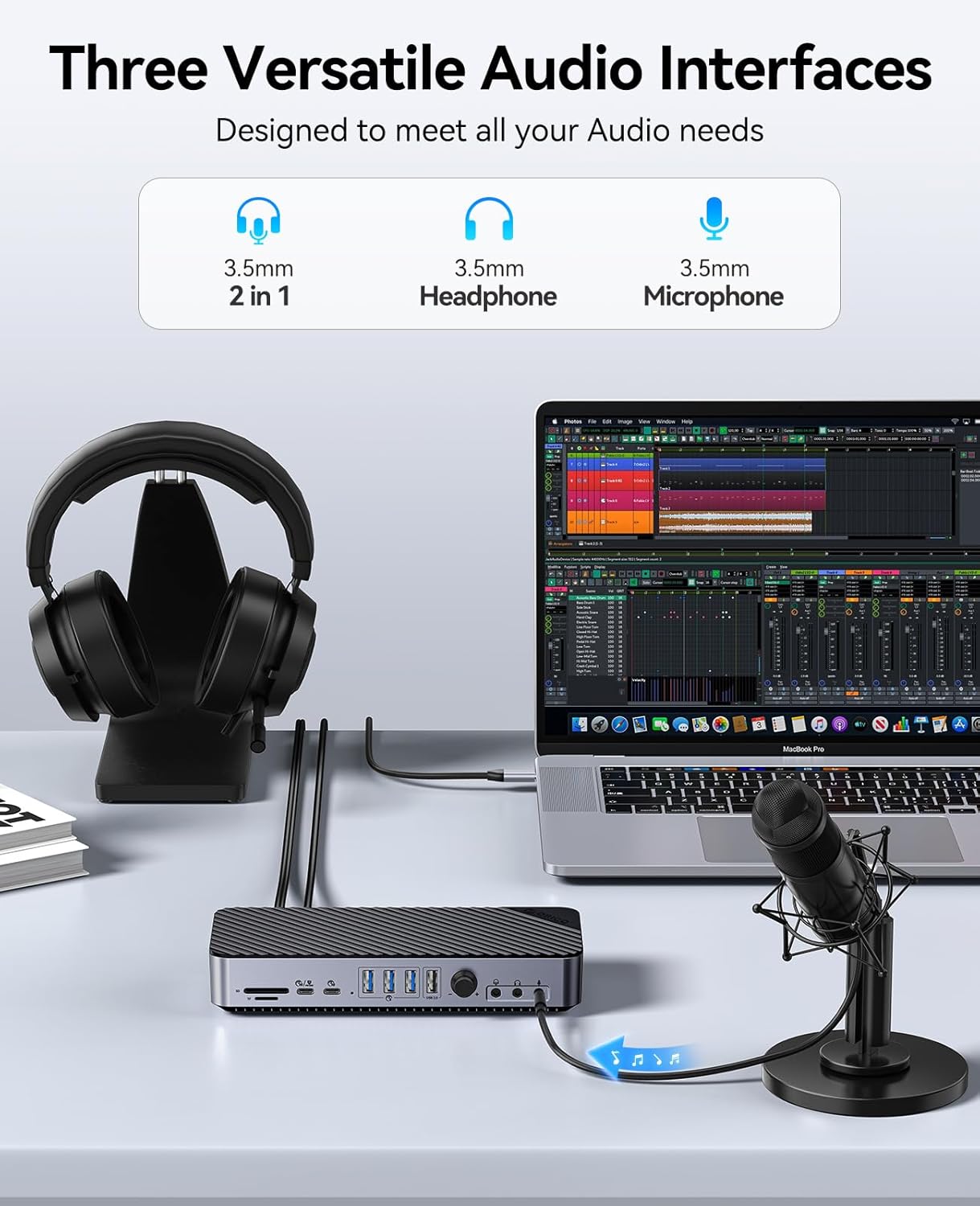
Figure 5: Audio connectivity options.
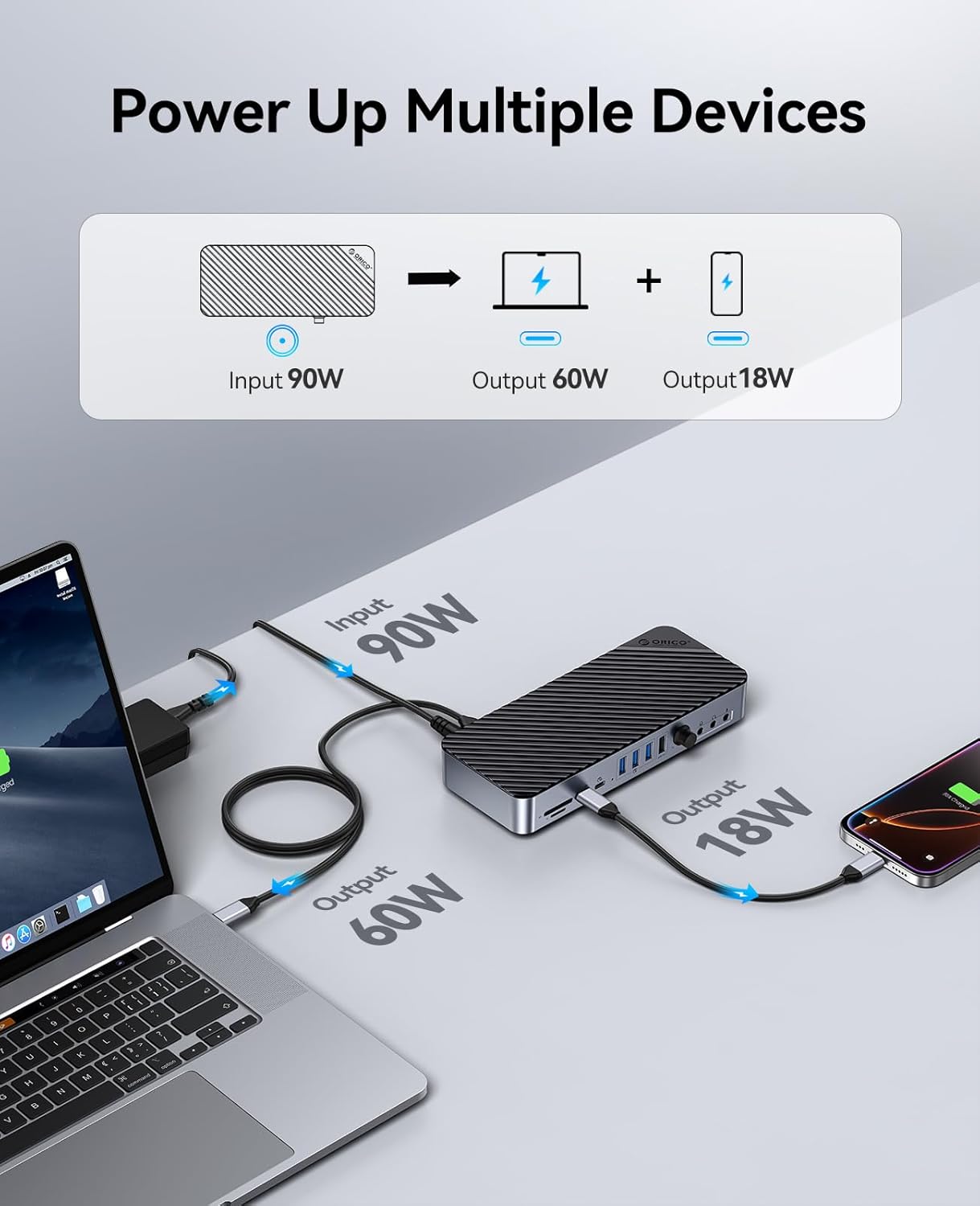
Figure 6: Power Delivery capabilities.

Figure 7: Gigabit Ethernet for stable network connection.
Setup
- Connect Power: Connect the provided power adapter to the DC-IN port (20V) on the rear of the docking station, then plug the power cord into a wall outlet.
- Connect to Host Device: Use the included USB-C to USB-C cable to connect the docking station's USB-C (PD 60W) port to your laptop or computer's USB-C/Thunderbolt port. This connection also provides power delivery to your host device.
- Connect Displays: Connect your monitors to the available HDMI, DisplayPort (DP), and VGA ports on the docking station. Ensure your display cables are securely connected.
- Connect Peripherals: Plug in your USB devices (keyboard, mouse, external drives, etc.) to the USB-A and USB-C data ports. Connect audio devices to the 3.5mm audio jacks and an Ethernet cable to the RJ45 port for wired network access.
- Power On: Press the Power On/Off button on the rear of the docking station.
- Driver Installation (if necessary): For certain operating systems or specific multi-display configurations (e.g., macOS with multiple extended displays), you may need to install DisplayLink drivers. Refer to the ORICO website (www.orico.cc) for the latest drivers and installation instructions.
Video 1: Overview of the ORICO 20-in-1 Docking Station setup and features, including multi-display capabilities, port connections, and data transfer speeds. This video demonstrates the ease of connecting various peripherals and monitors to enhance your workspace.
Operating
Multi-Display Modes:
The docking station supports various display configurations depending on your operating system and host device capabilities.
macOS Display Modes:
For macOS, the docking station supports both Mirror Mode and Extend Mode. Please note that MacBooks with M1/M2/M3 chips can typically only connect one external monitor in extended mode without specific DisplayLink drivers.

Figure 8: macOS Multi-Display Configurations.
Windows Display Modes:
For Windows, the docking station supports Mirror Mode and various Extended Mode configurations, allowing for up to four simultaneous displays (including the laptop screen).

Figure 9: Windows Multi-Display Configurations.
To configure your display settings, navigate to your operating system's display settings (e.g., System Settings > Displays on macOS, or Settings > System > Display on Windows) and arrange your monitors as desired.
Audio Control:
The front panel features a volume control knob and dedicated audio jacks for headphones and microphones. Adjust the knob to control the output volume of connected audio devices. Ensure your audio output device is selected correctly in your operating system's sound settings.
Maintenance
- Cleaning: Use a soft, dry cloth to clean the exterior of the docking station. Avoid using abrasive cleaners or solvents.
- Ventilation: Ensure the docking station is placed in a well-ventilated area to prevent overheating. Do not block the ventilation holes.
- Storage: When not in use for extended periods, disconnect the power adapter and store the docking station in a cool, dry place.
- Cable Management: Organize cables to prevent strain on ports and ensure a tidy workspace.
Troubleshooting
- No Display Output:
- Ensure the docking station is powered on and connected securely to your host device.
- Verify that display cables are firmly connected to both the docking station and the monitors.
- Check your computer's display settings to ensure the external monitors are detected and configured correctly (extended or mirrored).
- For macOS, especially M1/M2/M3 chips, ensure DisplayLink drivers are installed if using multiple extended displays.
- Try different display cables or ports on the docking station/monitor to rule out faulty hardware.
- USB Devices Not Working:
- Ensure the docking station is powered on.
- Try connecting the USB device to a different port on the docking station.
- Connect the USB device directly to your computer to confirm it functions independently.
- Restart your computer and the docking station.
- No Network Connection (RJ45):
- Verify the Ethernet cable is securely connected to both the docking station and your router/modem.
- Check your computer's network settings to ensure the Ethernet adapter is enabled and configured.
- Try a different Ethernet cable.
- Charging Issues:
- Ensure the power adapter is correctly connected and providing power to the docking station.
- Confirm your laptop supports charging via USB-C Power Delivery (PD).
- Check the power requirements of your laptop; the docking station provides up to 60W PD to the host.
- Audio Not Working:
- Ensure headphones/speakers are properly plugged into the correct 3.5mm audio jack.
- Check your computer's sound settings to ensure the correct audio output device (e.g., "DisplayLink Audio" or similar) is selected.
- Adjust the volume knob on the docking station and your computer's system volume.
Specifications
| Feature | Detail |
|---|---|
| Model Number | ORICO-DKA21-V1-JP-BK-EP |
| Product Dimensions | 8.27 x 3.39 x 1.5 inches |
| Item Weight | 1.83 pounds |
| Total Ports | 21 |
| USB Ports | 8 (including 2x USB-C 10Gbps, 3x USB-A 5Gbps, 3x USB-A 480Mbps) |
| Video Outputs | 1x HDMI (4K@60Hz), 2x DisplayPort (4K@60Hz), 1x VGA (1920x1080@60Hz) |
| Ethernet | 1x RJ45 Gigabit Ethernet (1000Mbps) |
| Audio Ports | 3x 3.5mm (Headphone, Microphone, 2-in-1) |
| Card Reader | SD/TF (480Mbps) |
| Power Delivery (Host) | Up to 60W via USB-C |
| Power Delivery (Device) | Up to 18W via USB-C |
| Input Power | 90W DC (20V) |
| Compatible Devices | MacBook Pro, MacBook Air, Mac Mini, Microsoft Surface, Dell XPS, Lenovo Yoga, Dell Latitude, HP Envy, ASUS Zenbook, Acer Swift Go, and other USB-C/Thunderbolt enabled devices. |
| Operating Systems | Windows (11, 10, 8.8.1, 7, XP), macOS (all versions including M1/M2/M3 chips) |

Figure 10: Display Output Capabilities Table.

Figure 11: Compatible Devices and Operating Systems.
Warranty and Support
ORICO products are designed for reliability and performance. For warranty information and technical support, please visit the official ORICO website or contact their customer service. Keep your purchase receipt for warranty claims.
Official Website: www.orico.cc
Related documentsORICO-DKA21-V1-JP-BK-EP


Ask a question about this manual
Ask about setup, troubleshooting, compatibility, parts, safety, or missing instructions. Manuals+ will review the question and use this page’s manual context to help answer it.