1. Introduction
Thank you for purchasing the Jazmm Model 213 Portable Multi-Band Radio. This device is designed to provide versatile audio entertainment and essential weather information. It features AM, FM, Shortwave (SW), and NOAA Weather Band (WB) reception, Bluetooth 5.4 connectivity, TF card playback, a powerful 5W speaker, and a built-in rechargeable battery with flashlight functionality. This manual provides detailed instructions for the proper use and maintenance of your radio.
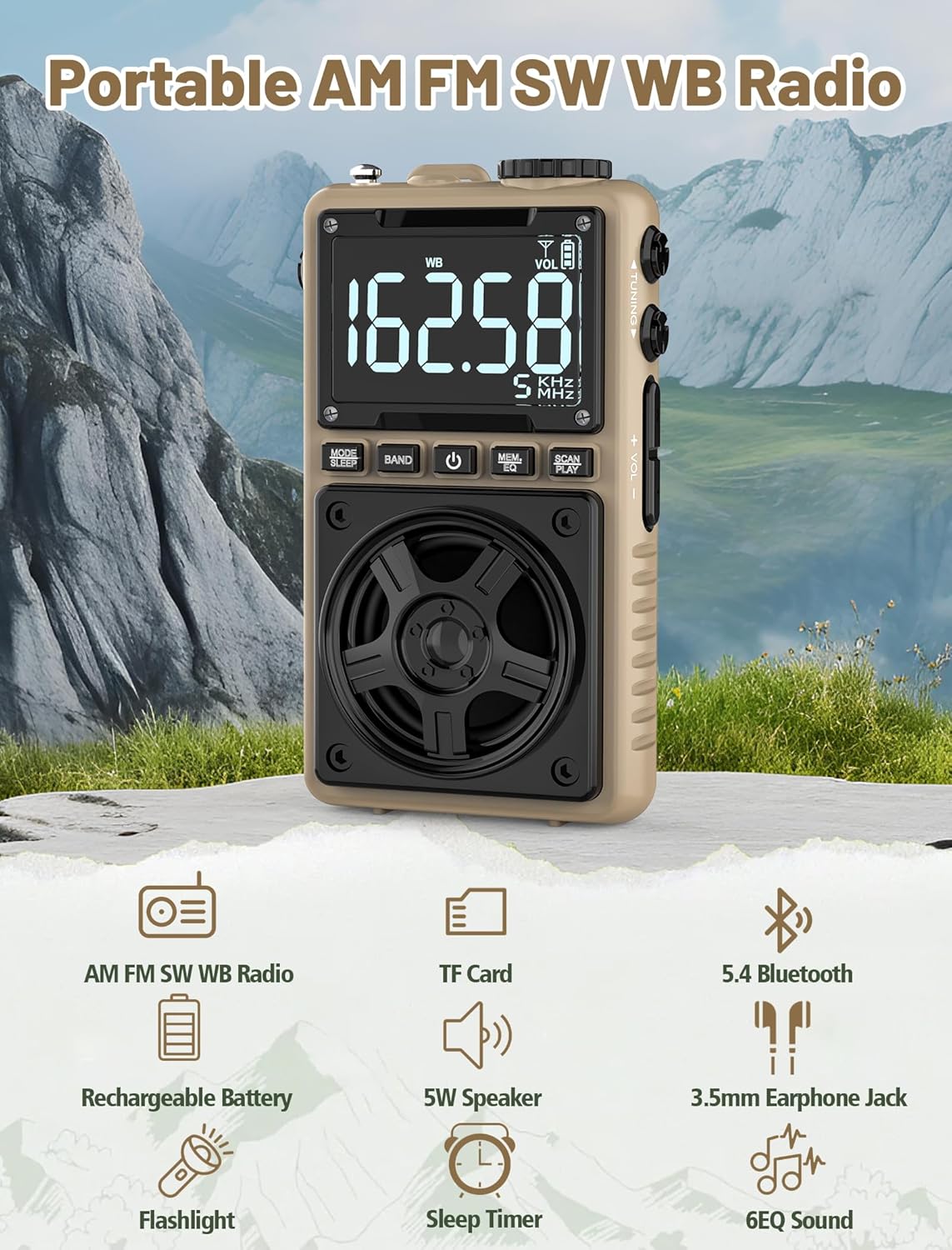
Image 1.1: The Jazmm Model 213 Portable Multi-Band Radio highlighting its key features including AM/FM/SW/WB radio, TF card support, Bluetooth 5.4, 5W speaker, rechargeable battery, flashlight, sleep timer, and 6 EQ sound effects.
2. Safety Information
Please read and understand all safety instructions before using this product. Keep these instructions for future reference.
- Do not expose the device to extreme temperatures, direct sunlight, or high humidity.
- Avoid dropping or subjecting the device to strong impacts.
- Do not disassemble, repair, or modify the device yourself. Refer all servicing to qualified personnel.
- Keep the device away from water and other liquids.
- Use only the provided charging cable or a certified Type-C cable for charging.
- Dispose of the battery according to local regulations. Do not incinerate.
- Prolonged listening at high volume levels may cause hearing damage. Adjust volume to a moderate level.
3. Package Contents
Verify that all items are present in the package:
- Jazmm Model 213 AM FM SW WB Radio
- Owner's Manual (this document)
- USB Type-C Power Cord
4. Product Overview
Familiarize yourself with the radio's components and controls.

Image 4.1: Front and side view of the Jazmm Model 213 radio. The front features a large digital display, speaker, and control buttons (MODE/SLEEP, BAND, Power, MEM/EQ, SCAN/PLAY). The side shows the LOCK/LIGHT switch, TF card slot, DC 5V Type-C charging port, and a 1250mAh battery indicator.
Controls and Ports:
- Digital Display: Shows frequency, band, volume, battery level, and other indicators.
- Speaker: 5W output for clear audio.
- MODE/SLEEP Button: Switches between modes (Radio, Bluetooth, TF Card) and activates sleep timer.
- BAND Button: Selects radio bands (FM, AM, SW, WB).
- Power Button: Turns the radio on/off.
- MEM/EQ Button: Accesses memory functions and cycles through EQ sound effects.
- SCAN/PLAY Button: Initiates auto-scan for radio stations or plays/pauses in Bluetooth/TF card mode.
- Tuning Knob: Adjusts frequency.
- Volume +/- Buttons: Adjusts audio volume.
- LOCK/LIGHT Switch: Locks buttons or activates the flashlight.
- TF Card Slot: For Micro SD card playback (up to 128GB).
- DC 5V Type-C Charging Port: For charging the internal battery.
- 3.5mm Headphone Jack: For private listening.
- Telescopic Antenna: For improved radio reception.
- Back Clip & Wrist Strap: For portability and secure carrying.
5. Setup
5.1 Initial Charging
Before first use, fully charge the radio's internal 1250mAh lithium polymer battery. Connect the provided USB Type-C power cord to the DC 5V charging port on the side of the radio and plug the other end into a compatible USB power adapter (not included) or a computer USB port. The charging indicator on the display will show charging status. A full charge typically takes approximately 1.5 hours and provides 10-12 hours of usage.

Image 5.1: The Jazmm Model 213 radio connected to a power adapter via its Type-C charging port, illustrating the charging process for its 1250mAh rechargeable battery.
5.2 Antenna Adjustment
For optimal radio reception, extend the telescopic antenna fully when listening to FM, SW, or WB bands. For AM reception, the internal antenna is generally sufficient, but adjusting the radio's orientation may improve signal strength.
6. Operating Instructions
6.1 Power On/Off
Press and hold the Power Button ( ) for approximately 2 seconds to turn the radio on or off.
6.2 Mode Selection
Press the MODE/SLEEP Button to cycle through available modes: Radio (FM/AM/SW/WB), Bluetooth, and TF Card (if a card is inserted).
6.3 Radio Band Selection and Tuning
In Radio mode, press the BAND Button to switch between FM, AM, Shortwave (SW), and NOAA Weather Band (WB).
- FM: 87-108 MHz
- AM: 520-1710 KHz
- SW: 4.75-21.85 MHz
- WB: 162.400-162.550 MHz

Image 6.1: The radio displaying different frequencies across FM, AM, SW, and WB bands, illustrating its multi-band reception capability with an extended antenna.
Manual Tuning:
Rotate the Tuning Knob on the side of the radio to manually adjust the frequency.
Automatic Scan:
Press the SCAN/PLAY Button to automatically scan for and save available stations. The radio can store up to 100 preset stations.
6.4 Preset Stations
After an automatic scan, use the Tuning Knob or the MEM/EQ Button to navigate through saved preset stations. Refer to the display for preset numbers (e.g., P01, P02).

Image 6.2: The radio positioned on a nightstand, illustrating the sleep timer function and the display of preset station numbers (P01, P05, P19, etc.).
6.5 Volume Control
Use the Volume +/- Buttons on the side of the radio to increase or decrease the audio output.
6.6 Bluetooth Mode
Switch to Bluetooth mode using the MODE/SLEEP Button. The radio will enter pairing mode, indicated by a blinking Bluetooth icon on the display. On your smartphone, tablet, or laptop, search for Bluetooth devices and select "Jazmm 213" to connect. The radio acts as a Bluetooth speaker. Note: This radio does not support connection to Bluetooth earphones.
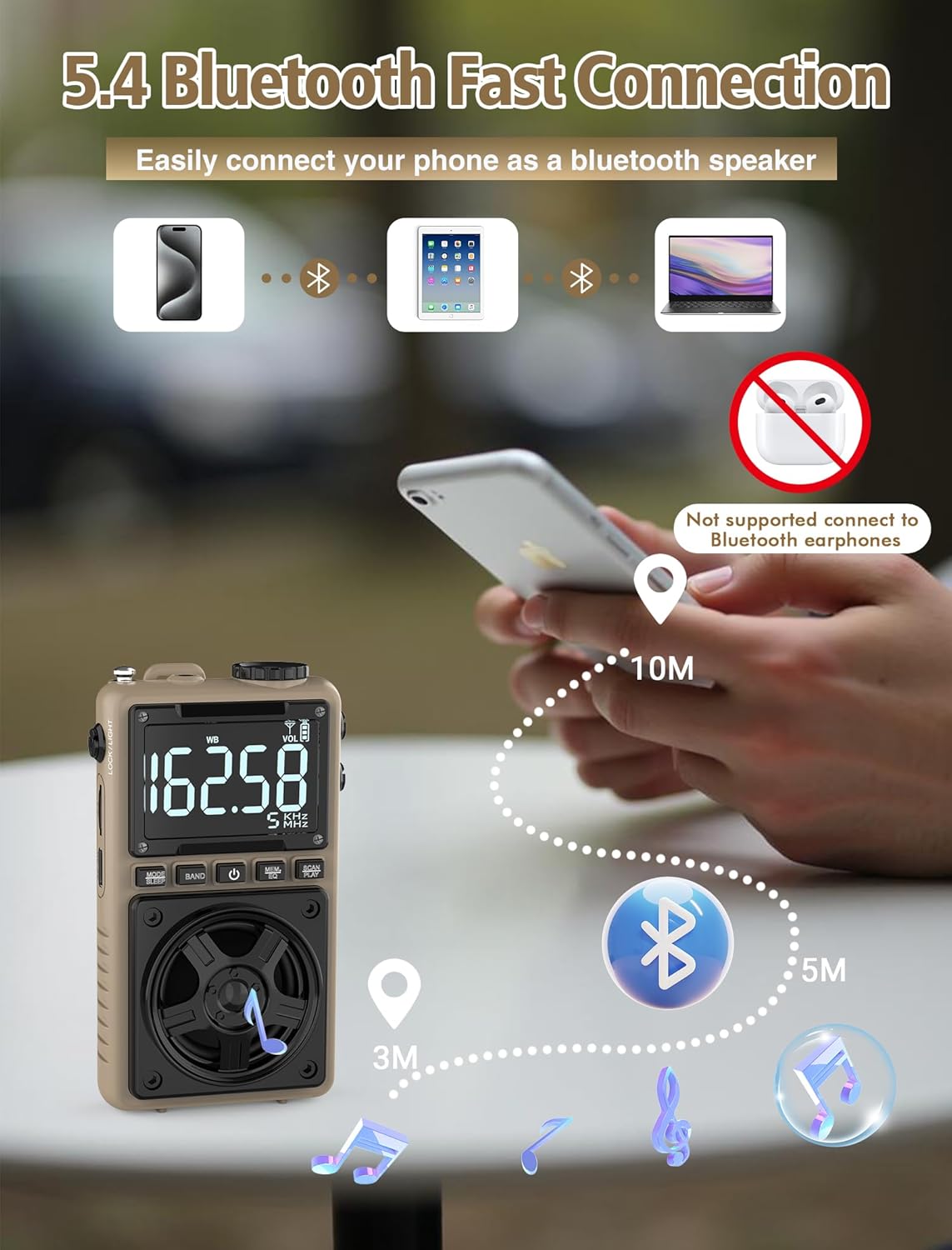
Image 6.3: A visual representation of the Jazmm Model 213 radio establishing a Bluetooth connection with various devices like smartphones, tablets, and laptops, functioning as a Bluetooth speaker.
6.7 TF Card Playback (MP3 Player)
Insert a Micro SD card (up to 128GB) with MP3 audio files into the TF Card Slot. Switch to TF Card mode using the MODE/SLEEP Button. The radio will automatically begin playing music from the card. Use the SCAN/PLAY Button to play/pause and the Tuning Knob to skip tracks.

Image 6.4: A user enjoying music through headphones connected to the Jazmm Model 213 radio, with an inset showing the TF card slot for Micro SD card insertion.
6.8 Headphone Use
Plug standard 3.5mm headphones into the 3.5mm Headphone Jack for private listening. The radio's speaker will automatically mute when headphones are connected.
6.9 NOAA Weather Alert
In WB (Weather Band) mode, the radio is capable of receiving real-time weather alerts and updates from the National Oceanic and Atmospheric Administration. This feature helps you prepare for potential weather hazards. Ensure the antenna is extended for best reception.

Image 6.5: The radio displaying a NOAA weather alert, with a flashlight beam illuminating the foreground and a stormy sky in the background, emphasizing its emergency preparedness features.
6.10 Flashlight Function
Slide the LOCK/LIGHT Switch to activate the built-in LED flashlight. This can be useful in low-light conditions or emergencies.
6.11 Sleep Timer
Press and hold the MODE/SLEEP Button to activate the sleep timer. Repeated presses will cycle through available durations (e.g., 10, 60, 90, 120 minutes). The radio will automatically turn off after the selected time.
6.12 Lock Key
Slide the LOCK/LIGHT Switch to the 'LOCK' position to prevent accidental button presses. This is useful when carrying the radio in a pocket or bag.
6.13 EQ Sound Effects
Press the MEM/EQ Button (short press) to cycle through 6 preset EQ sound effects: Normal, Rock, Pop, Jazz, Class, and Village. Select the effect that best suits your audio preference.

Image 6.6: The radio's 5W speaker is highlighted, surrounded by icons representing the six available EQ stereo sound effects: Normal, Rock, Pop, Jazz, Class, and Village.
7. Specifications
| Feature | Detail |
|---|---|
| Model Number | 213 |
| Product Dimensions | 2.3 x 4 x 1.3 inches (5.84 x 10.16 x 3.3 cm) |
| Item Weight | 4.6 ounces (130 grams) |
| Radio Bands Supported | FM (87-108MHz), AM (520-1710KHz), SW (4.75-21.85MHz), WB (162.400-162.550MHz) |
| Connectivity Technology | Bluetooth 5.4 |
| Speaker Output | 5W |
| Battery | 1250mAh Lithium Polymer (Rechargeable, included) |
| Charging Port | USB Type-C (DC 5V) |
| Charging Time | Approx. 1.5 hours |
| Usage Time | Approx. 10-12 hours (depending on usage) |
| Memory Card Support | Micro SD (TF Card) up to 128GB |
| Special Features | NOAA Weather Alert, Built-In Flashlight, SOS Alarm, Sleep Timer, 100 Preset Stations, Digital Backlight Screen, Back Clip, Wrist Strap |
8. Troubleshooting
| Problem | Possible Cause / Solution |
|---|---|
| Radio does not turn on. |
|
| Poor radio reception. |
|
| Bluetooth not connecting. |
|
| TF card not playing. |
|
| No sound from speaker/headphones. |
|
9. Maintenance
- Cleaning: Use a soft, dry cloth to clean the radio's exterior. Do not use abrasive cleaners or solvents.
- Storage: When not in use for extended periods, store the radio in a cool, dry place.
- Battery Care: To prolong battery life, avoid fully discharging the battery frequently. Recharge the radio periodically even if not in use.
- Antenna: Handle the telescopic antenna gently to prevent bending or breaking. Retract it when not in use.
10. Warranty and Support
Jazmm products are designed for reliability and performance. For warranty information, please refer to the documentation provided at the time of purchase or contact your retailer. If you encounter any issues or require technical assistance, please contact Jazmm customer support through the retailer's platform or the official Jazmm website.
Please have your product model number (213) and purchase details ready when contacting support.


