
DAYTEE TY01BL-E05-GY-BT009GR 3-2 DE
DAYTECH WiFi Tuya Smart Emergency Alert System User Manual
Model: TY01BL-E05-GY-BT009GR 3-2 DE
1. Introduction
The DAYTECH WiFi Tuya Smart Emergency Alert System is designed to provide reliable and timely assistance for seniors, children, patients, and individuals with disabilities. This system ensures that caregivers and family members are immediately notified in case of an emergency, regardless of their location, through a combination of local alerts and smartphone notifications.
Key Features:
- Reliable Emergency Notifications: Instant alerts to both local receivers and linked smartphones via the Tuya Smart or Smart Life App.
- WiFi & App Compatibility: Operates over 2.4GHz WiFi, connecting seamlessly with the free Tuya Smart or Smart Life App. No SIM card required.
- Modular and Expandable: Easily add additional call buttons, receivers, or sensors to customize the system to specific needs.
- Multi-User Notifications: Multiple family members can receive simultaneous alerts on their smartphones, ensuring no emergency call is missed.
- Adjustable Volume: Receiver offers five adjustable volume levels (0dB to 110dB) and a mute mode.
- Long Transmission Range: Up to 150 meters outdoors, and 0-70 meters indoors depending on obstacles.
- Replaceable Batteries: SOS buttons and wristbands use easily replaceable CR2032 batteries.
- IP55 Waterproof: SOS buttons and wristbands are designed to withstand splashes.
2. Package Contents and Product Overview
Package Contents:
- Black Receivers (Quantity as per variant)
- SOS Wristband (Quantity as per variant)
- SOS Buttons (Quantity as per variant)
- AAA Batteries (for receiver, quantity as per variant)
- CR2032 Batteries (pre-installed in SOS buttons/wristband)
- User Manual (this document)
Product Overview:
The system typically includes one or more main receiver units, which plug into a power outlet, and multiple portable SOS call buttons or wristbands. The receiver connects to your home WiFi network, enabling app notifications.

Figure 2.1: Overview of the DAYTECH Emergency Alert System components.
The SOS buttons and wristbands are designed for easy access and can be worn or placed conveniently. When activated, they send a signal to the receiver, which then triggers an audible alarm and sends a notification to linked smartphones.

Figure 2.2: The emergency alert system is suitable for various users, including the elderly, sick, children, and pregnant individuals.
3. Setup Guide
3.1. Powering the Receiver
- Insert the provided AAA batteries into the receiver unit.
- Plug the receiver into a standard wall outlet. The receiver will power on and indicate readiness for connection.
3.2. Installing/Checking Batteries in SOS Buttons/Wristband
The SOS buttons and wristbands come with CR2032 batteries pre-installed. If replacement is needed, refer to the Maintenance section.

Figure 3.1: The SOS wristband and buttons use replaceable CR2032 batteries.
3.3. Connecting the Receiver to the Tuya Smart App
Follow these steps to connect your receiver to the Tuya Smart or Smart Life App for remote notifications and control:
- Step 1: Download the "Tuya Smart" or "Smart Life" app from your smartphone's app store. Create an account or log in. Ensure Bluetooth and WiFi are enabled on your phone.
- Step 2: On the receiver unit, press and hold the top button for 5-8 seconds to enter network pairing mode. The indicator light will flash.
- Step 3: Open the app, click "Add Device" (usually a '+' icon in the top right corner).
- Step 4: The app should automatically detect the device. Click on the detected device.
- Step 5: Enter your 2.4GHz WiFi network password. (Note: The system only supports 2.4GHz WiFi. If you have a dual-band router, ensure your phone is connected to the 2.4GHz band during setup).
- Step 6: Wait for the connection to complete. Once successful, the receiver will be added to your app.

Figure 3.2: Steps for connecting the receiver to the Tuya Smart App.
3.4. Connecting SOS Buttons/Wristband to the App
After connecting the receiver, you can add the SOS buttons and wristbands to the app:
- Step 1: In the Tuya Smart app, navigate to the receiver's control interface.
- Step 2: Look for an option to "Add Sub-device" or "Add Button" within the receiver's settings.
- Step 3: Follow the on-screen prompts. You may need to press the SOS button/wristband to pair it with the receiver and the app.
- Step 4: Once successfully added, you can name each button/wristband for easier identification.

Figure 3.3: Steps for connecting the SOS button to the Tuya Smart App.
4. Operating Instructions
4.1. Initiating an Emergency Call
To initiate an emergency call, simply press the large "SOS" button on the wristband or the dedicated SOS button. A single press is sufficient to send an alert.

Figure 4.1: The process of initiating an emergency call and receiving timely assistance.
4.2. Receiving Notifications
Upon activation of an SOS button:
- The receiver unit will emit an audible alarm.
- Linked smartphones will receive an instant notification via the Tuya Smart/Smart Life App. These app notifications are free of charge.
- Optional SMS or phone call notifications may be available through the app, but these might incur additional costs depending on your mobile service provider.

Figure 4.2: Mobile app notifications are not limited by distance, allowing caregivers to receive alerts anywhere in the world.
4.3. App Functions and Settings
The Tuya Smart App provides comprehensive control over your emergency alert system:
- Ringtone and Volume Control: Adjust the ringtone and volume of the receiver remotely. There are 38 optional ringtones available.
- Do Not Disturb (DND) Mode: Set DND periods for the receiver via the app.
- Notification Management: Manage who receives notifications and how (app, SMS, call).
- Device Sharing: Share access to the device with family members or caregivers, allowing multiple people to receive alerts.
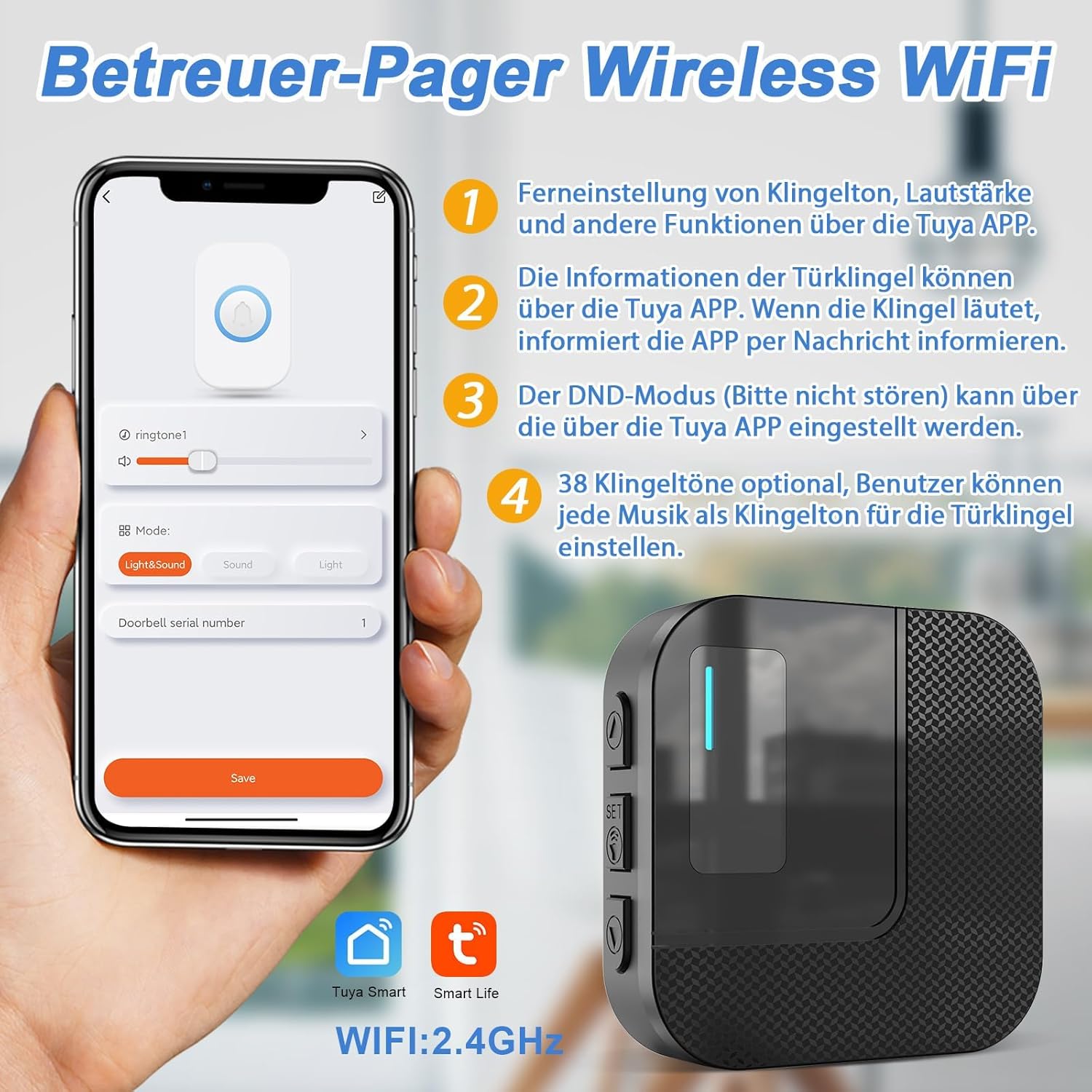
Figure 4.3: The Tuya Smart App allows remote adjustment of ringtone, volume, and other receiver functions.

Figure 4.4: The receiver offers five adjustable volume levels to suit different environments.
4.4. Range and Coverage
The system offers a significant transmission range:
- Outdoor Range: Up to 150 meters (500 feet) in open areas.
- Indoor Range: Approximately 0 to 70 meters (0 to 230 feet) in areas with obstacles, such as walls and furniture.
- Wristband Range: The transmission range of the wristband is approximately 20 meters shorter than that of the standard call button due to its smaller size and antenna.

Figure 4.5: Illustration of the system's effective range within a typical home environment.
5. Maintenance
5.1. Battery Replacement for SOS Buttons/Wristband
The SOS buttons and wristbands are powered by CR2032 coin cell batteries. When the battery is low, the device's performance may be affected. Replace the battery as follows:
- For Wristband: Use a small screwdriver to gently pry open the back cover. Remove the old CR2032 battery and replace it with a new one, ensuring correct polarity. Close the cover securely.
- For Button: Use a small screwdriver to remove the screws on the back cover. Carefully remove the old CR2032 battery and replace it with a new one, ensuring correct polarity. Reattach the back cover and screws.

Figure 5.1: Instructions for replacing the battery in the SOS wristband and button.
5.2. Cleaning
To maintain the system's performance and appearance:
- Wipe the receiver and buttons with a soft, dry cloth.
- Do not use abrasive cleaners or solvents.
- The SOS buttons and wristbands are IP55 waterproof, meaning they are protected against dust and low-pressure water jets. Do not submerge them in water.
6. Troubleshooting
6.1. Connection Problems
If you experience issues connecting the device to the app or receiving notifications, consider the following:
- 1. Verify WiFi Frequency: Ensure you are using a 2.4GHz WiFi network. If you have a 5GHz network, temporarily switch your router to 2.4GHz for pairing, then you can switch back to 5GHz after successful pairing.
- 2. Check Phone Connectivity: Confirm your mobile phone is connected to the same WiFi network as the device and that Bluetooth is enabled.
- 3. Restart Router: Try restarting your WiFi router.
- 4. Reinstall App: Uninstall and then reinstall the Tuya Smart or Smart Life app.
- 5. Stable Network: Ensure your network is stable. An unstable network can interfere with device pairing. You may try again at a different time.

Figure 6.1: Common troubleshooting steps for connection issues.
6.2. No Alarm from Receiver
- Check if the receiver is properly plugged into a power outlet.
- Ensure the volume is not set to 0dB or mute mode in the app.
- Verify that the SOS button/wristband battery is not depleted.
6.3. No App Notifications
- Confirm the receiver is connected to WiFi and online in the app.
- Check your phone's notification settings for the Tuya Smart/Smart Life app to ensure notifications are allowed.
- Ensure your phone has an active internet connection (WiFi or mobile data).
- If using SMS/call notifications, ensure you have sufficient credit or a plan that covers these services, as they may incur costs.
7. Technical Specifications
| Feature | Specification |
|---|---|
| Model Number | TY01BL-E05-GY-BT009GR 3-2 DE |
| Brand | DAYTEE |
| Control Method | App (Tuya Smart / Smart Life) |
| Power Source (Receiver) | Battery powered (2 AAA batteries included) |
| Battery Type (SOS Buttons/Wristband) | CR2032 (included) |
| Product Dimensions | 6 x 4 x 6 cm |
| Item Weight | 410 g |
| Mounting Type | Tabletop |
| Compatible Devices | Smartphone, Tablet |
| Wireless Connectivity | 2.4GHz WiFi |
| Waterproof Rating (Buttons/Wristband) | IP55 |
8. Warranty and Support
8.1. Warranty Information
The DAYTECH Emergency Alert System comes with a standard manufacturer's warranty. Please refer to the product packaging or the seller's information for specific warranty terms and duration. Keep your purchase receipt as proof of purchase for any warranty claims.
8.2. Customer Support
For technical assistance, troubleshooting, or any questions regarding your DAYTECH Emergency Alert System, please contact the seller or manufacturer's customer support. Contact details can usually be found on the product packaging, the seller's Amazon store page, or the official DAYTEE website.
When contacting support, please have your product model number (TY01BL-E05-GY-BT009GR 3-2 DE) and purchase details ready to facilitate faster service.
Related documentsTY01BL-E05-GY-BT009GR 3-2 DE

Ask a question about this manual
Ask about setup, troubleshooting, compatibility, parts, safety, or missing instructions. Manuals+ will review the question and use this page’s manual context to help answer it.