
Introduction
This manual provides detailed instructions for the setup, operation, and maintenance of your SENCKIT TH13Y WiFi Smart Thermometer Hygrometer. Please read this manual thoroughly before using the device to ensure proper functionality and to maximize its benefits.
Product Overview
The SENCKIT TH13Y is a wireless smart device designed to monitor temperature and humidity in various environments. It connects to your 2.4GHz WiFi network, allowing for remote monitoring, real-time alerts, and integration with smart home systems like Amazon Alexa. The device features a clear LCD display, data storage capabilities, and a calibration function for enhanced accuracy.

Image: SENCKIT TH13Y device and its companion application interface.
Package Contents
- SENCKIT TH13Y Room Humidity Gauge
- Back magnet sticker
- Lanyard loop
- 2 AAA Batteries
Specifications
| Model Number | TH13Y |
| Power Source | Battery Powered (2 AAA batteries, included) |
| Connectivity | WiFi (2.4GHz only), Bluetooth |
| Temperature Accuracy | ±1°C (Range: -9.9°C to 60°C) |
| Humidity Accuracy | ±5% RH (Range: 0% to 100% RH) |
| Display Type | Digital LCD |
| Special Features | App Companion, High Accuracy, Programmable, Wi-Fi Support, Calibration, Voice Control (Alexa) |
| Dimensions | 3.03 x 1.81 x 1.06 inches |
| Weight | 2.08 ounces |
Setup
1. Battery Installation
- Open the battery compartment cover on the back of the device.
- Insert two AAA batteries, ensuring correct polarity (+/-).
- Close the battery compartment cover. The device LCD will power on.
2. App Installation
The SENCKIT TH13Y operates with the Tuya Smart or Smart Life application. Download the app from your smartphone's app store (iOS App Store or Google Play Store).
- Search for "Tuya Smart" or "Smart Life".
- Install the application and create an account or log in if you already have one.
3. Device Pairing (WiFi Connection)
Ensure your smartphone is connected to a 2.4GHz WiFi network. The device does not support 5GHz WiFi.
- Open the Tuya Smart or Smart Life app.
- Tap the "Add Device" or "+" icon in the top right corner.
- Select "Sensor" from the device categories, then choose "Temperature and Humidity Sensor (Wi-Fi)".
- On the SENCKIT TH13Y device, open the battery compartment and locate the small black reset button.
- Press and hold the reset button for approximately 7 seconds until the WiFi icon on the device's LCD display starts flashing rapidly. This indicates pairing mode.
- In the app, confirm that the indicator is flashing rapidly and proceed with the on-screen instructions to connect the device to your WiFi network.
- Once connected, the WiFi icon on the device will stop flashing and remain solid.

Image: App interface displaying temperature and humidity data.
Operating Instructions
1. Reading the Display
The LCD screen on the SENCKIT TH13Y displays current temperature and humidity readings. The temperature unit (Celsius or Fahrenheit) can be changed via the app settings.
2. App Features
- Remote Monitoring: View real-time temperature and humidity data from anywhere via the app.
- Notification Alerts: Set custom temperature and humidity ranges. The app will send notifications to your phone if readings go beyond these preset values.
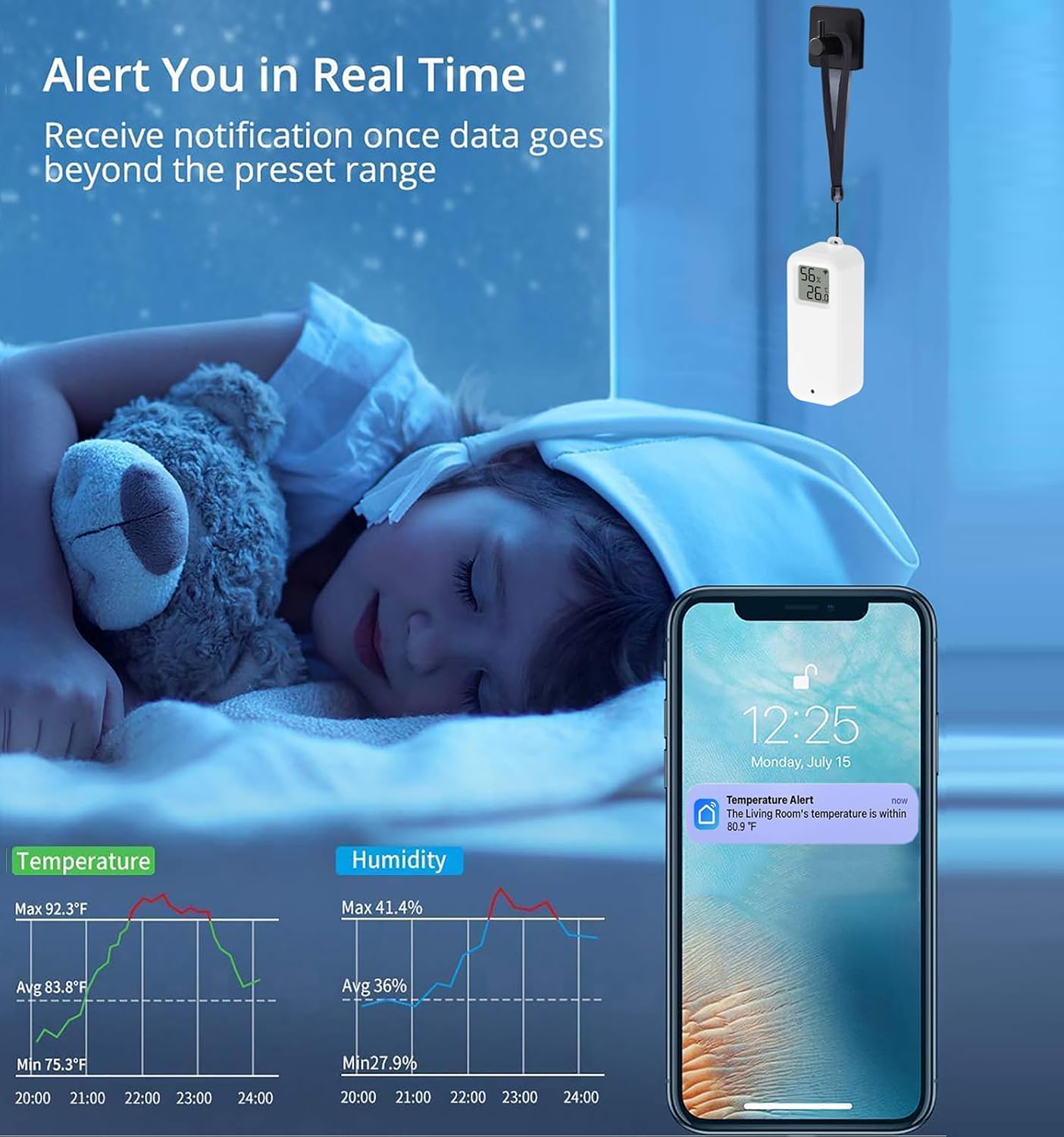
Image: Real-time alert notification on a smartphone.
- Data Storage & Export: Access historical data graphs within the app. You can view daily, monthly, or yearly trends and export this data to your email address for further analysis.

Image: Data storage and export functionality.
- Calibration Function: If you suspect the readings are inaccurate, you can manually calibrate the temperature and humidity values within the app to match a known reference.

Image: App interface for manual calibration.
- Smart Home Automation: Integrate the TH13Y with other Tuya-compatible smart devices. Create automated scenes, for example, to turn on an air conditioner when the temperature exceeds a set limit or activate a dehumidifier when humidity is too high.

Image: Smart home automation setup.
- Voice Command Support: The device is compatible with Amazon Alexa and Google Home. You can inquire about current temperature and humidity readings using voice commands. For example, "Alexa, what is the temperature in the living room?"

Image: Voice control compatibility with Amazon Alexa and Google Home.
Placement and Mounting
The SENCKIT TH13Y offers multiple placement options for convenience:
- Tabletop: Place the device on any flat surface.
- Wall Mounting: Use the included magnet sticker to adhere the device to a metallic surface, or use the lanyard loop to hang it.
- Adhesive Mounting: The device can be directly pasted onto a wall or other flat surface using appropriate adhesive (not included, but implied by "can be pasted on the wall").

Image: Various placement and mounting options for the device.
Its compact size makes it suitable for various locations, including cloak rooms, medicine cabinets, wine cellars, hatcheries, and warehouses.
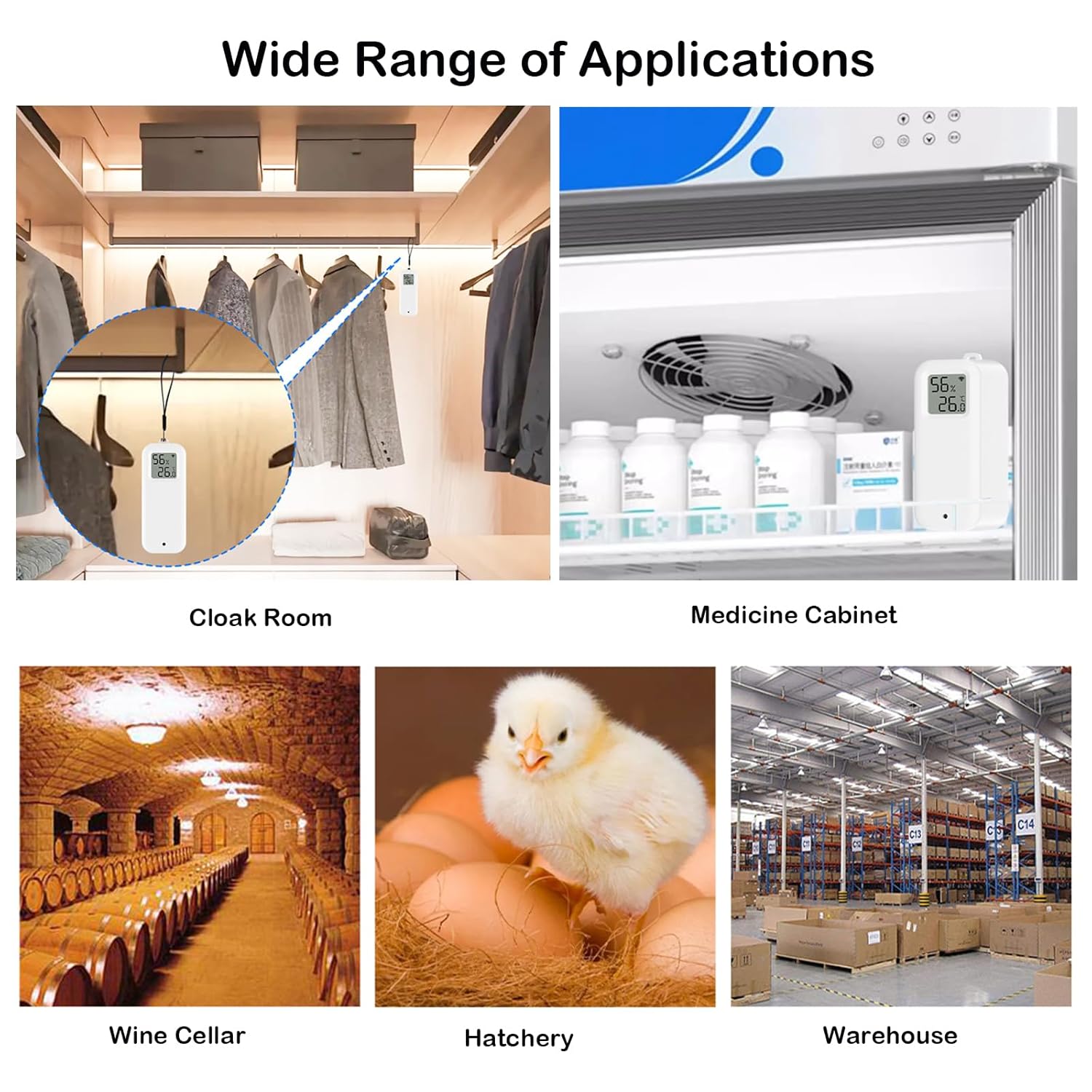
Image: Examples of wide range of applications.
Maintenance
1. Battery Replacement
When the battery level is low, an indicator may appear on the device's LCD or within the app. Replace the two AAA batteries by following the battery installation steps outlined in the Setup section.
2. Cleaning
Wipe the device with a soft, dry cloth. Do not use liquid cleaners or immerse the device in water.
Troubleshooting
- Device not connecting to WiFi:
- Ensure your WiFi network is 2.4GHz. The device does not support 5GHz networks.
- Verify your WiFi password is correct.
- Make sure the device is within range of your WiFi router.
- Re-enter pairing mode by holding the reset button for 7 seconds until the WiFi icon flashes rapidly.
- Inaccurate readings:
- Use the calibration function in the app to adjust temperature and humidity values if you have a reference device.
- Ensure the device is not placed in direct sunlight, near heat sources, or in areas with extreme drafts.
- Short battery life:
- Ensure you are using fresh, high-quality AAA batteries.
- Frequent data updates or poor WiFi signal strength can increase battery consumption.
- Cannot change temperature unit (Celsius/Fahrenheit):
- The unit can be changed via the app settings. Navigate to the device settings within the app and look for "Temp unit convert" or similar option.
Warranty and Support
For warranty information or technical support, please refer to the SENCKIT official website or contact their customer service directly. Keep your purchase receipt for warranty claims.