
1. Introduction
Thank you for choosing the ROCAM Digital Alarm Clock. This manual provides detailed instructions to help you set up and operate your new alarm clock. Designed for clarity and ease of use, this clock features a large display, dual alarms, adjustable brightness, and convenient charging ports.

Image 1.1: The ROCAM Digital Alarm Clock with its power adapter, showcasing its sleek design and large digital display.
2. Product Features
- Large, Clear Display: 7.5-inch display with bold, easy-to-read numbers, visible from any angle.
- User-Friendly Design: Simple controls and large buttons for effortless setup and operation.
- Dual Alarms: Set two independent alarms with options for everyday, weekday, or weekend modes.
- Adjustable Brightness: Display brightness can be adjusted from 0% to 100% to suit your preference.
- Soft Night Light: Integrated night light with three adjustable levels to create a comfortable ambiance.
- Battery Backup: Maintains time and alarm settings during power outages (requires 3 AAA batteries, not included).
- USB & Type-C Charging Ports: Conveniently charge your devices directly from the clock.
- Loud Alarm: Five adjustable volume levels, from soft to 110 dB, suitable for all sleepers.

Image 2.1: The alarm clock's 7.5-inch display, highlighting its large and clear digital numbers for easy readability.
3. Package Contents
- ROCAM Digital Alarm Clock Unit
- Power Adapter
- User Manual
4. Controls and Display
Familiarize yourself with the buttons and display elements of your alarm clock:

Image 4.1: A detailed diagram illustrating the location and function of each button on the top panel of the alarm clock.
Top Panel Buttons:
- TIME: Press to set the current time.
- DIM: Adjust display brightness.
- AL1 / AL2: Press to set Alarm 1 or Alarm 2.
- + / -: Adjust values (time, volume, brightness).
- VOL: Adjust alarm volume.
- 12/24H DST: Switch between 12-hour and 24-hour format; activate/deactivate Daylight Saving Time.
- SNOOZE OK / 💡: Snooze active alarm; confirm settings; long press to activate/deactivate night light.
Display Indicators:
- AM/PM: Indicates 12-hour time format.
- DST: Indicates Daylight Saving Time is active.
- MON/TUE/WED/THU/FRI/SAT/SUN: Current day of the week.
- 🔔1 / 🔔2: Indicates Alarm 1 or Alarm 2 is active.
5. Setup
5.1 Power Connection
- Connect the provided power adapter to the DC IN port on the back of the alarm clock.
- Plug the power adapter into a standard electrical outlet. The display will light up.
5.2 Battery Backup Installation
The battery backup feature ensures your time and alarm settings are retained during a power outage. It does not power the display.
- Locate the battery compartment on the bottom of the clock.
- Open the battery compartment cover.
- Insert 3 AAA batteries (not included), ensuring correct polarity (+/-).
- Close the battery compartment cover securely.

Image 5.1: The back of the alarm clock, illustrating the USB and Type-C charging ports, and the battery backup compartment for AAA batteries.
5.3 Setting the Current Time
- Press and hold the TIME button until the hour digits flash.
- Use the + or - buttons to adjust the hour. Press TIME to confirm.
- The minute digits will flash. Use the + or - buttons to adjust the minutes. Press TIME to confirm.
- The day of the week will flash. Use the + or - buttons to select the correct day. Press TIME to confirm and exit time setting mode.
5.4 12/24 Hour Format
To switch between 12-hour and 24-hour time display:
- Press the 12/24H DST button once. The display will toggle between 12-hour (with AM/PM indicator) and 24-hour format.
5.5 Daylight Saving Time (DST)
To activate or deactivate Daylight Saving Time:
- Press and hold the 12/24H DST button. The time will adjust by one hour forward or backward, and the 'DST' indicator will appear or disappear on the display.
6. Operating Instructions
6.1 Setting Alarms (AL1 / AL2)
The clock features two independent alarms, AL1 and AL2.
- Press and hold the AL1 (or AL2) button until the alarm hour digits flash.
- Use the + or - buttons to adjust the alarm hour. Press AL1 (or AL2) to confirm.
- The minute digits will flash. Use the + or - buttons to adjust the alarm minutes. Press AL1 (or AL2) to confirm.
- The alarm volume will flash. Use the + or - buttons to set the desired alarm volume (5 levels). Press AL1 (or AL2) to confirm.
- The alarm mode will flash (e.g., MON-SUN, MON-FRI, SAT-SUN). Use the + or - buttons to select the desired alarm frequency. Press AL1 (or AL2) to confirm and exit alarm setting mode.

Image 6.1: The alarm clock displaying two separate alarm times, illustrating the dual alarm functionality and customization options for different days.
6.2 Turning Alarms On/Off
To quickly enable or disable an alarm:
- Press the AL1 (or AL2) button once. The corresponding alarm icon (🔔1 or 🔔2) will appear on the display when the alarm is active, and disappear when it is off.
6.3 Snooze Function
When an alarm sounds:
- Press the SNOOZE OK / 💡 button to activate snooze. The alarm will pause for 9 minutes and then sound again.
- To turn off the alarm completely, press any other button (e.g., AL1, AL2, TIME, DIM, +, -, VOL, 12/24H DST).
6.4 Display Brightness Adjustment
To adjust the main display brightness:
- Press the DIM button repeatedly to cycle through different brightness levels (0% to 100%).
6.5 Night Light Function
To activate or adjust the integrated night light:
- Long press the SNOOZE OK / 💡 button to turn the night light on or off.
- When the night light is on, short press the SNOOZE OK / 💡 button to cycle through its three brightness levels.
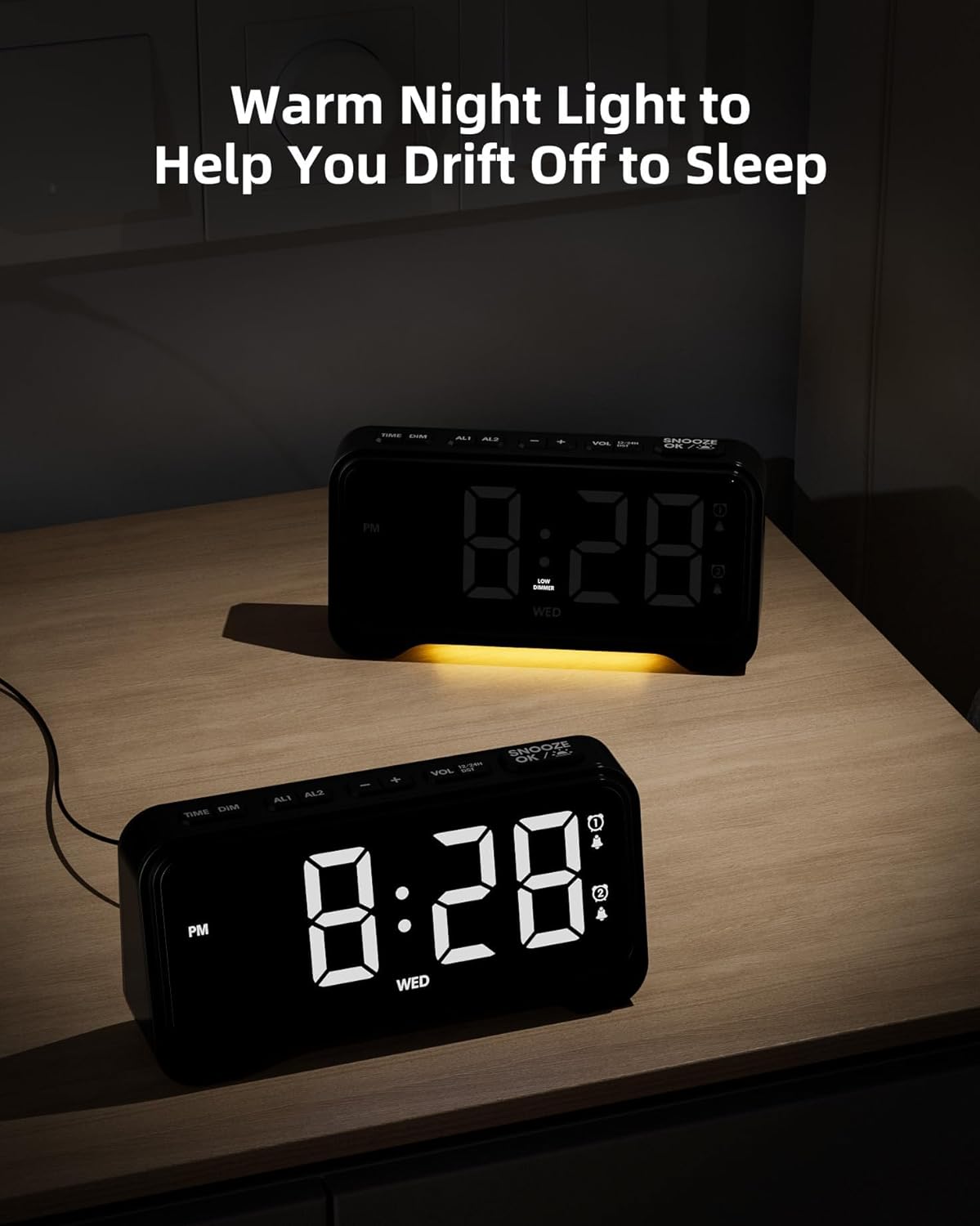
Image 6.2: The alarm clock with its warm night light feature activated, providing a soft glow suitable for a bedroom environment.
6.6 USB & Type-C Charging Ports
The clock is equipped with a USB-A port and a Type-C port on the back for charging external devices.
- Connect your device's charging cable to the appropriate port on the back of the alarm clock.
- Ensure the alarm clock is powered via its adapter for charging functionality.
7. Maintenance
7.1 Cleaning
- Unplug the alarm clock from the power outlet before cleaning.
- Use a soft, dry cloth to wipe the display and exterior surfaces.
- Do not use abrasive cleaners, waxes, or solvents as they may damage the finish.
7.2 Battery Replacement
- If the battery backup function is not working, replace the 3 AAA batteries in the compartment on the bottom of the clock.
- Ensure correct polarity when inserting new batteries.
8. Troubleshooting
If you encounter any issues with your ROCAM Digital Alarm Clock, please refer to the following common solutions:
| Problem | Possible Cause | Solution |
|---|---|---|
| Display is blank. | No power connection. | Ensure the power adapter is securely plugged into the clock and a working electrical outlet. |
| Alarm does not sound. | Alarm is not activated or set incorrectly. | Check if the alarm icon (🔔1 or 🔔2) is displayed. Re-set the alarm time and mode (everyday, weekday, weekend). Ensure alarm volume is not set to minimum. |
| Time/settings reset after power outage. | Battery backup not installed or batteries are dead. | Install 3 fresh AAA batteries in the battery compartment. |
| USB/Type-C charging not working. | Clock not powered by adapter; faulty cable. | Ensure the clock is connected to main power. Try a different charging cable. |
9. Specifications
| Feature | Detail |
|---|---|
| Brand | ROCAM |
| Model | Digital Alarm Clock |
| Colour | Black |
| Product Dimensions | 16.9 x 3.81 x 8.6 cm |
| Item Weight | 200 g |
| Material | Plastic |
| Display Type | Digital |
| Special Features | Adjustable Brightness, Adjustable Volume, Charging Port, Daylight Saving, Night Mode |
| Battery Backup | 3 x AAA batteries (not included) |
10. Warranty and Support
ROCAM products are designed for reliability and performance. This product comes with a standard manufacturer's warranty. For specific warranty details, please refer to the warranty card included with your purchase or contact ROCAM customer support.
If you require further assistance or have questions not covered in this manual, please contact our customer support team:
- Email: [Insert Customer Support Email Here]
- Phone: [Insert Customer Support Phone Number Here]
- Website: Visit the ROCAM Store on Amazon


