
1. Important Safety Information
Read all instructions carefully before operating the printer. Keep this manual for future reference.
- Ensure the printer is placed on a stable, level surface.
- Connect the printer to a grounded power outlet.
- Do not expose the printer to direct sunlight, high temperatures, or excessive humidity.
- Keep ink and cleaning solutions out of reach of children and pets.
- Wear appropriate protective gear (gloves, eye protection) when handling ink.
- Do not attempt to service the printer beyond the procedures described in this manual. Contact support for assistance.
2. Product Overview
The MZK A3 Plus F1080 DTF Printer is designed for direct-to-film printing, featuring an F1080 printhead (XP600 Gen2 equivalent) for high-resolution output. It includes an automatic cleaning system, a 5-inch LED touch screen, and a dual ink level alarm system to enhance operational efficiency and print quality.
Key Features:
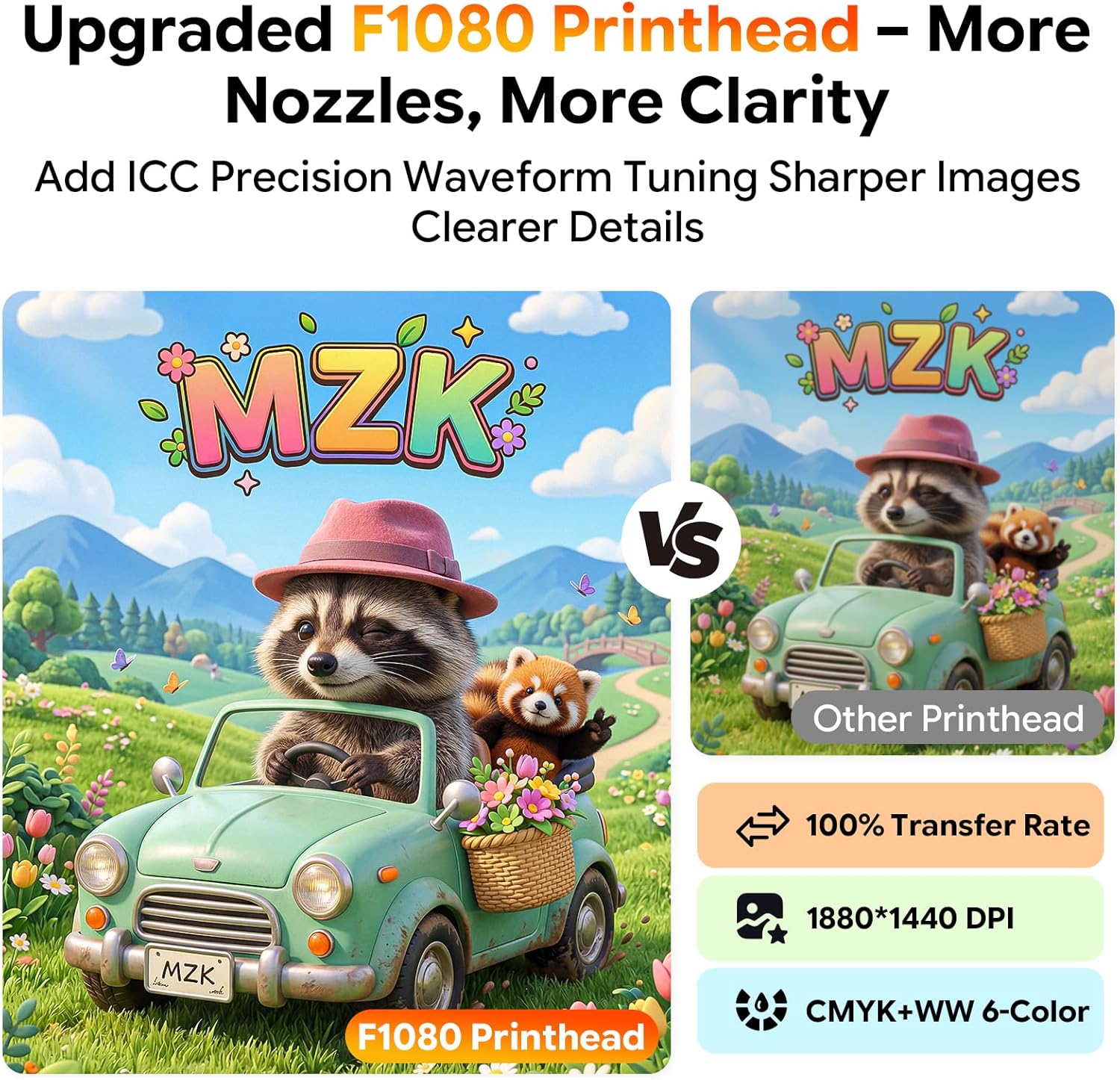
- F1080 Printhead: Equipped with an upgraded F1080 printhead for improved clarity and detail, supporting CMYK+WW 6-color printing and 1880*1440 DPI resolution.
- Automatic Timed Cleaning: Features a 'Holiday Mode' for automatic cleaning to prevent nozzle clogs during periods of inactivity.
- 3-in-1 Anti-Clogging System: Incorporates continuous white ink stirring, circulation, and purification to prevent ink sedimentation and nozzle clogging.
- 5-inch LED Touch Panel: Provides direct control for nozzle checks, head cleaning, and layout adjustments without frequent computer software interaction.
- Dual Ink Level Alarm System: Alerts users when ink cartridges are low and prevents waste ink overflow.
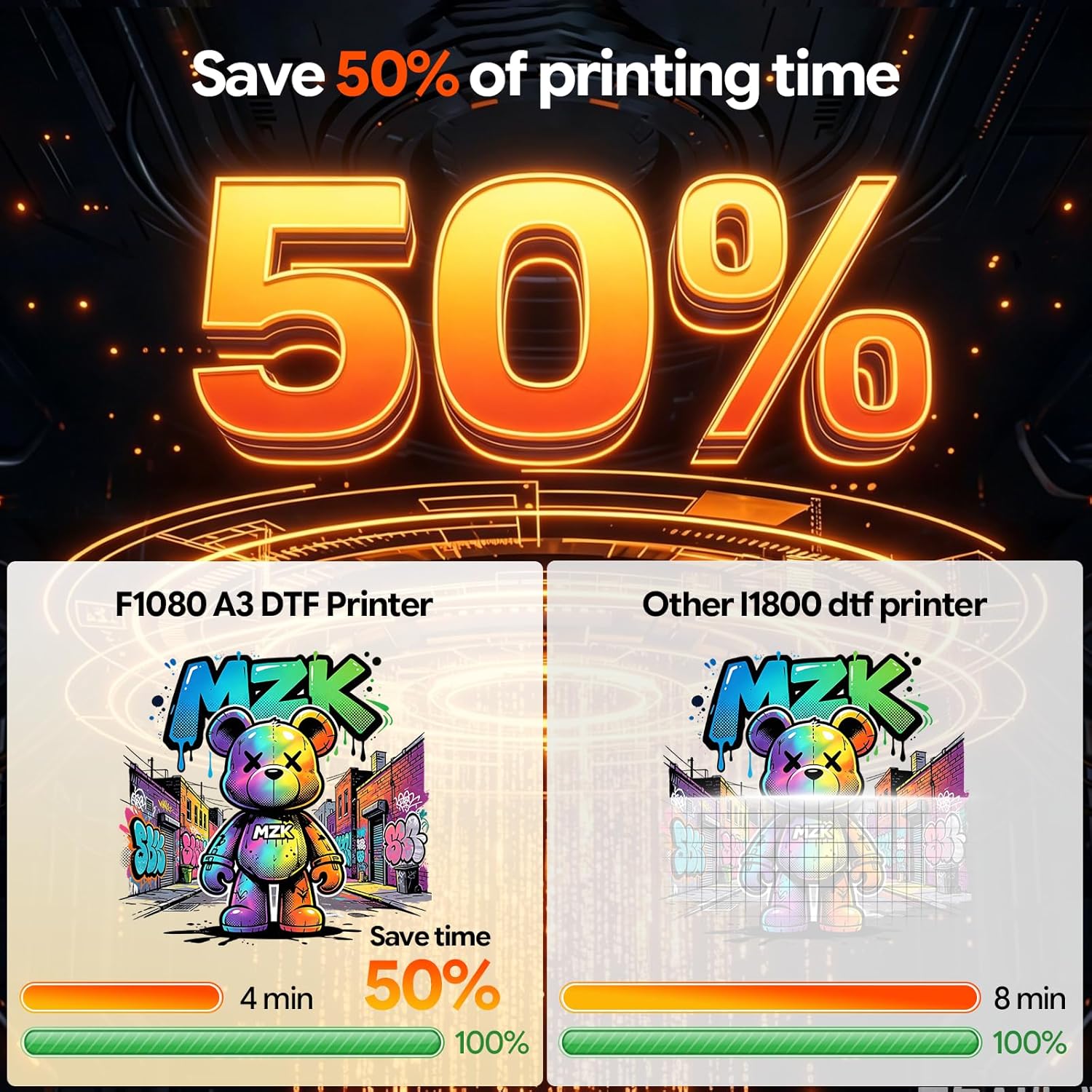
- High-Speed Printing: Capable of printing A3 film in approximately 3 minutes, offering increased efficiency compared to L1800/R1390 models.
- User-Friendly Software: Dedicated DTF software for rapid one-click printing and flexible image layout, compatible with Windows 7, 10, and 11.

3. What's in the Box
Verify that all items are present upon unboxing:
- MZK A3 Plus F1080 DTF Printer
- 100m / 33cm Width DTF Film
- 5 Bottles of Ink (CMYK + White)
- DTF Powder
- Maintenance Toolkit
- USB Drive with Tutorials
4. Setup Guide
4.1 Unboxing and Placement
- Carefully remove the printer from its packaging.
- Place the printer on a sturdy, level surface with adequate space for operation and maintenance.
- Remove all protective tapes and packing materials from the printer.
4.2 Software Installation
The printer utilizes dedicated DTF software. It is compatible with Windows 7, 10, and 11 operating systems. macOS is not supported.
- Insert the provided USB drive into your computer.
- Locate and run the software installer.
- Follow the on-screen prompts to complete the installation.
- Ensure the printer drivers are installed correctly.
4.3 Ink Filling
The printer features a one-click ink fill system to minimize mess.
- Open the ink tank covers.
- Identify the corresponding ink colors (CMYK and White).
- Carefully pour the ink into the respective tanks. Avoid overfilling.
- Close the ink tank covers securely.
- Perform an initial ink charge as instructed by the printer's touch panel or software.

5. Operating Instructions
5.1 Powering On and Initial Checks
- Connect the power cable and turn on the printer using the main power switch.
- The 5-inch LED touch panel will display the startup sequence.
- Perform a nozzle check from the touch panel to ensure all nozzles are firing correctly.
5.2 Using the 5-inch LED Touch Panel
The touch panel allows direct control over various printer functions:
- Nozzle Check: Verify printhead health.
- Head Cleaning: Initiate manual cleaning cycles.
- Layout Adjustments: Fine-tune print settings.
- Ink Status: Monitor ink levels.
5.3 Printing Process
- Prepare your design in the DTF software.
- Load the DTF film into the printer. Ensure it is properly aligned.
- Select your print settings in the software (resolution, color profile, etc.).
- Initiate the print job from the software. The printer will begin printing the design onto the film.
- After printing, apply DTF powder and cure the film according to powder manufacturer instructions.
5.4 Ink Level Monitoring
The printer features a dual alarm system for ink management.
- Color-Coded Ink Low Alerts: Indicates when individual ink cartridges are approximately 10% full, prompting timely replenishment.
- Waste Ink Overflow Warnings: Alerts prevent the waste ink tank from overflowing, maintaining a clean workspace.

6. Maintenance
Regular maintenance ensures optimal performance and extends the lifespan of your printer.
6.1 Automatic Timed Cleaning (Holiday Mode)
The printer features an automatic cleaning function designed to prevent nozzle clogs during periods of inactivity. This 'Holiday Mode' can be configured via the touch panel to perform cleaning cycles at set intervals.

6.2 Anti-Clogging System
The integrated 3-in-1 anti-clogging system manages white ink to prevent issues:
- Ink Stirring Motor: Continuously stirs white ink to prevent pigment settling.
- Ink Circulation Pump: Ensures constant ink flow to prevent blockages.
- Ink Purifier: Filters ink to remove impurities and prevent sedimentation.
- One-Touch De-Bubbling: Initiates ink circulation to remove air bubbles from the ink lines.

6.3 Waste Ink Management
Periodically check the waste ink tank. When the waste ink alarm activates, empty the tank to prevent spills and maintain a clean environment.
7. Troubleshooting
This section addresses common issues you may encounter.
- Poor Print Quality / Streaks:
Possible Cause: Clogged nozzles or low ink levels.
Solution: Perform a nozzle check and head cleaning cycle. Check ink levels and refill if necessary. - Printer Not Responding:
Possible Cause: Loose cable connection or software error.
Solution: Ensure all cables are securely connected. Restart the printer and computer. Verify software settings. - Ink Alarm Activation:
Possible Cause: Ink tank is low or waste ink tank is full.
Solution: Refill the indicated ink tank or empty the waste ink tank. - Film Jam:
Possible Cause: Improper film loading or foreign object.
Solution: Power off the printer, carefully remove the jammed film, and reload correctly.
For issues not covered here, refer to the USB tutorials or contact MZK customer support.
8. Specifications
| Feature | Specification |
|---|---|
| Brand | MZK |
| Model Name | S13-XP600 (A3 Plus F1080 DTF Printer) |
| Connectivity Technology | USB |
| Printing Technology | Self-cleaning Inkjet |
| Special Features | Automatic Timed Cleaning printhead, 2X Printing Speed (compared to L1800), 330mm max print width, LCD panel, Ink Anti-Clog Design, Self-developed high-performance motherboard, 3-in-1 printhead protection |
| Color | White |
| Printer Output | Color |
| Maximum Print Speed (Color) | 1 ppm (A3 film in approx. 3 minutes) |
| Max Printspeed Monochrome | 1 ppm |
| Item Weight | 151 Pounds |
| Resolution | 1880*1440 DPI |
| Software | RIP Print Software |
| Ink Consumption | 1 sq.m / 20ml |
| Equipment Size | 30in × 13in × 13in |
9. Warranty and Support
9.1 Warranty Information
The MZK A3 Plus F1080 DTF Printer comes with a warranty that includes:
- 2 Years of Free Ink & Powder: Starting from 2025, customers are eligible to receive 5 bottles of 250ml ink and 500g powder every 2 months. Shipping costs apply (US only).
9.2 Professional Support
MZK provides comprehensive support for your printer:
- Remote Engineer Assistance: Access live remote setup help and professional troubleshooting for any DTF printer issues.
- Detailed Installation Videos: Available to guide you through the setup process.
- 24-Hour Response: Professional troubleshooting assistance is available within 24 hours.
For support, please refer to the contact information provided with your purchase or visit the official MZK website.