
1. Product Overview
The EBTOOLS Head Mounted Video Camera is a compact and versatile device designed for capturing high-quality video and photos. Featuring a high-sensitivity CMOS sensor, it records 4K video at up to 60 frames per second and captures stunning 42MP photos. Its 120° wide-angle lens, coupled with EIS Anti-Shake technology, ensures stable and clear footage. The camera supports mobile app control via Wi-Fi for real-time viewing and editing, and offers various mounting options for diverse activities.
2. Package Contents
- 1 x EBTOOLS Head Mounted Video Camera
- 1 x Headband Bracket
- 1 x Cleaning Cloth
- 2 x Adhesive Stickers
- 6 x Mounting Accessories (various types)
- 1 x Instruction Manual

Figure 2.1: The EBTOOLS Head Mounted Video Camera and its complete set of accessories.
3. Technical Specifications
- Item Type: Head Mounted Video Camera
- Material: ABS
- Product Size: Approx. 103x29x27mm / 4.1x1.1x1.1in
- Image Sensor: CMOS High Sensitivity Sensor
- Lens: 120° Large Wide Angle HD Lens
- Video Resolution: 4K (30/60fps), Backward Compatible
- Photo Resolution: 42M, 30M, 25M, etc., Backward Compatible
- Operating Mode: Physical Keys, Mobile APP Operating
- Wireless Connectivity: Built-in Wi-Fi Hotspot
- Audio: Built-in Speaker, Built-in Microphone
- Video Format: MP4 H.264 Protocol
- Light Source Frequency: 50HZ/60HZ
- Storage Expansion: External Small Memory Card (Maximum Support 8-512GB, Excluded)
- USB Interface: Type C
- Battery Type: 2200mAh Li-Ion Battery (Built-in)
- Continuous Video Recording: Approximately 5 hours (6-7 hours without Wi-Fi)
- Supported Systems: For Windows, For OS X, For Linux
4. Getting Started (Setup)
- Charge the Camera: Connect the camera to a power source using the provided Type-C USB cable. The indicator light will show charging status.
- Insert Memory Card: Locate the memory card slot (supports 8-512GB, not included). Gently insert a compatible micro SD card until it clicks into place.
- Power On: Press and hold the power button for a few seconds until the indicator light illuminates.
- Attach Mounting Accessories: Choose the appropriate mounting accessory for your activity. For head-mounted use, attach the camera to the headband bracket. For other uses, utilize the various GoPro-compatible mounts or adhesive stickers.

Figure 4.1: The camera attached to the headband for hands-free recording.
5. Operating Instructions
5.1 Basic Operation
- Power On/Off: Press and hold the power button.
- Start/Stop Recording: Press the record button once to start, press again to stop.
- Take Photo: While in standby or recording mode, short press the photo button to capture an image.
5.2 Mobile App Connection (Wi-Fi)
The camera features a built-in Wi-Fi hotspot for seamless connection to its dedicated mobile application. This allows for real-time viewing, remote control, video editing, and sharing.
- Download the official camera app from your device's app store.
- Power on the camera.
- On your mobile device, go to Wi-Fi settings and connect to the camera's Wi-Fi hotspot (SSID usually starts with 'H88_').
- Open the camera app. The app should automatically detect and connect to the camera.

Figure 5.1: Real-time video preview and control via the mobile app.
5.3 Video and Photo Modes
- 4K 60FPS Video: Capture ultra-high-definition video for crisp, detailed footage.
- 42MP Photos: High-resolution still images for clear and vibrant shots.
- Time-lapse Video Recording: Condense long events into short, engaging videos.
- Slow Motion Video: Capture fast-paced action in smooth slow motion (2X/4X/8X options available).
- Loop Recording: Automatically overwrite the oldest files when the memory card is full, ideal for continuous recording.
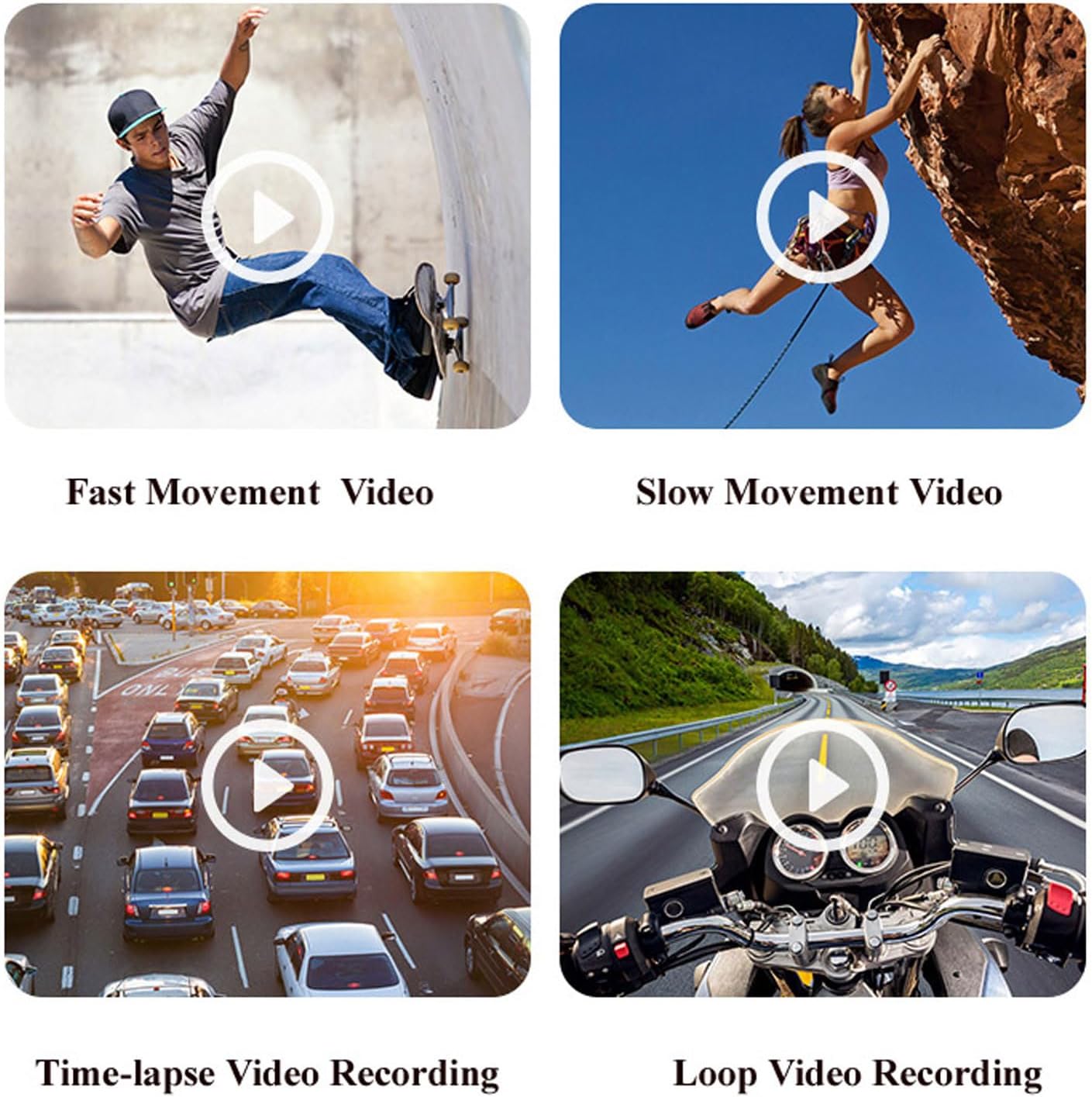
Figure 5.2: Examples of various video recording modes.
5.4 EIS Anti-Shake Function
The camera features EIS (Electronic Image Stabilization) with a 2-axis stabilizer to deliver stable and smooth video, even during dynamic activities. This technology intelligently detects and corrects jitter, providing clear footage comparable to professional stabilization systems.

Figure 5.3: Visual comparison of footage with and without EIS Anti-Shake.
5.5 Horizontal and Vertical Screen Switching
Through the mobile app, you can easily switch between horizontal and vertical screen orientations, adapting your content for various short video platforms.
5.6 Dash Cam Functionality
The camera can be used as a dash cam, offering features like collision sensing which automatically locks current recording video when a collision is detected. It supports continuous power via Type-C USB for extended use in a vehicle.
6. Battery Life and Charging
The camera is equipped with a built-in 2200mAh Li-Ion battery, providing approximately 5 hours of continuous video recording. Without Wi-Fi enabled, the battery life can extend to about 6-7 hours. It supports Type-C fast charging and can be charged using external mobile power banks or laptops, allowing for simultaneous charging and recording.

Figure 6.1: The camera's battery capacity and approximate usage time.
7. Media Examples
Below are examples of the camera's capabilities in various scenarios.
Video 7.1: A short demonstration of the Head Mounted Video Camera in action, capturing outdoor activities.
Video 7.2: Footage demonstrating the camera's performance in low-light conditions and its anti-shake capabilities while moving.
8. Maintenance and Care
- Cleaning: Use the provided cleaning cloth to gently wipe the lens and camera body. Avoid harsh chemicals or abrasive materials.
- Storage: Store the camera in a cool, dry place away from direct sunlight and extreme temperatures.
- Battery Care: For optimal battery life, avoid fully discharging the battery frequently. Charge it regularly, even if not in use for extended periods.
- Waterproof Case: If using the waterproof case, ensure it is properly sealed before submerging the camera in water. Regularly check the seals for wear and tear.
9. Troubleshooting
- Camera Not Powering On: Ensure the battery is charged. Connect to a power source and try again.
- Cannot Connect to App: Verify the camera's Wi-Fi is enabled and your mobile device is connected to the camera's Wi-Fi network. Restart both the camera and the app.
- Poor Video Quality: Check the selected video resolution in the app settings. Ensure the lens is clean and free from smudges.
- Memory Card Error: Ensure the memory card is properly inserted and is not full. Try formatting the card (this will erase all data) or using a different compatible card.
- Short Battery Life: Ensure Wi-Fi is turned off when not in use, as it consumes more power. Reduce video resolution if extended recording time is needed.
10. Warranty and Support
For warranty information, technical support, or service inquiries, please refer to the contact details provided by the manufacturer, EBTOOLS, or your retailer. Keep your purchase receipt as proof of purchase for warranty claims.