
Introduction
This manual provides comprehensive instructions for the Generic FV-Q301 Mechanical Gaming Keyboard. It covers essential information regarding setup, operation, maintenance, troubleshooting, and detailed product specifications. Please read this manual carefully to ensure proper use and longevity of your keyboard.
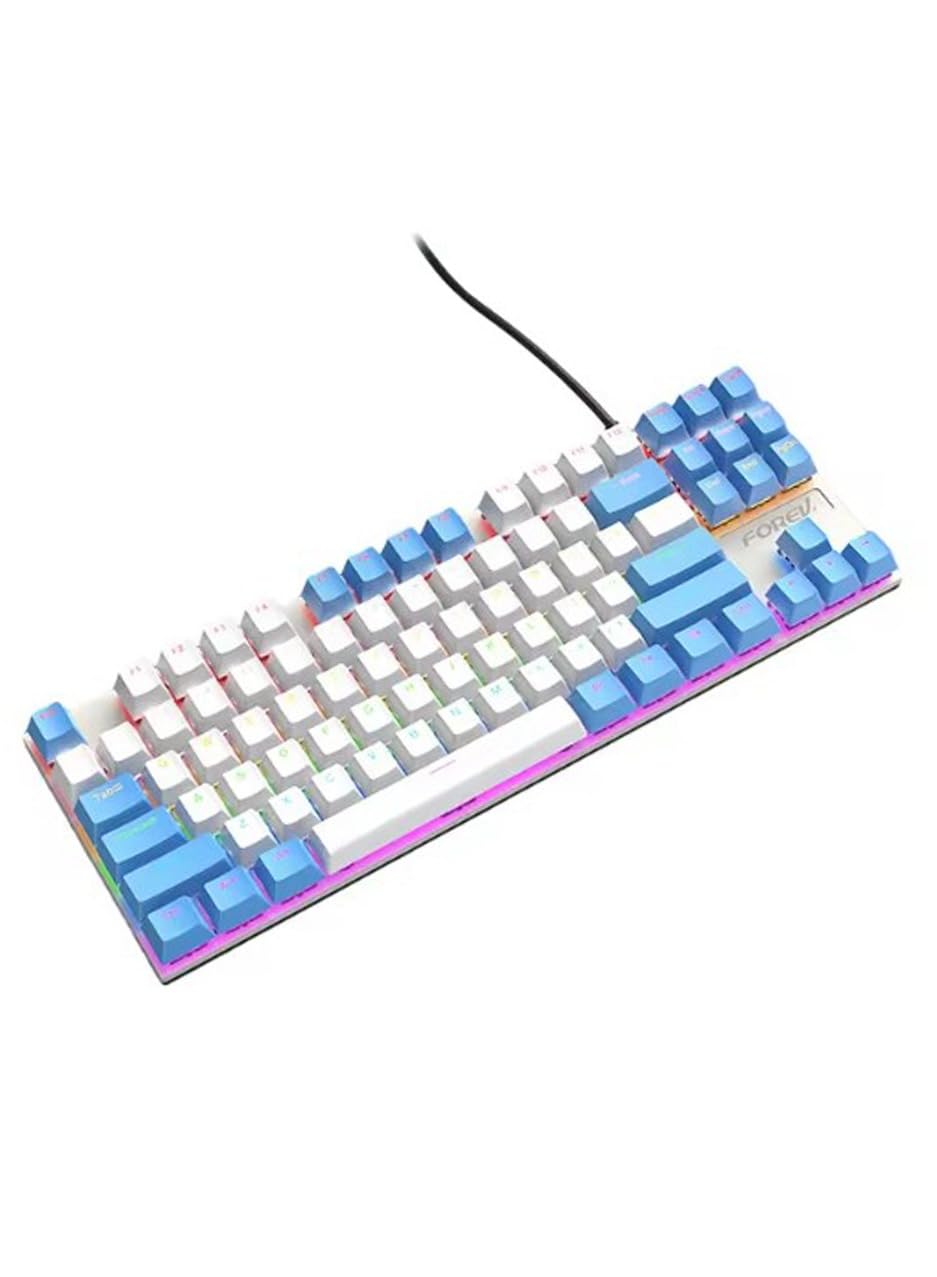
Image: The Generic FV-Q301 Mechanical Gaming Keyboard, featuring its compact TKL design and blue/white color scheme.
Setup
Package Contents
- Generic FV-Q301 Mechanical Gaming Keyboard
- USB Cable (attached or separate, depending on model variant)
- User Manual (this document)
Connecting the Keyboard
- Locate an available USB port on your computer or laptop.
- Plug the USB connector of the keyboard cable into the USB port.
- The operating system will automatically detect and install the necessary drivers. This process may take a few moments.
- Once installation is complete, the keyboard is ready for use.
The keyboard is designed for plug-and-play functionality, requiring no additional software installation for basic operation.
Operating Instructions
Basic Functions
The FV-Q301 is a standard 87-key QWERTY mechanical keyboard. All keys function as labeled for typing and general computer input.
Special Features
- Ergonomic Design: The keyboard features an ergonomic design with a comfortable typing angle, intended to reduce wrist strain during extended use.
- Adjustable Tilt Legs: Utilize the height-adjustable tilt legs located on the underside of the keyboard to customize your typing angle for optimal comfort.
- Blue Switches: Equipped with clicky blue mechanical switches, providing tactile feedback and an audible click for a distinct typing experience.
Compatibility
This mechanical keyboard offers wide compatibility with various operating systems, including Windows 10, Windows 8, Windows 7, Windows XP, and Windows Vista. Please note that full functionality may not be guaranteed for Mac OS and Chrome OS systems.
Maintenance
Cleaning
- Disconnect the keyboard from your computer before cleaning.
- Use a soft, dry cloth to wipe the surface of the keyboard.
- For stubborn dirt, a slightly damp cloth with a mild cleaning solution can be used, ensuring no liquid enters the keyboard.
- Use compressed air to remove dust and debris from between the keycaps.
Storage
Store the keyboard in a clean, dry environment away from extreme temperatures and direct sunlight. Avoid placing heavy objects on the keyboard to prevent damage.
Troubleshooting
Keyboard Not Responding
- Ensure the USB cable is securely connected to both the keyboard and the computer.
- Try plugging the keyboard into a different USB port on your computer.
- Restart your computer.
- Test the keyboard on another computer to determine if the issue is with the keyboard or the original computer.
Specific Keys Not Working
- Ensure no debris is lodged under the keycap. Gently remove the keycap (if designed to be removable) and clean the switch area.
- If the issue persists, contact customer support.
Specifications
| Brand Name | Generic |
| Model | FV-Q301 |
| Compatible Devices | Computer, Laptop |
| Connectivity Technology | USB |
| Keyboard Description | Mechanical |
| Recommended Uses | Gaming |
| Special Features | Comfortable design |
| Color | White and Blue |
| Materials | Metal |
| Power Source | USB Power |
| Switch Type | Blue Switch (Clicky) |
| Keyboard Layout | QWERTY Keyboard |
| Hand Orientation | Ambidextrous |
| Minimum OS Required | Windows 10 |
| Compatible OS Family | Windows |
| Number of Keys | 87 |
| Unit Count | 1 Count |
| Manufacturer | Generic |
| Country of Origin | China |
| Item Weight | 30 grams |
Warranty and Support
Warranty Information
This product is provided without an explicit warranty. Please refer to your retailer's return policy for any issues upon purchase.
Customer Support
For further assistance or inquiries not covered in this manual, please contact your point of purchase or the manufacturer's customer service channels.