
1. Introduction
Thank you for choosing the Dexnor Keyboard Case for iPad. This manual provides detailed instructions for setting up, operating, and maintaining your new keyboard case. This product is designed to transform your iPad into a versatile laptop-like device, enhancing productivity and user experience.

Image: The Dexnor Keyboard Case in Peony Pink, featuring a magnetic cantilever stand and a backlit keyboard with a trackpad, designed to hold an iPad.
2. Package Contents
Please check the package for the following items:
- 1 x Dexnor Bluetooth Keyboard Case
- 1 x USB-C Charging Cable
- 1 x Quick-start Guide
- 1 x User Manual (this document)
3. Compatibility
This keyboard case is compatible with the following iPad models (10.2-inch):
- iPad 9th Generation (2021): Models A2602, A2603, A2604, A2605
- iPad 8th Generation (2020): Models A2270, A2428, A2429, A2430
- iPad 7th Generation (2019): Models A2197, A2198, A2200
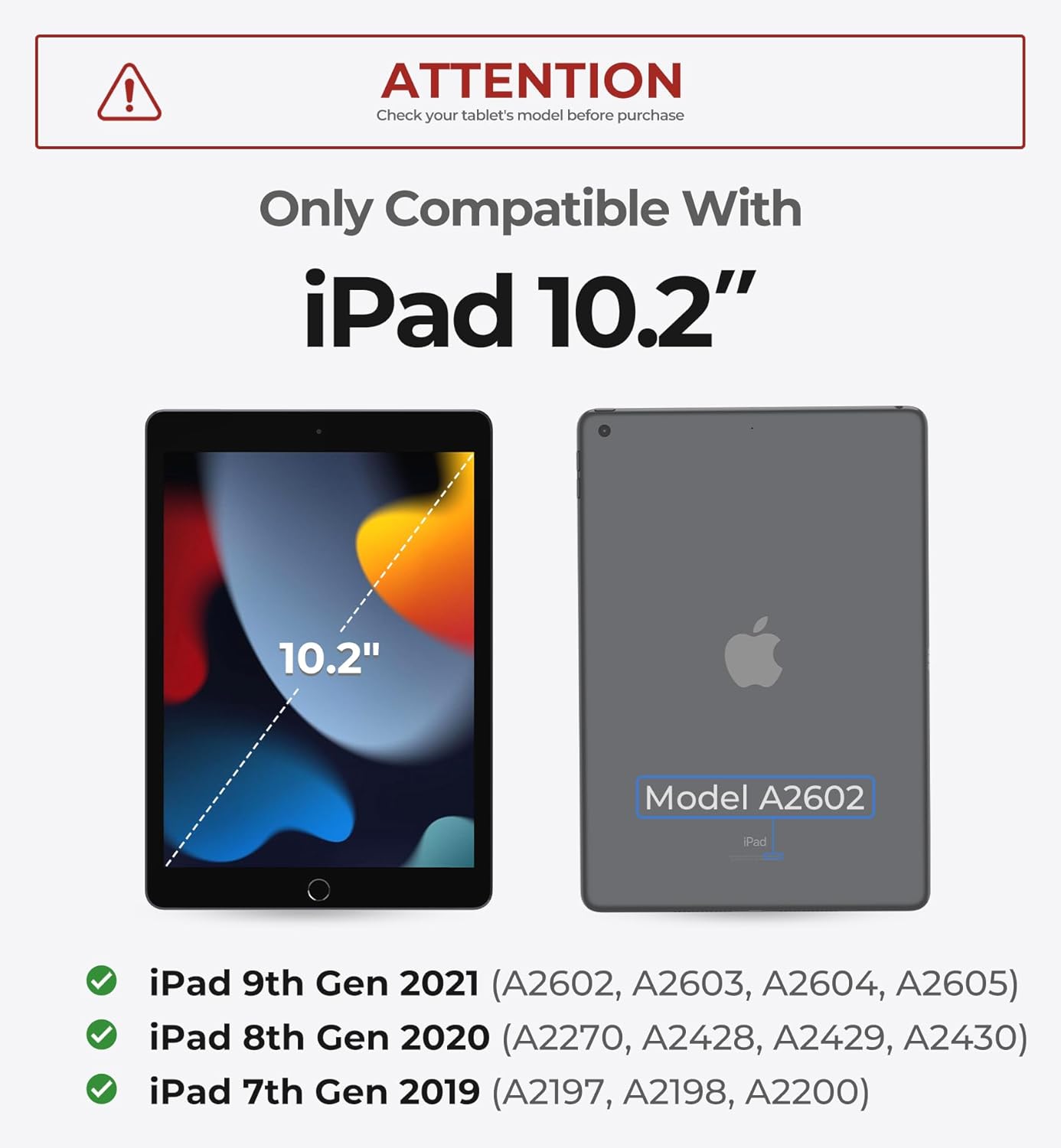
Image: A visual guide indicating compatibility with 10.2-inch iPads, specifically listing model numbers for the 7th, 8th, and 9th generations.
4. Setup and Getting Started
4.1 Attaching Your iPad
The case features a detachable magnetic design for easy attachment and removal of your iPad. Simply align your iPad with the magnetic back panel of the case until it securely snaps into place.

Image: The detachable magnetic case, highlighting its built-in pencil holder and protective design for the iPad.
4.2 Bluetooth Pairing
- Ensure the keyboard is charged (see 4.3 Charging).
- Turn on the keyboard by sliding the power switch. The Bluetooth indicator light will flash.
- On your iPad, go to Settings > Bluetooth.
- Turn on Bluetooth.
- In the "Other Devices" list, select "Dexnor Keyboard" (or similar name) to pair.
- Once paired, the Bluetooth indicator light on the keyboard will turn off.
4.3 Charging the Keyboard
Connect the included USB-C cable to the charging port on the keyboard and the other end to a USB power adapter (not included). The charging indicator light will illuminate during charging and turn off when fully charged. A full charge takes approximately 3.5 hours.

Image: The keyboard case in use, demonstrating USB-C charging and the durable anti-scratch PU leather finish.
5. Operating Instructions
5.1 Magnetic Cantilever Stand
The durable aluminum alloy hinge allows for a sturdy magnetic connection, transforming your iPad into a laptop-like setup. The floating cantilever design offers customizable viewing angles for typing, reading, or viewing content. The iPad can be positioned in both landscape and portrait modes.

Image: The magnetic stand in action, demonstrating its secure attachment and flexible viewing angles for both landscape and portrait orientations.

Image: The floating cantilever design, illustrating its adjustable angles and secure magnetic attachment for horizontal or vertical use.
5.2 Multi-Touch Trackpad
The integrated trackpad supports multi-finger gestures for precise navigation. Common gestures include:
- Tap: Single tap for click.
- Pinch: Pinch in/out for zoom.
- Scroll: Two fingers up/down for vertical scroll.
- Swipe: Three or four fingers for app switching or mission control.

Image: A close-up of the multi-touch trackpad, highlighting its responsive surface for precise navigation.

Image: An illustration of the multi-touch trackpad's capabilities, including gestures for zooming, file management, web browsing, and app switching.
5.3 Backlit Keys
The keyboard features 7 solid color backlights and 3 adjustable brightness levels. To cycle through backlight colors, press the Fn + Light bulb icon key. To adjust brightness, press Fn + Up Arrow or Fn + Down Arrow.

Image: The keyboard illuminated with its 7 backlight modes, demonstrating enhanced visibility for typing in various lighting conditions.

Image: A detailed view of the backlit keys, highlighting the 7 color options and 3 brightness levels for customized typing in low-light environments.
5.4 Shortcut Keys
The keyboard features a full row of practical shortcut keys for quick access to media controls, volume adjustments, and other functions. Refer to the keyboard layout for specific key functions.

Image: The keyboard's full row of shortcut keys, designed for quick access to common functions and an optimized typing experience.
5.5 Auto Wake/Sleep Function
The keyboard case supports auto wake/sleep functionality. Closing the case will put your iPad to sleep, and opening it will wake it up, conserving battery life.
5.6 Integrated Pencil Holder
The detachable case includes a built-in holder for your Apple Pencil, ensuring it is securely stored and easily accessible.
Image: The detachable magnetic case, highlighting its built-in pencil holder and protective design for the iPad.
5.7 Product Video
Video: An official product video demonstrating the features and usage of the Dexnor Magic Style Keyboard Case for iPad 9th/8th/7th Gen, including its tablet-to-laptop transformation, built-in trackpad, typing experience, Apple Pencil holder, viewing modes, and long-lasting battery.
6. Maintenance
- Cleaning: Use a soft, damp cloth to clean the surface of the keyboard case. Avoid using harsh chemicals or abrasive materials.
- Storage: When not in use for extended periods, store the keyboard case in a cool, dry place.
- Protection: The magnetic case provides robust protection. Avoid dropping the device from significant heights.

Image: The magnetic case, emphasizing its complete safeguard feature for all-around iPad protection.
7. Troubleshooting
| Problem | Solution |
|---|---|
| Keyboard not pairing with iPad. |
|
| Keys not responding. |
|
| Trackpad not working. |
|
| Backlight not working. |
|
8. Specifications
| Feature | Detail |
|---|---|
| Model Number | DK007 |
| Connectivity | Bluetooth |
| Battery Capacity | 650mAh |
| Working Time | Up to 200 hours |
| Standby Time | Up to 1200 hours |
| Charging Time | Approx. 3.5 hours (USB-C) |
| Backlight Colors | 7 (RGB) |
| Brightness Levels | 3 |
| Key Structure | Scissor-switch |
| Number of Keys | 64 |
| Item Weight | 1.79 pounds |
| Dimensions | 11.54 x 9.45 x 1.73 inches |

Image: The keyboard case highlighting its extended usage capabilities with a long-lasting battery.
9. Warranty and Support
Dexnor products come with a standard manufacturer's warranty. For detailed warranty information, product support, or technical assistance, please visit the official Dexnor website or contact their customer service. Keep your purchase receipt for warranty claims.
Dexnor Official Store: Visit Dexnor Store on Amazon


