
XINDADA W10
Microwear W10 Smartwatch User Manual
Model: W10
1. Introduction
Thank you for choosing the Microwear W10 Smartwatch. This device is designed to enhance your daily life with advanced features such as Bluetooth calling, health monitoring, GPS tracking, and smart notifications. This manual provides essential information for setting up, operating, and maintaining your smartwatch.
The Microwear W10 features a 2.1-inch display, 1GB ROM, and supports various health and fitness tracking functions. It is compatible with the Mactive pro application for comprehensive data management.

Image: Front view of the Microwear W10 Smartwatch, showcasing its sleek design and vibrant display.
2. Package Contents
Please check the box for the following items:
- 1 x Microwear W10 Smartwatch
- 1 x Wireless Charging Cable
- 1 x User Manual
- 1 x Retail Box
3. Specifications
| Feature | Description |
|---|---|
| Platform | JL7012A7S, 192 MHz Main Frequency |
| Memory | 684 KB RAM + 2 MB ROM, 1 GB ROM |
| Product Form | Health Sports Watch |
| App Name | Mactive pro |
| Dimensions | 46 x 39.8 x 9.5 mm |
| Case Material | Zinc Alloy |
| Strap | 46mm Strap |
| Charging | Wireless Charging |
| Display | 2.1 inches, 320 x 374 resolution, Capacitive Touch Screen |
| Bluetooth | Bluetooth 5.1, Bluetooth 3.0 |
| Battery | 375 mAh High-Capacity Polymer |
| Water Resistance | IP68 (as per feature bullets) |
| Supported Languages | English, Portuguese, Spanish, German, French, Italian, Polish, Turkish, Czech, Dutch, Greek, Hungarian, Russian, Ukrainian, Vietnamese, Thai, Indonesian, Arabic, Persian, Hebrew |
4. Setup
4.1. Charging the Smartwatch
Before first use, fully charge your Microwear W10. Place the smartwatch on the wireless charging base. The screen will indicate charging status. A full charge typically takes about 2-3 hours.
4.2. Downloading the Mactive pro App
To unlock the full potential of your smartwatch, download the 'Mactive pro' app on your smartphone. Scan the QR code provided in the retail box or search for 'Mactive pro' in your device's app store (Google Play Store for Android, Apple App Store for iOS).
4.3. Pairing with Your Smartphone
- Ensure Bluetooth is enabled on your smartphone.
- Open the 'Mactive pro' app and follow the on-screen instructions to create an account or log in.
- In the app, navigate to the device pairing section (usually indicated by a '+' or 'Add Device' icon).
- Select 'Microwear W10' from the list of available devices.
- Confirm the pairing request on both your smartwatch and smartphone.
Once paired, the smartwatch will synchronize data with the app, and you can customize settings, receive notifications, and track your health data.
5. Operating the Smartwatch
5.1. Basic Navigation
- Touch Screen: Swipe left/right, up/down to navigate through menus and screens. Tap to select an item.
- Side Button: Typically used to return to the home screen, power on/off, or access the app menu.
5.2. Bluetooth Calling
The Microwear W10 supports Bluetooth calls. Once paired with your phone, you can answer, reject, or make calls directly from your wrist. Ensure your phone's Bluetooth is connected to the smartwatch for this feature to work.
5.3. Notifications
Receive synchronous notifications for calls, SMS, WeChat, QQ, and other app messages directly on your smartwatch. Configure notification settings within the 'Mactive pro' app.
6. Key Features
6.1. Health Monitoring
- Heart Rate: Supports 24-hour continuous heart rate monitoring.
- Pedometer: Tracks steps, calorie consumption, and mileage.
- Sleep Monitoring: Automatically records and analyzes your sleep patterns from 10 PM to 8 AM.
- ECG & Blood Pressure: (As per feature bullets) Monitor ECG and blood pressure.
6.2. NFC Access Control
The Microwear W10 supports multiple NFC functions, including home community access control card simulation. Lift your wrist to open doors, providing convenient access.
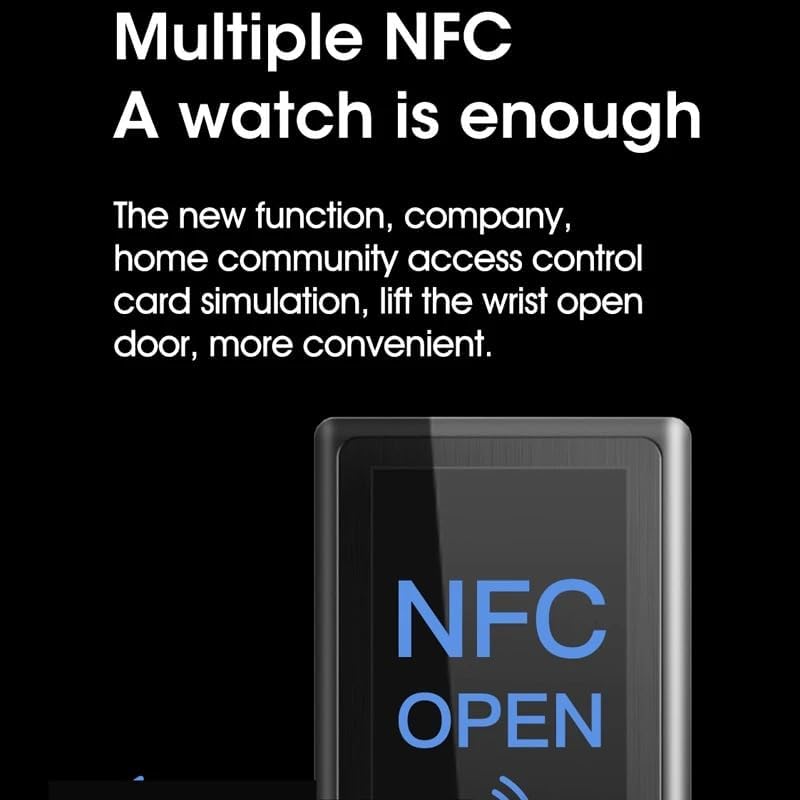
Image: The smartwatch screen showing the NFC function, indicating its capability for access control.
6.3. Compass
The redesigned Compass app provides accurate navigation. It offers new views and functionality for wrist-driven orienteering.

Image: A visual representation of the compass feature on the smartwatch, highlighting its navigational utility.
6.4. ChatGPT Integration
Engage in chat and interaction with the integrated ChatGPT feature. This AI assistant can help you handle countless trivial matters and provide information.

Image: Graphic illustrating the 'Be Smarter' feature, symbolizing the AI capabilities like ChatGPT for information and interaction.
6.5. Multi-Sport Modes & GPS Tracking
The smartwatch supports various sports modes including walking, running, swimming, climbing, cycling, football, basketball, table tennis, and badminton. It also features GPS motion tracking for accurate workout data.

Image: Icons representing multiple sports modes available on the smartwatch, emphasizing its versatility for different physical activities.
6.6. Additional Features
- Custom Dials: Free download of over 500 dials, including video custom dials.
- Local Music Playback: Connect Bluetooth headphones to play music stored locally on the watch.
- AI Smart Dial Production: Create personalized watch faces.
- Independent Ringtone: Set custom ringtones.
- Password Lock: Secure your device with a password.
- Flashlight: Built-in flashlight function.
- Remote Photography: Control your phone's camera from the watch.
7. Maintenance
- Cleaning: Wipe the smartwatch and strap regularly with a soft, dry cloth. For stubborn dirt, use a slightly damp cloth and then dry thoroughly.
- Water Resistance: The device is IP68 rated. While it can withstand splashes and brief immersion, avoid prolonged exposure to water, hot water, or steam. Do not press buttons underwater.
- Charging: Use only the provided wireless charging cable. Ensure the charging area is clean and dry before placing the watch on the charger.
- Storage: Store the smartwatch in a cool, dry place when not in use. Avoid extreme temperatures.
8. Troubleshooting
- Watch not turning on: Ensure the watch is fully charged. Connect it to the wireless charger and wait a few minutes before attempting to power on.
- Cannot pair with phone: Make sure Bluetooth is enabled on your phone and the watch. Restart both devices and try pairing again. Ensure the 'Mactive pro' app is updated to the latest version.
- Inaccurate health data: Ensure the watch is worn snugly on your wrist, not too tight or too loose. Keep the sensor clean.
- Notifications not received: Check notification permissions for the 'Mactive pro' app on your phone. Ensure the app is running in the background and not optimized for battery saving.
- Short battery life: Reduce screen brightness, disable unnecessary features like always-on display, and limit background app refresh.
9. Warranty and Support
For warranty information and technical support, please refer to the documentation provided with your purchase or contact the retailer/manufacturer directly. Keep your proof of purchase for warranty claims.
For further assistance, visit the official XINDADA website or contact their customer service.
Ask a question about this manual
Ask about setup, troubleshooting, compatibility, parts, safety, or missing instructions. Manuals+ will review the question and use this page’s manual context to help answer it.