Introduction
This manual provides comprehensive instructions for setting up, operating, maintaining, and troubleshooting your JOWLURK M8 Projector. Please read this manual thoroughly before using the product to ensure proper operation and to maximize your viewing experience. The JOWLURK M8 is designed for versatile use, offering high-quality visuals and flexible connectivity for various entertainment and presentation needs.

Image: The JOWLURK M8 Projector, a compact white device, positioned in front of a large projected image depicting a person wearing a VR headset, illustrating its immersive capabilities.
What's in the Box
Verify that all items listed below are included in your package:
- Projector x 1
- HDMI Cable x 1
- AV Cable x 1
- Power Cable x 1
- Lens Cap x 1
- Remote Control x 1
- User Manual x 1
Product Features
Instant Setup: Auto Focus & Keystone Correction
The projector features instant 3-second auto-focus and keystone correction, ensuring a perfect rectangular projection upon startup without manual adjustments. This allows for quick and flexible setup in various environments.
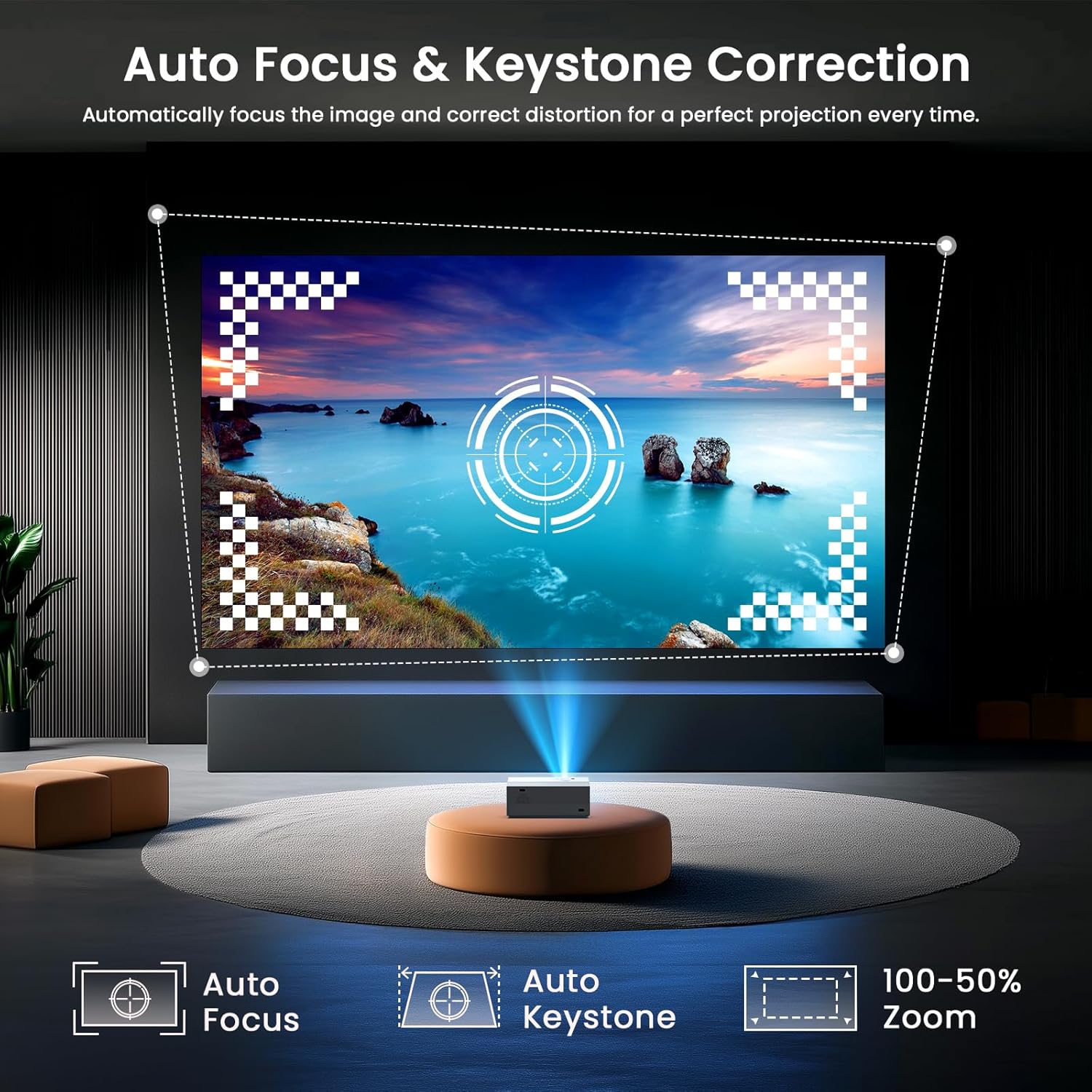
Image: A projected image on a screen showing the auto-focus and auto-keystone correction features in action, with icons for Auto Focus, Auto Keystone, and 100-50% Zoom.
Cinematic Visuals: Native 1080P Resolution & 4K Support
Experience stunning image clarity with native 1080P resolution and compatibility for 4K content. While 4K content is displayed at 1080P native resolution, the projector delivers vivid and detailed visuals for both cinematic entertainment and professional presentations.

Image: A vibrant graphic illustrating the projector's Native 1080P resolution and 4K support, featuring a detailed dolphin image.
High Brightness: True 450 ANSI Lumens
Boasting true 450 ANSI lumens brightness and a 20,000:1 contrast ratio, this projector produces deeper blacks, purer whites, and enhanced detail reproduction, ensuring vivid visuals even in various lighting conditions.

Image: A projected image of a vibrant aurora borealis over mountains and water, highlighting the projector's true 450 ANSI lumens brightness and high color gamut.
Immersive Audio: Bluetooth 5.3 & Integrated HiFi Speaker
Equipped with upgraded Bluetooth 5.3 technology, the projector allows seamless pairing with external speakers for immersive audio. Its integrated premium dual stereo speakers also function as a powerful standalone Bluetooth speaker system, offering flexible audio solutions.

Image: A projected image of a musician, demonstrating the two-way Bluetooth 5.3 connection, allowing the projector to connect to external speakers or function as a Bluetooth speaker itself.
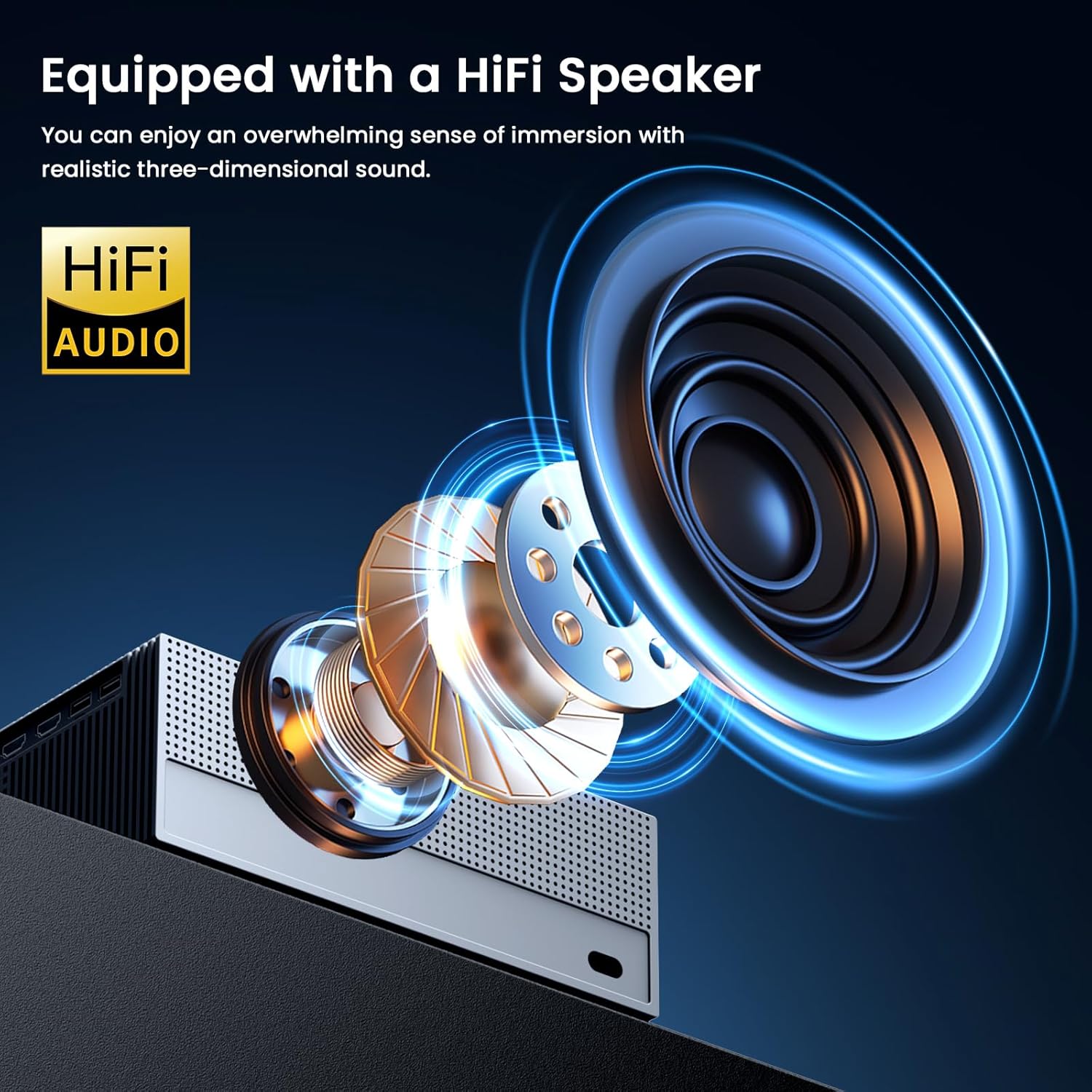
Image: An exploded view diagram showcasing the internal components of the projector's HiFi speaker, emphasizing its design for realistic three-dimensional sound.
Ultra-Fast Connectivity: WiFi 6
Featuring cutting-edge WiFi 6 technology with dual-band (2.4GHz/5GHz) connectivity, this projector delivers triple-fast streaming speeds of up to 9.6Gbps. Enjoy buffer-free 4K streaming, lag-free gaming, and stable video conferences with significantly reduced latency.

Image: A split screen showing a race car, comparing WiFi 6 (1800MBPS) speed on the left with WiFi 5 (1200MBPS) speed on the right, illustrating the faster streaming capabilities of WiFi 6.
Flexible Projection: 50%-100% Zoom & 300-inch Display
With its 50%-100% adjustable zoom functionality, you can effortlessly customize your screen size from a cozy 50-inch setup to an impressive 300-inch backyard theater. This flexibility allows for optimal viewing in various room sizes without moving the projector.

Image: A diagram illustrating the projector's ability to adjust projection size from 50 inches to 300 inches using the 50%-100% zoom function, without physically moving the projector.
Wide Compatibility & Smart Installation
The projector offers versatile mounting options including ceiling installation, desktop placement, tripod setup, and wall mounting. It is compatible with Windows, Mac, iOS, and Android devices, supporting various inputs like HDMI, USB, and Bluetooth, making it a versatile entertainment hub.

Image: A visual representation of the projector's compatibility with multiple devices and streaming platforms, including TV sticks, mobile phones, DVD players, laptops, and gaming consoles, via USB, HDMI, and AV inputs.
Efficient Cooling System
The JOWLURK M8 Projector incorporates a built-in superior heat dissipation system. It utilizes multiple fans and heat sinks to ensure optimal airflow, maintaining stable projector performance and extending its lifespan.

Image: An internal diagram of the projector highlighting its built-in superior heat dissipation system, featuring dual air ducts, dustproof design, and noise reduction.
360° Remote Control Coverage
The projector is equipped with the latest front and rear sensors, enabling effortless control from any angle. This 360° remote control coverage ensures convenient operation no matter where you are positioned in the room.

Image: A hand holding the projector's remote control, with an illustration showing 360-degree signal coverage from the projector, indicating easy control from any position.
Setup Guide
1. Initial Placement
Place the projector on a stable, flat surface. For optimal image quality, ensure the projector lens is perpendicular to the projection surface (wall or screen). The ideal projection distance can vary, but the auto-focus feature will adjust the image clarity automatically.
2. Power Connection
Connect the provided power cable to the projector's power input port, then plug the other end into a standard electrical outlet. The projector will power on automatically or can be turned on using the power button on the unit or remote control.
3. Auto Focus and Keystone Correction
Upon startup, the projector will automatically perform focus and keystone correction. This process ensures a clear and perfectly rectangular image. No manual adjustment is typically required for these functions.
4. Zoom Adjustment
To adjust the screen size without moving the projector, use the zoom function via the remote control. The projector supports 50%-100% adjustable zoom, allowing you to fine-tune the image size to fit your projection surface.
Operating Instructions
1. Connecting Devices
- HDMI: Connect your laptop, gaming console, TV stick, or DVD player to the projector using an HDMI cable. Select the HDMI input source from the projector's menu.
- USB: Insert a USB drive into the USB port to play media files directly.
- Bluetooth: For audio, pair external Bluetooth speakers or headphones via the Bluetooth settings in the projector's menu. The projector can also function as a standalone Bluetooth speaker.
- AV: Use the provided AV cable to connect older devices with AV output.
2. Screen Mirroring (WiFi)
The projector supports screen mirroring via WiFi 6 for iOS, Android, and Windows devices. Navigate to the screen mirroring option in the projector's menu, then follow the on-screen instructions to connect your device. Ensure both devices are connected to the same WiFi network for optimal performance.
3. Audio Output
The projector has built-in HiFi stereo speakers. For an enhanced audio experience, connect external speakers via Bluetooth 5.3. Adjust the volume using the remote control or the projector's on-device controls.
4. Menu Navigation
Use the included remote control to navigate the projector's on-screen menu. Access settings for picture, sound, input source, network, and more. The 360° remote coverage allows for flexible control.
Maintenance
1. Cleaning the Lens
Gently wipe the projector lens with a soft, lint-free cloth specifically designed for optical surfaces. Do not use abrasive cleaners or excessive force, as this can scratch the lens.
2. Cleaning the Exterior
Wipe the exterior of the projector with a soft, dry cloth. For stubborn marks, a slightly damp cloth can be used, but ensure no liquid enters the device. Avoid chemical cleaners.
3. Storage
When not in use for extended periods, store the projector in a cool, dry place, away from direct sunlight and extreme temperatures. Use the lens cap to protect the lens from dust and scratches.
Troubleshooting
| Problem | Possible Cause | Solution |
|---|
| No image or blurry image | Power issue, incorrect input source, out of focus, keystone distortion. | Ensure power cable is securely connected. Select correct input source (HDMI, USB, etc.). Allow auto-focus/keystone to complete. If still blurry, check lens for smudges. |
| No sound | Volume too low, incorrect audio output, external device issue. | Increase projector volume. Check if external Bluetooth speakers are connected and powered on. Ensure audio settings on connected device are correct. |
| WiFi/Bluetooth connection unstable | Interference, distance, network issues. | Ensure projector is within range of WiFi router/Bluetooth device. Reduce interference from other electronic devices. Restart projector and router. |
| Remote control not working | Low battery, obstruction, out of range. | Replace remote batteries. Ensure no obstructions between remote and projector. Point remote directly at the projector's sensors. |
Specifications
| Feature | Detail |
|---|
| Brand | JOWLURK |
| Model Number | M8 |
| Display Resolution | Native 1920 x 1080P (4K Supported) |
| Brightness | True 450 ANSI Lumens |
| Contrast Ratio | 20,000:1 |
| Projection Size | 50 - 300 inches |
| Zoom Function | 50% - 100% |
| Connectivity Technology | 3.5mm Jack, Bluetooth 5.3, HDMI, USB, Wi-Fi 6 (2.4GHz/5GHz) |
| Special Features | Auto Focus & Keystone Correction, Built-In Speaker, Built-In Cooling System |
| Item Weight | 5.37 pounds |
| Product Dimensions | 13.34 x 5 x 9 inches |
| Color | White |
Warranty and Support
JOWLURK provides dedicated customer support for your M8 Projector. We offer a 2-year limited warranty and lifetime complimentary technical assistance. Our team is available 24/7 to resolve any inquiries and provide solutions.
For technical support or warranty claims, please contact JOWLURK customer service through the contact information provided on our official website or your purchase platform.


