
Alwtniet B0DLFQKCRP
Alwtniet Smart Projector User Manual
Model: B0DLFQKCRP
Brand: Alwtniet
1. Safety Information
Please read all safety instructions carefully before using the projector. Keep this manual for future reference.
- Electrical Safety: Do not expose the projector to rain or moisture. Do not open the casing; refer all servicing to qualified personnel. Use only the provided power adapter.
- Ventilation: Ensure adequate ventilation around the projector. Do not block ventilation openings. Avoid placing the projector on soft surfaces that may block airflow.
- Heat: The projector may become warm during operation. This is normal. Do not touch the lens or hot surfaces immediately after use.
- Handling: Handle the projector with care. Avoid dropping or subjecting it to strong impacts.
- Eye Safety: Do not look directly into the projector lens when the lamp is on. The bright light can cause eye damage.
2. Package Contents
Verify that all items are present in the package:
- Alwtniet Smart Projector
- Power Adapter
- Remote Control
- User Manual

Image: The Alwtniet Smart Projector, showcasing its compact design and the included remote control, power adapter, and user manual.
3. Product Overview
The Alwtniet Smart Projector is designed for versatile home and outdoor entertainment, featuring advanced smart capabilities and high-quality projection.
Key Features:
- Advanced Smart Auto Features: Equipped with auto-focus, auto keystone correction, and obstacle avoidance for effortless setup and a clear, distortion-free image.
- Bright and Reliable Visuals: 400 ANSI lumens brightness and a 10,000:1 contrast ratio deliver vivid images, even in dimly lit spaces.
- Cinematic Clarity: Native 1080P resolution with 4K support ensures sharp visuals and vibrant colors for an immersive experience.
- Seamless Connectivity: Features WiFi 6 and Bluetooth 5.4 for stable connections to smartphones, laptops, and external speakers.
- Built-in Android 13 (Whale OS): Access over 1,000,000 videos and popular streaming apps like Netflix, Prime Video, and YouTube directly on the device.
- 180° Rotation Projection: Allows for flexible placement and projection onto ceilings or walls at various angles.
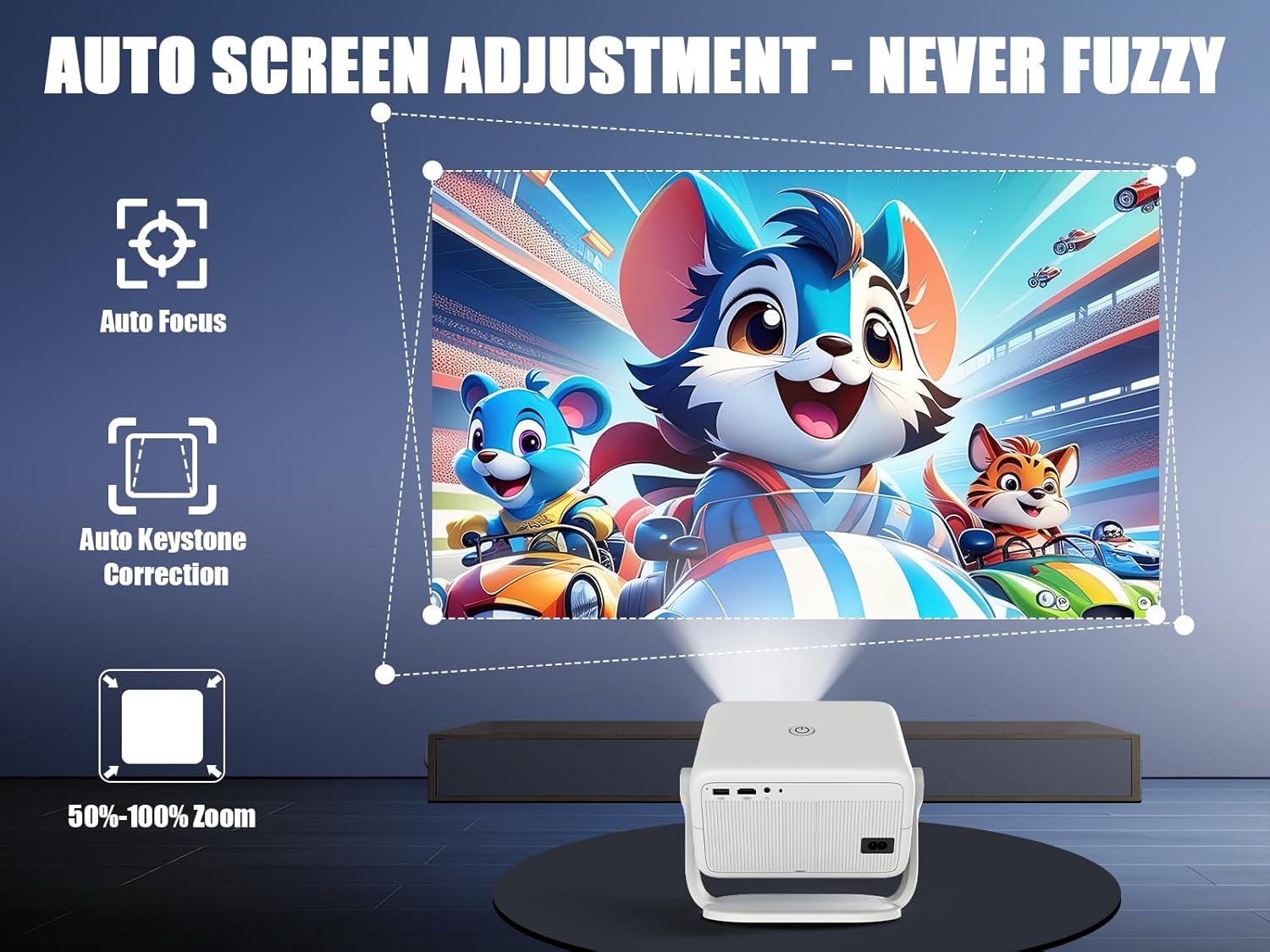
Image: The projector showcasing its auto screen adjustment features, including auto-focus, auto keystone correction, and 50-100% zoom, ensuring a clear and properly aligned image.
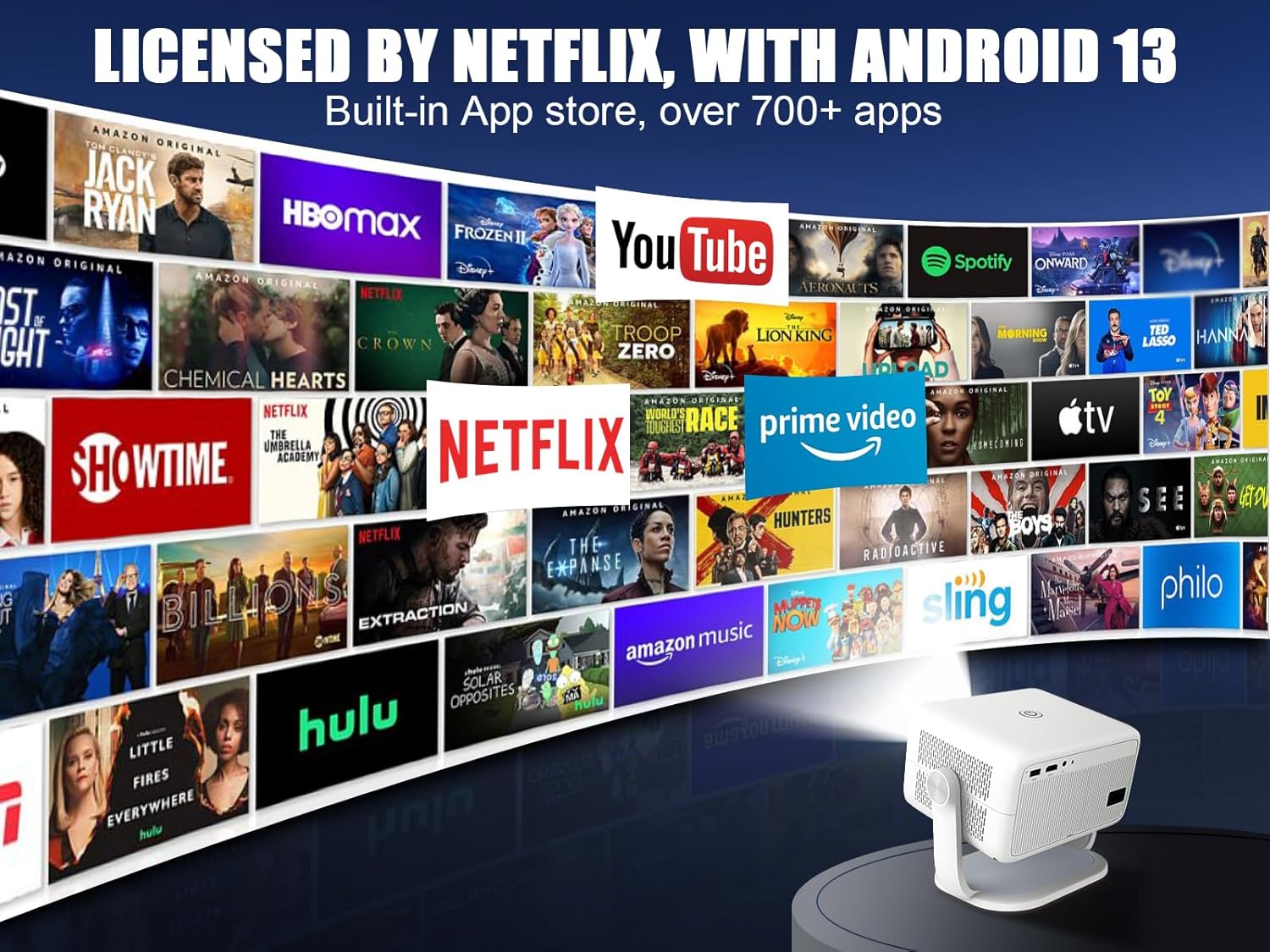
Image: The projector projecting a screen filled with various streaming service logos, emphasizing its Netflix licensing and built-in Android 13 operating system with access to over 700 apps.
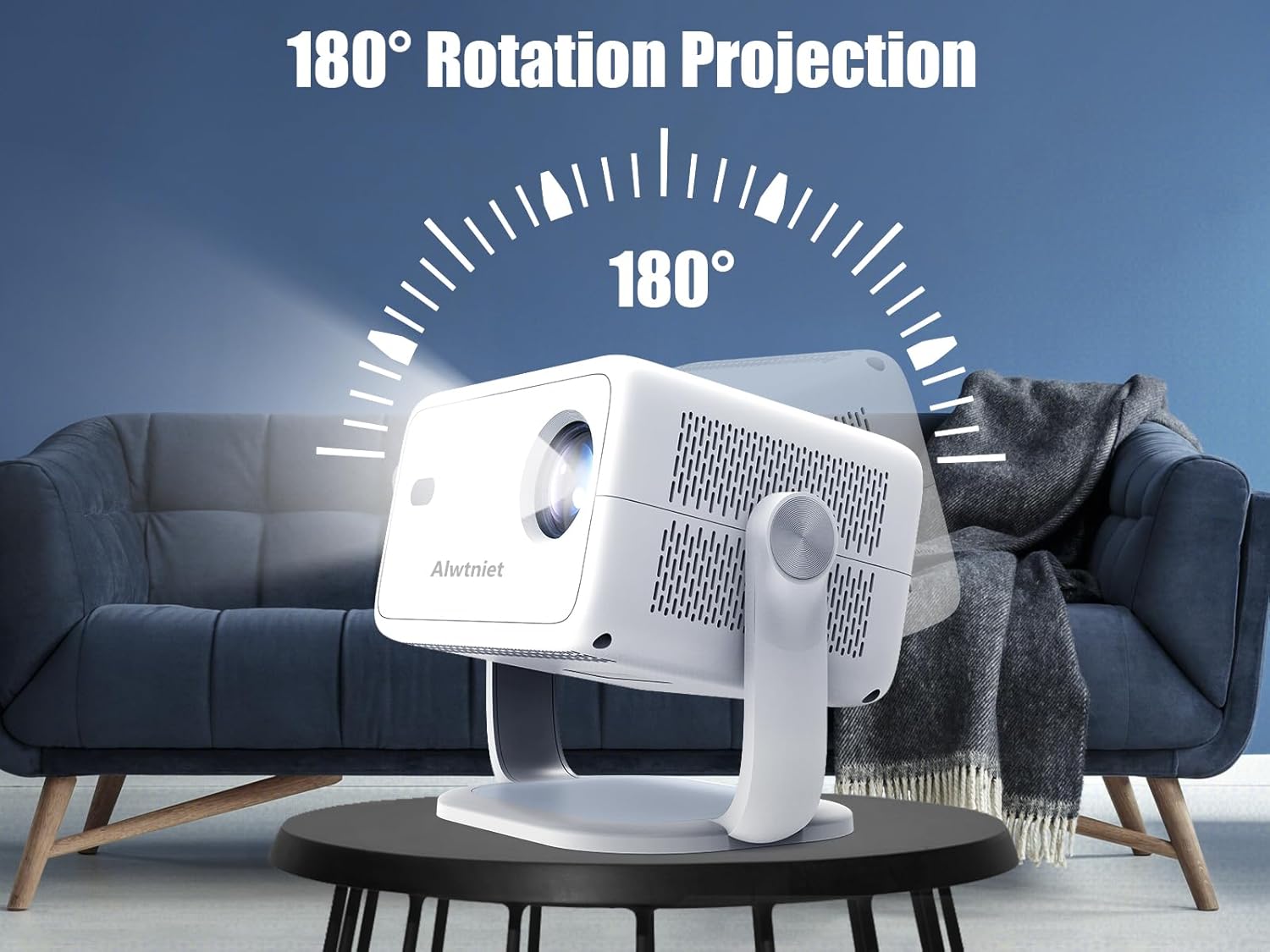
Image: The projector demonstrating its 180-degree rotation capability, allowing it to project images onto various surfaces, including ceilings, for flexible viewing.
4. Setup
4.1 Initial Placement
Place the projector on a stable, flat surface. Ensure there is sufficient space around the projector for proper ventilation. The 180° rotation feature allows for flexible positioning, including ceiling projection.
4.2 Power Connection
- Connect the power adapter to the projector's power input port.
- Plug the power adapter into a wall outlet.
- Press the power button on the projector or remote control to turn it on.
4.3 Focus and Keystone Correction
The projector features automatic focus and keystone correction. Upon startup or movement, the projector will automatically adjust the image for clarity and correct trapezoidal distortion.
- Auto Focus: The projector will automatically sharpen the image.
- Auto Keystone Correction: The projector will automatically adjust the image to be rectangular, even if placed at an angle.
- Obstacle Avoidance: The projector can detect and adjust the image to avoid obstacles in the projection path.
4.4 Network Connection (Wi-Fi)
- Navigate to the 'Settings' menu on the projector's interface.
- Select 'Network' or 'Wi-Fi Settings'.
- Choose your desired Wi-Fi network from the list.
- Enter the Wi-Fi password using the on-screen keyboard and remote control.
- Confirm to connect. The projector supports 2.4G and 5G dual-band Wi-Fi.
4.5 Bluetooth Pairing
The projector supports Bluetooth 5.4 for connecting external audio devices.
- Go to 'Settings' and select 'Bluetooth'.
- Turn on Bluetooth on the projector.
- Put your Bluetooth device (e.g., speaker, headphones) into pairing mode.
- Select your device from the list of available devices on the projector's screen.
- Confirm pairing.
5. Operating Instructions
5.1 Navigating the Interface
The projector runs on Android 13 (Whale OS), providing a user-friendly interface.
- Use the remote control's directional buttons to navigate through menus and select options.
- The 'Home' button returns you to the main screen.
- 'Back' button to go to the previous screen.
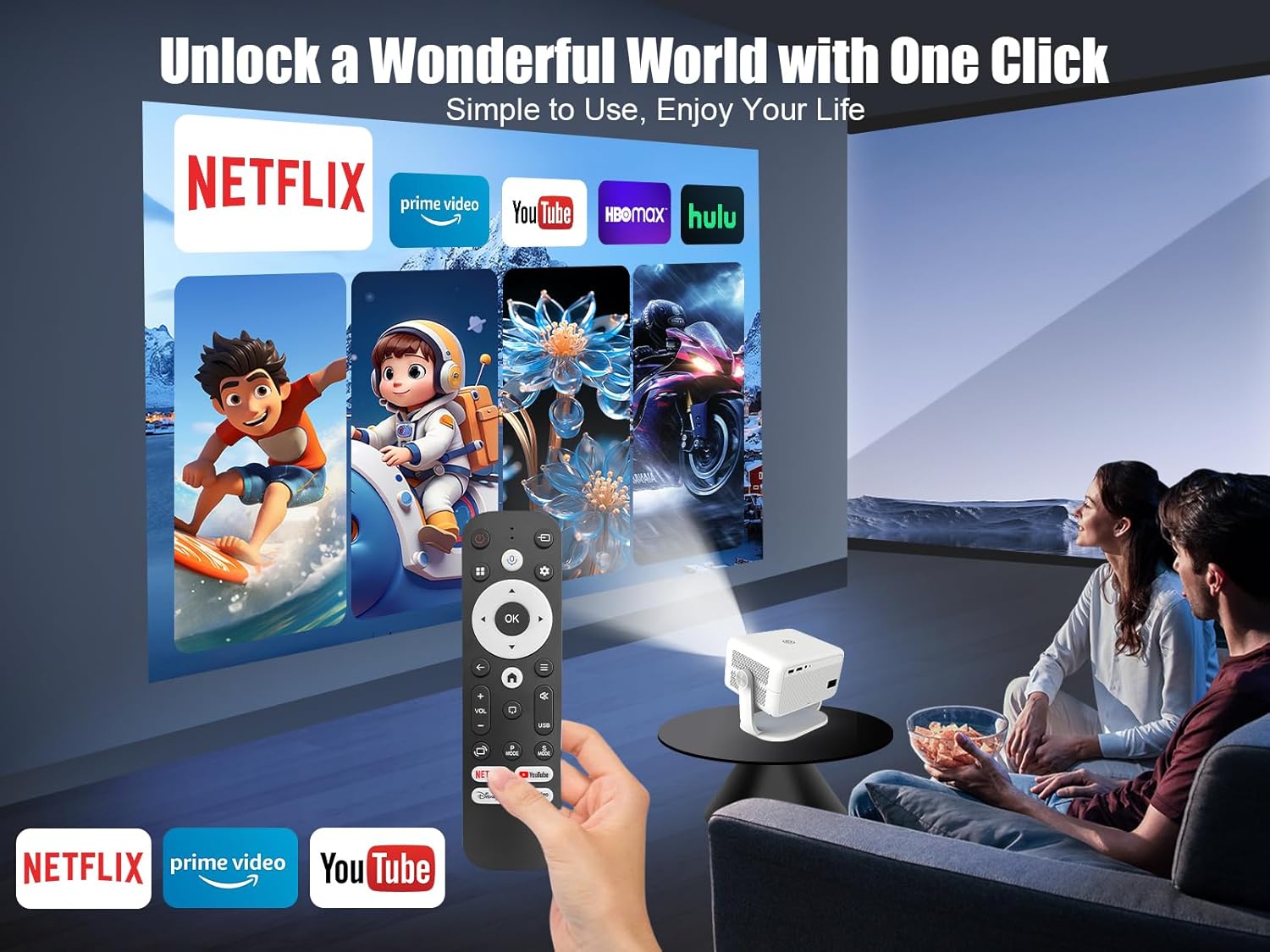
Image: A hand holding the projector's remote control, with the projector displaying its smart interface featuring various streaming apps like Netflix, Prime Video, and YouTube.
5.2 Using Pre-installed Apps
The projector comes with popular streaming apps pre-installed, including Netflix, Prime Video, and YouTube.
- From the home screen, select the desired app icon.
- Log in with your account credentials if prompted.
- Begin streaming content.
For other apps, you can download them directly from the built-in App Store. If a specific app is not available, please contact customer support.
5.3 Connecting External Devices
The projector supports various input sources.
- HDMI: Connect devices like laptops, gaming consoles, or Blu-ray players using an HDMI cable. Select the HDMI input source from the projector's input menu.
- USB: Insert a USB drive to play media files (photos, videos, music). Navigate to the 'File Manager' or 'Media Player' app to access content.
5.4 Audio Output
The projector has a built-in speaker. For enhanced audio, you can connect external speakers via Bluetooth (as described in Section 4.5).
6. Maintenance
6.1 Cleaning the Lens
Use a soft, lint-free cloth specifically designed for optical lenses. Do not use abrasive cleaners or harsh chemicals.
6.2 Cleaning the Projector Body
Wipe the exterior with a soft, dry cloth. For stubborn marks, a slightly damp cloth can be used, followed by a dry cloth.
6.3 Ventilation
Regularly check that the ventilation openings are clear of dust and debris to prevent overheating. Do not obstruct the airflow during operation.
6.4 Storage
When not in use for extended periods, store the projector in a cool, dry place, away from direct sunlight and extreme temperatures. Use the original packaging or a protective case to prevent dust accumulation and damage.
7. Troubleshooting
| Problem | Possible Cause | Solution |
|---|---|---|
| No power | Power cable not connected; Power outlet faulty | Ensure power cable is securely connected. Try a different power outlet. |
| No image | Input source incorrect; Lens cap on; Projector in standby | Select correct input source. Remove lens cap. Press power button to wake. |
| Image blurry | Out of focus; Projector moved | Allow auto-focus to adjust. If manual adjustment is needed, check settings. |
| Image distorted (trapezoid) | Projector not perpendicular to screen | Allow auto keystone correction to adjust. |
| No sound | Volume too low; Muted; External speaker not connected | Increase volume. Unmute. Check Bluetooth connection to external speaker. |
| Wi-Fi connection unstable | Too far from router; Interference | Move projector closer to router. Reduce interference from other devices. |
| Apps running slow/laggy | Insufficient memory; Network issues | Close background apps. Clear app cache. Check internet speed. Restart projector. |
8. Specifications
| Feature | Specification |
|---|---|
| Brand | Alwtniet |
| Model | B0DLFQKCRP |
| Display Resolution | Native 1920 x 1080 (Supports 4K) |
| Brightness | 400 ANSI Lumens |
| Contrast Ratio | 10,000:1 |
| Operating System | Android 13 (Whale OS) |
| Connectivity Technology | Dual Bluetooth (5.4), Wi-Fi (6) |
| Special Features | Auto Focus, Auto Keystone Correction, Auto Obstacle Avoidance, 180° Rotation |
| Item Weight | 3.98 pounds |
| Package Dimensions | 11.22 x 8.03 x 6.93 inches |
| Color | White |
| Recommended Uses | Business, Education, Gaming, Home Cinema |
9. Warranty and Support
For warranty information, please refer to the product listing page on Amazon or contact Alwtniet customer support directly. Keep your purchase receipt as proof of purchase.
Customer Support:
If you encounter any issues or have questions not covered in this manual, please contact Alwtniet customer support through the Amazon platform or visit the official Alwtniet store page for contact details.
Thank you for choosing the Alwtniet Smart Projector. We hope you enjoy your cinematic experience!
Related documentsB0DLFQKCRP


Ask a question about this manual
Ask about setup, troubleshooting, compatibility, parts, safety, or missing instructions. Manuals+ will review the question and use this page’s manual context to help answer it.