
Tek Styz TS-1146
User Manual: Slim Foldable Wireless Keyboard with Touchpad
Model: TS-1146
Product Overview
The Tek Styz Slim Foldable Wireless Keyboard with Touchpad (Model TS-1146) is a compact and portable input device designed for seamless compatibility across multiple operating systems. Featuring a tri-fold design, a full-size keyboard layout, and an integrated touchpad with left and right click buttons, it offers enhanced productivity on the go. The keyboard is equipped with a long-lasting rechargeable battery, providing up to 48 hours of continuous use and 560 days of standby time.

Figure 1: The Slim Foldable Wireless Keyboard unfolded, showcasing its compact design and integrated touchpad, with a smartphone on a stand in the background.
Setup
1. Unboxing and Initial Charge
Upon unboxing, ensure all components are present. The package should include the Slim Foldable Wireless Keyboard and a Charging USB Cable. Before first use, it is recommended to fully charge the keyboard.
- Connect the provided Charging USB Cable to the keyboard's charging port (refer to Figure 2 for port location).
- Connect the other end of the USB cable to a standard USB power source (e.g., computer USB port, USB wall adapter).
- The charging indicator light will illuminate during charging and typically turn off or change color when fully charged.
- A full charge takes approximately 2-3 hours and provides up to 48 hours of continuous working time or 560 days of standby time.
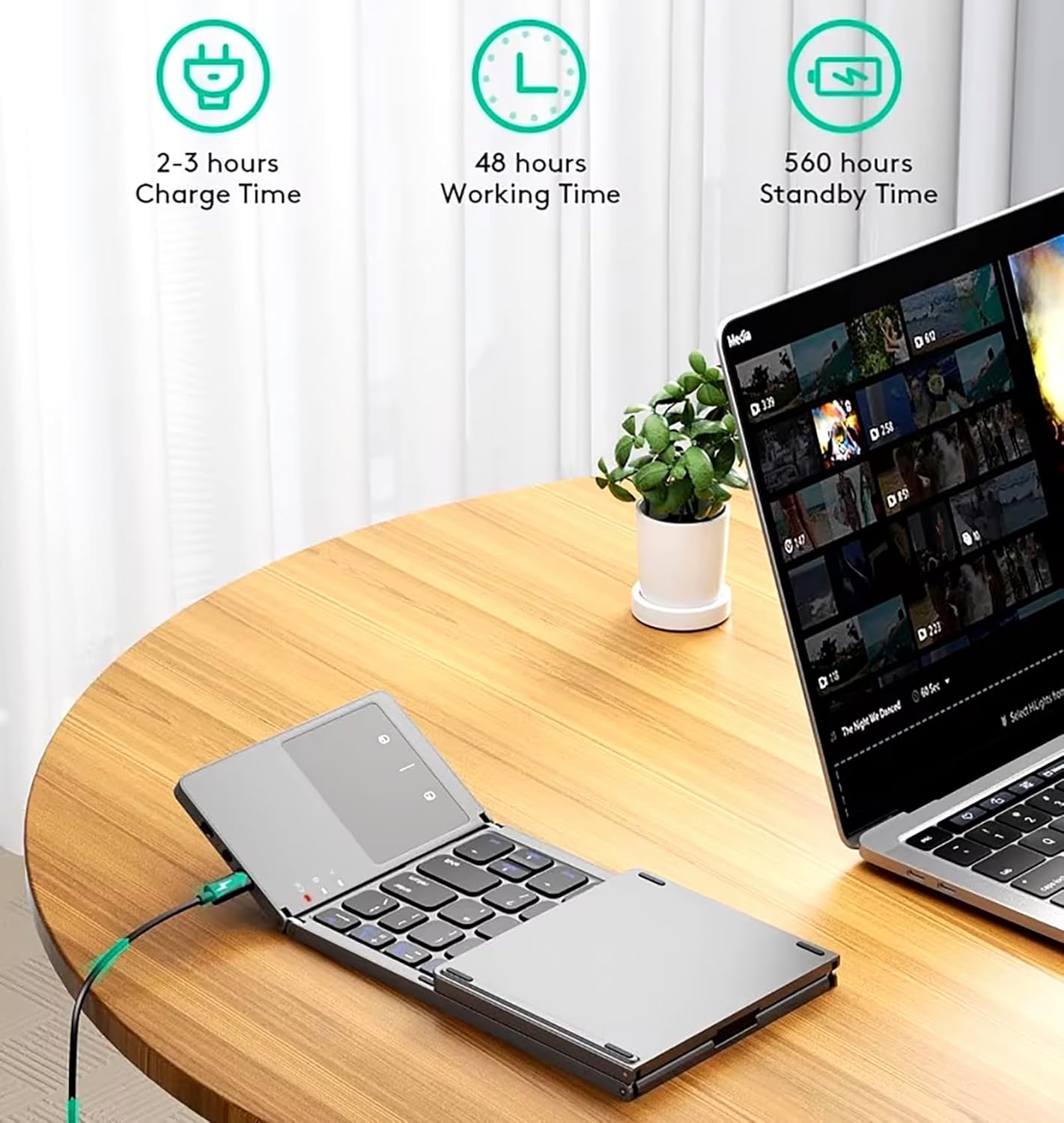
Figure 2: Charging the keyboard and its battery life indicators.

Figure 3: Location of the Power Switch, Bluetooth button, and Charging USB Wire Mode port.
2. Powering On/Off
- To power on the keyboard, unfold it completely. The keyboard will automatically power on.
- Alternatively, locate the Power Switch (refer to Figure 3) and slide it to the "ON" position.
- To power off, fold the keyboard. It will automatically power off.
- Alternatively, slide the Power Switch to the "OFF" position.
3. Bluetooth Pairing
The keyboard uses Bluetooth 5.3 technology for wireless connection. It can connect to up to 3 devices and switch between them easily.
- Ensure the keyboard is powered on.
- Press the Fn + C keys simultaneously to enter Bluetooth pairing mode. The Bluetooth indicator light will blink.
- On your device (smartphone, tablet, laptop), go to Bluetooth settings and turn Bluetooth on.
- Search for available devices. The keyboard will appear as "Bluetooth Keyboard" or similar.
- Select the keyboard from the list to pair. Follow any on-screen prompts, such as entering a pairing code.
- Once paired, the Bluetooth indicator light on the keyboard will stop blinking.
To pair with additional devices (up to 3), repeat steps 2-5, using Fn + Q, Fn + W, or Fn + E to select a different Bluetooth channel before entering pairing mode with Fn + C.

Figure 4: The keyboard supports multi-device connection across various operating systems.

Figure 5: Simplified steps for connecting the keyboard.
Operating Instructions
1. Keyboard Layout and Functions
The keyboard features a full-size QWERTY layout with 64 keys, including function keys and multimedia controls accessible via the Fn key. Its tri-fold design allows it to unfold into a comfortable typing surface.

Figure 6: Unfolded keyboard dimensions and compact folded size.
- Function Keys (F1-F12): Access multimedia controls and system functions by pressing the Fn key in combination with the desired function key.
- Operating System Modes: Use Fn + Android, Fn + Windows, or Fn + iOS keys to optimize keyboard functions for your specific operating system.
2. Touchpad Functionality
The integrated touchpad provides mouse-like navigation, including left and right click functions, enhancing usability, especially with tablets and smartphones.

Figure 7: Detail of the highly sensitive touchpad with left and right click buttons.
- Left Click: Press the left button below the touchpad or tap the touchpad with one finger.
- Right Click: Press the right button below the touchpad or tap the touchpad with two fingers (if supported by device OS).
- Scrolling: Use two fingers to scroll up or down on the touchpad.
- Note: Touchpad functionality may be limited on iOS 12 and below, and certain macOS versions. For full touchpad functionality, ensure your device's operating system is updated and supports external mouse input.
Maintenance
Proper care and maintenance will extend the life of your keyboard.
- Cleaning: Use a soft, dry, lint-free cloth to wipe the keyboard surface. For stubborn dirt, slightly dampen the cloth with water or a mild, non-abrasive cleaner. Avoid excessive moisture.
- Battery Care: To preserve battery life, avoid fully discharging the keyboard frequently. Recharge it when the low battery indicator appears. If storing for an extended period, charge the battery to about 50% and store in a cool, dry place.
- Storage: When not in use, fold the keyboard to protect the keys and touchpad. Store it in a clean, dry environment away from extreme temperatures and direct sunlight.
Troubleshooting
| Problem | Possible Cause | Solution |
|---|---|---|
| Keyboard does not power on. | Low battery; Power switch is OFF. | Charge the keyboard for 2-3 hours. Ensure the power switch is in the "ON" position or unfold the keyboard. |
| Unable to pair via Bluetooth. | Keyboard not in pairing mode; Device Bluetooth is off; Out of range; Interference. | Press Fn + C to enter pairing mode. Ensure Bluetooth is enabled on your device. Move keyboard closer to device. Turn off other Bluetooth devices nearby. |
| Keyboard disconnects frequently. | Low battery; Too far from device; Interference. | Recharge the keyboard. Keep the keyboard within 10 meters (33 feet) of your device. Reduce wireless interference. |
| Touchpad not responding or limited. | Operating system limitation (iOS 12 and below, some macOS); Software glitch. | Check your device's operating system version. Update OS if possible. Restart both the keyboard and your device. |
| Keys are not responding. | Disconnected; Low battery; Software issue. | Ensure keyboard is connected. Recharge battery. Restart keyboard and device. |
Specifications
| Feature | Detail |
|---|---|
| Model Number | TS-1146 |
| Connectivity Technology | Bluetooth 5.3 |
| Compatible Devices | Windows, iOS, Maxwest Orbit 6200, Mac, Android |
| Keyboard Description | Mechanical, Multi-Functional, Universal, English & All Language |
| Number of Keys | 64 |
| Battery Life (Working) | Up to 48 hours |
| Battery Life (Standby) | Up to 560 days |
| Charge Time | 2-3 hours |
| Material | Aluminum, Metal |
| Color | Dark Gray |
| Item Weight | 8 ounces |
| Folded Dimensions | 5.98" x 3.82" x 0.71" |
| Unfolded Dimensions | 11.89" x 3.82" x 0.28" (approximate, derived from folded and general shape) |
| Included Components | Charging USB Cable |
Warranty and Support
For warranty information and technical support, please refer to the official Tek Styz website or contact their customer service directly. Details are typically provided with your purchase documentation or on the manufacturer's product page.
Related documentsTS-1146


Ask a question about this manual
Ask about setup, troubleshooting, compatibility, parts, safety, or missing instructions. Manuals+ will review the question and use this page’s manual context to help answer it.