
Tek Styz TS-1146
Tek Styz Slim Foldable Wireless Keyboard User Manual
Model: TS-1146
1. Introduction
Thank you for choosing the Tek Styz Slim Foldable Wireless Keyboard. This compact and versatile keyboard with an integrated touchpad is designed for maximum portability and efficiency, compatible with a wide range of devices including smartphones, tablets, and computers. This manual provides detailed instructions for setup, operation, maintenance, and troubleshooting to ensure optimal performance.

Figure 1: Tek Styz Slim Foldable Wireless Keyboard in use with a smartphone.
2. Package Contents
- 1 x Tek Styz Slim Foldable Wireless Keyboard
- 1 x Charging USB Cable
- 1 x User Manual (this document)
3. Features
- Full-Size Folding Design: Provides a comfortable typing experience while maintaining portability.
- Integrated Touchpad: Features left and right click buttons for mouse-like navigation.
- Universal Compatibility: Works with iOS, Windows, Android, and Mac operating systems.
- Bluetooth 5.3 Technology: Ensures stable and fast wireless connection.
- Long-Lasting Battery: Up to 48 hours of continuous use and 560 days of standby time on a single charge.
- Rechargeable Battery: Built-in energy-efficient rechargeable battery.
- Durable Construction: Made with aircraft-grade aluminum for excellent stiffness and resistance to bumps.
- Portable and Compact: Tri-fold design for easy carrying.

Figure 2: The keyboard's compact folded state, ideal for travel.

Figure 3: Full-size yet ultra-portable design.
4. Specifications
| Attribute | Value |
|---|---|
| Model Number | TS-1146 |
| Connectivity Technology | Bluetooth 5.3 |
| Compatible Devices | Samsung SM-G9300, Windows, iOS, Mac, Android |
| Battery Life (Continuous Use) | Up to 48 hours |
| Battery Life (Standby) | Up to 560 days |
| Charging Time | 2-3 hours |
| Item Weight | 8 ounces (approx. 227 grams) |
| Folded Dimensions | 5.98" x 3.82" x 0.71" (15.2 cm x 9.7 cm x 1.8 cm) |
| Unfolded Dimensions | 11.89" x 3.82" (30.2 cm x 9.7 cm) |
| Color | Dark Gray |

Figure 4: Keyboard dimensions in unfolded and folded states.
5. Setup and Connectivity
5.1 Powering On/Off
- To power on the keyboard, unfold it completely. The power indicator light will illuminate.
- To power off, fold the keyboard. It will automatically enter sleep mode and power off.
5.2 Bluetooth Pairing
- Unfold the keyboard to power it on.
- On your device (smartphone, tablet, laptop), go to Bluetooth settings and ensure Bluetooth is enabled.
- The keyboard will automatically enter pairing mode. Look for "Bluetooth Keyboard" or a similar name in your device's Bluetooth list.
- Select the keyboard from the list to connect. If prompted, enter the pairing code displayed on your device.
- Once connected, the Bluetooth indicator light on the keyboard will turn off or remain solid, depending on the model.
5.3 Multi-Device Connection (Up to 3 Devices)
The keyboard supports connecting to up to three devices and switching between them easily.
- Pair the first device as described in Section 5.2.
- To pair a second device, press and hold the Fn + Q key combination for 3 seconds until the indicator light flashes, indicating pairing mode for the second channel. Pair the second device.
- To pair a third device, press and hold the Fn + W key combination for 3 seconds until the indicator light flashes. Pair the third device.
- To switch between connected devices, simply press Fn + Q (for device 1), Fn + W (for device 2), or Fn + E (for device 3).

Figure 5: Multi-device connection and compatibility overview.

Figure 6: Simple steps to connect your keyboard.
6. Operating Instructions
6.1 Keyboard Layout and Function Keys
The keyboard features a standard QWERTY layout with additional function keys accessible via the Fn key. These keys provide shortcuts for media control, volume, and other system functions.
- Fn + F1-F12: Perform various multimedia and system functions (e.g., volume, playback, screen brightness).
- Fn + Q/W/E: Switch between paired Bluetooth devices.
- Fn + Android/Win/iOS: Switch keyboard layout for specific operating systems.
6.2 Touchpad Functionality
The integrated touchpad allows for precise cursor control and includes left and right click functions.
- Single Finger Tap: Left click.
- Two Finger Tap: Right click.
- Two Finger Scroll: Scroll up/down or left/right.
- Pinch to Zoom: Use two fingers to zoom in or out (supported on some devices).
Note: Touchpad functionality may be limited on iOS 12 and below, and certain macOS versions.

Figure 7: Detailed view of the integrated touchpad.

Figure 8: Touchpad features for enhanced control.
7. Charging the Keyboard
The keyboard comes with a built-in rechargeable battery. When the battery is low, the indicator light will flash. Charge the keyboard using the provided USB cable.
- Connect the small end of the USB charging cable to the charging port on the keyboard.
- Connect the larger end of the USB cable to a USB power source (e.g., computer USB port, USB wall adapter).
- The charging indicator light will illuminate during charging and turn off when fully charged.
- A full charge typically takes 2-3 hours.
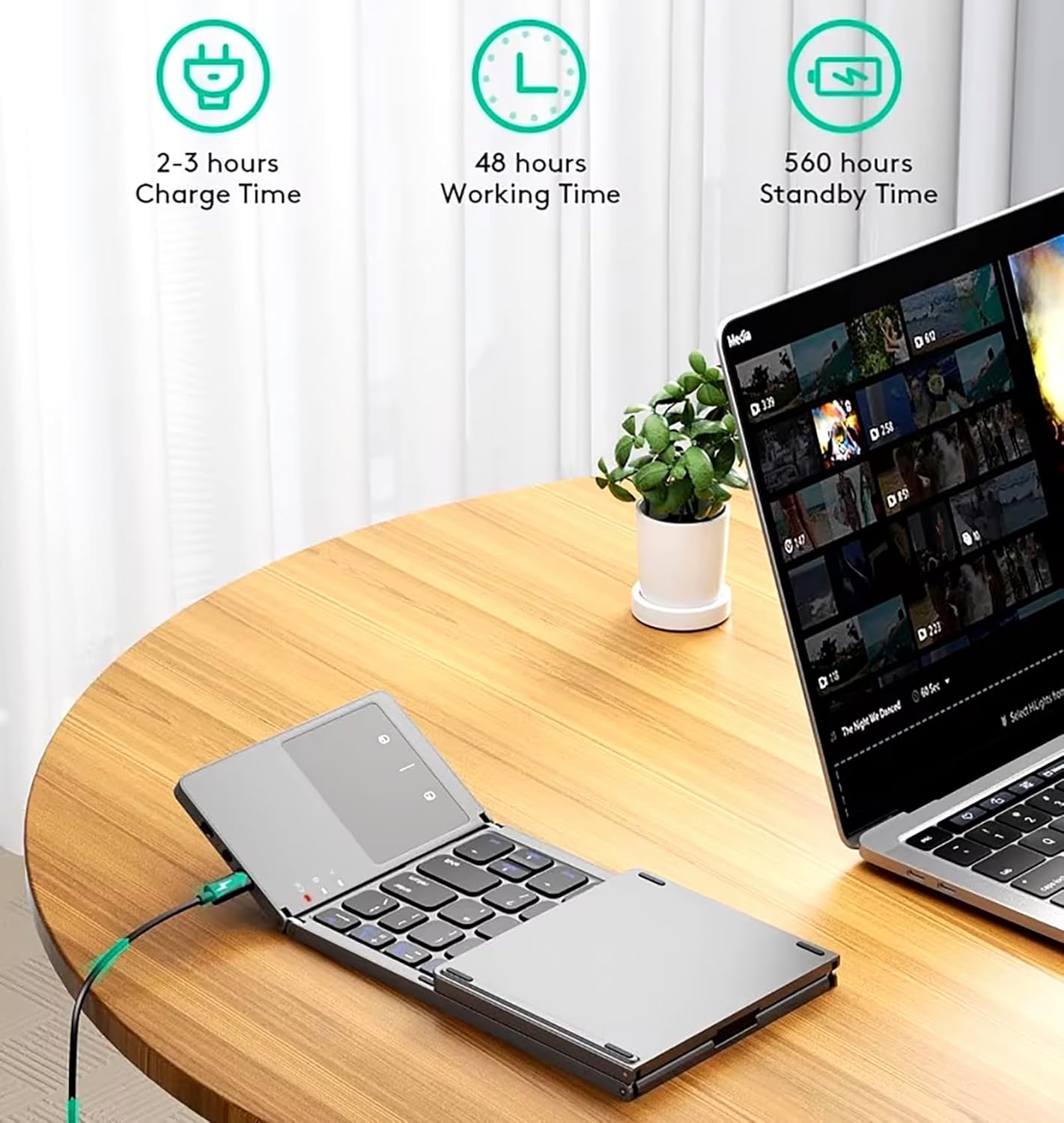
Figure 9: Charging the keyboard and battery life indicators.

Figure 10: Long-lasting battery life details.
8. Maintenance
- Keep the keyboard away from liquids and extreme temperatures.
- Clean the keyboard with a soft, dry cloth. Do not use harsh chemicals or abrasive cleaners.
- Avoid dropping or subjecting the keyboard to strong impacts.
- When not in use for extended periods, fully charge the keyboard and store it in a cool, dry place.
9. Troubleshooting
| Problem | Possible Cause | Solution |
|---|---|---|
| Keyboard does not power on. | Battery is depleted. | Charge the keyboard for 2-3 hours. |
| Unable to pair with device. | Bluetooth is off on device. Keyboard is not in pairing mode. Device list is full. | Ensure Bluetooth is enabled on your device. Unfold the keyboard to activate pairing mode. Forget previous Bluetooth devices on your device and try again. |
| Keyboard disconnects frequently. | Low battery. Interference. Device too far. | Charge the keyboard. Move away from other wireless devices. Ensure keyboard is within 10 meters of your device. |
| Touchpad not working or limited. | Operating system limitation. | Ensure your device's OS supports full touchpad functionality (e.g., iOS 13+ for full mouse support). |
10. Warranty and Support
Tek Styz products are manufactured with high-quality standards. For any issues or support inquiries, please refer to the contact information provided with your purchase or visit the official Tek Styz website. Please retain your proof of purchase for warranty claims.
Ask a question about this manual
Ask about setup, troubleshooting, compatibility, parts, safety, or missing instructions. Manuals+ will review the question and use this page’s manual context to help answer it.