
1. Introduction
The MiBOXER PZ5 5-in-1 LED Controller is a versatile device designed for managing various LED lighting systems. It integrates Zigbee 3.0 and 2.4GHz wireless technologies, providing flexible control options for single color, dual white (CCT), RGB, RGBW, and RGB+CCT LED setups. This manual provides detailed instructions for the installation, operation, and maintenance of your PZ5 controller.
2. Key Features
- 5-in-1 Compatibility: Supports Single Color, Dual White (CCT), RGB, RGBW, and RGB+CCT LED configurations.
- Zigbee 3.0 Standard Protocol: Ensures compatibility with Zigbee-enabled hubs and smart home platforms.
- 2.4G RF Remote Control: Offers stable wireless operation with a control distance of up to 30 meters.
- High Output Capacity: Supports a maximum output of 20A, suitable for various LED installations.
- Color and Brightness Control: Provides 16 million colors, adjustable color temperature, brightness, and saturation.
- PUSH Dimming Support: Allows for direct dimming control.
- Memory Function: Recalls the last-used settings automatically.
3. Product Overview
The MiBOXER PZ5 controller features clearly labeled input and output terminals, an indicator light, and a 'SET' button for configuration.
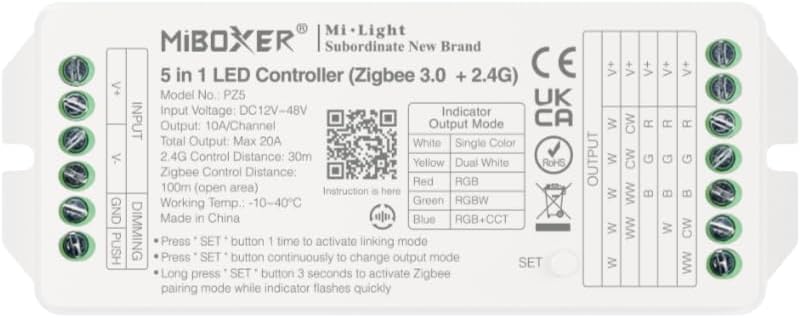
Figure 3.1: Front view of the MiBOXER PZ5 controller, showing input/output terminals, indicator, and SET button.
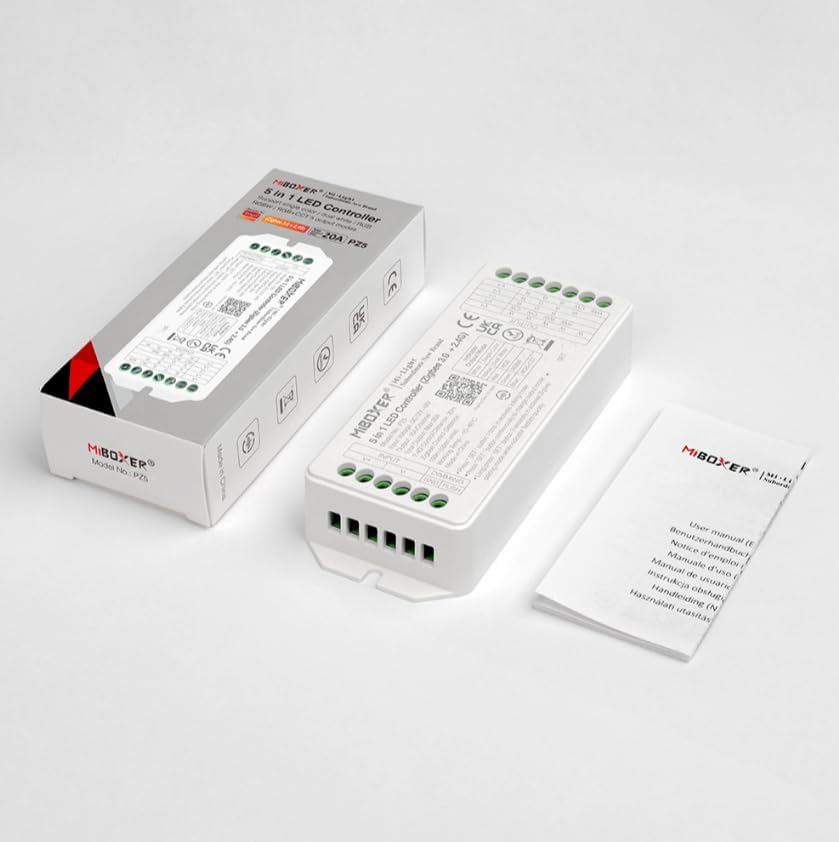
Figure 3.2: The MiBOXER PZ5 controller shown alongside its retail packaging and included instruction manual.
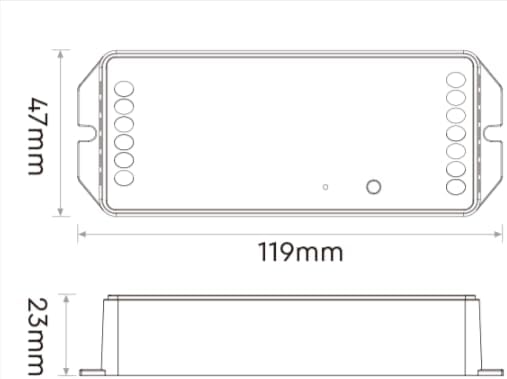
Figure 3.3: Dimensional drawing of the MiBOXER PZ5 controller, indicating its length (119mm), width (47mm), and height (23mm).
4. Specifications
| Parameter | Value |
|---|---|
| Model Number | PZ5 |
| Input Voltage | DC12-24V |
| Output Current | Max 20A |
| Zigbee Control Distance | 100m (open area) |
| 2.4G RF Control Distance | 30m |
| Working Temperature | -10~40°C |
| Package Dimensions | 4.5 x 2 x 1 inches |
| Item Weight | 3.2 ounces |
| Number of Channels | 5 |
5. Setup and Installation
5.1 Wiring Instructions
Ensure power is disconnected before performing any wiring. Connect the LED strips to the output terminals and the power supply to the input terminals as shown in the diagrams below. The PZ5 controller supports various LED strip types.
Video 5.1: This video demonstrates the wiring process for a MiBOXER LED controller, showing how to connect power input and LED strip outputs to the terminal blocks.

Figure 5.1: Connection diagrams illustrating wiring for single color, dual white, RGB, RGBW, and RGB+CCT LED strips with the MiBOXER PZ5 controller, including PUSH switch connections.
- Connect the DC12-24V power supply to the "V+" and "V-" input terminals.
- Connect your LED strip(s) to the corresponding output terminals (V+, W, CW, R, G, B) based on your LED type (Single Color, Dual White, RGB, RGBW, or RGB+CCT). Refer to Figure 5.1 for specific wiring configurations.
- If using PUSH dimming, connect the PUSH switch to the designated terminals.
6. Operating Instructions
6.1 Output Mode Switching
The PZ5 controller supports five output modes. To switch between modes:
- Press the "SET" button continuously to cycle through the output modes. The indicator light will change color to show the current mode:
- White: Single Color
- Yellow: Dual White
- Red: RGB
- Green: RGBW
- Blue: RGB+CCT
6.2 Linking and Pairing
The controller can be linked with Mi-Light/MiBoxer 2.4GHz remotes or paired with Zigbee gateways.
- 2.4G RF Remote Linking: Press the "SET" button once to activate linking mode. Follow the instructions for your specific 2.4G remote to link it with the controller.
- Zigbee Pairing: Long press the "SET" button for 3 seconds to activate Zigbee pairing mode. The indicator light will flash quickly. Then, initiate the pairing process on your Zigbee gateway or smart home app.
6.3 Smart Home Integration
The PZ5 controller is compatible with various Zigbee 3.0 gateways and smart home platforms, enabling app and voice control.
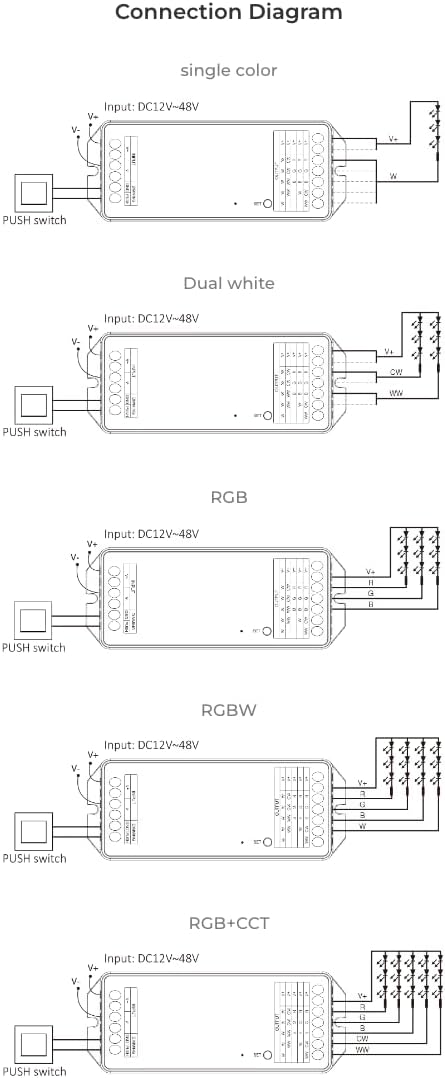
Figure 6.1: Illustration of the MiBOXER PZ5 controller's compatibility with the Tuya smart app and a MiBOXER gateway for smart control. A Zigbee 3.0 gateway is required for this functionality.
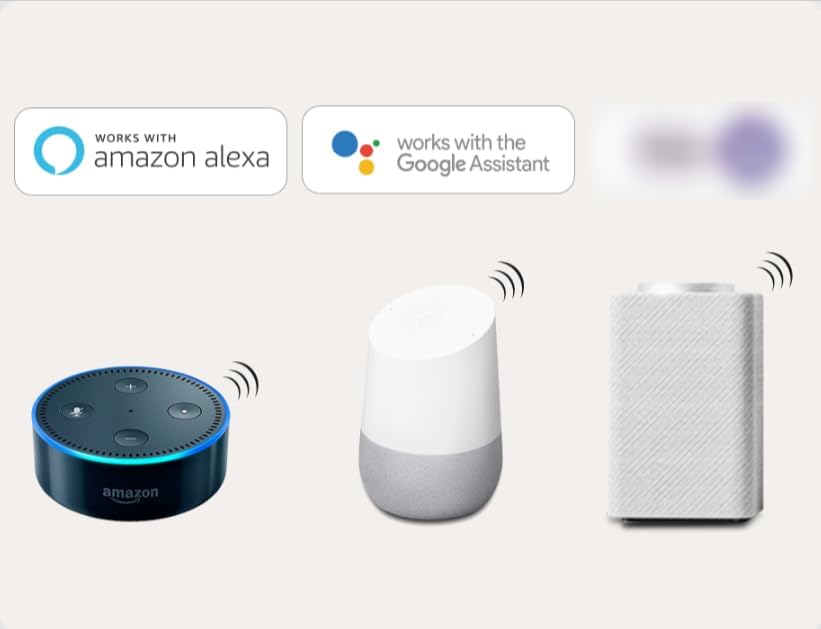
Figure 6.2: The MiBOXER PZ5 controller supports third-party voice control through Amazon Alexa and Google Assistant, requiring a Zigbee 3.0 gateway.
It can integrate with standard Zigbee 3.0 gateways such as Philips Hue, IKEA TRÅDFRI, Amazon Echo Plus (2nd Gen), Echo (4th Gen), Echo Studio, and Echo Show (2nd Gen).
7. Maintenance
To ensure the longevity and optimal performance of your MiBOXER PZ5 controller, follow these maintenance guidelines:
- Keep the device in a dry environment, away from moisture and extreme temperatures.
- Clean the exterior with a soft, dry cloth. Do not use harsh chemicals or abrasive cleaners.
- Avoid exposing the controller to direct sunlight for extended periods.
- Ensure proper ventilation around the device to prevent overheating.
8. Troubleshooting
If you encounter issues with your MiBOXER PZ5 controller, refer to the following common problems and solutions:
- LEDs not lighting up:
- Check all wiring connections for secure contact.
- Verify the power supply is correctly connected and providing the correct voltage (DC12-24V).
- Ensure the LED strip itself is functional.
- Confirm the output mode of the controller matches your LED strip type.
- Remote control not responding:
- Ensure the remote is within the 30m control range.
- Re-link the remote with the controller (press SET button once on controller, then follow remote's linking instructions).
- Check the remote's battery.
- Zigbee pairing failed:
- Ensure the controller is in Zigbee pairing mode (long press SET for 3 seconds, indicator flashes quickly).
- Verify your Zigbee gateway is in pairing mode and within range.
- Check for interference from other 2.4GHz devices.
- Try resetting the controller and the gateway, then attempt pairing again.
- Incorrect colors or dimming issues:
- Confirm the controller's output mode is correctly set for your LED strip (e.g., RGB+CCT for full control).
- Check the wiring for correct polarity and channel connections.
9. Warranty and Support
For warranty information and technical support, please refer to the official MiBOXER website or contact your retailer. Keep your purchase receipt as proof of purchase.


