
1. Introduction
This manual provides comprehensive instructions for the installation, operation, and maintenance of your BISOFICE 80mm Receipt Printer. Please read this manual thoroughly before using the printer to ensure proper function and longevity of the device. This thermal printer is designed for efficient receipt printing in various business environments.
2. Product Features
- Efficient Thermal Printing: Prints at speeds up to 200mm/sec without the need for ink cartridges or ribbons, reducing operational costs.
- Automatic Cutter: Integrated auto-cutter for clean and efficient paper cutting.
- Versatile Connectivity: Supports both USB and LAN connections for flexible integration with various systems.
- Broad Compatibility: Compatible with Windows XP/VISTA/7/8/10 operating systems.
- High Resolution: 576 dots/line resolution ensures clear and legible print quality.
- Large Paper Bin: Accommodates thermal paper rolls with a maximum diameter of 83mm.
- Multi-Content Support: Capable of printing multi-language text, images, logos, and various barcode types (1D/QR codes).
- Wall-Mountable Design: Features two hanging holes for optional wall mounting, optimizing counter space.
3. Package Contents
Please verify that all items are present in the package:
- BISOFICE 80mm Receipt Printer
- Power Adapter
- USB Cable
- Thermal Paper Roll (starter)
- User's Manual

Image: Contents of the BISOFICE 80mm Receipt Printer package, including the printer, power adapter, USB cable, a thermal paper roll, and the user manual.
4. Product Overview
Familiarize yourself with the printer's components and ports:

Image: Diagram showing the BISOFICE 80mm Receipt Printer with labels for the cover open button, feed button, indicator lights (POWER, ERROR, PAPER), switch button, LAN port, USB port, CASH (cash box) port, and power port.
5. Setup Instructions
5.1. Installing the Thermal Paper Roll
- Press the cover open button to open the printer's top cover.
- Insert the thermal paper roll into the paper bin, ensuring the printing side of the paper faces upwards.
- Pull a small length of paper out beyond the cutter.
- Close the top cover firmly until it clicks into place.
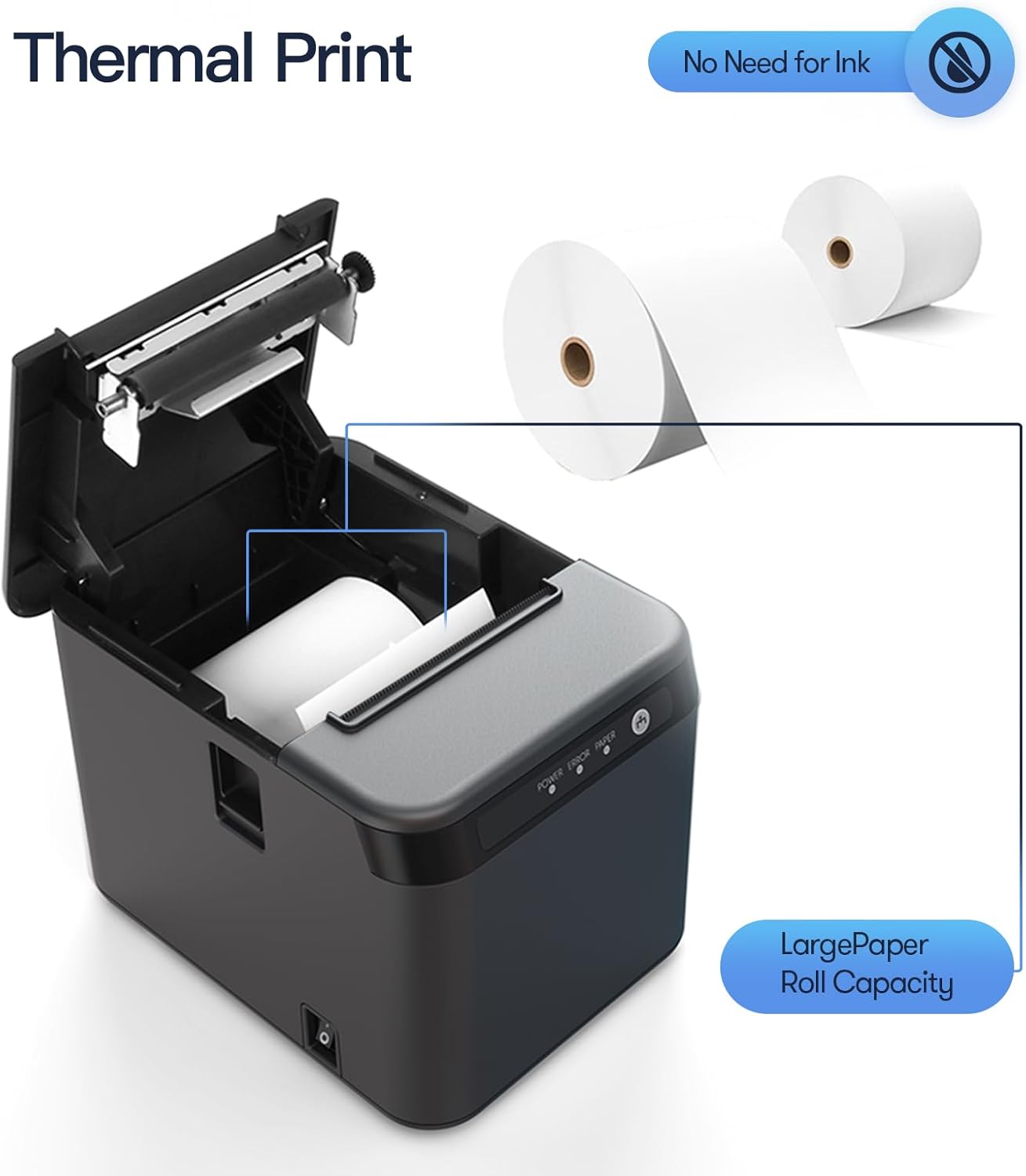
Image: A view of the BISOFICE 80mm Receipt Printer with its top cover open, showing how to correctly insert a thermal paper roll into the paper bin.
5.2. Connecting Power
- Connect the power adapter to the printer's power port.
- Plug the power adapter into a suitable electrical outlet.
- Turn on the printer using the switch button located on the side. The POWER indicator light should illuminate.
5.3. Connecting to a Computer (USB)
- Connect one end of the provided USB cable to the printer's USB port.
- Connect the other end of the USB cable to an available USB port on your computer.
- Install the printer drivers as described in section 5.5.
5.4. Connecting to a Network (LAN)
- Connect an Ethernet cable to the printer's LAN port.
- Connect the other end of the Ethernet cable to your network router or switch.
- Configure network settings on your computer or POS system to recognize the printer. Refer to your operating system's network printer setup guide for detailed instructions.

Image: Diagram illustrating how to connect the BISOFICE 80mm Receipt Printer to a network via a LAN cable, showing connections to a router and a computer.
5.5. Driver Installation
For USB connection, you will need to install the appropriate drivers for your operating system (Windows XP/VISTA/7/8/10). Drivers are typically provided on a CD included with the printer or can be downloaded from the manufacturer's official website. Follow the on-screen instructions during the driver installation process.

Image: The BISOFICE 80mm Receipt Printer connected to a laptop via a USB cable, demonstrating a typical setup for printing receipts.
6. Operating Instructions
6.1. Basic Printing
Once the printer is connected and drivers are installed, you can initiate printing from your application (e.g., POS software, word processor). The printer will automatically feed the paper and cut the receipt after printing.

Image: The BISOFICE 80mm Receipt Printer actively printing a receipt, highlighting its fast printing speed of 200mm/s.
6.2. Using the Feed Button
Press the 'Feed' button (refer to Product Overview) to manually advance the thermal paper. This can be useful for checking paper alignment or advancing paper after a roll change.
6.3. Wall Mounting (Optional)
The printer features two hanging holes on its bottom for wall mounting. Ensure the wall is sturdy enough to support the printer's weight and use appropriate mounting hardware (not included). This can save valuable counter space, especially in kitchen or retail environments.

Image: The BISOFICE 80mm Receipt Printer shown mounted on a wall in a kitchen, demonstrating its space-saving design.
7. Maintenance
7.1. Cleaning the Print Head
Regular cleaning of the print head ensures optimal print quality and extends the printer's lifespan. Use a soft, lint-free cloth dampened with isopropyl alcohol. Gently wipe the print head surface. Ensure the printer is powered off and cooled down before cleaning.
7.2. Replacing the Paper Roll
When the paper roll is depleted, the PAPER indicator light may flash or remain off, and printing will cease. Follow the steps in section 5.1 to replace the paper roll.
8. Troubleshooting
If you encounter issues with your printer, refer to the following common problems and solutions:
| Problem | Possible Cause | Solution |
|---|---|---|
| Printer does not power on | Power cable not connected; Power outlet faulty; Printer switch off | Check power cable connection; Try a different outlet; Ensure printer switch is ON |
| No printing / Blank receipts | No paper; Paper incorrectly loaded; Print head dirty; Driver issue | Install new paper roll; Re-load paper correctly (printing side up); Clean print head; Reinstall drivers |
| ERROR indicator light is on | Paper jam; Print head overheating; Cutter error | Open cover, clear any jammed paper, close cover; Power off and allow to cool; Contact support if error persists |
| Poor print quality | Dirty print head; Low quality thermal paper | Clean print head; Use recommended thermal paper |
| Printer not recognized by computer | USB/LAN cable loose; Drivers not installed or corrupted | Check cable connections; Reinstall printer drivers |
9. Specifications
| Feature | Specification |
|---|---|
| Model Number | ZGV9622812387288LP |
| Printing Method | Direct Thermal |
| Print Speed | Up to 200mm/sec |
| Paper Width | 80mm |
| Print Width | 72mm |
| Resolution | 576 dots/line |
| Paper Roll Diameter (Max) | 83mm |
| Interface | USB, LAN |
| Operating System Compatibility | Windows XP/VISTA/7/8/10 |
| Auto Cutter | Yes |
| Item Weight | 2.68 pounds (approx. 1.22 kg) |
| Dimensions (L x W x H) | 173mm x 128mm x 127mm (approx. 6.8 x 5.0 x 5.0 inches) |
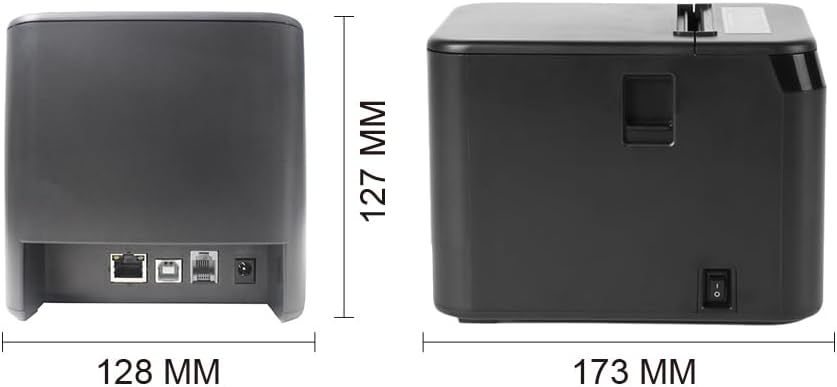
Image: Diagram showing the dimensions of the BISOFICE 80mm Receipt Printer, with measurements of 173mm length, 128mm width, and 127mm height.
10. Warranty and Support
For warranty information and technical support, please refer to the documentation included with your purchase or contact your retailer. Keep your purchase receipt as proof of purchase for warranty claims.
