Introduction
This manual provides comprehensive instructions for the setup, operation, and maintenance of your EziMedPil Bluetooth Pill Dispenser. Please read this manual thoroughly before using the device to ensure proper function and safety.
Product Overview
The EziMedPil Bluetooth Pill Dispenser is designed to assist with medication management, offering audio and visual alerts for scheduled dosages. It features a 28-compartment carousel, a key lock for security, and integrates with the SmartLife App for enhanced control and monitoring.
Key Features:
- Bluetooth Enabled for SmartLife App integration.
- Up to 9 daily alarms with sound and light alerts.
- Key lock for secure medication storage.
- Large LCD for easy readability.
- 28 spacious compartments, holding up to 24 aspirin-sized tablets per compartment.
- 9 interchangeable dosage rings for flexible scheduling.
- Moisture-proof design with bubble ring and lock system.
- Wireless battery-operated (4 AA batteries included).
Package Contents
- EziMedPil Bluetooth Pill Dispenser (Model: EMPPDM151AC)
- 4 AA Batteries
- Cover Lid Metal Key
- 9 Interchangeable Dosage Rings
- Instruction Manual (this document)
Setup
1. Unboxing and Initial Inspection
Carefully remove all components from the packaging. Inspect the dispenser for any signs of damage. Ensure all listed package contents are present.
Video: Unboxing and initial setup of the EziMedPil Bluetooth Pill Dispenser. This video demonstrates how to unpack the device and its components, including the manual, dispenser unit, batteries, and key.
2. Battery Installation
- Locate the battery compartment on the underside of the dispenser.
- Use the provided metal key to unlock and open the battery compartment cover.
- Insert the four (4) AA batteries, ensuring correct polarity (+/-).
- Replace the battery compartment cover and lock it securely with the key.

Image: The underside of the EziMedPil dispenser, illustrating the battery compartment and the placement of the four AA batteries. This view also shows the secure locking system for the battery cover.
3. SmartLife App Installation and Pairing
The SmartLife App is essential for advanced features and scheduling. Download the app and pair it with your dispenser:
- Scan the QR code located on the back of the dispenser or search for "Smart Life" in your device's app store (Google Play for Android, App Store for iOS).
- Install the Smart Life app on your smartphone or tablet.
- Open the app and register/log in to your account.
- Grant necessary permissions (Bluetooth, Location) when prompted by the app.
- In the app, click on "Add Device" (usually a '+' icon) and allow it to search for nearby devices.
- The app should automatically detect the EziMedPil dispenser (M151A demo). Select it to connect.
- Once connected, the device will be added to your app.
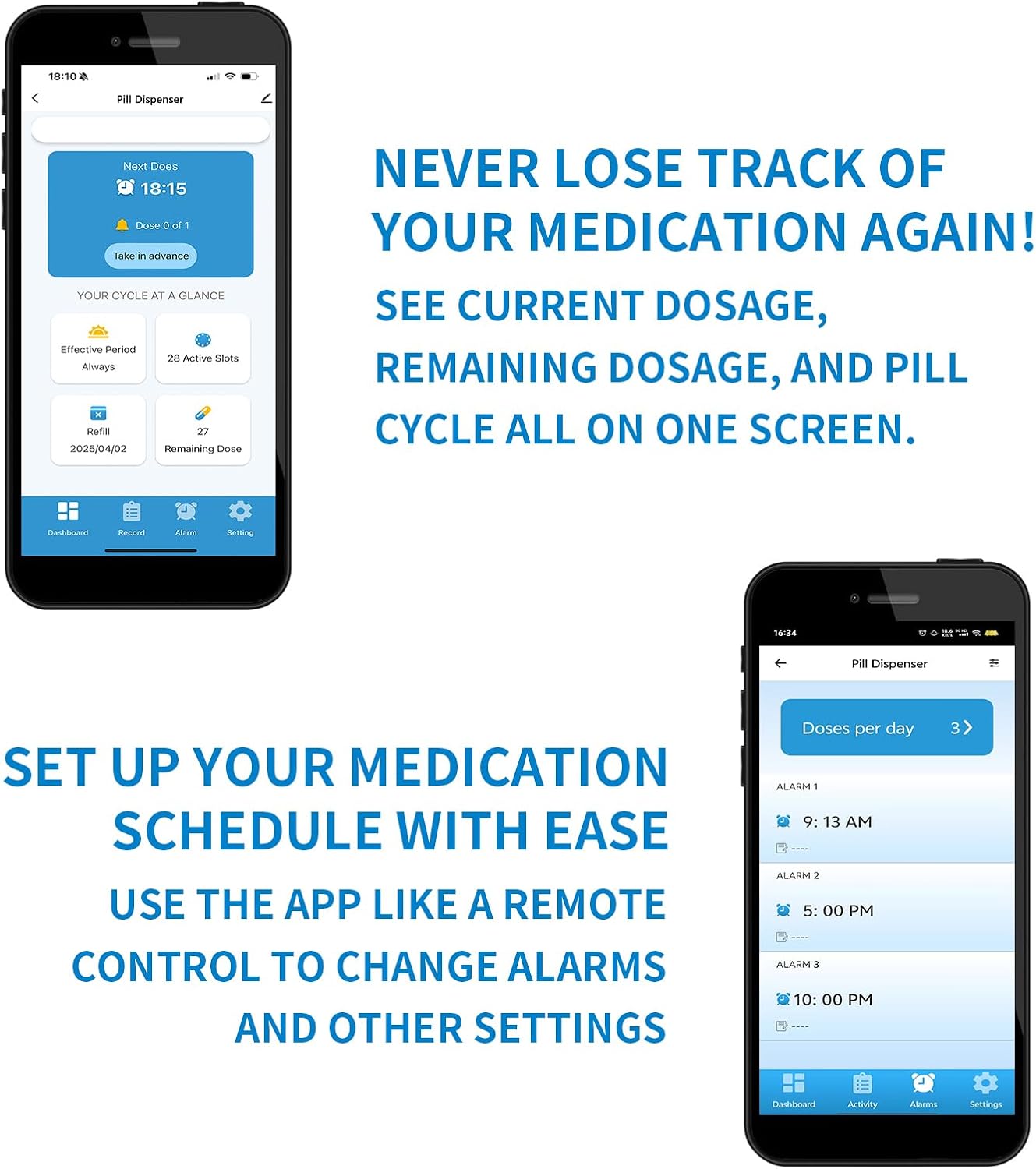
Image: A smartphone showing the SmartLife app's main screen, which displays the next dose time and cycle overview, positioned beside the EziMedPil dispenser. This illustrates the app's role in medication tracking.

Image: A smartphone screen showing the alarm setup interface within the SmartLife app, demonstrating how users can easily configure medication schedules and other settings remotely.

Image: A hand holding a smartphone, illustrating the Bluetooth connection between the device and the EziMedPil dispenser for convenient control and monitoring.
Operating Instructions
1. Filling the Dispenser
- Press the "OPEN" button on the dispenser to open the lid.
- Select the appropriate dosage ring based on your daily medication schedule (e.g., 1x, 2x, 3x per day).
- Place the selected dosage ring onto the carousel.
- Fill each compartment with the prescribed medication according to your schedule. Ensure pills are placed flat and do not overfill.
- Close the lid securely. The dispenser is designed to be moisture-proof when properly closed.
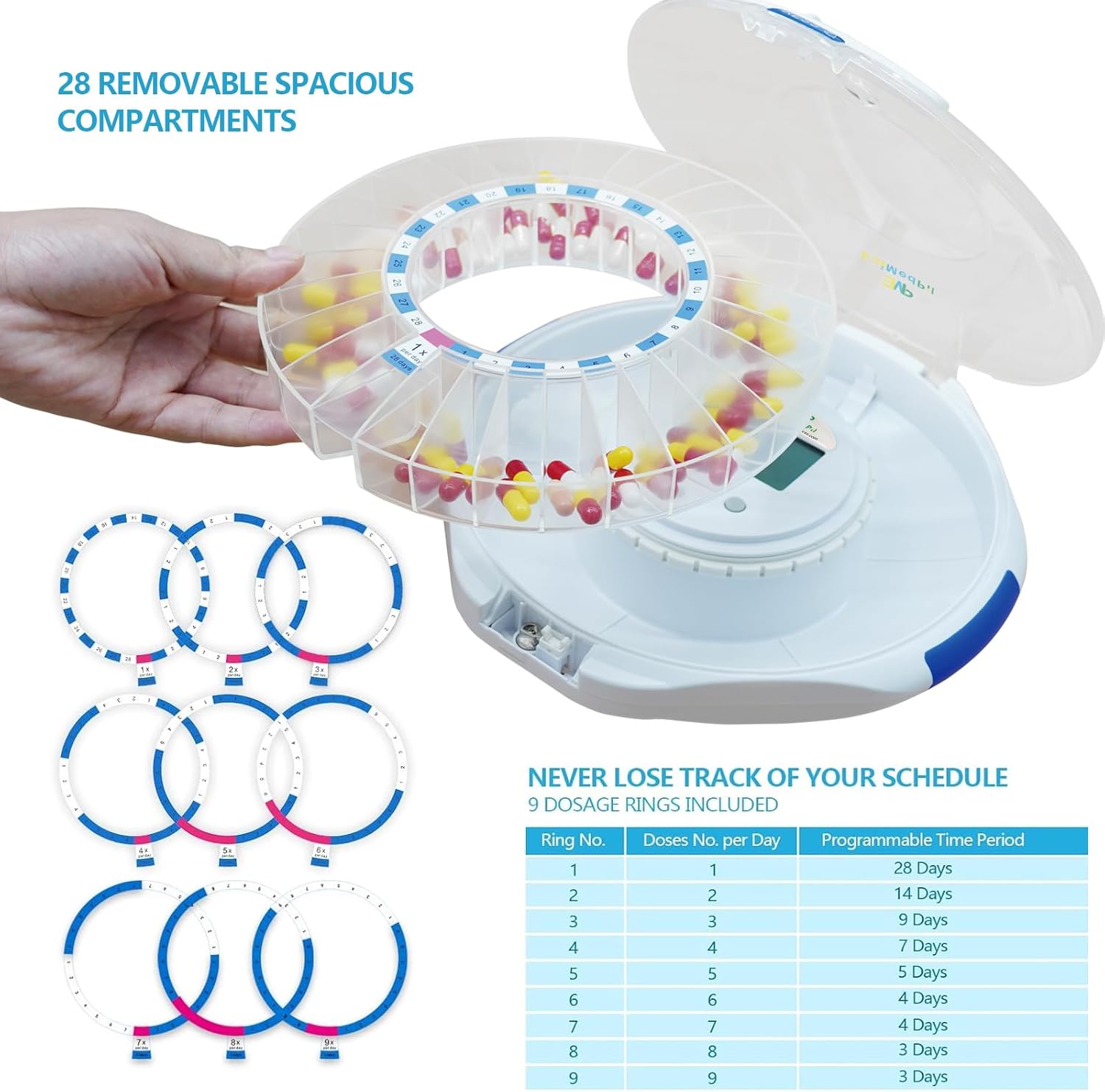
Image: The EziMedPil dispenser with its lid open, revealing the removable carousel and a selection of interchangeable dosage rings. This image highlights the ease of filling and customizing medication schedules.

Image: A detailed view of the EziMedPil dispenser, showcasing the bubble ring for moisture protection, the three control buttons for manual setup, and the key lock mechanism for secure storage.
2. Setting Alarms (via SmartLife App)
For precise control and notifications, use the SmartLife App:
- Open the SmartLife App and select your EziMedPil dispenser.
- Navigate to the "Alarms" section.
- Set the desired alarm times (up to 9 per day).
- Specify the dosage for each alarm.
- Customize alarm volume and beep tunes as needed.
- Save your settings. The dispenser will synchronize with the app.
3. Taking Medication
When an alarm sounds and lights flash:
- The dispenser will automatically rotate to present the correct compartment.
- Slide open the drug window.
- Flip the dispenser upside down to retrieve the medication. This action will also stop the alarm.
- If you need to take a dose in advance, use the "Take in advance" option in the SmartLife App.
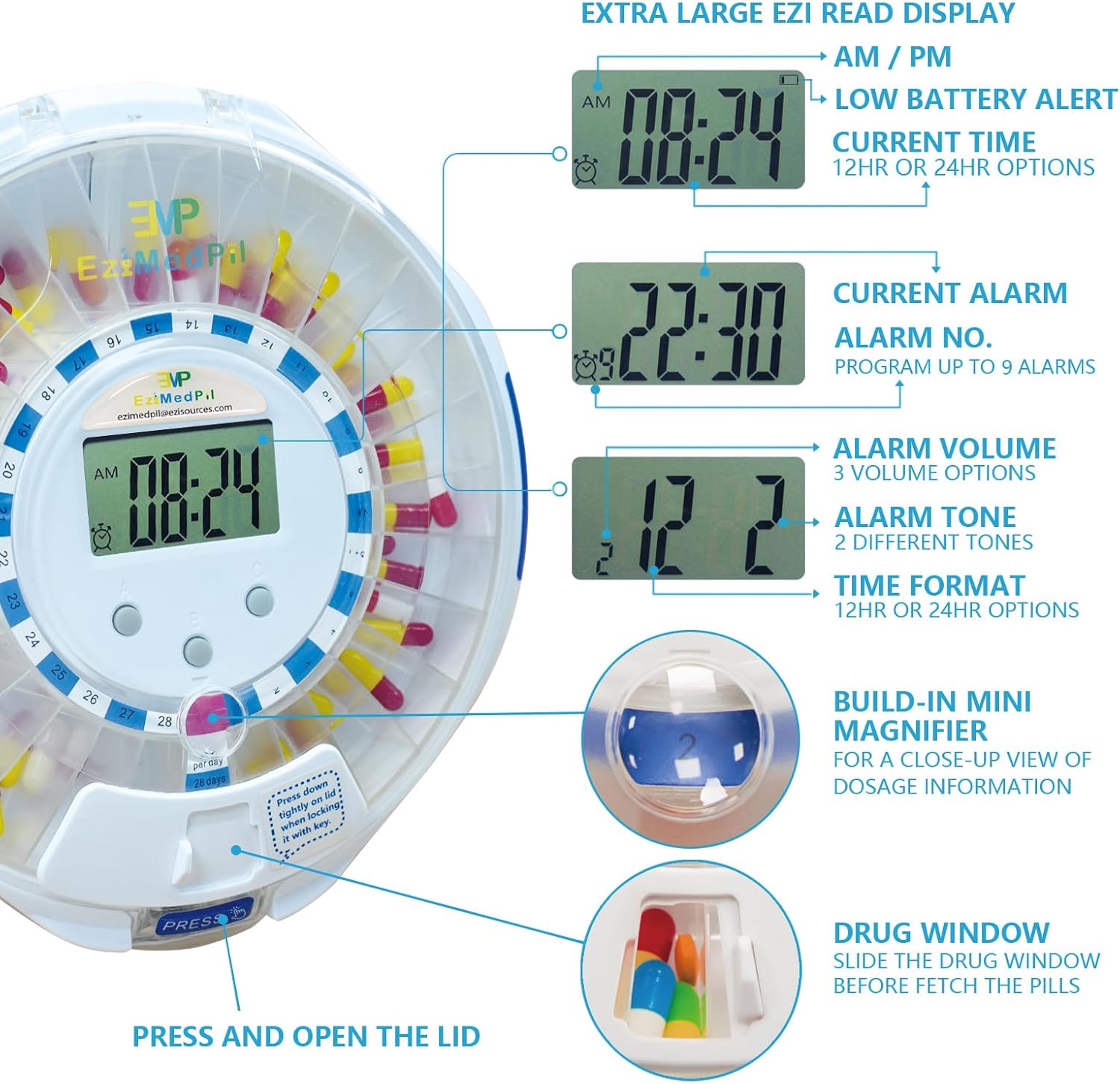
Image: The EziMedPil dispenser illustrating its automatic rotation feature when an alarm is due. The image also highlights the setup alarm time, volume control, and alarm tone selection options.

Image: The EziMedPil dispenser in use on a table, surrounded by pill bottles, with a hand retrieving medication. This image demonstrates the practical application of the dispenser in a home setting.
Maintenance
Cleaning the Dispenser
- Ensure the dispenser is turned off and batteries are removed before cleaning.
- Wipe the exterior with a soft, damp cloth. Do not use abrasive cleaners or immerse the device in water.
- The removable carousel can be gently wiped with a damp cloth. Ensure it is completely dry before refilling with medication.
Battery Replacement
When the low battery alert appears on the LCD, replace all four AA batteries promptly to ensure continuous operation and accurate alarm functions. Refer to the "Battery Installation" section for detailed steps.
Troubleshooting
| Problem | Possible Cause | Solution |
|---|---|---|
| Dispenser not turning on. | Dead or incorrectly installed batteries. | Check battery polarity and replace with new AA batteries. |
| Alarms not sounding/lights not flashing. | Alarm settings incorrect or volume too low. | Verify alarm settings and volume in the SmartLife App or using manual buttons. Ensure the dispenser is not inverted prematurely. |
| Dispenser not connecting to SmartLife App. | Bluetooth is off, app permissions not granted, or dispenser is out of range. | Ensure Bluetooth is enabled on your device, grant all necessary app permissions (Bluetooth, Location), and bring the dispenser closer to your smartphone/tablet. Restart both the app and the dispenser if needed. |
| Pills not dispensing correctly. | Compartments overfilled or pills are stuck. | Ensure pills are placed flat and do not exceed compartment capacity. Gently shake the dispenser to dislodge any stuck pills. |
Specifications
- Model Number: EMPPDM151AC
- Product Dimensions: 8.86 x 8.86 x 2.68 inches
- Weight: 1.9 Pounds
- Power Source: 4 x AA Batteries (included)
- Material: Acrylonitrile Butadiene Styrene
- Compartments: 28
- Max Alarms: Up to 9 per day
- Connectivity: Bluetooth
- App Compatibility: SmartLife App (iOS & Android)
Warranty and Support
For warranty information and technical support, please refer to the contact details provided on the product packaging or visit the official EMP EZIMEDPIL website. Keep your purchase receipt for warranty claims.
Manufacturer: EZIMEDPIL


