
Introduction
Thank you for choosing the HZD Wireless Bluetooth Keyboard. This ultra-thin, portable keyboard is designed for seamless connectivity with a wide range of devices, offering a comfortable and efficient typing experience. Please read this manual carefully to ensure proper use and to maximize the lifespan of your device.

The HZD Wireless Bluetooth Keyboard is designed to be ultra-thin and lightweight, making it easy to carry in a backpack or bag for on-the-go use.
Setup
1. Powering On/Off
Locate the ON/OFF switch on the keyboard. Slide the switch to the 'ON' position to power on the keyboard. Slide it to 'OFF' to power it down when not in use.
2. Bluetooth Pairing
Follow these steps to connect your keyboard via Bluetooth:
- Turn the keyboard's power switch to the 'ON' position.
- Press the 'CONNECT' button on the keyboard for 3 seconds. The Bluetooth indicator light will start blinking, indicating it is in pairing mode.
- On your device (tablet, phone, PC), go to Bluetooth settings and search for available devices.
- Select 'Bluetooth Keyboard' from the list of found devices to complete the pairing process.

Visual guide for Bluetooth connection: Power on, activate pairing mode, then connect via your device's Bluetooth settings.
3. System Switching
The keyboard supports Android, Windows, and iOS operating systems. To ensure correct key functionality, switch to the corresponding system mode:
- For Android devices: Press Fn + Android
- For Windows devices: Press Fn + Windows
- For iOS devices: Press Fn + iOS
Note: This keyboard is not compatible with Mac systems.

Use the Fn key in combination with the designated system key (Android, Windows, or iOS) to optimize keyboard functions for your device.
4. Language Switching
To change the input language on your connected device, use the following key combinations:
- For Android devices: Press Shift + Space
- For iOS devices: Press Ctrl + Space
- For Windows devices: Press Win + Space, Shift + Alt, or Ctrl + Shift

The Shift key is often used in combination with other keys to change the input language on various operating systems.
5. Charging the Keyboard
The keyboard features a built-in rechargeable lithium battery. Use the included USB charging cable to charge the device.
- Battery Capacity: 220 mAh
- Charging Time: Approximately 2 hours
- Continuous Use: Up to 30 days (based on typical usage)
- Standby Time: Up to 130 days
A flashing indicator light typically signifies a low battery. Connect the keyboard to a power source using the USB cable to charge.

Connect the keyboard via the USB port for charging. The image highlights the battery specifications and charging duration.
Operating Instructions
1. Key Features and Typing Experience
The HZD keyboard is equipped with stable scissor-structure feet under each key. This design ensures a smooth, responsive, and quiet typing experience, reducing noise and providing comfortable tactile feedback.

The scissor-switch mechanism provides a sensitive, quiet, and comfortable typing experience.
2. Multimedia and Function Keys
The keyboard includes 13 multifunction keys (F1-F12, Esc) that allow for quicker access to various functions, improving work efficiency. These functions are typically accessed by pressing the Fn key in combination with the desired function key.
| Key Combination | Function |
|---|---|
| Esc | Return to Home Page |
| F1 | Search |
| F2 | Select All |
| F3 | Copy |
| F4 | Paste |
| F5 | Cut |
| F6 | Previous Song |
| F7 | Play/Pause |
| F8 | Next Song |
| F9 | Volume Down |
| F10 | Volume Up |
| F11 | Brightness Down |
| F12 | Brightness Up |
| Canc | Screen Lock |

The keyboard features dedicated function keys for quick access to common tasks, enhancing productivity.
3. Wide Compatibility
The HZD Wireless Bluetooth Keyboard is designed for broad compatibility with various devices and operating systems, excluding Mac systems.
- Supported Devices: Tablets, Laptops, Smartphones, Smart TVs, PCs
- Supported Operating Systems: iOS, Android, Windows
- Wireless Range: Up to 10 meters (33 feet)

The keyboard offers broad compatibility with Windows, Android, and iOS devices, making it versatile for various computing needs.
Maintenance
1. Cleaning
To clean your keyboard, gently wipe the surface with a soft, damp cloth. Avoid using harsh chemicals, abrasive cleaners, or excessive moisture, as these can damage the electronic components and finish. Ensure the keyboard is powered off before cleaning.
2. Battery Care
To prolong battery life:
- Avoid fully discharging the battery frequently.
- Charge the keyboard regularly, even if not in constant use.
- Store the keyboard in a cool, dry place when not in use for extended periods.
Troubleshooting
1. Keyboard Not Connecting via Bluetooth
- Ensure the keyboard is powered on and fully charged.
- Make sure the keyboard is in pairing mode (Bluetooth indicator blinking).
- Check that Bluetooth is enabled on your device.
- Try unpairing and re-pairing the keyboard from your device's Bluetooth settings.
- Ensure your device is within the 10-meter wireless range.
2. Incorrect Characters or Symbols Appearing
- Verify that you have switched the keyboard to the correct operating system mode (Fn + Android/Windows/iOS) for your device.
- Confirm that the language settings on your device match the physical layout of the keyboard (Italian QWERTY). Adjust language settings on your device if necessary.
- Use the appropriate language switching shortcuts for your operating system (e.g., Shift + Space for Android, Ctrl + Space for iOS).
3. Keyboard Not Responding
- Check the battery level and charge the keyboard if necessary.
- Restart the keyboard by turning it off and then on again.
- Restart your connected device.
- If the issue persists, try re-pairing the keyboard.
Specifications
| Feature | Detail |
|---|---|
| Brand | HZD |
| Model | B0DL9VFRND |
| Connectivity Technology | Bluetooth |
| Compatible Devices | Laptops, PCs, Smart TVs, Smartphones, Tablets (iOS, Android, Windows) |
| Keyboard Description | Tenkeyless |
| Recommended Use | Mobile computing, Daily use |
| Special Features | Portable, Rechargeable, Silent |
| Color | White |
| Material | Plastic |
| Battery Type | Lithium (1 battery included) |
| Power Source | Battery Powered |
| Keyboard Layout | QWERTY (Italian Layout) |
| Water Resistance Level | Not water resistant |
| Dimensions (L x W x H) | 290mm x 157mm x 5mm (11.4in x 6.2in x 0.2in) |
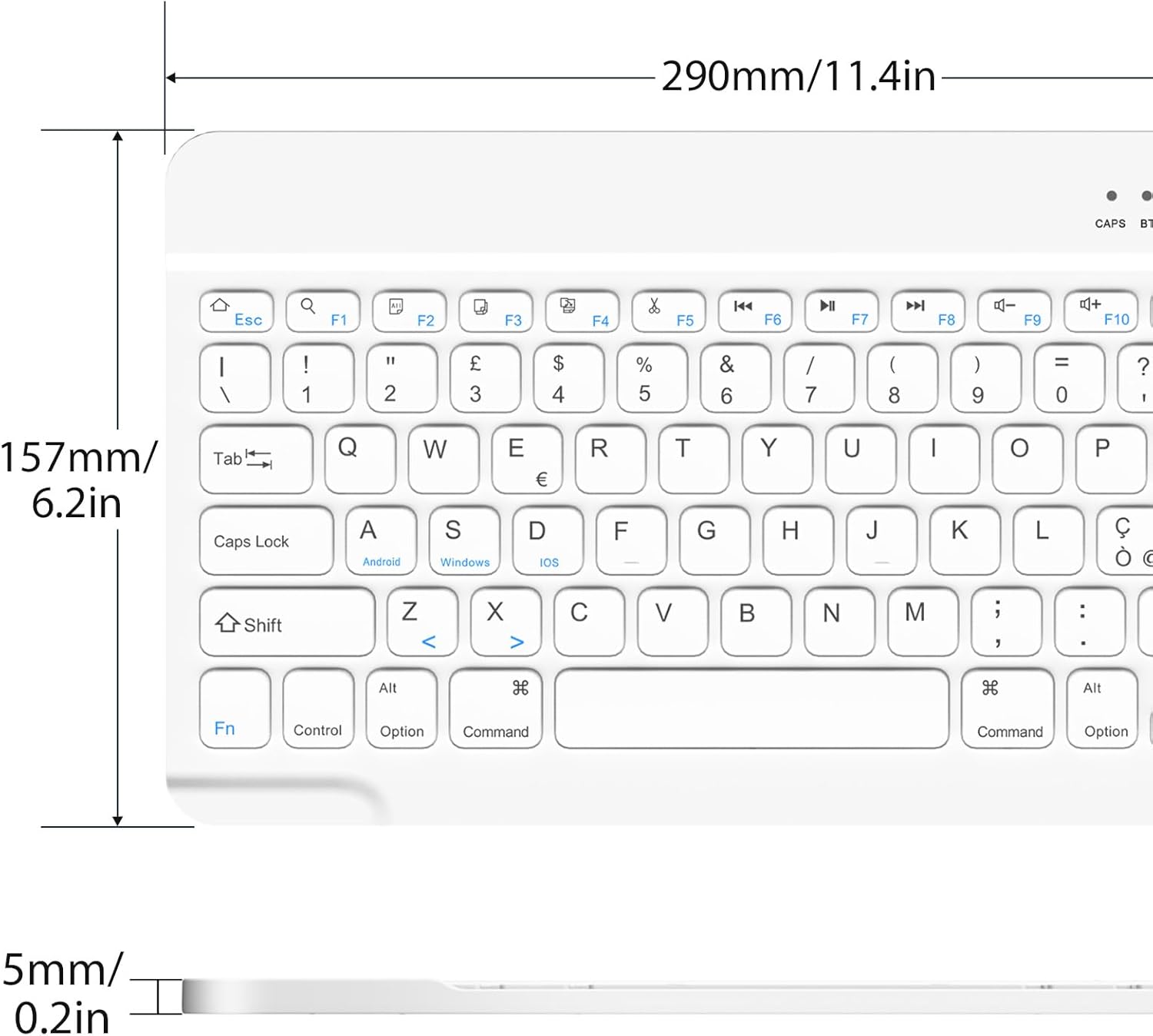
The compact dimensions of the keyboard make it highly portable and suitable for various setups.
Warranty Information
This HZD product is covered by a standard manufacturer's warranty. Please retain your proof of purchase for any warranty claims. For specific details regarding warranty duration and terms, refer to the documentation provided at the time of purchase or contact the seller directly.
Customer Support
If you encounter any issues that cannot be resolved using the troubleshooting guide, or if you require further assistance, please contact the seller or HZD customer support. Provide your product model number (B0DL9VFRND) and a detailed description of the problem to facilitate a quicker resolution.