
1. Introduction
Thank you for choosing the Yechiry Keychain Camera. This compact and versatile device is designed for easy capture of high-definition videos and photos. Its small size and simple operation make it ideal for various recording needs. Please read this manual thoroughly to understand the camera's features and ensure proper usage.
Package Contents:
- 1 x Yechiry Keychain Camera
- 1 x Wrist Strap
- 1 x Charging Cable
- 1 x Keychain
- 1 x User Manual
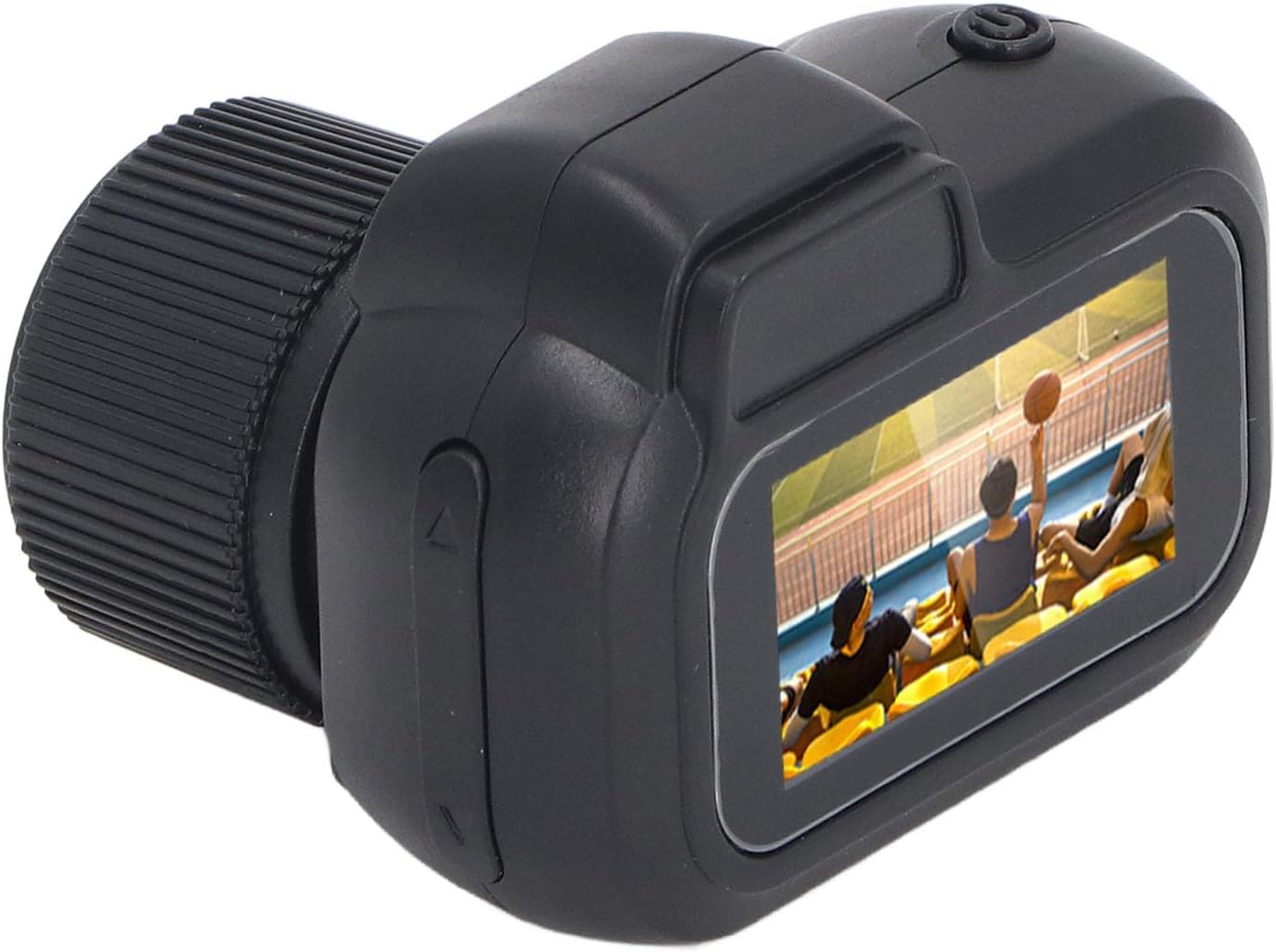
Image: The Yechiry Keychain Camera, along with its included wrist strap, charging cable, and keychain.
2. Product Overview
Familiarize yourself with the camera's components:
- Lens: 160-degree wide angle, 2MP for 1080P HD video.
- Color Screen: For real-time video viewing.
- Buttons: Three primary buttons for mode selection and recording initiation.
- Micro USB Interface: For charging and data transfer.
- TF Card Slot: Supports 8-128GB TF cards (not included).
- Keychain Loop: For attaching the included keychain or wrist strap.

Image: Front view of the camera, showing the lens and screen.
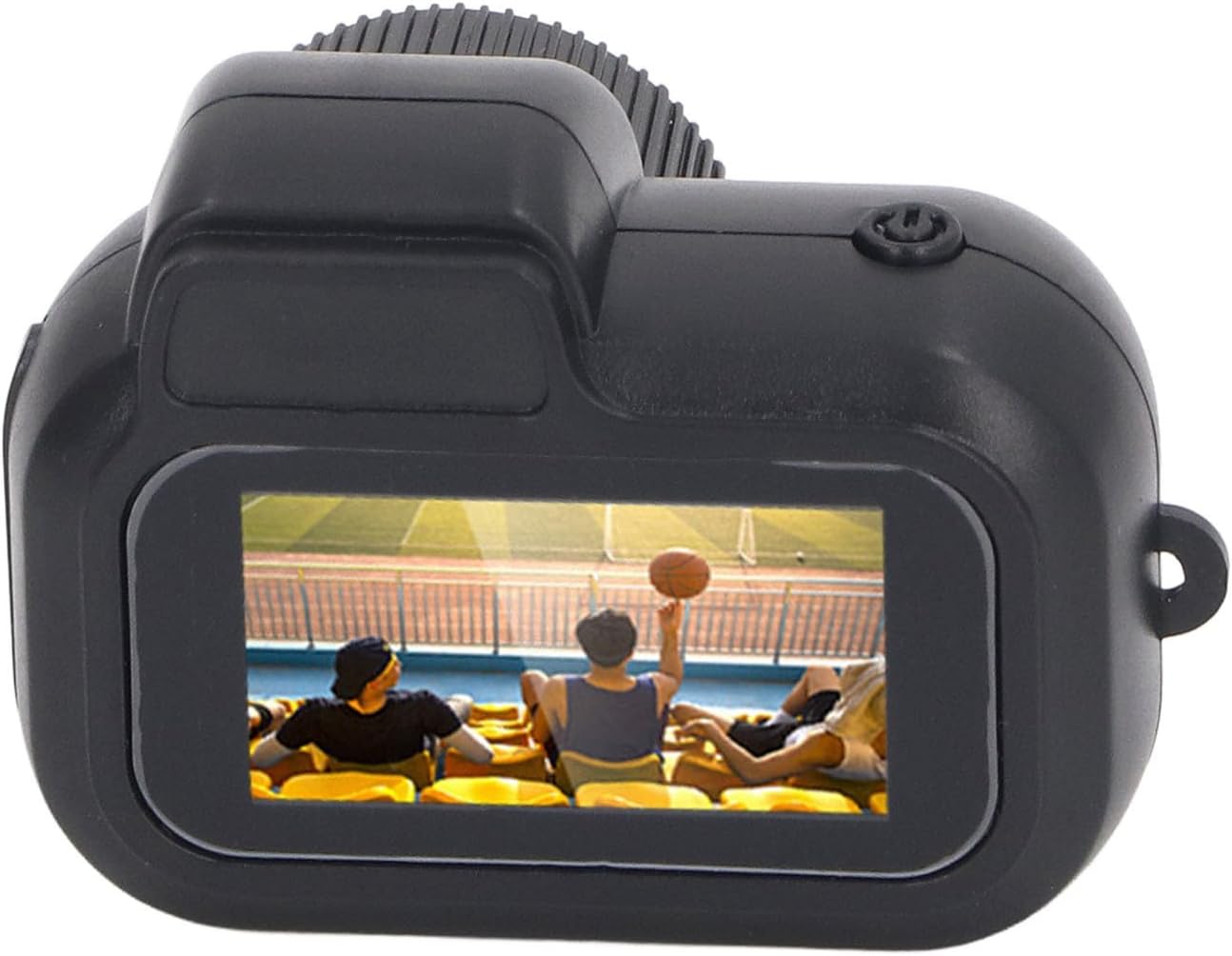
Image: Top view of the camera, highlighting the power button.

Image: Side view of the camera, showing the control buttons.

Image: Bottom view of the camera, revealing the Micro USB port and TF card slot.
3. Setup
- Charge the Camera: Connect the camera to a power source using the provided Micro USB cable. The charging indicator will show the charging status. A full charge provides approximately 100 minutes of battery life. The camera supports charging while recording.
- Insert TF Card: Locate the TF card slot. Gently insert a compatible TF card (8-128GB, not included) into the slot until it clicks into place. Ensure the card is inserted correctly to avoid damage.
- Power On: Press and hold the power button until the screen illuminates. The camera will boot up and display the main interface.

Image: A visual representation of inserting a Micro SD card into the camera's slot.
4. Operating Instructions
The camera features a simple three-button operation for ease of use.
4.1. Video Recording
- Enter Video Mode: After powering on, use the mode button to navigate to the video recording mode. The screen will display a video icon.
- Start Recording: Press the record button once to begin video recording. A recording indicator (e.g., a flashing light or on-screen icon) will appear.
- Stop Recording: Press the record button again to stop recording. The video file will be saved automatically to the TF card.
4.2. Photo Capture
- Enter Photo Mode: Use the mode button to switch to the photo capture mode. The screen will display a camera icon.
- Take Photo: Press the capture button once to take a still photograph. The image will be saved to the TF card.
4.3. Playback
The color screen allows for immediate review of captured content.
- Enter Playback Mode: Use the mode button to navigate to the playback mode.
- Browse Files: Use the navigation buttons to scroll through your recorded videos and photos.
- View/Play: Select a file to view the photo or play the video on the screen.

Image: An illustration emphasizing the 1080P 2MP clarity of the camera's output.

Image: A visual demonstrating the 0.96-inch HD screen for quick review.
5. Maintenance
- Cleaning: Use a soft, dry cloth to clean the camera body and lens. Avoid using liquid cleaners or abrasive materials.
- Storage: Store the camera in a cool, dry place away from direct sunlight and extreme temperatures.
- Battery Care: To prolong battery life, avoid fully discharging the battery frequently. Charge the camera regularly, even if not in use for extended periods.
- TF Card Management: Regularly back up important files from your TF card to a computer. Format the TF card periodically to maintain optimal performance.
6. Troubleshooting
| Problem | Possible Cause | Solution |
|---|---|---|
| Camera does not power on. | Low battery; device malfunction. | Charge the camera fully. If problem persists, contact customer service. |
| Cannot record video/take photos. | No TF card inserted; TF card full or corrupted. | Insert a TF card. Check TF card storage or format it. |
| Poor video/photo quality. | Insufficient lighting; dirty lens. | Ensure adequate lighting. Clean the camera lens with a soft cloth. |
| Camera freezes. | Software glitch. | Press and hold the power button to force a restart. |
7. Specifications
- Model: Yechiry03xunow5hc
- Video Resolution: 1080P HD
- Photo Resolution: 2MP
- Lens Angle: 160 degrees wide angle
- Screen Size: 0.96 inch color screen
- Battery: Built-in 180mAh polymer lithium battery
- Battery Life: Approximately 100 minutes of continuous recording
- Storage: Supports 8-128GB TF card (not included)
- Connectivity: Micro USB
- Dimensions: 3.39 x 2.76 x 1.5 inches (Package)
- Weight: 1.76 ounces (Item)
- Supported File Formats: JPG (Photo), AVI (Video)
8. Customer Support
For any questions, concerns, or assistance with your Yechiry Keychain Camera, please contact our customer service team. We are available 24/7 to provide support.
If you are not satisfied with your purchase, please contact us for a refund.
For more information and product updates, visit the official Yechiry store: Yechiry Store on Amazon