
1. Introduction
This manual provides essential information for setting up, operating, maintaining, and troubleshooting your Apple 2024 iMac. The iMac is an all-in-one desktop computer powered by the Apple M4 chip, designed for high performance and efficiency. It features a 60.96 cm (24-inch) 4.5K Retina display and is built to support Apple Intelligence.
Key features of your iMac include:
- M4 Chip: Experience enhanced speed and performance for various tasks, from photo editing to gaming.
- 24-inch 4.5K Retina Display: An immersive display with 500 nits of brightness and support for up to 1 billion colors.
- Apple Intelligence: A personal intelligence system designed to assist with writing, expression, and productivity, featuring robust privacy protections.
- Thin, All-in-One Design: A strikingly thin form factor available in vibrant colors, suitable for any environment.

Image: Apple iMacs in various colors, highlighting the sleek design.
2. Setup
2.1 Unboxing and Package Contents
Carefully remove all components from the packaging. Ensure all items are present before proceeding with setup.
- iMac (24-inch, M4, 2024)
- Magic Keyboard
- Magic Mouse
- Power lead and power adapter
- USB-C Charge Cable
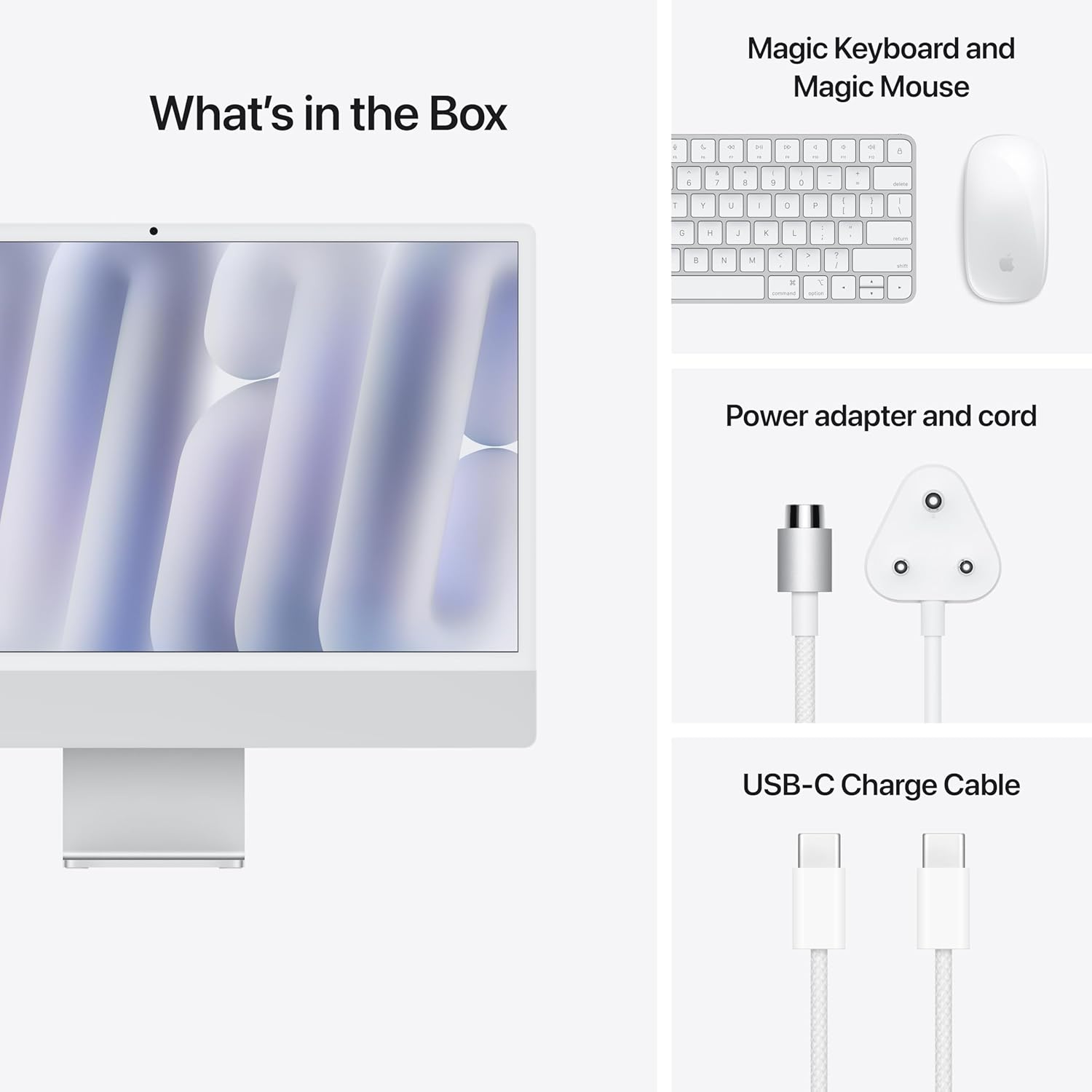
Image: What's in the Box - iMac, Magic Keyboard, Magic Mouse, Power Adapter, and USB-C Charge Cable.
2.2 Connecting Your iMac
- Place the iMac: Position your iMac on a stable, flat surface with adequate ventilation.
- Connect Power: Plug the power lead into the power adapter, then connect the adapter to the power port on the back of your iMac. Plug the other end of the power lead into a wall outlet.
- Connect Keyboard and Mouse: Your Magic Keyboard and Magic Mouse are typically pre-paired. If not, turn them on and follow the on-screen instructions to pair them via Bluetooth. Use the USB-C Charge Cable to charge them if needed.
- Power On: Press the power button located on the back of the iMac, usually on the lower right side when viewed from the front.
2.3 Initial Setup (macOS)
Upon first startup, your iMac will guide you through the macOS setup assistant. This includes:
- Selecting your country or region.
- Connecting to a Wi-Fi network.
- Transferring information to this Mac (optional).
- Signing in with your Apple ID or creating a new one.
- Setting up Touch ID (if applicable to your keyboard).
- Creating a computer account.
3. Operating Your iMac
3.1 macOS Basics
Your iMac runs on macOS, Apple's powerful and intuitive operating system. Familiarize yourself with the Dock, Finder, and System Settings to navigate and customize your experience.
3.2 Performance with M4 Chip
The M4 chip provides exceptional performance for demanding applications. You will experience fast app launches, smooth multitasking, and efficient handling of graphics-intensive tasks.

Image: iMac display showcasing applications running efficiently with the M4 chip.
3.3 Apple Intelligence Features
Leverage Apple Intelligence for enhanced productivity and creativity. This system integrates across macOS to assist with tasks such as:
- Writing Tools: Improve your writing with features that help refine text, summarize content, and generate ideas.
- Image Generation: Create unique images and illustrations based on your descriptions.
- Contextual Awareness: Get relevant suggestions and assistance based on your current activity.

Image: iMac display demonstrating Apple Intelligence features within an email application.
4. Maintenance
4.1 Cleaning Your iMac
To clean your iMac, first shut it down and disconnect the power cord. Use a soft, lint-free cloth slightly dampened with water to wipe the screen and exterior surfaces. Avoid using aerosol sprays, solvents, or abrasives.
4.2 Software Updates
Regularly check for and install macOS updates to ensure optimal performance, security, and access to the latest features. Go to System Settings > General > Software Update.
4.3 Data Backup
It is recommended to regularly back up your data using Time Machine or another backup solution to prevent data loss.
5. Troubleshooting
5.1 Power Issues
- iMac does not turn on: Ensure the power cord is securely connected to both the iMac and a working power outlet. Try a different outlet if necessary.
- Display remains black: Check that the iMac is powered on. If it is, try adjusting the display brightness using the keyboard controls.
5.2 Peripheral Connectivity
- Keyboard/Mouse not responding: Ensure they are charged and turned on. Check Bluetooth settings in macOS to confirm they are paired. Re-pair if necessary.
- USB-C accessories not working: Ensure the accessory is compatible and properly connected to one of the iMac's USB-C ports.
5.3 Software Issues
- Application not responding: Force quit the application by pressing Command + Option + Esc, then select the app and click Force Quit.
- iMac is slow or unresponsive: Restart your iMac. Ensure macOS is up to date and check for any background processes consuming excessive resources using Activity Monitor.
6. Specifications
| Feature | Specification |
|---|---|
| Brand | Apple |
| Model Name | iMac 24-inch (M4, 2024) |
| Model Number | MWUC3HN/A |
| Operating System | Mac OS |
| CPU Model | Apple M4 (8-core CPU, 8-core GPU) |
| Screen Size | 24 Inches (60.96 cm) |
| Display Type | 4.5K Retina Display |
| RAM Memory Installed Size | 16GB Unified Memory (Configurable up to 32GB) |
| Hard Disk Description | SSD (256GB Storage) |
| Graphics Card Description | Integrated (8-core GPU) |
| Item Dimensions (LxWxH) | 14.7 x 54.7 x 46.1 Centimeters |
| Item Weight | 4.42 Kilograms |
| Included Components | iMac, Keyboard, Mouse, Power lead and power adapter, USB-C Charge Cable |
| UPC / GTIN | 195949591488 |
7. Warranty and Support
7.1 Warranty Information
Your Apple 2024 iMac comes with an Apple One (1) Year Limited Warranty. This warranty covers manufacturing defects and hardware malfunctions under normal use. For full terms and conditions, please refer to the warranty documentation included with your product or visit the official Apple support website.
7.2 Customer Support
For technical assistance, service, or additional information, please contact Apple Support through their official website or authorized service centers. You can find contact details and support resources at support.apple.com.


