
1. Introduction
This manual provides essential instructions for setting up, operating, and maintaining your myPhone CareWatch LTE Smartwatch. Please read this manual thoroughly before using the device to ensure proper functionality and safety. The myPhone CareWatch LTE is designed to provide communication, location tracking, and health monitoring features, particularly beneficial for seniors.

Figure 1: myPhone CareWatch LTE Smartwatch, front view.
2. Product Overview
The myPhone CareWatch LTE is a feature-rich smartwatch equipped with advanced communication and safety functions. Key components include the display, side buttons, microphone, speaker, and sensors for health monitoring.
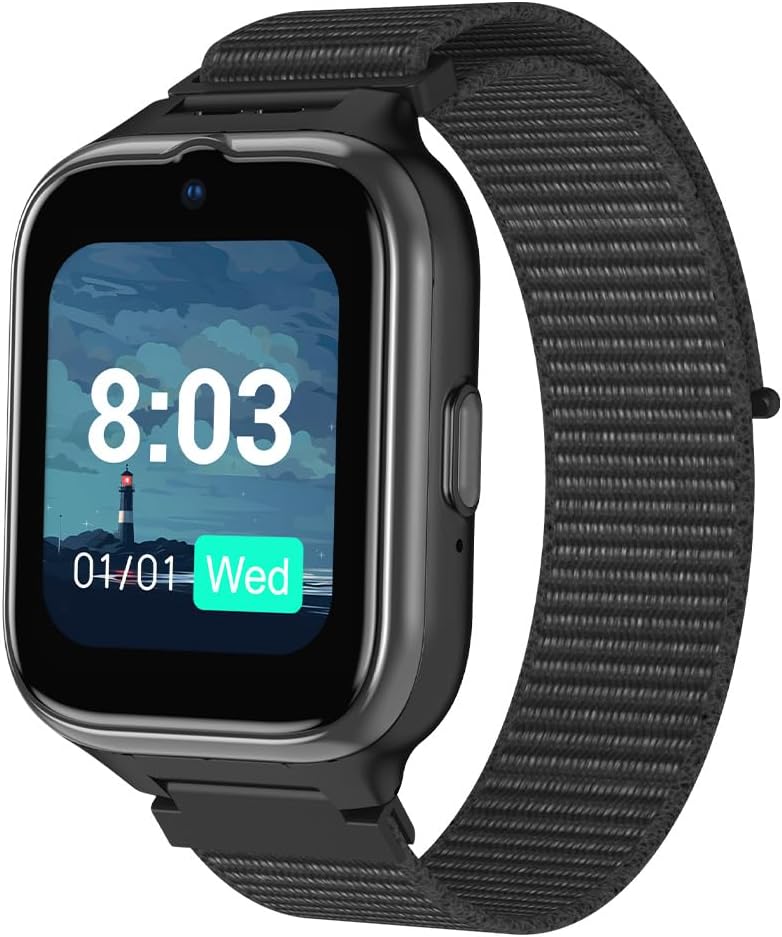
Figure 2: Side view of the smartwatch.
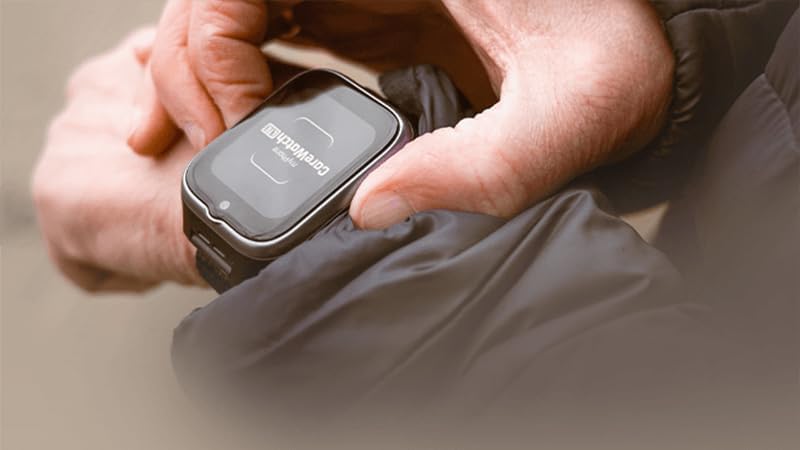
Figure 3: User interacting with the smartwatch.
3. Setup
3.1 SIM Card Installation
The myPhone CareWatch LTE requires a Nano-SIM card for full functionality, including calls, video calls, and location services. Ensure the SIM card is active and supports LTE/VoLTE.
- Locate the SIM card slot on the side of the smartwatch.
- Using the provided SIM ejector tool, gently open the SIM card tray.
- Place the Nano-SIM card into the tray with the gold contacts facing down, ensuring correct orientation.
- Carefully reinsert the SIM card tray into the smartwatch until it clicks into place.
- Power on the device. The watch should automatically detect the SIM card and connect to the network.
3.2 Charging the Device
Before first use, fully charge your smartwatch.
- Connect the provided USB charging cable to the charging port on the smartwatch.
- Connect the other end of the USB cable to a compatible USB power adapter (not included) or a computer's USB port.
- The watch display will indicate charging status. A full charge typically takes approximately 2-3 hours.
3.3 App Installation and Pairing
To manage the smartwatch features and access advanced settings, download the dedicated myPhone CareWatch application on your smartphone.
- Search for the 'myPhone CareWatch' app in your smartphone's app store (Google Play Store for Android or Apple App Store for iOS).
- Download and install the application.
- Open the app and follow the on-screen instructions to create an account and pair your smartwatch. This usually involves scanning a QR code displayed on the watch or entering a device ID.
- Once paired, you can configure emergency contacts, safety zones, and other settings through the app.
4. Operating Instructions
4.1 Basic Navigation
- Power On/Off: Press and hold the side button for a few seconds.
- Wake Screen: Tap the screen or raise your wrist.
- Navigate Menus: Swipe left/right or up/down on the touchscreen.
- Select Item: Tap the desired icon or option.
- Return to Home Screen: Press the side button briefly.
4.2 Making Calls (VoLTE)
The smartwatch supports VoLTE technology for high-quality voice calls.
- From the home screen, swipe to find the 'Phone' or 'Contacts' application.
- Select a contact from your pre-configured list or dial a number directly if the option is available.
- Tap the call icon to initiate the call.

Figure 4: Smartwatch displaying the phone function with VoLTE support.
4.3 Video Calls
The smartwatch allows for video calls with pre-approved contacts via the inserted SIM card.
- Access the video call application on the watch.
- Select the desired contact for a video call.
- Ensure both parties have a stable internet connection for optimal video quality.
4.4 SOS Function
The SOS button provides immediate assistance in emergencies.
- In an emergency, press and hold the designated SOS button on the side of the watch for 3 seconds.
- The watch will automatically send an alert and initiate calls to up to 3 pre-defined emergency numbers configured in the app.
- The watch will cycle through these numbers until a connection is made.

Figure 5: Smartwatch highlighting the SOS button.
4.5 Location Tracking (GPS)
The smartwatch uses GPS to determine the wearer's location, which can be viewed by caregivers through the companion app.
- Ensure the smartwatch has a clear view of the sky for accurate GPS reception.
- Caregivers can open the myPhone CareWatch app on their smartphone to view the current location of the watch wearer on a map.
- Safety zones can be established within the app, triggering notifications if the wearer enters or exits these defined areas.
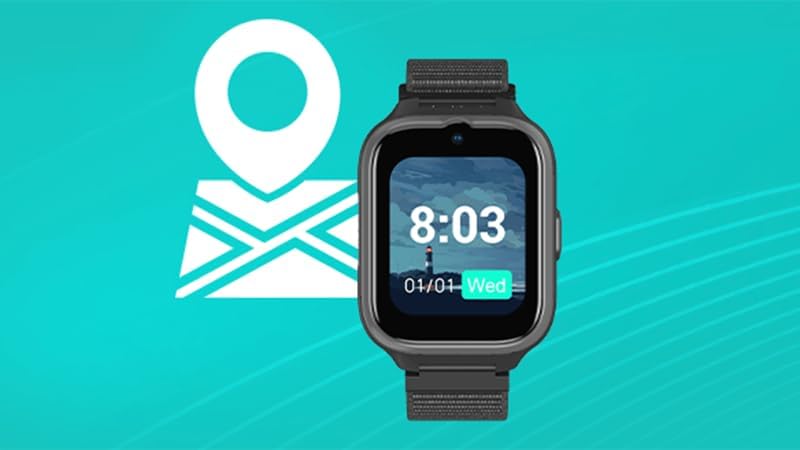
Figure 6: Smartwatch with GPS location tracking feature.
4.6 Health Monitoring
The watch includes sensors for monitoring health metrics such as pulse and blood oxygen saturation (SpO2).
- Access the 'Heart Rate' or 'SpO2' application on the smartwatch.
- Ensure the watch is worn snugly on the wrist for accurate readings.
- Follow on-screen prompts to initiate a measurement.
- Measurement data can be viewed on the watch and remotely accessed by caregivers via the app.

Figure 7: Smartwatch displaying heart rate monitoring.
4.7 Fall Detection
The smartwatch is equipped with a fall detection feature that can alert caregivers in case of a fall.
- Ensure the fall detection feature is enabled and configured in the companion app.
- If the watch detects a sudden fall, it will automatically send a notification to the designated caregiver(s).
- Caregivers will receive an alert, allowing them to respond quickly.

Figure 8: Smartwatch in a scenario depicting fall detection or emergency.
5. Maintenance
5.1 Cleaning
To maintain the device's appearance and functionality:
- Wipe the screen and body with a soft, lint-free cloth.
- Avoid using harsh chemicals, abrasive materials, or aerosol sprays.
- Ensure the charging contacts are clean and dry before charging.
5.2 Water Resistance (IP68)
The myPhone CareWatch LTE is IP68 certified, meaning it is resistant to dust and can withstand immersion in water up to 1.5 meters for 30 minutes. However, it is not recommended for swimming or showering with hot water, as steam and high pressure can compromise the seals over time.
- Do not intentionally submerge the watch in water for extended periods.
- If the watch gets wet, dry it thoroughly before charging or using any buttons.
5.3 Battery Care
- Avoid fully discharging the battery frequently.
- Charge the watch regularly to maintain battery health.
- Store the watch in a cool, dry place when not in use for extended periods.
6. Troubleshooting
- Watch not powering on: Ensure the battery is charged. Connect to the charger and wait a few minutes before attempting to power on again.
- No network signal: Check if the SIM card is correctly inserted and active. Verify network coverage in your area. Restart the watch.
- Inaccurate GPS location: Ensure the watch has a clear view of the sky. GPS accuracy can be affected by tall buildings, dense foliage, or indoor environments.
- App not connecting: Ensure Bluetooth is enabled on your smartphone and the watch is within range. Restart both the watch and the app.
- Health readings are inconsistent: Ensure the watch is worn snugly on the wrist, not too loose or too tight. Clean the sensor area on the back of the watch.
- SOS button not working: Verify that emergency contacts are correctly configured in the companion app. Ensure the SIM card has active service.
7. Specifications
| Feature | Description |
|---|---|
| Brand | MP myPhone |
| Model Name | Smartwatch myPhone CareWatch LTE |
| Screen Size | 1.7 inches |
| Special Feature | Advanced communication and security settings |
| Connectivity Technology | Bluetooth, USB |
| Card Type | Nano-SIM (Global compatibility) |
| Included Components | USB Cable |
| Audio Output Mode | Stereo |
| Attachment Type | Wrist mount |
| Water Resistance | IP68 |
8. Warranty Information
The myPhone CareWatch LTE Smartwatch comes with a standard manufacturer's warranty. Please refer to the warranty card included in your product packaging for specific terms, conditions, and duration. Keep your proof of purchase for any warranty claims.
9. Support
For further assistance, technical support, or to report issues, please contact myPhone customer service. Contact details can typically be found on the official myPhone website or in the product packaging.
- Online Support: Visit the official myPhone website for FAQs, support articles, and contact forms.
- Email Support: Refer to your product documentation for the customer support email address.
- Phone Support: Refer to your product documentation for customer service phone numbers.


