
1. Introduction
Welcome to the FUDONI P3 Projector Bundle. This manual provides detailed instructions for setting up, operating, maintaining, and troubleshooting your FUDONI P3 Projector and the included 100-inch projector screen. Please read this manual thoroughly before using the product to ensure optimal performance and longevity.
2. Product Overview
The FUDONI P3 Projector Bundle offers a complete home cinema experience, combining a high-quality projector with a portable 100-inch screen. The projector features advanced connectivity and audio capabilities, while the screen provides a clear and immersive viewing surface.
2.1. Key Features
- High-Quality Sound: Built-in dual HiFi speakers for stereo surround sound.
- Advanced Bluetooth: 5.1 Bluetooth for easy connection to external soundbars, headphones, or other audio equipment.
- Convenient Connectivity: Supports 5G and 2.4G WiFi for stable, lag-free online streaming and screen mirroring.
- Screen Mirroring: Compatible with iOS, Android, and Windows devices without additional adapters.
- Portable 100-inch Screen: 16:9 format, lightweight (1.3 lb), suitable for various applications.
- Wrinkle-Free Material: Made from soft, durable, washable, and stretchy thick polyester fiber for clear projection.
2.2. Product Components

Figure 2.1: FUDONI P3 Projector and 100-inch Screen Bundle. This image shows the compact FUDONI P3 projector alongside the rolled-up 100-inch projection screen and included accessories like ropes, adhesive strips, and hooks.

Figure 2.2: FUDONI P3 Projector in use, highlighting Native 1080P, Supported 4K, ANSI 400 lumens, 5G+2.4G WiFi, and Bluetooth capabilities. The image depicts the projector displaying content on a wall in a living room setting.
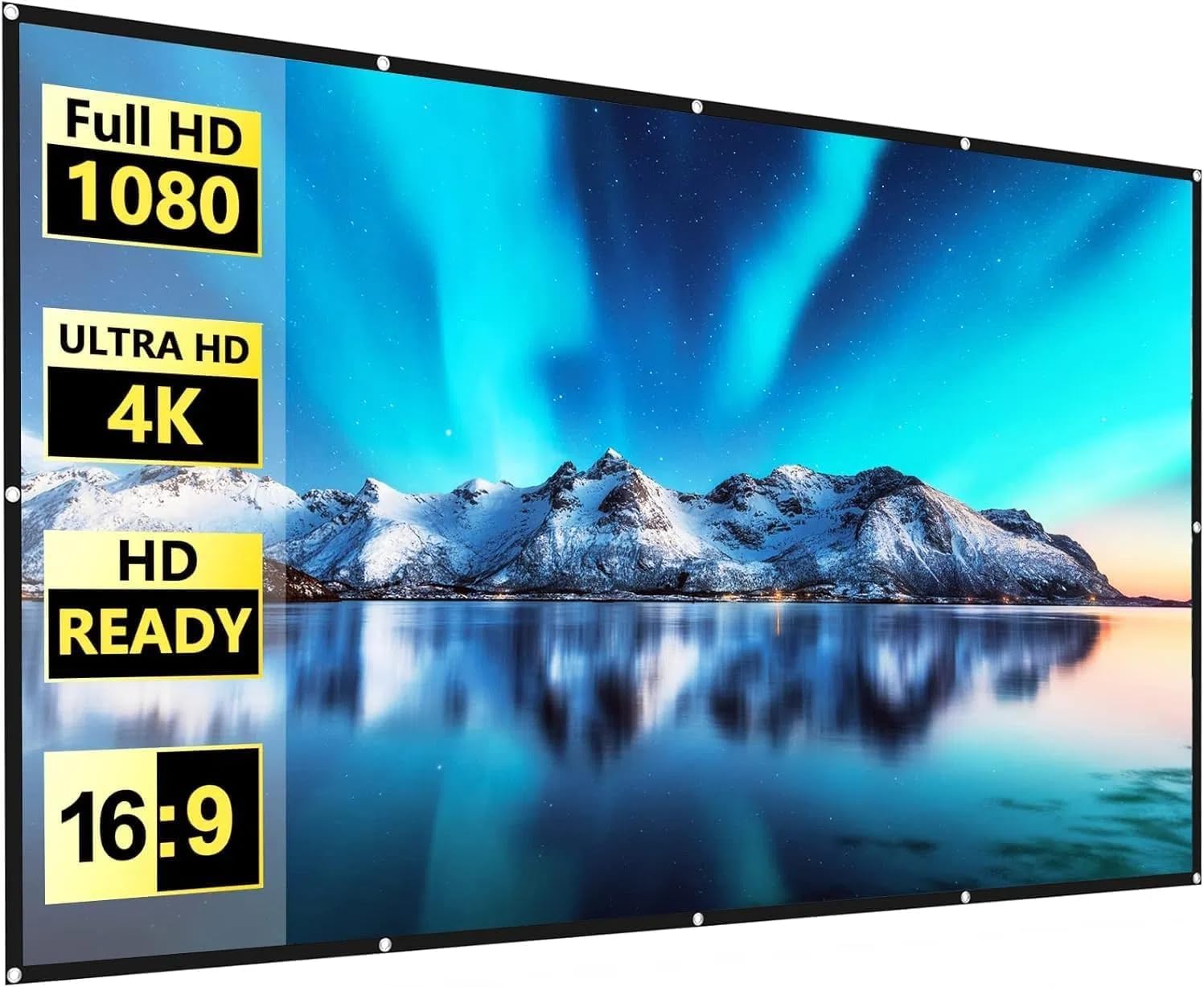
Figure 2.3: The 100-inch projector screen, emphasizing its Full HD 1080, Ultra HD 4K, HD Ready, and 16:9 aspect ratio compatibility. The screen displays a vibrant landscape image.

Figure 2.4: Comparison illustrating the superior quality of the FUDONI screen material, showing it provides a bright and clear image, is thicker and denser for both front and rear projection, and remains very flat without creases or wrinkles after stretching, unlike other screens.
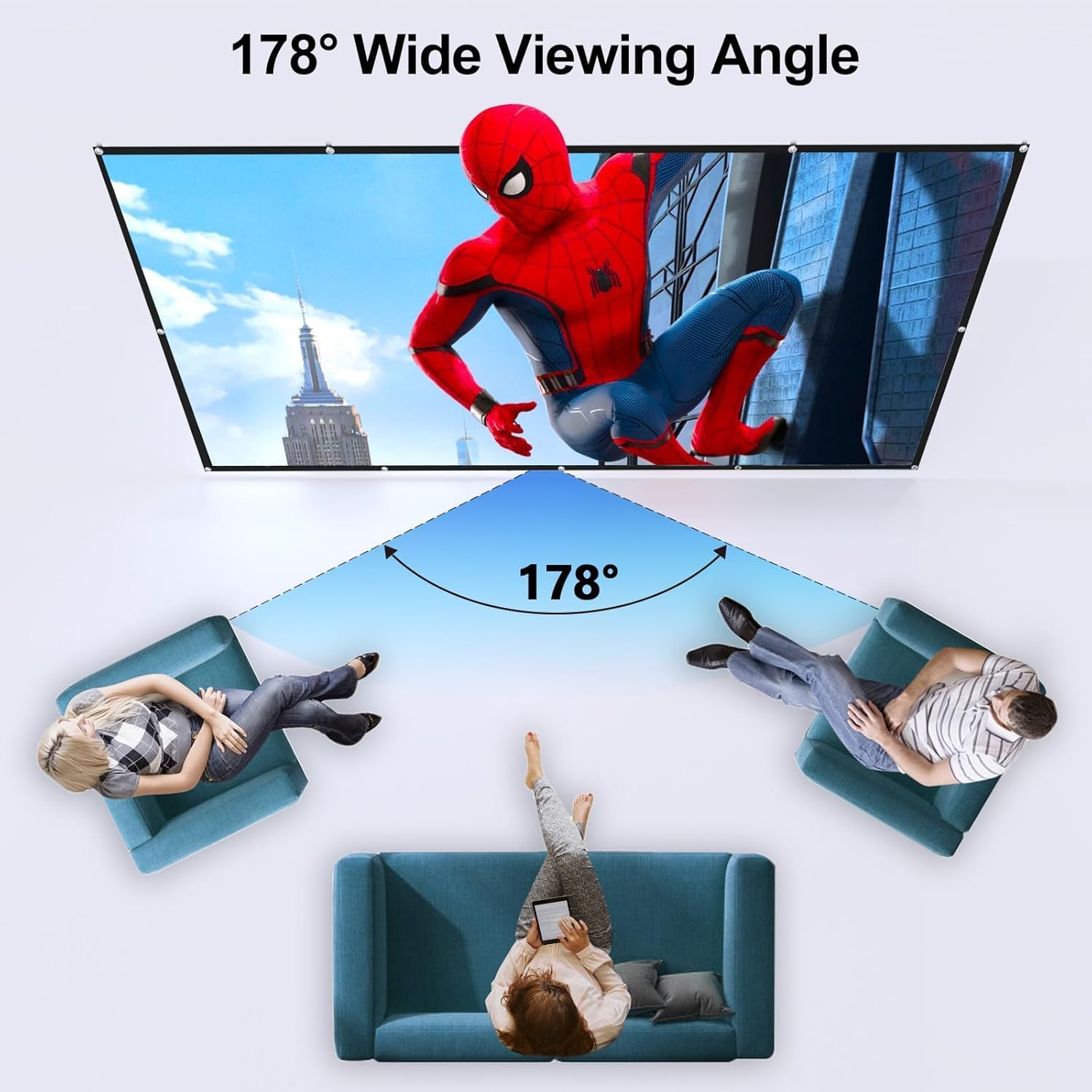
Figure 2.5: Diagram demonstrating the 178° wide viewing angle of the FUDONI projector screen, allowing multiple viewers to enjoy a clear image from various positions.
3. Setup Guide
3.1. Projector Placement
The FUDONI P3 Projector is versatile and can be placed in various locations for optimal viewing:
- Tabletop: Place on a stable, flat surface in front of the screen.
- Tripod Stand: Mount the projector onto a compatible tripod for adjustable height and angle.
- Ceiling Mount: Securely mount the projector to the ceiling for a permanent setup (mounting hardware not included).
- Rear Projection: The projector supports rear projection, allowing it to be placed behind the screen for a cleaner front view.
3.2. Projector Screen Installation
The 100-inch FUDONI projector screen is designed for easy and quick installation, typically within 5 minutes.
- Unfold the projector screen and lay it flat to minimize any creases.
- Identify the 12 mounting holes located around the perimeter of the screen.
- Choose your preferred mounting method:
- Hooks: Use the included hooks with the screen's metal holes to hang it on a wall or frame.
- Ropes: Thread the provided 5-meter ropes through the mounting holes and tie them to anchor points.
- Adhesive Strips: Apply the adhesive strips to the back of the screen near the mounting holes and press firmly onto a clean, flat surface.
- Nails/Double-sided Tape: For a more permanent fixture, nails or additional double-sided tape can be used through or around the sturdy metal holes.
- Ensure the screen is taut and flat for the best viewing experience.
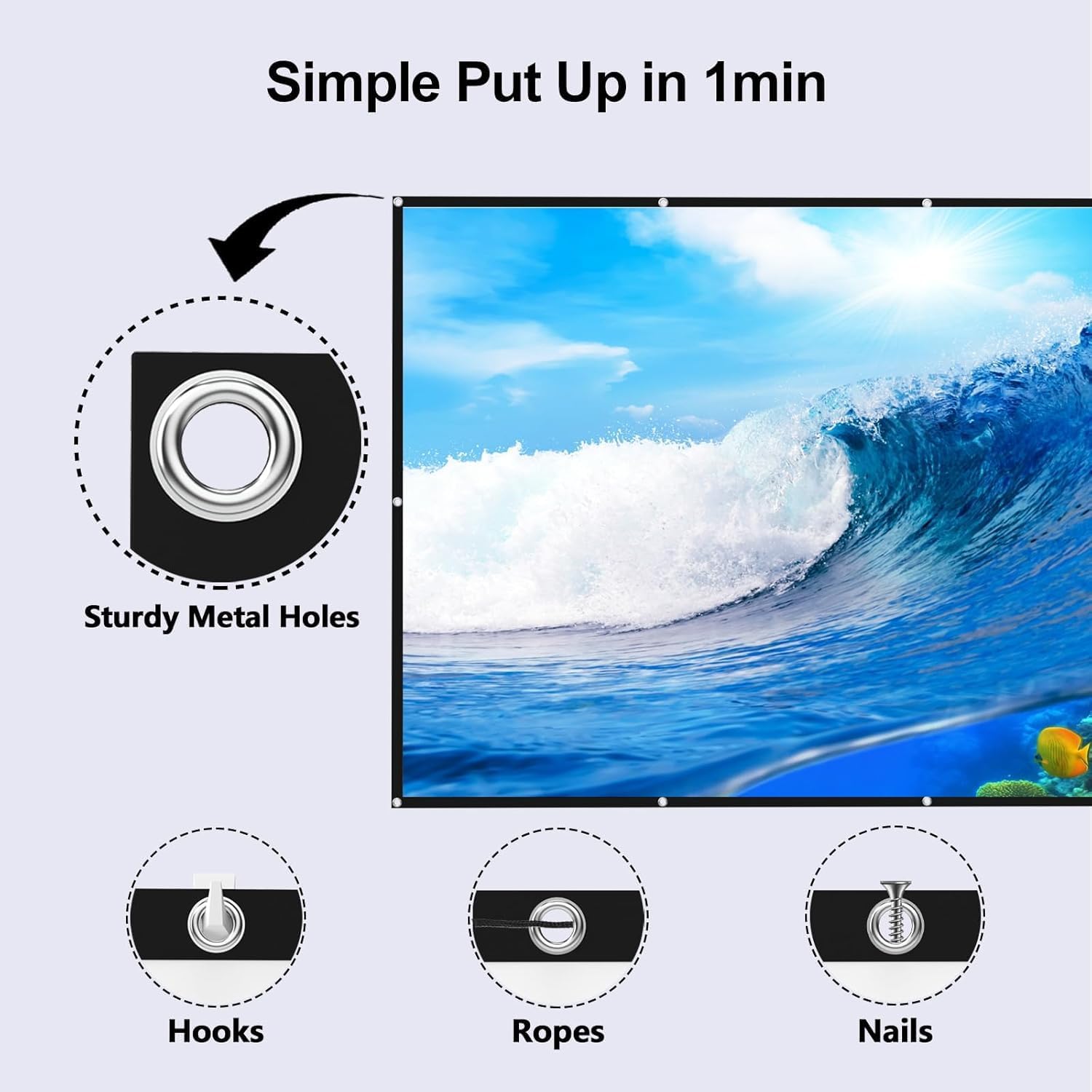
Figure 3.1: Illustration of the FUDONI projector screen's sturdy metal holes and various installation options including hooks, ropes, and nails, demonstrating its simple setup in approximately one minute.

Figure 3.2: An example of the FUDONI projector and screen set up for an outdoor movie night, showing its portability and ease of use in various environments.
4. Operating Instructions
4.1. Power On/Off
Connect the projector to a power source using the provided power cable. Press the power button on the projector or remote control to turn it on or off.
4.2. Connectivity
The FUDONI P3 Projector offers multiple connectivity options for a seamless experience.
4.2.1. WiFi Connection (5G & 2.4G)
The projector supports both 5G and 2.4G WiFi networks, ensuring a stable and lag-free connection for streaming and online gaming.
- Navigate to the 'Settings' menu on the projector.
- Select 'Network' or 'WiFi Settings'.
- Choose your desired WiFi network (5G for faster speeds, 2.4G for wider range).
- Enter the password if prompted and connect.

Figure 4.1: Diagram illustrating the FUDONI projector's 5G+2.4G WiFi wireless connection, ensuring stable and smooth transmission for various devices including laptops, phones, and tablets.
4.2.2. Bluetooth Connection (5.1)
Connect your favorite Bluetooth audio devices, such as soundbars, headphones, or external speakers, to enhance your audio experience.
- Ensure your Bluetooth audio device is in pairing mode.
- On the projector, go to 'Settings' and select 'Bluetooth'.
- Scan for available devices and select your audio device from the list to pair.

Figure 4.2: Image demonstrating how the FUDONI projector connects to various Bluetooth devices like headphones and external speakers to create a cinematic sound environment.
4.3. Screen Mirroring
Mirror content from your iOS, Android, or Windows devices directly to the projector screen without the need for additional apps or adapters.
- Ensure both your device and the projector are connected to the same WiFi network.
- On the projector, select the 'Screen Mirroring' input source.
- On your mobile device or computer, activate the screen mirroring feature (e.g., 'Screen Mirroring' on iOS, 'Smart View'/'Cast' on Android, 'Project' on Windows).
- Select the FUDONI P3 Projector from the list of available devices.
5. Maintenance
5.1. Projector Care
- Lens Cleaning: Use a soft, lint-free cloth specifically designed for optical lenses to gently wipe the projector lens. Avoid abrasive materials or harsh chemicals.
- Dust Removal: Regularly clean the projector's vents and exterior with a soft brush or compressed air to prevent dust buildup, which can affect performance and lifespan.
- Storage: When not in use, store the projector in a cool, dry place, away from direct sunlight and extreme temperatures. Use the original packaging or a protective case if available.
5.2. Projector Screen Care
- Cleaning: The screen material is washable. Use a mild soap solution and a soft cloth to gently clean any marks or dirt. Rinse thoroughly and allow to air dry completely before folding or storing.
- Wrinkle Prevention: The screen is designed to be wrinkle-free. To maintain this, store it rolled or folded neatly when not in use. Avoid sharp creases.
- Storage: Store the screen in a dry place, away from direct sunlight and extreme temperatures.
6. Troubleshooting
If you encounter any issues with your FUDONI P3 Projector Bundle, please refer to the following common troubleshooting steps:
| Problem | Possible Cause | Solution |
|---|---|---|
| No Image on Screen | Loose cable connection, incorrect input source, projector off. | Check all cable connections. Ensure the correct input source is selected. Power on the projector. |
| No Sound | Volume too low, incorrect audio output, Bluetooth device not connected. | Increase volume. Check audio settings and ensure internal speakers or connected Bluetooth device is selected. Re-pair Bluetooth device. |
| WiFi/Bluetooth Connection Issues | Out of range, interference, incorrect password. | Move projector closer to router/device. Reduce interference from other electronics. Re-enter WiFi/Bluetooth password. Restart projector and device. |
| Fuzzy/Blurry Image | Focus not adjusted, dirty lens, incorrect projection distance. | Adjust the focus ring on the projector. Clean the projector lens. Ensure projector is at the recommended distance from the screen. |
| Screen Creases/Wrinkles | Improper storage, prolonged folding. | Gently stretch the screen. If washable, clean and allow to air dry flat. Store rolled or folded neatly. |
7. Specifications
Technical specifications for the FUDONI P3 Projector and 100-inch Screen:
| Feature | Detail |
|---|---|
| Model | FUDONI P3 |
| Display Resolution | 3840 x 2160 (4K Supported) |
| Native Resolution | 1920 x 1080 (1080P) |
| Connectivity Technology | Bluetooth 5.1, 5G+2.4G WiFi |
| Audio | Built-in Dual HiFi Speakers |
| Recommended Uses | Home Cinema, Outdoor Movies, Office, Education |
| Special Feature | Portable, Screen Mirroring |
| Projector Screen Size | 100 inch Diagonal |
| Projector Screen Aspect Ratio | 16:9 |
| Projector Screen Material | Thick Polyester Fiber (Wrinkle-Free, Washable) |
8. Warranty and Support
FUDONI is committed to providing high-quality products and customer satisfaction. For any warranty claims, technical support, or inquiries regarding your FUDONI P3 Projector Bundle, please contact the official FUDONI support channels or the seller from whom you purchased the product.
Please refer to your purchase documentation for specific warranty terms and conditions. For direct support, you may visit the FUDONI Store on Amazon or contact the seller FUDONI Official.


