
1. Introduction
This manual provides detailed instructions for the installation, operation, and maintenance of your GENBOLT GB220K 2.5K PTZ Dual-Lens WiFi/PoE Security Camera. Please read this manual thoroughly before using the product to ensure proper functionality and safety. Keep this manual for future reference.

Figure 1: GENBOLT GB220K 2.5K PTZ Dual-Lens WiFi/PoE Security Camera. This image shows the camera's front view, highlighting its dual lenses and the 2.5K resolution, 10X zoom, and PoE capabilities.
2. Package Contents
Verify that all items listed below are included in your package. If any items are missing or damaged, please contact GENBOLT customer support.
- GENBOLT GB220K Security Camera
- Power Adapter
- Mounting Bracket
- Network Cable
- Waterproof Kit
- Screws and Wall Plugs
- User Manual (this document)

Figure 2: Included Components. This image displays the camera along with its accessories: power adapter, mounting bracket, network cable, waterproof kit, screws, and user manual.
3. Safety Information
- Ensure the camera is installed in a stable location to prevent falling.
- Use only the provided power adapter or a compatible PoE switch to power the camera.
- Avoid placing the camera directly facing strong light sources to prevent image quality degradation.
- Do not expose the camera to extreme temperatures or corrosive environments.
- Keep the camera away from children.
4. Setup and Installation
4.1 Mounting the Camera
The GENBOLT GB220K camera is designed for ceiling mount installation. Ensure the mounting surface is strong enough to support the camera's weight.
- Choose a suitable location on the ceiling for installation.
- Use the mounting template (if provided) to mark the drill holes.
- Drill holes according to the marks and insert the wall plugs.
- Secure the mounting bracket to the ceiling using the provided screws.
- Attach the camera to the mounting bracket.

Figure 3: Ceiling Installation. This image illustrates the camera mounted on a ceiling, demonstrating its wide coverage area with pan and tilt functionality.
4.2 Powering the Camera (DC & PoE)
The camera supports both DC power and Power over Ethernet (PoE).
- DC Power: Connect the provided power adapter to the camera's DC power input and plug it into a power outlet.
- PoE: Connect an Ethernet cable from a PoE-enabled switch or NVR to the camera's Ethernet port. This will provide both power and data connectivity.

Figure 4: DC and PoE Connection Options. This diagram illustrates how to connect the camera using either a DC power adapter or a PoE switch for both power and network.
4.3 Network Connection (WiFi & PoE)
The camera supports both 2.4GHz/5GHz Dual-Band WiFi and wired Ethernet (PoE) connections.
- Wired Connection (PoE): If using PoE, the network connection is established automatically once the Ethernet cable is connected to a PoE switch/NVR.
- Wireless Connection (WiFi):
- Download the 'GENBOLT CAM' app from your smartphone's app store.
- Ensure your phone's location services and Bluetooth are enabled.
- Open the app, tap 'Add Camera', and follow the on-screen instructions to connect to your WiFi network. You may need to scan a QR code displayed on your phone with the camera lens.
Video 1: Bluetooth Network Connection Method. This video demonstrates the process of connecting the camera to your network using the GENBOLT CAM app via Bluetooth setup.
Video 2: Camera Connection Instructions. This video provides a general guide on how to establish a connection with your GENBOLT camera.
5. Operating Instructions
5.1 Live View & Playback
Access live video feeds and review recorded footage through the 'GENBOLT CAM' app or compatible desktop client.

Figure 5: Multi-Platform Access. This image shows the GENBOLT CAM app interface on various devices (smartphone, tablet, laptop, desktop), demonstrating live view and playback capabilities across multiple platforms.
5.2 Pan/Tilt/Zoom Control
The camera features Pan-Tilt-Zoom (PTZ) functionality, allowing you to adjust the viewing angle remotely.
- Pan: Rotate the camera horizontally up to 355 degrees.
- Tilt: Adjust the camera vertically up to 90 degrees.
- 10X Hybrid Zoom: Utilize the dual lenses for 10X hybrid zoom to view details or a wider area. The camera automatically zooms 3X when human motion is detected.
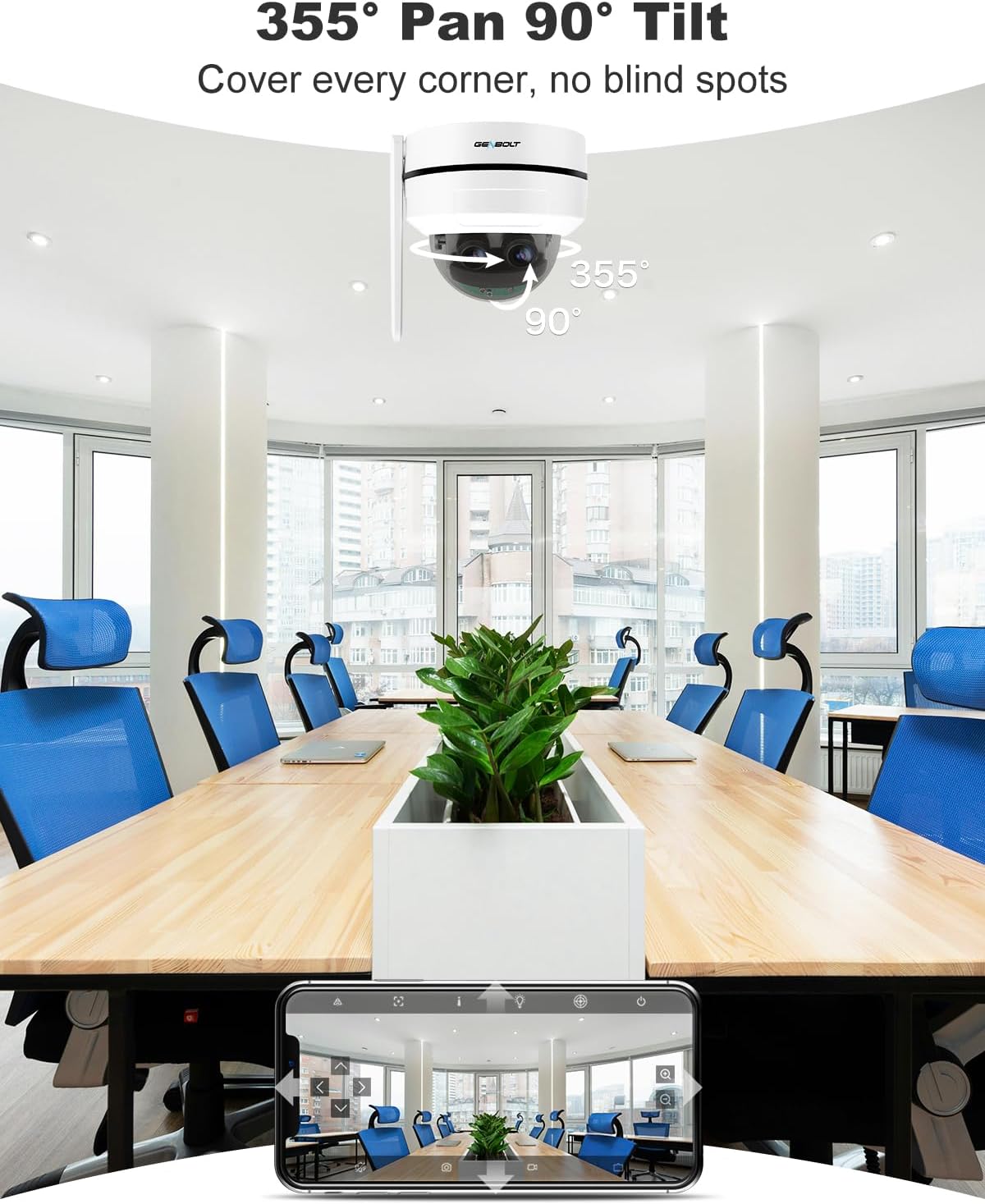
Figure 6: Pan and Tilt Coverage. This image illustrates the camera's ability to pan 355 degrees horizontally and tilt 90 degrees vertically, covering a wide area without blind spots.

Figure 7: Dual Lens & 10X Hybrid Zoom. This image highlights the camera's dual lens system, featuring a 4mm lens for a wide overview and a 12mm lens for detailed close-ups, enabling 10X hybrid zoom.
5.3 Two-Way Audio
The integrated microphone and speaker allow for two-way communication through the camera.
- Use the app to speak through the camera's speaker.
- Listen to audio from the camera's surroundings through the app.

Figure 8: Two-Way Audio. This image demonstrates the camera's two-way audio feature, allowing communication between the camera's location and the user via the mobile app.
5.4 Motion Detection & Alerts
The camera can detect motion and send instant alerts to your device.
- Configure motion detection zones and sensitivity in the app.
- Receive push notifications or email alerts when motion is detected.
- Set up customizable sound alarms (e.g., siren, dog barking) to deter intruders.
- The auto-tracking feature allows the camera to follow detected human movement.

Figure 9: Auto Tracking. This image shows the camera's auto-tracking feature, where it follows a moving person, ensuring important events are captured.

Figure 10: Customizable Sound Alarm. This image illustrates the camera's ability to trigger a customizable siren or other sounds to deter potential intruders, with app settings shown.
5.5 Night Vision
The camera provides clear surveillance even in low-light conditions with its IR night vision feature.
- Automatically switches to night vision mode in dark environments.
- Night vision range up to 15 meters.
5.6 Storage Options
Recordings can be stored locally or in the cloud.
- MicroSD Card: Supports up to 128GB (not included).
- Cloud Storage: Offers a 7-day free trial. Uploads events to an encryption server for secure playback.

Figure 11: Flexible Storage Options. This image displays the mobile app interface, illustrating the available storage methods: cloud storage (with a 7-day free trial) and TF card storage (up to 128GB).
6. Maintenance
- Regularly clean the camera lens with a soft, dry cloth to ensure clear image quality.
- Check cable connections periodically for any signs of wear or damage.
- Ensure the camera's firmware is updated to the latest version for optimal performance and security.
- If using an SD card, consider formatting it periodically to maintain performance.
7. Troubleshooting
7.1 No Power
- Check if the power adapter is securely connected to the camera and the power outlet.
- If using PoE, ensure the Ethernet cable is properly connected to a PoE-enabled switch/NVR and that the switch/NVR is powered on.
7.2 Cannot Connect to WiFi
- Ensure your WiFi network is 2.4GHz or 5GHz compatible.
- Verify the WiFi password entered is correct.
- Move the camera closer to the WiFi router to improve signal strength.
- Restart the camera and your router.
7.3 Poor Image Quality
- Clean the camera lens.
- Ensure there are no obstructions blocking the camera's view.
- Check your network connection speed. A slow connection can affect streaming quality.
7.4 Auto Tracking Not Working
- Ensure the auto-tracking feature is enabled in the app settings.
- Verify that the camera's field of view is clear and not obstructed.
- Adjust motion detection sensitivity if necessary.
For further assistance, please refer to the support section.
8. Specifications
| Model Number | GB220K |
| Video Resolution | 2.5K HD (4MP+4MP Dual Lens) |
| Zoom | 10X Hybrid Zoom |
| Pan/Tilt Angle | Pan: 355 Degrees, Tilt: 90 Degrees |
| Night Vision Range | 15 Meters |
| Connectivity | 2.4/5GHz Dual WiFi, Power over Ethernet (PoE) |
| Storage | MicroSD Card (Max 128GB, not included), Cloud Storage |
| Audio | 2-Way Talk (Built-in Mic & Speaker) |
| Durability | IK10 Vandalproof, IP66 Waterproof |
| Mounting Type | Ceiling Mount |
| Dimensions | 15 x 14.99 x 15 cm |
| Weight | 890 g |

Figure 12: 2.5K Image Quality. This image visually compares the clarity of 2.5K resolution against 1080P, demonstrating the superior detail captured by the camera.

Figure 13: Reliable Protection. This image emphasizes the camera's robust design with IK10 vandal resistance and IP66 weatherproofing, ensuring durability in various environments.
9. Warranty and Support
- 30-Day Money Back Guarantee: If you are not satisfied with your purchase, you may return it within 30 days for a full refund or exchange.
- 1-Year Limited Warranty: The GENBOLT GB220K camera is covered by a 1-year limited warranty against manufacturing defects.
- 24/7 Lifetime Free Technical Support: For any technical issues or questions, please contact GENBOLT customer support.
Contact Information:
- Visit the official GENBOLT website for support resources.
- Refer to the 'GENBOLT CAM' app for in-app support options.
Video 3: 4K Dual Lens WiFi Security Camera Outdoor with PoE. This video showcases the features and capabilities of a GENBOLT dual-lens security camera, including WiFi and PoE connectivity, similar to the GB220K model.

