
HUMZOR Z100
HUMZOR Z100 Bluetooth OBD2 Scanner User Manual
Model: Z100 | Brand: HUMZOR
1. Introduction
The HUMZOR Z100 Bluetooth OBD2 Scanner is a versatile diagnostic tool designed for both private car owners and professional technicians. It offers comprehensive vehicle diagnostics, including reading and clearing fault codes, monitoring real-time data, and performing various special functions. With its Bluetooth 5.2 connectivity, the Z100 provides a stable and fast wireless connection to your smartphone or tablet (Android and iOS compatible), eliminating the need for cumbersome cables. This manual provides detailed instructions on setting up, operating, and maintaining your Z100 scanner to ensure optimal performance and accurate vehicle diagnostics.

Figure 1.1: The HUMZOR Z100 Bluetooth OBD2 Scanner and its accompanying mobile application interface.
2. Key Features
- Comprehensive Diagnostic Capabilities: Supports full OBD2 functions including reading and clearing fault codes, I/M readiness status, live data stream, freeze frame data, O2 sensor test, on-board monitor test, component test, and vehicle information retrieval.
- 9 Special Functions: Perform advanced maintenance tasks such as ABS bleeding, battery reset, oil reset, throttle learning, TPMS (Tire Pressure Monitoring System) reset, SAS (Steering Angle Sensor) reset, DPF (Diesel Particulate Filter) regeneration, injector adjustment, and EPB (Electronic Parking Brake) reset.
- Fast and Stable Bluetooth 5.2 Connection: Ensures reliable and quick communication between the scanner and your mobile device (Android and iOS).
- Intuitive Data Visualization: Displays diagnostic data in clear, easy-to-read charts, allowing for quick understanding of vehicle status, including engine coolant temperature, engine speed, vehicle speed, and control module voltage.
- Broad Vehicle Compatibility: Compatible with over 96% of car makes and models from 1996 to the present, including major brands like Toyota, Honda, Chevrolet, Ford, Mercedes-Benz, Jeep, BMW, Porsche, Subaru, Nissan, Cadillac, Volkswagen, and Lexus.
- Multi-Language Support: Operates in English, Italian, German, Russian, French, Spanish, Polish, and Chinese.
- No Subscription Fees: Enjoy full functionality without recurring costs.

Figure 2.1: Overview of HUMZOR Z100's enhanced features.
3. Setup Guide
3.1. App Installation
- Download the NEXZDAS App: Search for "NEXZDAS" in your device's App Store (iOS) or Google Play Store (Android).
- Install the App: Follow the on-screen instructions to install the application on your smartphone or tablet.
- Register/Login: Open the NEXZDAS app and create a new account or log in if you already have one. You will need to enter the serial number of your Z100 device for activation.
- Download Vehicle Models: Within the app's "Download Center" or "Discover" section, download the specific vehicle models relevant to your car(s). This ensures full compatibility and access to all diagnostic functions for your vehicle.
3.2. Hardware Connection
- Locate OBD2 Port: The OBD2 port is typically located under the dashboard on the driver's side, often near the steering column.
- Connect Z100 Scanner: Firmly plug the HUMZOR Z100 scanner into your vehicle's OBD2 port. Ensure the connection is secure. The indicator lights on the scanner should illuminate, confirming power.
- Turn On Vehicle Ignition: Turn your vehicle's ignition to the "ON" position (engine off) or start the engine, depending on the diagnostic function you intend to perform.

Figure 3.1: Visual guide for the setup and connection process.
3.3. Bluetooth Pairing
- Enable Bluetooth: Ensure Bluetooth is enabled on your smartphone or tablet.
- Pair Device: Open the NEXZDAS app. The app will automatically search for and connect to the Z100 scanner via Bluetooth. Confirm the pairing request if prompted.
- Connection Confirmation: Once successfully connected, the app will indicate that the device is ready for diagnosis.

Figure 3.2: Wireless Bluetooth connection in action.
4. Operating Instructions
4.1. Basic OBD2 Functions
After successful connection, navigate to the "DAS" section in the app to access the main diagnostic features:
- Auto Scan: Automatically identifies your vehicle and performs a comprehensive scan of all available systems for diagnostic trouble codes (DTCs).
- Manual Selection: Allows you to manually select your vehicle's make, model, and year to initiate a scan.
- Read Codes: Displays current, pending, and permanent diagnostic trouble codes (DTCs) detected by the vehicle's onboard computer.
- Erase Codes: Clears all DTCs from the vehicle's computer and turns off the Check Engine Light (MIL). Use this function only after addressing the underlying issue.
- Live Data: View real-time parameters from the vehicle's sensors and modules in text or graph format. This includes engine RPM, vehicle speed, coolant temperature, oxygen sensor readings, and more.
- I/M Readiness: Checks the status of emission-related monitors to determine if the vehicle is ready for an emissions test.
- Freeze Frame: Captures a snapshot of vehicle operating conditions at the moment a fault code is set, providing valuable information for diagnosis.
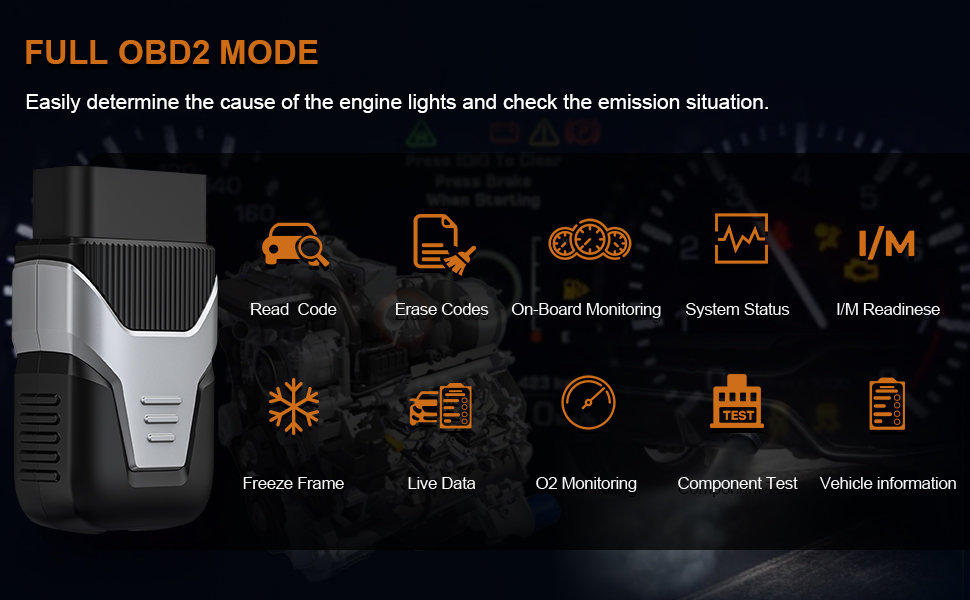
Figure 4.1: Overview of full OBD2 diagnostic functions.
4.2. Special Functions (Hot Functions)
The Z100 offers advanced "Hot Functions" for specific maintenance and reset procedures:
- Oil Reset: Resets the oil service light after an oil change.
- TPMS Reset: Resets the Tire Pressure Monitoring System after tire rotation or sensor replacement.
- Battery Reset: Registers a new battery and clears fault information after battery replacement.
- DPF Regeneration: Initiates the regeneration process for the Diesel Particulate Filter.
- Injector Coding: Codes new injector numbers to the ECU after replacement.
- EPB Reset: Resets the Electronic Parking Brake system after brake pad replacement.
- ABS Bleed: Performs ABS brake bleeding to restore brake sensitivity.
- SAS Reset: Resets the Steering Angle Sensor.
- Throttle Learning: Relearns the throttle body position.
- IMMO: Immobilizer functions (specific to vehicle models).
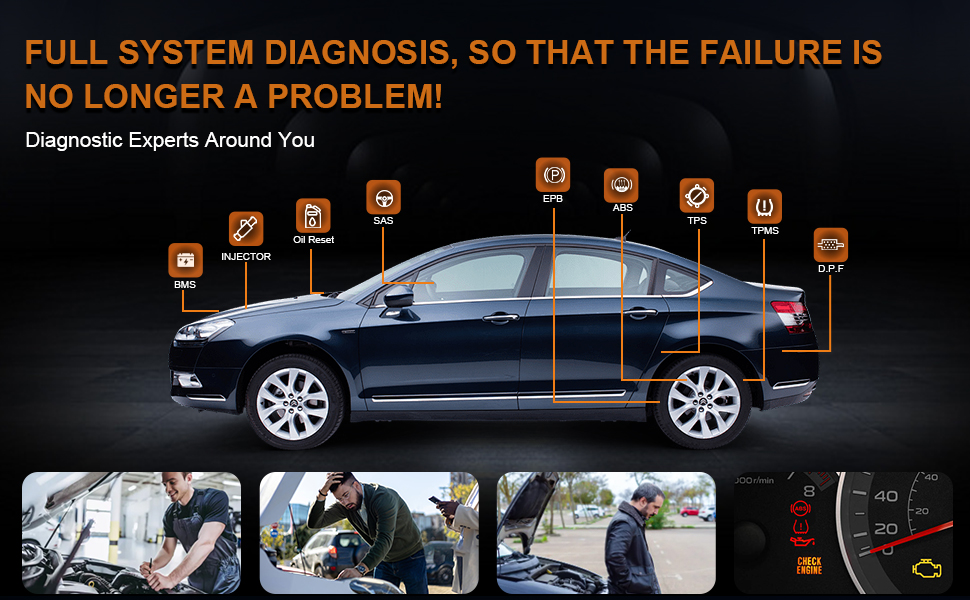
Figure 4.2: Visual representation of the Z100's special functions.
4.3. Data Management and Reporting
The NEXZDAS app provides tools to manage your diagnostic data:
- Diagnosis Report: Generates detailed reports of diagnostic sessions, including detected fault codes and live data. These reports can be saved or shared with mechanics for further analysis.
- Data Playback: Review previously recorded live data streams for in-depth analysis of vehicle performance over time.
- Data Manage: Organize and manage your saved diagnostic reports and data logs within the app.
- Feedback: Submit feedback or report issues directly to HUMZOR customer support through the app.
5. Maintenance
- Cleaning: Wipe the scanner with a soft, dry cloth. Do not use abrasive cleaners or solvents.
- Storage: Store the device in a cool, dry place away from direct sunlight and extreme temperatures.
- Software Updates: Regularly check the NEXZDAS app for software updates to ensure optimal performance, new features, and expanded vehicle compatibility. Updates are typically available through the app's "Download Center."
6. Troubleshooting
| Problem | Possible Cause | Solution |
|---|---|---|
| Scanner does not power on. | Loose connection to OBD2 port; Vehicle ignition not on. | Ensure the scanner is firmly plugged into the OBD2 port. Turn the vehicle ignition to the "ON" position. |
| Bluetooth connection fails. | Bluetooth not enabled on device; Scanner not in pairing mode; Interference. | Ensure Bluetooth is active on your phone/tablet. Unplug and re-plug the scanner to re-enter pairing mode. Move away from other Bluetooth devices that might cause interference. |
| App crashes or freezes. | Outdated app version; Insufficient device memory; Software bug. | Update the NEXZDAS app to the latest version. Close other apps running in the background. Restart your mobile device. If issues persist, contact customer support. |
| Cannot find vehicle model in app. | Vehicle model not downloaded. | Go to the "Download Center" or "Discover" section in the app and download the necessary vehicle software package. |
| Check Engine Light (MIL) remains on after clearing codes. | Underlying vehicle issue not resolved; Intermittent fault. | Clearing codes only resets the light; it does not fix the problem. Address the root cause of the fault. If the issue is intermittent, the light may return. |
7. Product Specifications
- Brand: HUMZOR
- Model: Z100
- Item Weight: 4.2 ounces
- Package Dimensions: 4.37 x 3.15 x 1.26 inches
- Country of Origin: China
- Operating System Compatibility: Android and iOS
- Connectivity: Bluetooth 5.2
- UPC: 763464213279
8. Warranty and Support
The HUMZOR Z100 OBD2 diagnostic tool comes with no annual subscription fee, ensuring long-term use without additional charges.
For any inquiries, technical assistance, or warranty claims, please contact our dedicated customer support team. You can reach us via Amazon messaging or email. When contacting support, please provide your car's brand, year, and model for efficient assistance.
Related documentsZ100


Ask a question about this manual
Ask about setup, troubleshooting, compatibility, parts, safety, or missing instructions. Manuals+ will review the question and use this page’s manual context to help answer it.