
Introduction
The Brinno SHC1000 Peephole Camera is designed to enhance home security by providing a clear view of visitors at your door. This device features a DIY installation process, an LCD screen for viewing, visitor logging capabilities, and detection for knocking and motion. It operates on a long-lasting battery, ensuring extended use without frequent recharging. This manual provides detailed instructions for setting up, operating, maintaining, and troubleshooting your Brinno SHC1000 Peephole Camera.
Package Contents
Before beginning installation, please verify that all components are present in the package.

Figure 1: Brinno SHC1000 Peephole Camera package contents. Includes the main camera unit, peephole lens, mounting tools, and four AA batteries.
- Brinno SHC1000 Camera Body
- Peephole Lens
- Mounting Hardware (key, washer, barrel)
- MicroSD Card
- AA Batteries (4x)
Setup and Installation
The Brinno SHC1000 is designed for DIY installation, requiring no complex tools or hardwiring. It installs directly over your existing peephole.
-
Prepare the Door: Ensure your door has a standard peephole with a diameter of approximately 12mm (15/32") and a door thickness between 1-1/8" to 2-1/4" (28-58 mm).

Figure 2: Door preparation and peephole dimensions. The camera unit is shown mounted on the interior side of the door.
- Insert Batteries: Open the battery compartment on the camera body and insert the four AA batteries, observing correct polarity.
- Install Peephole Lens: Insert the peephole lens from the exterior side of the door.
-
Mount Camera Unit: From the interior side of the door, attach the camera body to the peephole lens using the provided mounting hardware. Ensure the camera is securely fastened and aligned correctly.

Figure 3: Attaching the camera unit to the peephole.
- Insert MicroSD Card: Locate the MicroSD card slot on the camera body and insert the provided card. This card stores visitor logs.
- Initial Power On: Press the power button to turn on the device. Follow any on-screen prompts for initial setup, such as date and time settings.
Operation
Viewing Live Feed
To view who is at your door, simply press the main button on the camera unit. The 2.7-inch LCD screen will display a live feed from the peephole camera.

Figure 4: The 2.7-inch LCD screen displaying the view from the peephole.
Knock and Motion Detection
The camera is equipped with both knocking and motion sensors. When activated, these sensors automatically trigger the camera to capture images of visitors without their knowledge. These images are saved to the internal MicroSD card.
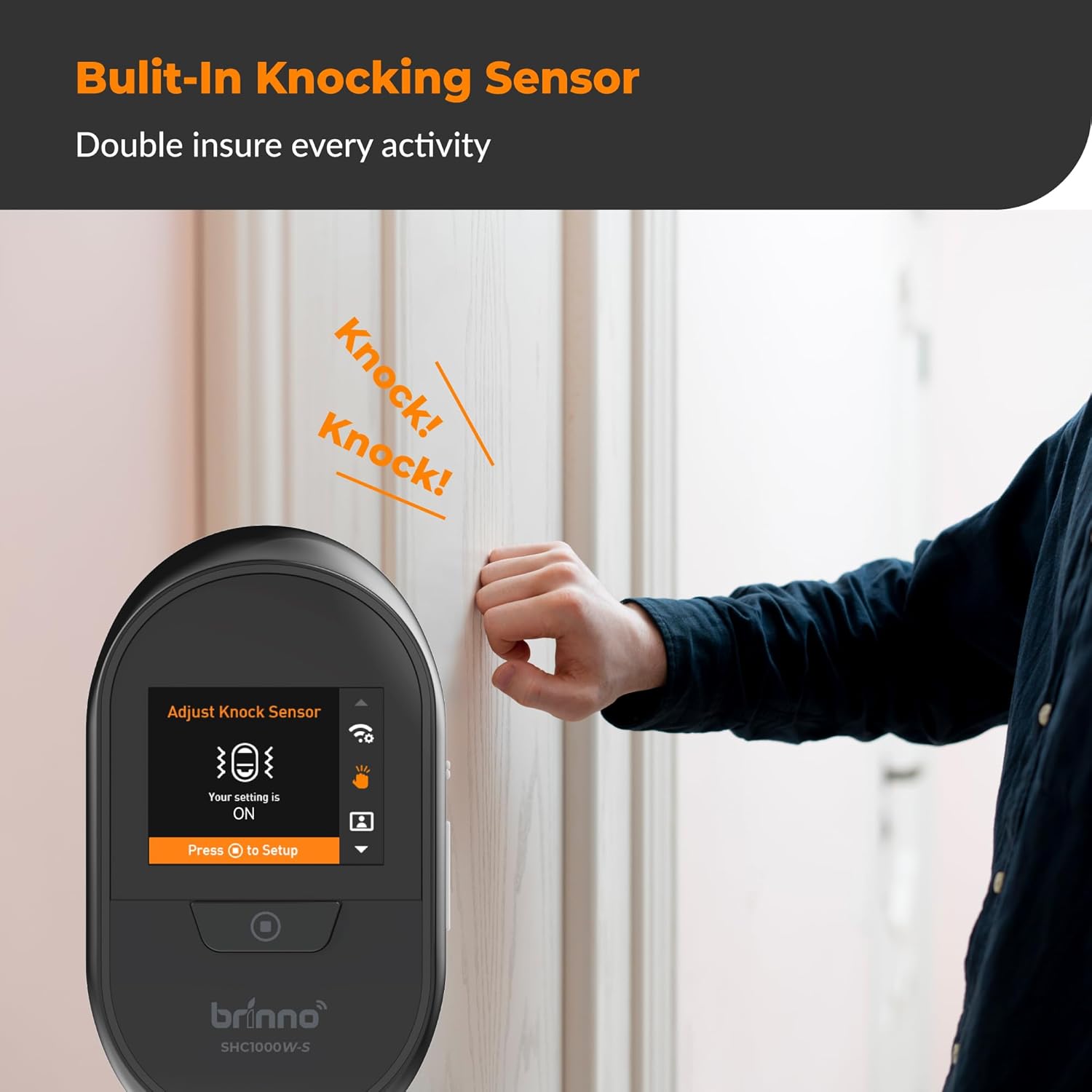
Figure 5: Built-in knocking sensor in action. The camera detects a knock and prepares to record.

Figure 6: Knock detection feature. The camera automatically captures images upon detecting a knock.
Visitor Log and Notifications
Captured images are stored in a visitor log. You can view these images directly on the camera's built-in LCD screen or transfer the MicroSD card to a computer for viewing. The system also supports email notifications for captured events.

Figure 7: Visitor log and notification features. Images are recorded and can be viewed on the LCD or via email notifications.

Figure 8: Instant image notification on a smartphone.

Figure 9: Image transfer options: email and mobile application.
Maintenance
Battery Management
The Brinno SHC1000 is designed for long-lasting battery performance, providing up to six months of operation or approximately 1,800 triggers on a single set of AA batteries. When the battery indicator shows low power, replace all four AA batteries simultaneously.

Figure 10: Battery life indication, showing approximately 1,800 triggers.
MicroSD Card Management
Regularly check the MicroSD card for storage capacity. Transfer important visitor log files to a computer and format the card periodically to ensure optimal performance and prevent storage issues.
Cleaning
Wipe the camera's exterior and LCD screen with a soft, dry cloth. Avoid using abrasive cleaners or solvents. Ensure the peephole lens on the exterior of the door remains clean for clear image capture.
Troubleshooting
If you encounter issues with your Brinno SHC1000 Peephole Camera, refer to the following common problems and solutions:
-
Device not powering on:
- Check if the AA batteries are inserted correctly with the right polarity.
- Replace old batteries with new ones.
-
Poor image quality:
- Ensure the exterior peephole lens is clean and free from obstructions.
- Verify that the camera unit is securely mounted and aligned with the peephole.
-
Knock/Motion detection not working:
- Check the device settings to ensure detection features are enabled.
- Adjust sensitivity settings if available in the menu.
-
No images saved to MicroSD card:
- Ensure the MicroSD card is properly inserted.
- Check if the card has sufficient free space.
- Try formatting the MicroSD card (this will erase all data).
-
No email notifications:
- Verify your email settings within the device menu or associated application.
- Check your spam folder for notifications.
- Ensure the device has a stable connection if it relies on Wi-Fi for notifications (though the specifications list Bluetooth, the feature bullets mention email notifications, implying some connectivity).
If problems persist, please contact Brinno customer support.
Specifications
| Feature | Detail |
|---|---|
| Brand | Brinno |
| Model Name | SHC1000W-S12 |
| Recommended Uses | Indoor Security |
| Connectivity Technology | Wireless |
| Special Feature | Auto Focus |
| Indoor/Outdoor Usage | Indoor |
| Compatible Devices | Smartphone (for notifications) |
| Mount Type | Peephole |
| Connectivity Protocol | Bluetooth |
| Power Source | Battery Powered (4x AA) |
| Video Capture Resolution | 720p |
| Item Dimensions | 3.4 x 6.2 x 1.3 inches |
| Video Capture Format | AVI |
Warranty and Support
Product Warranty
The Brinno SHC1000 Peephole Camera comes with a 2-year product warranty. This warranty covers manufacturing defects and ensures the product functions as intended under normal use.
Return Policy
A 30-day money-back guarantee is provided for your purchase. If you are not satisfied with the product, you may return it for a full refund within 30 days of purchase.
Customer Support
For technical assistance, warranty claims, or any questions regarding your Brinno SHC1000 Peephole Camera, please contact Brinno customer support through their official website or the contact information provided with your product packaging.


