
Introduction
Thank you for choosing the BEBANG WX-A01-121A Detachable Kids Handheld Microscope Miniscope. This digital microscope is designed to provide an engaging and educational experience for young explorers, allowing them to observe the micro-world with up to 1000X magnification on a 2.0-inch HD screen. Its versatile design allows for both handheld and stand-mounted use, making it suitable for various indoor and outdoor scientific explorations. This manual provides essential information for the safe and effective operation and maintenance of your new microscope.

The BEBANG WX-A01-121A Detachable Kids Handheld Microscope Miniscope.
What's in the Box
Upon opening your package, please ensure all the following items are present:
- BEBANG WX-A01-121A Digital Microscope Unit
- Microscope Stand
- Slides Set (10 prepared + 5 blank)
- 32GB SD Card
- Charging Cable (USB-C)
- Collection Box
- Petri Dish
- Tweezer
- User Manual (this document)
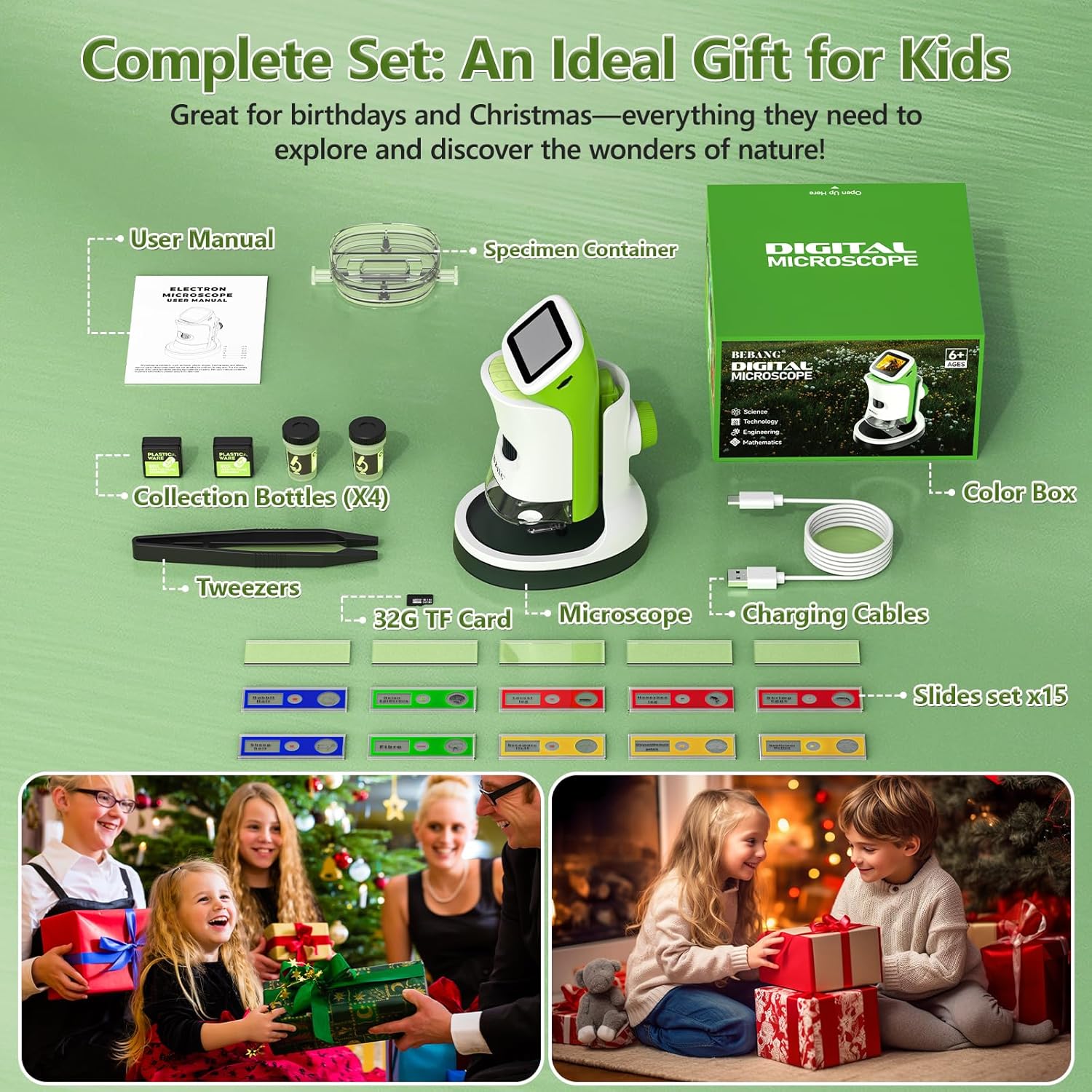
All components included in the BEBANG WX-A01-121A package.
Product Features
The BEBANG WX-A01-121A microscope offers a range of features designed for ease of use and comprehensive observation:
- 4K 2.0" HD Screen: Provides clear, high-definition viewing of magnified specimens.
- 1000X Magnification: Allows for detailed examination of small objects.
- Detachable Design: Use as a handheld device for outdoor exploration or attach to the stand for stable indoor observation.
- Photo and Video Capture: Record discoveries directly onto the included 32GB SD card.
- PC Connectable: Transfer photos and videos to a computer for further analysis or sharing.
- LED Illumination: Built-in LED lights ensure bright and even illumination of specimens.
- Rechargeable Battery: Portable power for extended use.

The microscope offers up to 1000X magnification and can connect to a PC.
Setup
Follow these steps to set up your BEBANG microscope:
- Charge the Microscope: Connect the microscope to a USB power source using the provided USB-C charging cable. The charging indicator light will show the charging status.
- Insert SD Card: Locate the SD card slot (usually on the side or back of the microscope unit) and gently insert the included 32GB SD card until it clicks into place.
- Attach to Stand (Optional): For stable viewing, align the microscope unit with the stand's base and slide it into position until it securely locks. Ensure the clips on the stand are ready to hold slides.
- Power On: Press and hold the power button (usually located on the side or front) for a few seconds until the screen illuminates.

The microscope unit securely attached to its stand for stable observation.
Operating Instructions
Operating your BEBANG microscope is straightforward:
1. Observing Specimens with the Stand
- Place a prepared slide or a specimen in the petri dish onto the stage of the microscope stand. Use the clips to secure slides if necessary.
- Adjust the focus knob (typically on the side of the microscope body) until the image on the screen is clear.
- Use the magnification adjustment to zoom in or out as desired.
- Adjust the LED illumination for optimal viewing clarity.

A child observing a specimen on a slide using the microscope with its stand.
2. Handheld Observation
- Detach the microscope unit from its stand by pressing the release button (if applicable) and sliding it off.
- Hold the microscope directly over the object you wish to observe.
- Adjust the focus knob to achieve a clear image on the screen.
- This mode is ideal for examining larger objects or exploring outdoors.

A child using the microscope in handheld mode to observe plants outdoors.
3. Capturing Photos and Videos
- While observing a specimen, press the designated photo button to capture a still image.
- Press the video button to start recording. Press it again to stop recording.
- All captured media will be saved to the inserted 32GB SD card.

The microscope's 2.0-inch HD screen showing options for photo, video, and playback.
4. Connecting to a PC
- Connect the microscope to your computer using the USB-C cable.
- The microscope should appear as a removable storage device.
- You can then access and transfer your photos and videos from the SD card to your computer.

The microscope connected to a computer, illustrating the PC connectable feature for transferring media.
Video Demonstration: Kids Handheld Microscope with Stand
This video demonstrates the use of the BEBANG Kids Handheld Microscope, showcasing its features and how children can interact with it for exploration and learning.
Maintenance
Proper care will ensure the longevity of your microscope:
- Cleaning: Use a soft, dry cloth to clean the exterior of the microscope. For the lens and screen, use a specialized lens cleaning cloth and solution. Avoid abrasive materials.
- Storage: Store the microscope in a cool, dry place, away from direct sunlight and extreme temperatures. Use the provided EVA case for protection when not in use.
- Battery Care: Recharge the battery regularly, even if not in frequent use, to maintain battery health. Avoid fully discharging the battery for extended periods.
- Handle with Care: This is an electronic device. Avoid dropping or subjecting it to strong impacts.
Troubleshooting
If you encounter issues, try these common solutions:
| Problem | Possible Cause | Solution |
|---|---|---|
| Microscope does not power on. | Low battery or power button not pressed correctly. | Charge the microscope fully. Press and hold the power button for 3-5 seconds. |
| Image on screen is blurry. | Out of focus or incorrect working distance. | Adjust the focus knob. Ensure the microscope lens is close enough to the specimen. |
| Cannot capture photos/videos. | SD card full, not inserted correctly, or corrupted. | Check if the SD card is inserted properly. Delete old files or format the SD card (backup important data first). Replace SD card if corrupted. |
| Screen is too dark/bright. | LED illumination not adjusted. | Adjust the LED brightness control (if available) or reposition the specimen for better lighting. |
Specifications
Key technical specifications for the BEBANG WX-A01-121A microscope:
- Model Name: WX-A01-121A
- Brand: BEBANG
- Magnification Maximum: 1000x
- Screen: 2.0" HD Screen
- Light Source Type: LED
- Power Source: Battery Powered (3.7 Volts)
- Material: ABS
- Color: Green
- Item Weight: 0.5 Kilograms
- Compatible Devices: Laptop, Personal Computer, Smartphone, Tablet (for data transfer)
- Built-In Media: 32G SD Card
Warranty and Support
Your BEBANG WX-A01-121A microscope comes with a 1-year warranty from the date of purchase, covering manufacturing defects. Please retain your proof of purchase for warranty claims.
For technical support, troubleshooting assistance, or warranty inquiries, please contact BEBANG customer service through the retailer where you purchased the product or visit the official BEBANG website for contact information. Our support team is dedicated to assisting you with any questions or concerns you may have.
We encourage you to register your product online to receive updates and ensure efficient service.