
Introduction
This user manual provides detailed instructions for the BenQ Zowie XL2546X+ 24.1-inch Fast TN 280Hz Gaming Monitor. Please read this manual thoroughly before using the monitor to ensure proper setup, operation, and maintenance. Retain this manual for future reference.
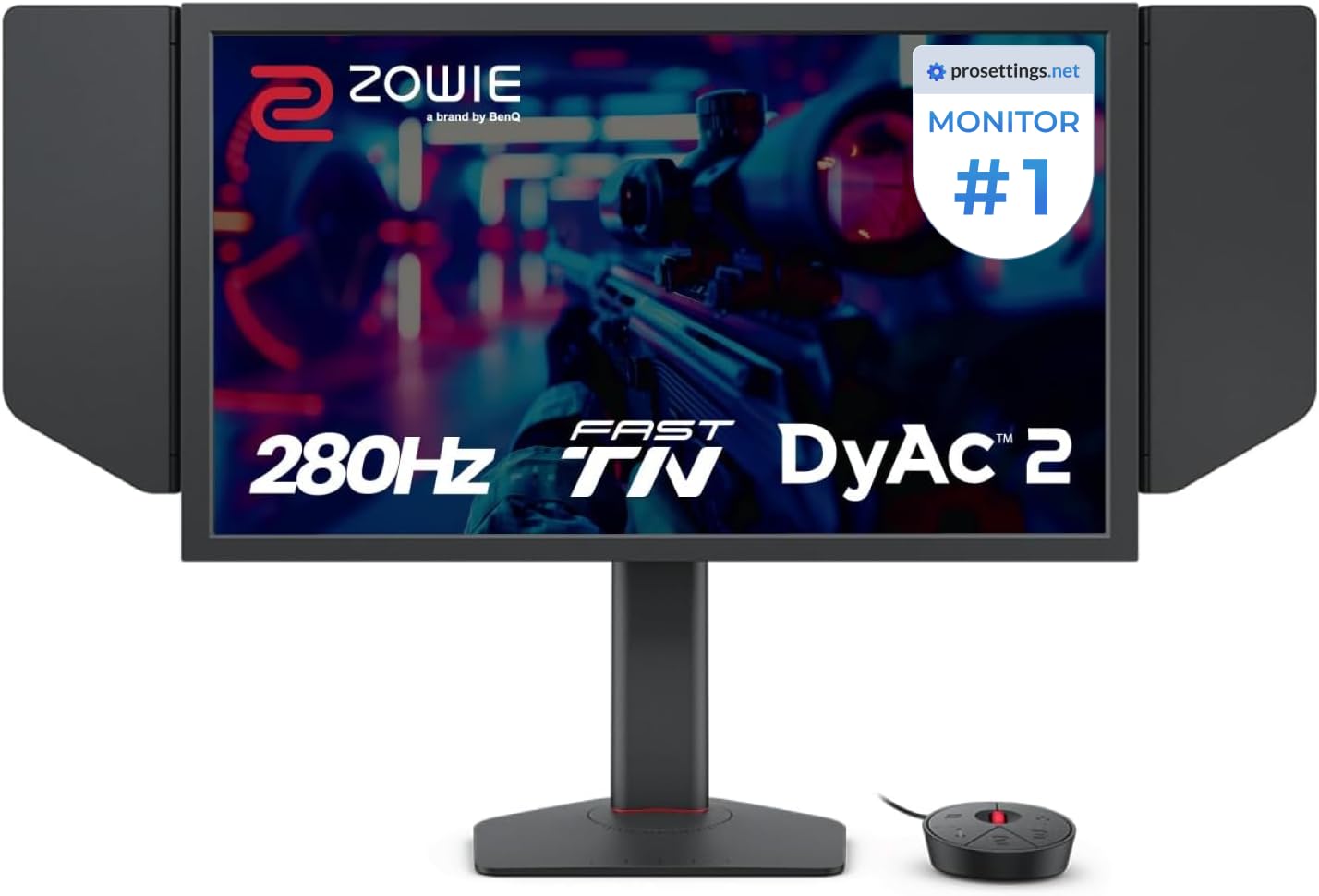
Figure 1: BenQ Zowie XL2546X+ Gaming Monitor Overview
1. Setup
1.1 Unpacking and Assembly
Carefully remove all components from the packaging. Ensure the following items are present:
- BenQ Zowie XL2546X+ Monitor Panel
- Monitor Stand (Base and Neck)
- Shielding Hoods (Left and Right)
- S-Switch
- Power Cable
- DisplayPort Cable
- USB Cable
- Quick Start Guide and Warranty Card
- Attach the monitor neck to the base, securing it with the provided screw.
- Carefully attach the assembled stand to the back of the monitor panel until it clicks into place.
- Slide the shielding hoods into the slots on the sides of the monitor panel.

Figure 2: Monitor Assembly with S-Switch and Shielding Hoods
1.2 Connecting Cables
Connect the necessary cables to the monitor and your computer:
- Connect the DisplayPort cable from your computer's graphics card to the DisplayPort input on the monitor.
- Connect the USB cable from your computer to the upstream USB port on the monitor to enable the S-Switch and USB hub functionality.
- Connect the power cable to the monitor's power input and then to a power outlet.
- Connect the S-Switch to its dedicated port on the monitor.

Figure 3: Monitor Connectivity Ports
1.3 Initial Power On
Press the power button located on the bottom right of the monitor or on the S-Switch to turn on the display. The monitor should automatically detect the input signal from your computer.
2. Operating the Monitor
2.1 On-Screen Display (OSD) Menu Navigation
The OSD menu allows you to adjust various monitor settings. Use the buttons on the monitor's bezel or the S-Switch to navigate and select options.

Figure 4: OSD Menu Interface
2.2 S-Switch Functionality
The S-Switch is an external controller designed for quick access to OSD settings and custom profiles. It features a scroll wheel and dedicated buttons for navigation and preset switching.
- Preset Buttons: Quickly switch between saved display profiles (e.g., FPS Mode, Movie Mode, Standard Mode).
- Scroll Wheel: Navigate through OSD menu options.
- Back Button: Exit current menu or go back to the previous level.

Figure 5: S-Switch Controller
2.3 Key Features and Adjustments
- DyAc 2 (Dynamic Accuracy 2): This technology reduces motion blur, providing clearer visuals during fast-paced action. It utilizes a dual backlight design for enhanced performance and softer light output. Adjust DyAc 2 intensity via the OSD menu.

Figure 6: DyAc 2 Motion Clarity Comparison
- XL Setting to Share: This feature allows you to share and download display settings profiles. The new Auto Game Mode automatically switches color modes based on the running application, optimizing visual performance.

Figure 7: XL Setting to Share and Auto Game Mode
- Height Adjustment: The monitor features an industrial-grade bearing design for smooth and precise height adjustment, allowing you to position the screen at your preferred ergonomic level.

Figure 8: Industrial-Grade Height Adjustment Mechanism
- Color Performance: The Fast TN panel offers improved color performance compared to previous TN panels, providing more vibrant hues and better clarity.

Figure 9: Improved Visual Clarity of Fast TN Panel
For detailed adjustments of brightness, contrast, color temperature, and other display settings, refer to the full OSD menu accessible via the S-Switch or monitor buttons.
3. Maintenance
3.1 Cleaning the Monitor
- Always power off the monitor and unplug the power cord before cleaning.
- Use a soft, lint-free cloth slightly dampened with water or a mild, non-abrasive screen cleaner.
- Do not spray cleaning solutions directly onto the screen or casing.
- Avoid using harsh chemicals, abrasive pads, or solvents like alcohol or ammonia, as these can damage the screen surface.
- Gently wipe the screen and casing to remove dust and smudges.
3.2 Storage
When storing the monitor for an extended period, ensure it is powered off, unplugged, and stored in a cool, dry place away from direct sunlight and extreme temperatures. Use the original packaging if available to protect it from dust and physical damage.
4. Troubleshooting
If you encounter issues with your BenQ Zowie XL2546X+ monitor, refer to the following common problems and solutions:
| Problem | Possible Cause | Solution |
|---|---|---|
| No image on screen | Power cable disconnected, video cable loose or incorrect input selected. | Ensure power and video cables are securely connected. Select the correct input source via the OSD menu or S-Switch. Check if the computer is powered on. |
| Flickering or unstable image | Incorrect refresh rate, faulty video cable, or graphics driver issues. | Verify the refresh rate is set correctly in your operating system (up to 280Hz). Try a different DisplayPort cable. Update your graphics card drivers. |
| Lines or static on screen | Faulty video cable, graphics card issue, or internal monitor defect. | Test with a different video cable. Connect the monitor to another computer if possible. If the issue persists and does not appear on the monitor's OSD menu, it may indicate an internal hardware defect requiring service. |
| Colors appear incorrect or washed out | Incorrect color settings, display profile issues. | Adjust color settings (brightness, contrast, color temperature, gamma) in the OSD menu. Reset display settings to factory defaults. Ensure the correct color profile is selected in your operating system. |
| Monitor not turning on | Power cable disconnected, power outlet issue, or monitor fault. | Check power cable connection. Test the power outlet with another device. If the monitor remains unresponsive, contact support. |
If the problem persists after attempting these solutions, please contact BenQ customer support for further assistance.
5. Specifications
| Feature | Detail |
|---|---|
| Model Number | XL2546X+ |
| Screen Size | 24.1 Inches |
| Panel Type | Fast TN |
| Resolution | 1920x1080 (FHD 1080p) |
| Max Refresh Rate | 280Hz |
| Aspect Ratio | 16:9 |
| Motion Clarity Technology | DyAc 2 |
| Connectivity | DisplayPort, USB 2.0 (1 upstream, multiple downstream ports) |
| Color | Black |
| Item Weight | 20.2 pounds |
| Product Dimensions (LxWxH) | 22 x 8.02 x 20 inches |
| Special Features | XL Setting to Share, S-Switch, Shielding Hood, Industrial-Grade Bearing Height Adjustment, Auto Game Mode |
6. Warranty and Support
6.1 Product Warranty
The BenQ Zowie XL2546X+ monitor typically comes with a standard manufacturer's warranty, which covers defects in materials and workmanship for a specified period, usually one year from the date of purchase. For specific warranty terms and conditions applicable to your region, please refer to the warranty card included with your product or visit the official BenQ website.
6.2 Customer Support
For technical assistance, troubleshooting, or warranty claims, please contact BenQ customer support. You can find contact information, FAQs, and driver downloads on the official BenQ website:
- BenQ Official Website: www.benq.com
- Refer to the support section for your specific region.
7. Product Videos
No official product video URLs were provided in the product data. Please refer to the manufacturer's official website or authorized channels for relevant video content.


