
Introduction
The KRK Kreate Series monitors are designed to provide accurate audio reproduction for musicians, engineers, producers, and content creators. This manual provides instructions for the setup, operation, and maintenance of your KRK Kreate 8 Powered Studio Monitor.

Figure 1: Overview of the KRK Kreate Series studio monitors.
Key Features
The KRK Kreate 8 monitor incorporates several design elements for optimal audio performance:
- Textile Dome Tweeter: Provides clear and detailed high-frequency reproduction.
- Lightweight, Woven Glass Fiber Composite Woofer: Delivers accurate midrange and defined bass response.
- 8-inch Glass Aramid Woofer: Specifically designed for robust low-frequency performance.
- Bluetooth Input: Allows for wireless audio streaming from compatible devices.
- Multiple Audio Inputs: Offers universal connectivity with various studio equipment.
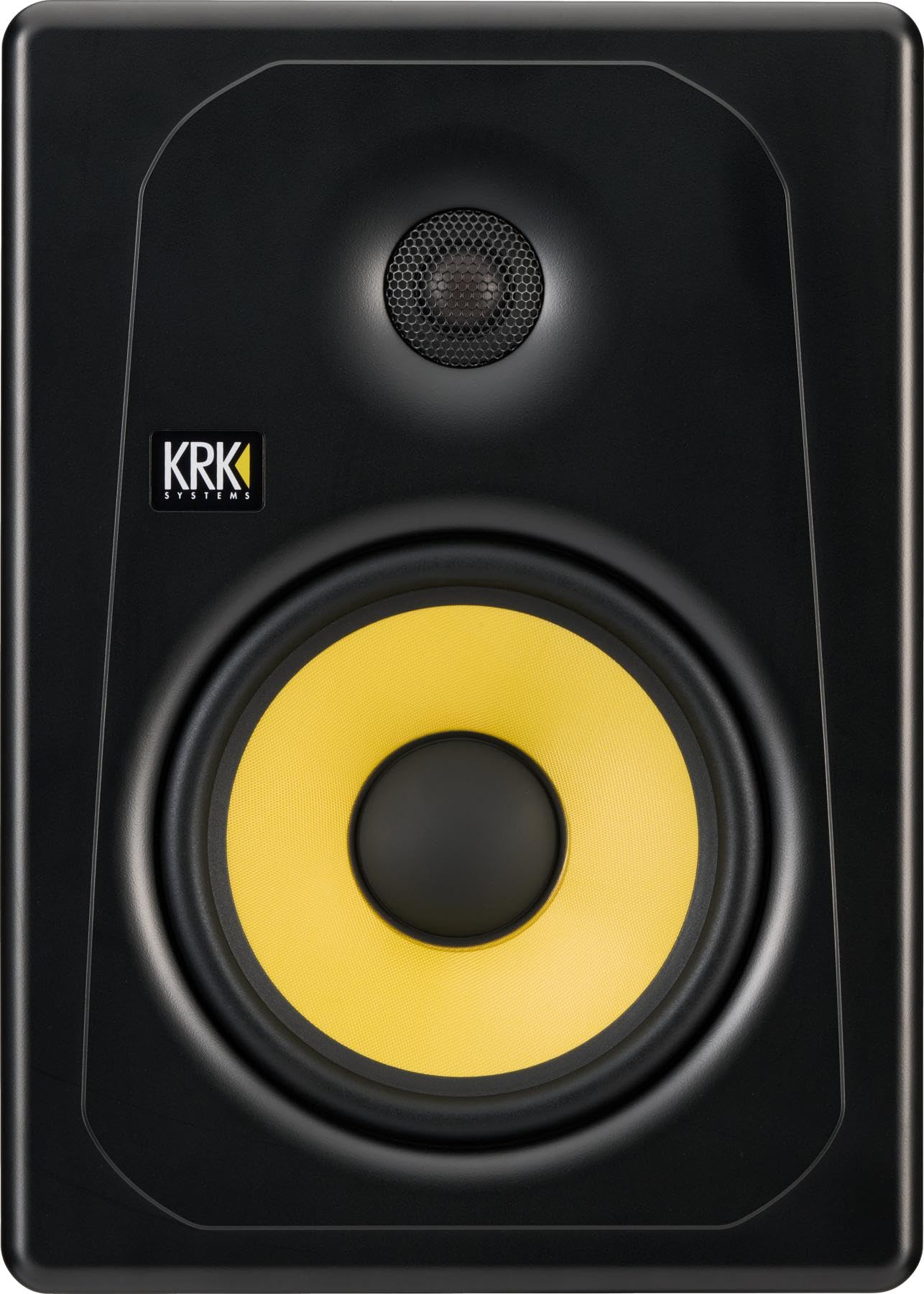
Figure 2: Front view of the KRK Kreate 8 monitor, highlighting the tweeter and woofer.
Setup
- Unpacking: Carefully remove the monitor from its packaging. Retain all packaging materials for future transport or storage.
- Placement: Position the monitors on stable surfaces, ideally at ear level, forming an equilateral triangle with your listening position. Ensure adequate space around the monitor for ventilation.
- Power Connection: Connect the supplied AC power cord to the monitor's power inlet and then to a grounded AC power outlet. Ensure the power switch is in the OFF position before connecting.
- Audio Input Connection:
- XLR Input: For balanced connections from professional audio interfaces or mixers.
- TRS Input: For balanced or unbalanced connections from audio interfaces or other devices.
- RCA Input: For unbalanced connections from consumer audio equipment.

Figure 3: Rear panel connections and controls.

Figure 4: Power input and switch detail.
Operating Instructions
- Power On/Off: Flip the power switch on the rear panel to the "ON" position. The KRK logo on the front will illuminate. To power off, flip the switch to "OFF".
- System Level Adjustment: Use the "SYSTEM LEVEL" knob on the rear panel to adjust the overall output volume of the monitor. Start with a low setting and gradually increase to a comfortable listening level.
- HF Level Adjustment: The "HF LEVEL ADJUST" knob allows you to fine-tune the high-frequency response. Settings include -2dB, FLAT, and +1dB. Adjust according to your room acoustics and preference.
- LF Level Adjustment: The "LF LEVEL ADJUST" knob allows you to fine-tune the low-frequency response. Settings include -2dB, FLAT, and +2dB. Adjust according to your room acoustics and preference.
- Bluetooth Pairing:
- Ensure the monitor is powered on.
- Press and hold the "PAIR / LINK" button on the rear panel until the Bluetooth indicator light begins to flash.
- On your Bluetooth-enabled device, search for available devices and select "KRK Kreate 8".
- Once paired, the Bluetooth indicator light will remain solid.

Figure 5: Detail of the HF, LF, and System Level controls.
Maintenance
- Cleaning: Use a soft, dry cloth to clean the exterior of the monitor. Avoid using abrasive cleaners, solvents, or waxes, as these can damage the finish. Do not spray liquids directly onto the monitor.
- Dust Removal: Regularly dust the speaker cones and vents to prevent accumulation, which can affect performance and cooling.
- Storage: If storing the monitor for an extended period, place it back in its original packaging to protect it from dust and physical damage. Store in a cool, dry environment.
- Ventilation: Ensure that the rear panel and any vents are not obstructed to allow for proper heat dissipation.
Troubleshooting
| Problem | Possible Cause | Solution |
|---|---|---|
| No sound output |
|
|
| Distorted or unclear sound |
|
|
| Bluetooth pairing failure |
|
|
Specifications
| Model Number | K8-NA |
| Woofer Size | 8 Inch Glass Aramid Composite |
| Tweeter Type | 1 Inch Textile Dome |
| Inputs | XLR, 1/4" TRS, RCA, Bluetooth |
| Item Weight | 24.5 pounds (11.1 kg) |
| Product Dimensions (L x W x H) | 19.6 x 13.8 x 13.8 inches (49.8 x 35.1 x 35.1 cm) |
| Power Input | AC 100-240V, 50/60Hz, 100W MAX |
Warranty and Support
KRK products are designed for reliability and performance. For detailed warranty information, please refer to the warranty card included with your product or visit the official KRK website.
For technical support, product registration, or to download the latest documentation, please visit the KRK Systems website.