
1. Introduction
This manual provides essential information for the safe and efficient operation of your THOMSON 55QG7C14 55-inch QLED Pro 144Hz Google Smart TV. Please read this manual thoroughly before using the product and retain it for future reference. This television combines QLED technology with 4K Ultra HD resolution, a 144Hz refresh rate, and the Google TV platform for an enhanced viewing experience.
2. Safety Information
Observe the following safety precautions to prevent damage and ensure safe operation:
- Power Supply: Connect the TV only to an AC power outlet with the correct voltage as indicated on the product label.
- Ventilation: Ensure adequate ventilation around the TV. Do not block ventilation openings.
- Water and Moisture: Do not expose the TV to rain or moisture. Do not place objects filled with liquids, such as vases, on the TV.
- Cleaning: Unplug the TV before cleaning. Use a soft, dry cloth. Do not use liquid or aerosol cleaners.
- Placement: Place the TV on a stable, level surface. Avoid placing it in direct sunlight or near heat sources.
- Children: Supervise children to ensure they do not climb on the TV or stand.
- Servicing: Do not attempt to service the TV yourself. Refer all servicing to qualified service personnel.
3. Package Contents
Verify that all items are present in the package:
- THOMSON 55QG7C14 55-inch QLED Pro 144Hz Google Smart TV
- Remote Control (with backlight)
- Power Cable
- Central Stand and Screws
- Quick Start Guide
- Warranty Card
4. Physical Overview
The THOMSON 55QG7C14 features a sleek design with narrow bezels and a central swivel stand for flexible viewing angles.
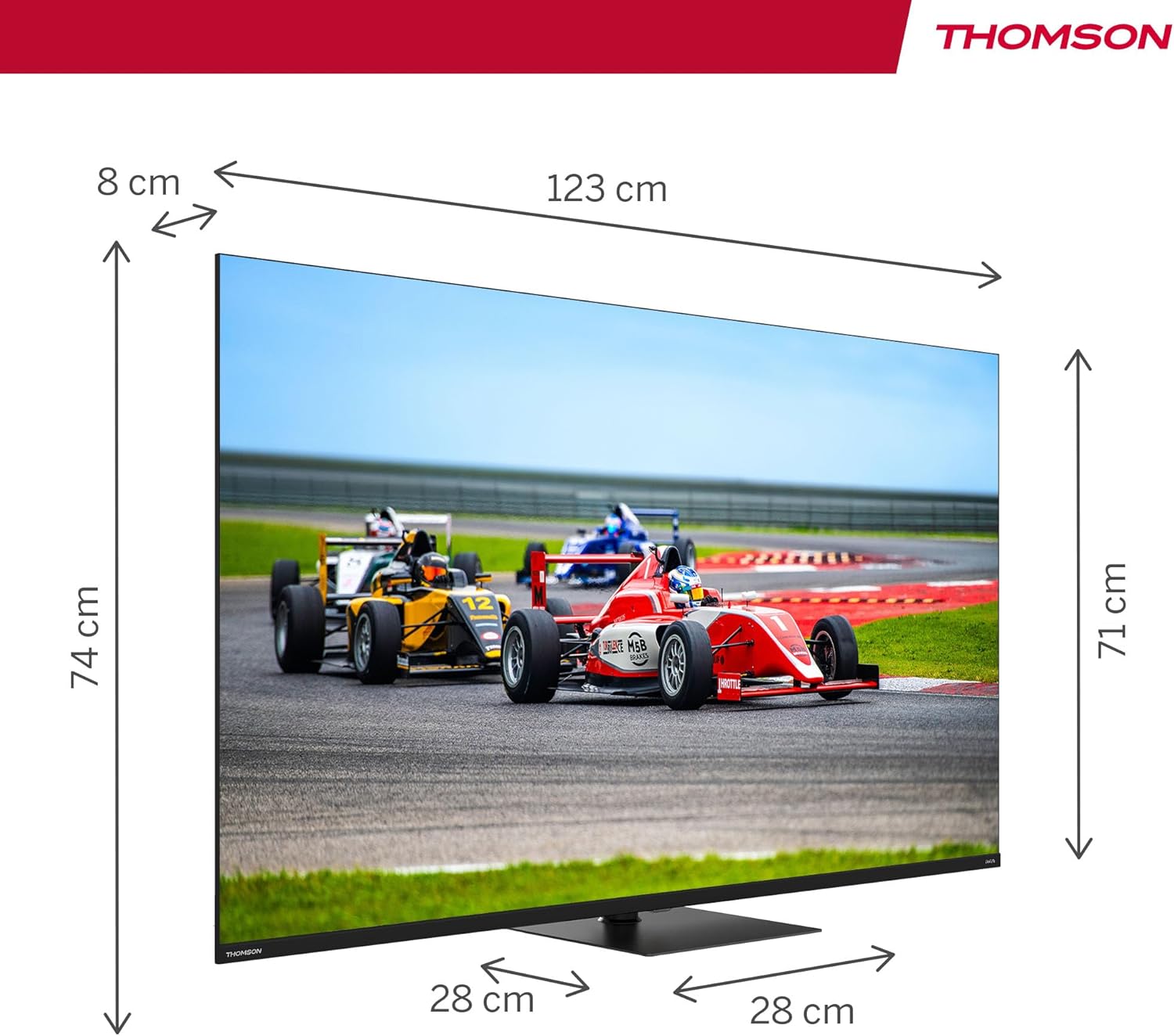
Image 4.1: Front view of the THOMSON 55QG7C14 TV, showcasing its narrow bezels and central stand.

Image 4.2: Diagram illustrating the dimensions of the 55-inch THOMSON TV, including width, height, and depth.

Image 4.3: Visual representation of the TV's swivel stand, allowing for adjustable viewing angles.
5. Setup
5.1. Stand Assembly
- Carefully place the TV face down on a soft, flat surface to prevent screen damage.
- Attach the central stand to the designated slots on the bottom of the TV.
- Secure the stand using the provided screws. Ensure the stand is firmly attached before proceeding.
5.2. Connections
Connect your external devices to the TV using the appropriate ports. Refer to the diagram below for port locations.

Image 5.1: Detailed diagram of the TV's rear panel, highlighting all available connection ports.
- HDMI (x4): Connect Blu-ray players, game consoles, and other HDMI-enabled devices. HDMI 2.1 with eARC is supported.
- USB (x3): Connect USB storage devices for media playback. One USB 3.0 port is available.
- LAN: Connect an Ethernet cable for a wired internet connection.
- AV IN: Connect older devices using composite video and stereo audio cables.
- Digital Optical Out: Connect to an external audio system for digital sound.
- CI+ Slot: Insert a Conditional Access Module (CAM) for encrypted digital TV services.
- Antenna/Satellite Inputs: Connect your terrestrial antenna (DVB-T2/C) or satellite dish (DVB-S2).
6. Initial Setup
After connecting all necessary cables and powering on the TV for the first time, you will be guided through the initial setup process:
- Language Selection: Choose your preferred language.
- Network Connection: Connect to your Wi-Fi network or use a wired Ethernet connection.
- Google Account Login: Sign in with your Google account to access Google TV features, apps, and personalized recommendations.
- Channel Scan: The TV will scan for available channels via your antenna or satellite connection.
- Privacy Settings: Review and adjust privacy settings as desired.
7. Operating Your TV
7.1. Google TV Interface
Your THOMSON TV runs on Google TV, which organizes content from your various streaming services and apps into a unified interface. You can create multiple user profiles for personalized recommendations.

Image 7.1: The Google TV home screen, displaying content from various streaming applications and options for user profiles.
7.2. Remote Control
The ergonomic remote control features backlighting for easy use in low-light conditions and dedicated buttons for popular streaming services. It also includes a microphone for voice commands.

Image 7.2: The TV's remote control, highlighting its backlit buttons and integrated microphone for voice commands.
7.3. Voice Control with Google Assistant
Press the Google Assistant button on your remote and speak into the microphone to control your TV, search for content, get recommendations, and manage smart home devices.
7.4. Chromecast Built-in
Wirelessly cast movies, music, and videos from compatible devices (smartphones, tablets, computers) directly to your TV screen.
7.5. Picture and Sound Enhancements
- QLED Technology: Quantum Dot technology delivers vibrant and realistic colors with balanced brightness and striking contrasts.
- 4K UHD Resolution: Enjoy crystal-clear images with four times the detail of Full HD.
- 144Hz Refresh Rate: Experience smoother motion, especially beneficial for fast-paced content and gaming.
- Dolby Vision & HDR10: Enhanced brightness, contrast, and color accuracy for a more immersive visual experience.
- Dolby Atmos & Dolby Audio: Dynamic, room-filling sound for an immersive audio experience.

Image 7.3: Visual comparison demonstrating the difference in motion clarity between a 60Hz and a 144Hz refresh rate display.

Image 7.4: Representation of the Dolby Atmos audio experience, showing sound moving in three-dimensional space around viewers.
8. Maintenance
Proper maintenance ensures the longevity of your TV.
- Screen Cleaning: Gently wipe the screen with a soft, lint-free cloth. For stubborn marks, slightly dampen the cloth with water or a specialized screen cleaner (apply to cloth, not directly to screen).
- Cabinet Cleaning: Wipe the TV cabinet with a soft, dry cloth.
- Dust Removal: Use a soft brush or vacuum cleaner with a brush attachment to remove dust from ventilation openings.
- Power Cord: Regularly check the power cord for any damage. If damaged, contact service personnel.
9. Troubleshooting
If you encounter issues with your TV, refer to the following common problems and solutions:
| Problem | Possible Solution |
|---|---|
| No power | Check if the power cord is securely plugged into the TV and the wall outlet. Press the power button on the remote or TV. |
| No picture, but sound is present | Ensure the correct input source is selected. Check cable connections to external devices. |
| No sound, but picture is present | Check the volume level. Ensure mute is not activated. Check audio cable connections. If using external audio, ensure it is powered on and correctly configured. |
| Remote control not working | Replace the batteries. Ensure there are no obstructions between the remote and the TV's IR sensor. |
| Network connection issues | Restart your router/modem. Check Wi-Fi password. Try a wired Ethernet connection if Wi-Fi fails. |
| Picture quality issues (e.g., blurry, distorted) | Check the source resolution. Adjust picture settings (brightness, contrast, sharpness). Ensure the input cable is not damaged. |
If the problem persists after trying these solutions, contact customer support.
10. Specifications
Key technical specifications for the THOMSON 55QG7C14 TV:
- Model Number: 55QG7C14
- Screen Size: 55 inches (139 cm)
- Display Technology: QLED
- Resolution: 3840 x 2160 Pixels (4K UHD)
- Refresh Rate: 144 Hz
- HDR Support: HDR10, Dolby Vision
- Audio Technology: Dolby Audio, Dolby Atmos
- Operating System: Google Smart TV
- Connectivity: Wi-Fi, Bluetooth 5.1, 4x HDMI (HDMI 2.1 with eARC), 3x USB (1x USB 3.0), LAN, AV In, Digital Optical Out, CI+
- Tuner: Triple-Tuner (DVB-T2/C/S2)
- Dimensions (L x W x H): 123 cm x 8 cm x 74 cm (with stand)
- Weight: 12.4 kg
- Energy Efficiency Class: F

Image 10.1: The EU energy efficiency label for the THOMSON 55QG7C14 television.
11. Warranty and Support
Your THOMSON 55QG7C14 TV comes with a 3-year manufacturer's warranty, ensuring reliability and peace of mind. For warranty claims, technical assistance, or further support, please contact your retailer or the official THOMSON customer service. Refer to the warranty card included in your package for detailed terms and conditions.


