
1. Introduction
Thank you for choosing the Itari M102 Bluetooth Label Maker. This manual provides detailed instructions for setting up, operating, and maintaining your device. Please read this manual thoroughly before use to ensure optimal performance and longevity of your label maker.
2. Package Contents
Please verify that all items are present in your package:
- 1 x M102 Portable Label Maker
- 1 x USB Type-C Data Cable
- 1 x User Manual
- 100 PCS 1.57'' x 1.18'' Thermal Labels
3. Product Overview
The Itari M102 is a compact and portable thermal label printer designed for various labeling needs. It connects wirelessly via Bluetooth to your smartphone, tablet, or computer, allowing for easy label creation and printing.

Image: The Itari M102 Label Maker, showing its compact design, a roll of thermal labels, and the associated mobile application interface on a smartphone.
3.1. Key Components and Controls

Image: A detailed view of the Itari M102 Label Maker, illustrating its dimensions (4.37 x 3.39 x 2.32 inches, 0.43 LB) and pointing out key features such as the safe built-in manual cutter, removable protective laminates, and the feed button.
- Power Button: Used to turn the device on/off.
- Feed Button: Advances the label paper. Press once to feed one label, or press and hold to continuously feed.
- Status Indicator Light: Indicates power status, charging status, and connection status.
- Label Exit Slot: Where printed labels emerge.
- Type-C Charging Port: For charging the device.
- Built-in Manual Cutter: For cleanly detaching printed labels.
4. Getting Started (Setup)
4.1. Charging the Device
Before first use, fully charge the label maker. Connect the provided USB Type-C cable to the charging port on the device and a suitable USB power adapter (not included). The status indicator light will show charging progress.
4.2. Installing the Mobile Application
The Itari M102 operates via a dedicated mobile application. Search for the application name (e.g., "Printer Master" or as indicated in the quick start guide) on your device's app store (iOS App Store or Google Play Store) and install it.
4.3. Loading Label Paper
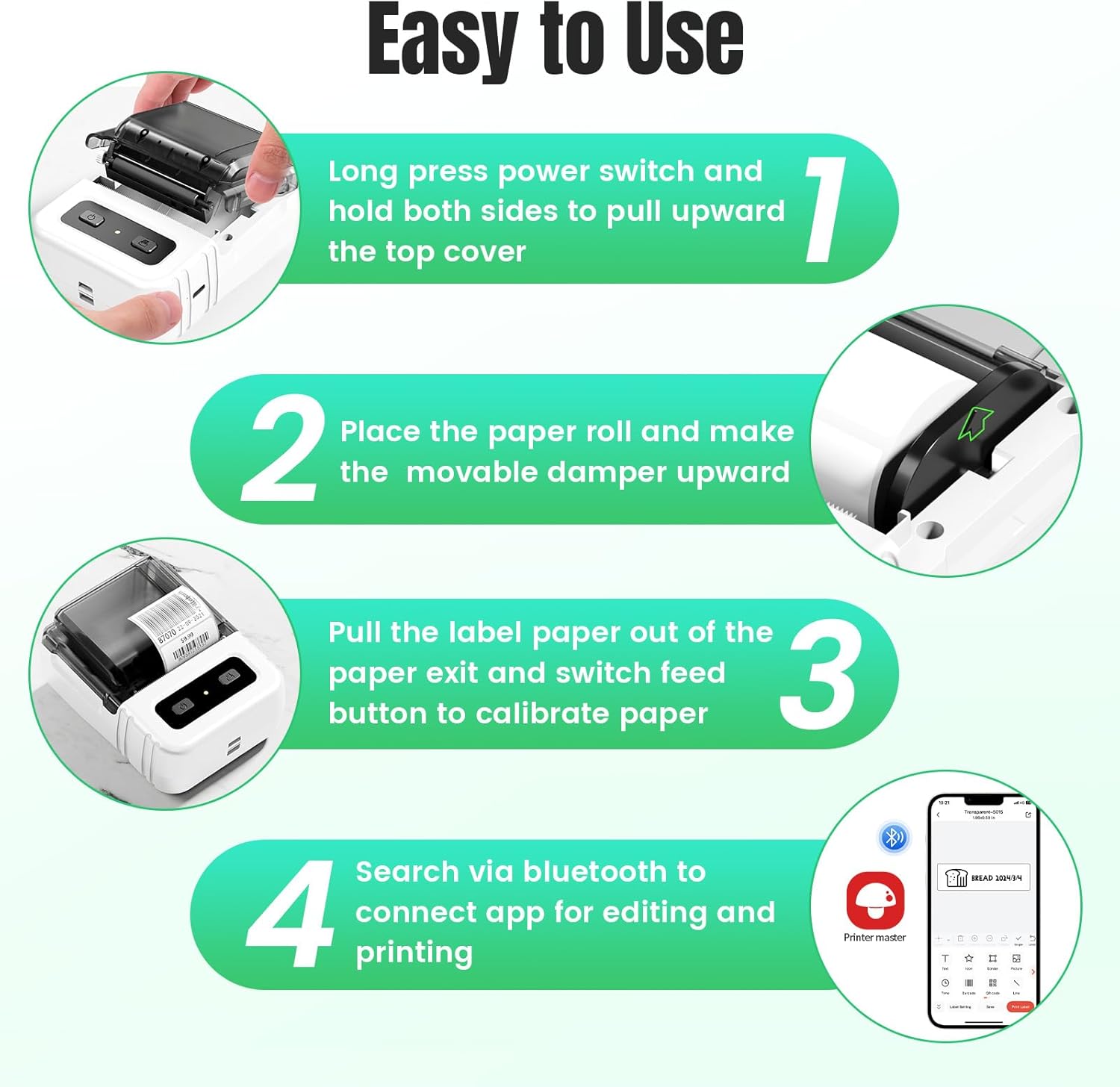
Image: A step-by-step guide demonstrating how to open the label maker, insert a paper roll, pull the label paper out, and connect to the mobile application via Bluetooth.
- Long press the power switch to turn on the device.
- Hold both sides of the top cover and pull upward to open the label compartment.
- Place the label paper roll into the compartment, ensuring the printing surface faces upwards and the movable damper is positioned correctly.
- Pull the leading edge of the label paper out through the label exit slot.
- Close the top cover firmly until it clicks into place.
- Press the feed button once to calibrate the paper and ensure it is aligned correctly.
4.4. Connecting via Bluetooth

Image: The Itari M102 Label Maker demonstrating its wireless Bluetooth connectivity with various operating systems including iOS, Android, Windows, Mac OS, and Linux.
- Ensure Bluetooth is enabled on your smartphone, tablet, or computer.
- Open the installed label printing application.
- Within the app, navigate to the device connection or printer settings.
- Select your Itari M102 (it may appear as "M102" or a similar name) from the list of available Bluetooth devices.
- Once connected, the app will indicate a successful connection, and the device's status light may change.
5. Operating Instructions
5.1. Creating Labels
The mobile application provides a user-friendly interface for designing labels.

Image: The mobile application interface, highlighting options for adding text, icons, barcodes, QR codes, images, borders, and time stamps, along with a selection of free templates.
- Text: Enter custom text, adjust font, size, and style.
- Icons/Symbols: Choose from a library of pre-installed icons and symbols.
- Barcodes/QR Codes: Generate and print various barcode types or QR codes.
- Images: Insert images from your device or the app's library.
- Templates: Utilize pre-designed templates for common label types (e.g., price tags, address labels, food labels).
- Voice Recognition: Some app versions support voice input for text.
- Image Recognition: The app may offer features to extract text from images for label creation.
5.2. Printing Labels
- After designing your label, ensure the label maker is powered on and connected via Bluetooth.
- In the app, select the "Print" option.
- Adjust print settings such as the number of copies and print density if available.
- Confirm the print job. The label maker will then print the labels.
- Use the built-in cutter to cleanly separate the printed label from the roll.
5.3. Batch Printing

Image: Features of the Itari M102, including QR code/barcode scanning, voice recognition, image recognition, and batch printing capabilities.
For printing multiple labels with varying data, the app supports batch printing. This feature often allows importing data from spreadsheets (e.g., Excel) to generate a series of unique labels efficiently.
5.4. Supported Label Types and Applications

Image: The Itari M102 Label Maker supporting various label styles and widths, specifically 0.78-1.96 inches (20-50mm), highlighting its inkless, high-speed, and high-definition printing capabilities.
The M102 supports thermal labels with widths ranging from 20mm to 50mm (0.78 to 1.96 inches). This versatility allows for a wide range of applications:
- Address labels
- Price labels
- Food labels
- Clothing labels
- Cable labels
- Jewelry labels
- Folder labels
- Document labels
- Desk labels
- Gift labels

Image: Visual examples of labels created with the M102, such as price labels for baked goods, clothing labels with QR codes, package labels with barcodes, and decorative retail store labels.

Image: Further examples of label applications, including labels for documents, computers, desks, and envelopes.

Image: Additional examples of label uses, such as food labels for pantry organization, bottle labels, gift labels, and labels for medication.
6. Maintenance
6.1. Cleaning the Print Head
To maintain print quality, regularly clean the print head. Use a cotton swab lightly dampened with isopropyl alcohol. Gently wipe the print head surface. Ensure the device is turned off and completely dry before use.
6.2. Storage
Store the label maker in a cool, dry place away from direct sunlight and extreme temperatures. Remove the label roll if storing for an extended period. Thermal labels are sensitive to heat and light, which can cause fading over time.

Image: Visual representation of the durability of Itari thermal label paper, showcasing its resistance to water, oil, heat, and low temperatures, as well as its anti-scratch and high adhesion properties.
7. Troubleshooting
- Device not turning on: Ensure the device is fully charged. Connect it to a power source and try again.
- Cannot connect via Bluetooth:
- Ensure Bluetooth is enabled on your host device (phone, tablet, PC).
- Make sure the label maker is powered on and within range.
- Restart both the label maker and your host device.
- Forget the device in your Bluetooth settings and try pairing again.
- Poor print quality:
- Check if the label paper is loaded correctly and is thermal paper.
- Clean the print head as described in the Maintenance section.
- Adjust print density settings in the application.
- Ensure the label roll is not old or damaged.
- Labels not feeding correctly:
- Ensure the label roll is properly seated and the top cover is closed.
- Press the feed button to calibrate the paper.
- Check for any obstructions in the label path.
- App issues:
- Ensure the app is updated to the latest version.
- Restart the app or reinstall it if problems persist.
8. Specifications
| Model Name | M102 |
| Item Model Number | M102-WH |
| Brand | Itari |
| Connectivity Technology | Bluetooth, USB |
| Printing Technology | Thermal |
| Printer Output | Monochrome |
| Maximum Black and White Print Resolution | 300 dpi |
| Max Printspeed Monochrome | 30 ppm |
| Maximum Media Size | 0.78 x 2 inches (20mm-50mm width) |
| Compatible Devices | Smartphones (Android, iOS), Laptops, Tablets, PC |
| Hardware Interface | USB Type C |
| Product Dimensions | 4.37 x 3.39 x 2.32 inches |
| Item Weight | 6.9 ounces (0.43 Pounds) |
| Batteries | 1 9V battery required (internal rechargeable) |
| Special Feature | Lightweight, Mini, Portable, Inkless, for Small Business |
9. Warranty and Support
9.1. Limited Warranty
The Itari M102 Label Maker comes with a limited warranty. Please refer to the warranty card included in your package or visit the official Itari website for detailed terms and conditions regarding warranty coverage and duration.
9.2. Customer Support
For technical assistance, troubleshooting not covered in this manual, or inquiries about replacement parts and accessories, please contact Itari customer support. Contact information can typically be found on the official Itari website or through your purchase platform.
