
Vasco Electronics 6fd2da33-a9cd-4087-af94-de29d95420a7
Vasco V4 Language Translator Device User Manual
Model: Vasco Translator V4
Introduction
This manual provides comprehensive instructions for the setup, operation, maintenance, and troubleshooting of your Vasco V4 Language Translator Device and its accompanying protective case. The Vasco V4 is designed to facilitate seamless communication across language barriers with its advanced translation capabilities and free lifetime internet connectivity.
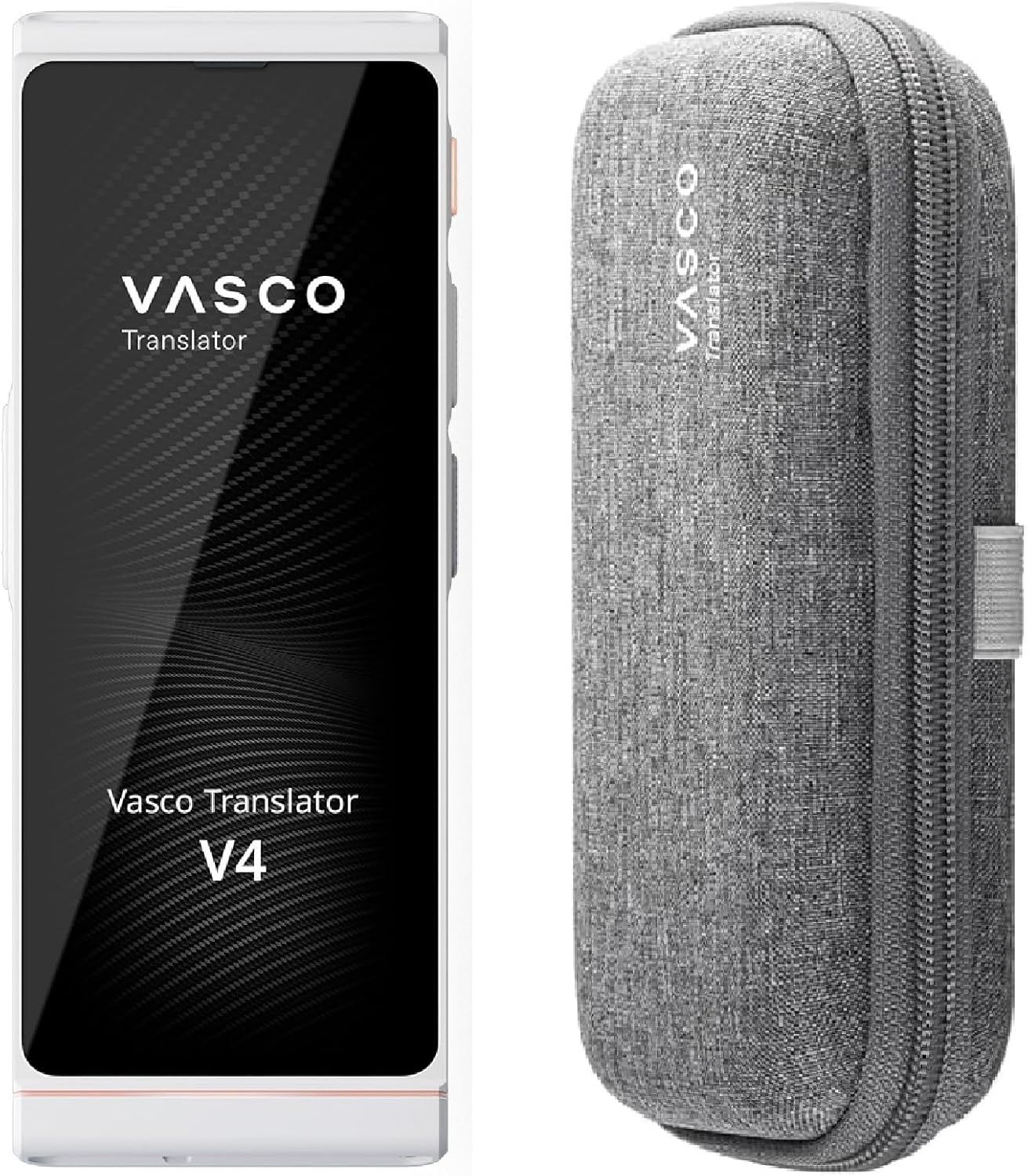
Image: The Vasco V4 Language Translator Device (left) and its protective carrying case (right).
Package Contents
Upon unboxing, please verify that all items listed below are present:
- Vasco V4 Language Translator Device
- Vasco Translator V4 Protective Case
- USB Type-C Charging Cable
- Power Adapter
- Lanyard
- Quick Start Guide (not part of this manual)

Image: Contents of the Vasco V4 package, including the device, case, charging accessories, and lanyard.
Setup
1. Initial Charging
Before first use, fully charge your Vasco V4 device.
- Connect the USB Type-C cable to the charging port on the Vasco V4 device.
- Connect the other end of the USB cable to the provided power adapter.
- Plug the power adapter into a wall outlet.
- The device will indicate charging status on its screen. A full charge typically takes approximately 2-3 hours.
2. Powering On/Off
- To power on: Press and hold the power button (located on the side of the device) until the Vasco logo appears on the screen.
- To power off: Press and hold the power button until a power-off menu appears, then select "Power Off".
3. Initial Setup (First Use)
The Vasco V4 is designed for immediate use without complex setup or app downloads. Simply turn it on, and it will automatically connect to the internet for translation services via its free lifetime connectivity.
Operating Instructions
The Vasco V4 offers multiple translation modes to suit your needs.
1. Voice Translation (76 Languages Supported)
This is the primary mode for real-time, two-way conversations.
- From the main screen, select the "Voice Translator" icon.
- Choose the source language (the language you will speak) and the target language (the language you want to translate to).
- Press and hold the microphone button corresponding to the language you are speaking.
- Speak clearly into the device's microphone.
- Release the button. The device will process your speech and display/speak the translation.

Image: A user holding the Vasco V4 device, demonstrating the voice translation interface with English and German languages selected.
2. Image-Text Translation (108 Languages Supported)
Translate text from signs, menus, or documents using the device's camera.
- Select the "Photo Translator" icon from the main menu.
- Point the device's camera at the text you wish to translate. Ensure the text is well-lit and clear within the frame.
- Tap the screen to capture the image.
- The device will analyze the text and provide a translation.
3. Text Translation (90 Languages Supported)
For typing in text to be translated.
- Select the "Text Translator" icon.
- Use the on-screen keyboard to type the text you want to translate.
- Select the source and target languages.
- Tap the translate button to view the translation.
4. Connectivity
The Vasco V4 comes with free lifetime internet connectivity in nearly 200 countries, ensuring you always have access to translation services without needing Wi-Fi or a SIM card.

Image: A world map highlighting countries where the Vasco Translator V4 offers free lifetime internet connectivity for translation.

Image: Graphic stating "Free Unlimited Internet" next to the Vasco V4 device, emphasizing its connectivity feature.
Maintenance
1. Device Care
The Vasco V4 is designed to be durable and resistant to dust, shocks, and splashes of water. However, proper care will extend its lifespan.
- Cleaning: Use a soft, dry, lint-free cloth to clean the device screen and body. Do not use abrasive cleaners or solvents.
- Water Resistance: While splash-resistant, avoid submerging the device in water. Dry immediately if it comes into contact with liquids.
- Temperature: Avoid exposing the device to extreme temperatures (hot or cold).
- Storage: When not in use, store the device in its protective case to prevent scratches and minor impacts.
2. Protective Case Care
The Vasco Translator V4 Protective Case is designed to safeguard your device.
- Cleaning: Wipe the case with a damp cloth if it gets dirty. Allow it to air dry completely before placing the device inside.
- Protection: The case provides protection against scratches and minor impacts. It also offers a handy space for small items.
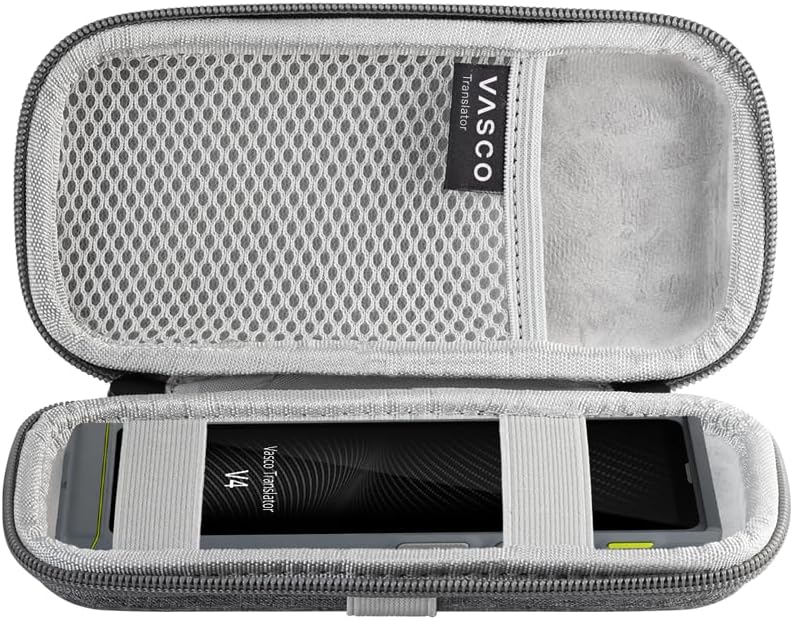
Image: The Vasco V4 protective case shown open, with the translator device secured inside and a mesh pocket for accessories.

Image: The Vasco V4 protective case shown closed from a top-down perspective, highlighting its compact design.
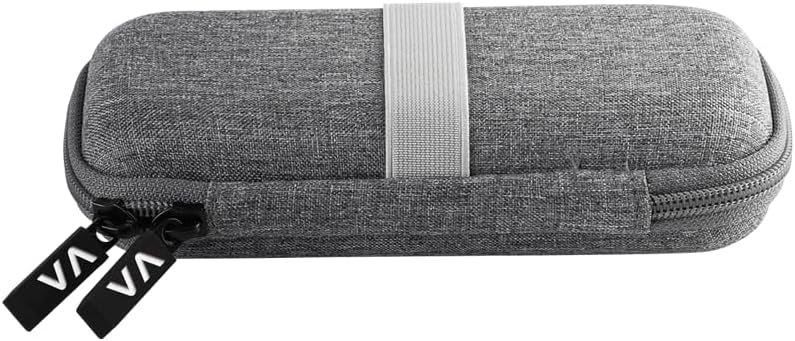
Image: The Vasco V4 protective case shown closed from a side view, displaying the zipper pulls with the VA logo.
Troubleshooting
If you encounter issues with your Vasco V4, refer to the following common problems and solutions.
| Problem | Possible Cause | Solution |
|---|---|---|
| Device does not turn on. | Low battery; device frozen. | Charge the device for at least 30 minutes. If still unresponsive, perform a soft reset by pressing and holding the power button for 10-15 seconds. |
| Translation is inaccurate or slow. | Poor internet connection; unclear speech; complex sentence structure. | Ensure you are in an area with network coverage (check the signal indicator). Speak clearly and at a moderate pace. Simplify sentences if possible. |
| No sound from speakers. | Volume too low; speaker obstruction. | Increase the volume using the side buttons. Check if the speaker grille is clean and unobstructed. |
| Device screen is unresponsive. | Temporary software glitch. | Restart the device. If the issue persists, ensure the screen is clean and dry. |
Specifications
Key technical specifications for the Vasco V4 Language Translator Device:
| Feature | Detail |
|---|---|
| Display | 5-inch, 576x1440 resolution |
| Processor | Quad-core Mediatek Helio A22 (MT6761) 64 bit |
| RAM | 2 GB |
| ROM (Internal Storage) | 32 GB |
| Modem | 4G |
| WLAN | 2.4 GHz |
| Battery | 2400 mAh |
| Dimensions | 149 mm x 55 mm x 10 mm |
| Weight | 134 g |
| Headphone Jack | USB Type-C |
| USB Input | Type-C |

Image: A diagram illustrating the dimensions and key technical specifications of the Vasco V4 device.
Warranty and Support
Warranty Information
Specific warranty details are typically provided with your purchase documentation or on the manufacturer's official website. Please refer to the information included in your product packaging or visit the Vasco Electronics website for the most up-to-date warranty terms and conditions.
Customer Support
For further assistance, technical support, or inquiries, please contact Vasco Electronics customer service. You can find contact information and additional resources on the official Vasco Electronics store page:Visit the Vasco Electronics Store on Amazon.
Related documents6fd2da33-a9cd-4087-af94-de29d95420a7


Ask a question about this manual
Ask about setup, troubleshooting, compatibility, parts, safety, or missing instructions. Manuals+ will review the question and use this page’s manual context to help answer it.