
THOMSON M24FB2Y14
THOMSON M24FB2Y14 24-inch Full HD Monitor User Manual
Model: M24FB2Y14
1. Introduction
This manual provides essential information for the proper installation, operation, and maintenance of your THOMSON M24FB2Y14 24-inch Full HD Monitor. Please read this manual thoroughly before using the product and retain it for future reference.

Front view of the THOMSON M24FB2Y14 24-inch Full HD Monitor, showcasing its sleek design and display area.
2. Safety Information
To ensure safe operation and prevent damage, observe the following safety precautions:
- Do not expose the monitor to rain or moisture to prevent fire or shock hazards.
- Do not open the monitor casing. High voltage components inside can cause electric shock. Refer all servicing to qualified personnel.
- Place the monitor on a stable, flat surface to prevent it from falling.
- Ensure proper ventilation. Do not block ventilation openings.
- Use only the power adapter supplied with the monitor.
- Disconnect the power plug from the wall outlet if the monitor is not to be used for an extended period.
- Avoid placing the monitor near heat sources or in direct sunlight.
3. Package Contents
Verify that all items are present and in good condition upon unpacking:
- THOMSON M24FB2Y14 24-inch Full HD Monitor
- Monitor Stand (Base and Neck)
- Power Adapter
- HDMI Cable
- User Manual (this document)
4. Product Overview
4.1. Monitor Dimensions

Diagram illustrating the physical dimensions of the monitor, including width, height, and depth.
4.2. Rear Panel and Ports
The rear panel of the monitor features various ports for connectivity and power input.

Detailed view of the monitor's rear panel, showing the HDMI 1.4 port, VGA port, and DC IN power input.
- HDMI 1.4 Port: For digital video and audio input from compatible devices.
- VGA Port: For analog video input from compatible devices.
- DC IN: Power input connector for the supplied power adapter.
- Navigation Button: Used to access and navigate the On-Screen Display (OSD) menu.
5. Setup
5.1. Assembling the Stand
Follow these steps to attach the stand to your monitor:
- Carefully place the monitor face down on a soft, clean cloth to prevent scratches.
- Align the stand neck with the mounting slot on the back of the monitor.
- Gently push the stand neck into the slot until it clicks into place.
- Attach the stand base to the bottom of the stand neck and secure it with the provided screw (if applicable).
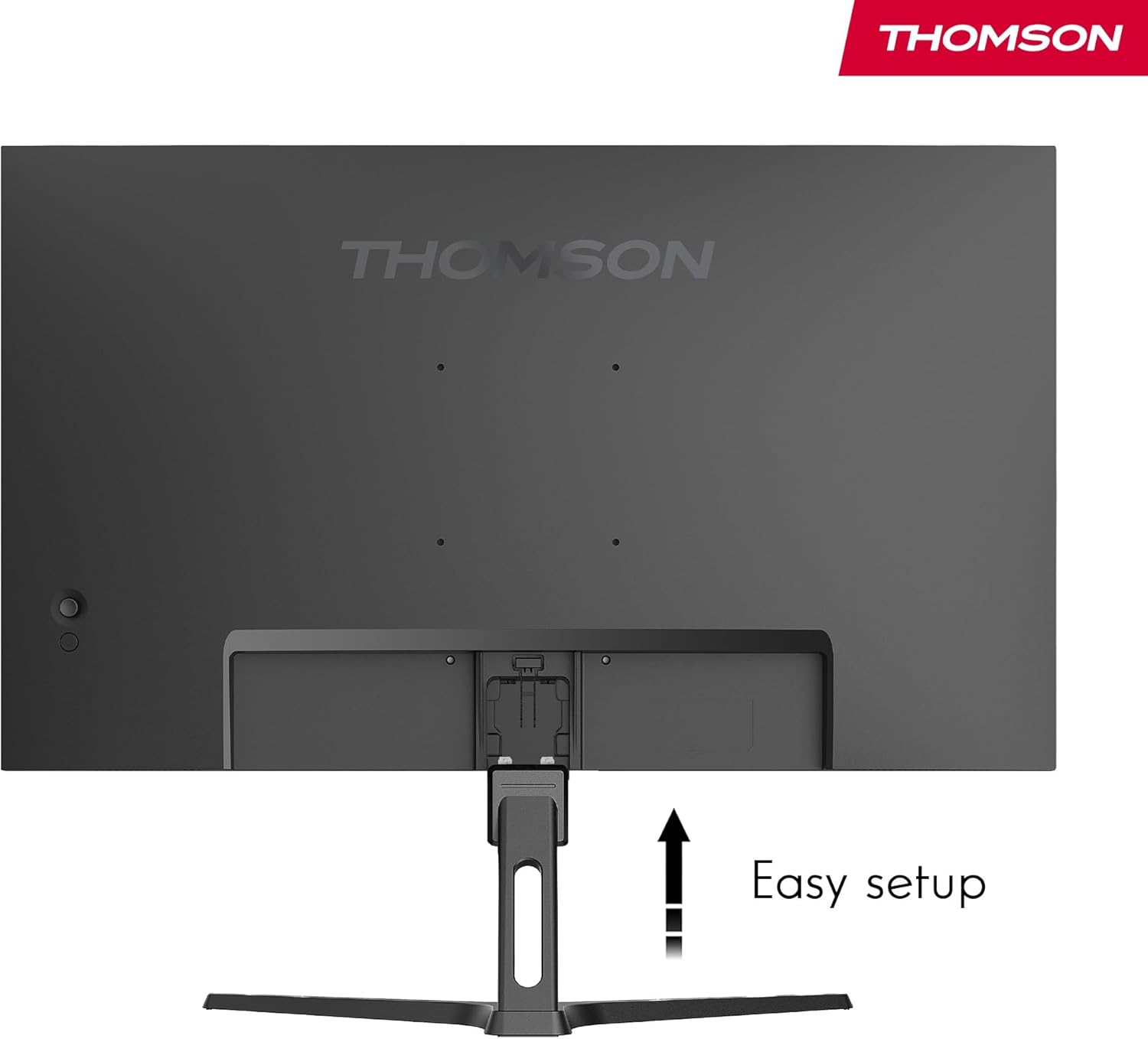
Illustration demonstrating the easy setup process for attaching the monitor stand.
5.2. Connecting to a Computer
Choose the appropriate cable (HDMI or VGA) based on your computer's output:
- HDMI Connection: Connect one end of the HDMI cable to the HDMI port on your computer's graphics card and the other end to the HDMI 1.4 port on the monitor.
- VGA Connection: Connect one end of the VGA cable to the VGA port on your computer's graphics card and the other end to the VGA port on the monitor. Secure the screws on the VGA connector.
5.3. Power Connection
Connect the power adapter to the DC IN port on the monitor, then plug the power adapter into a wall outlet.
6. Operating Instructions
6.1. Powering On/Off
Press the power button (usually located on the back or bottom right of the monitor) to turn the monitor on or off. The power indicator light will illuminate when the monitor is on.
6.2. On-Screen Display (OSD) Menu
The OSD menu allows you to adjust various settings of the monitor. Use the navigation button on the rear panel to access and navigate the menu.
- Press the button: To open the OSD menu.
- Push up/down/left/right: To navigate through menu options.
- Press the button again: To confirm a selection or enter a sub-menu.
- Push left (or specific direction): To exit the current menu or go back.
6.3. OSD Menu Options (Typical)
Common OSD menu categories include:
- Picture Settings: Brightness, Contrast, Sharpness, Color Temperature, Aspect Ratio.
- Color Settings: Adjust RGB levels, Gamma.
- Input Select: Manually switch between HDMI and VGA inputs.
- OSD Settings: OSD Language, OSD Timeout, OSD Transparency.
- Audio Settings: Volume control (if internal speakers are present or for audio output).
- Other Settings: Reset to Factory Defaults, Information (display resolution, refresh rate).

The monitor allows for tilt adjustment to optimize viewing angles and ergonomic comfort.
7. Key Features
The THOMSON M24FB2Y14 monitor incorporates several advanced features for an enhanced viewing experience:
7.1. VA Panel Technology
Equipped with a VA (Vertical Alignment) panel, this monitor delivers vibrant colors and deep contrast ratios (4000:1), providing excellent image quality, especially for multimedia content and professional tasks. It also offers wide viewing angles of 178°.

Visual representation of key display technologies: HDR10 (8-bit color depth), 100% sRGB color gamut, Full HD resolution, VA panel, and 250 nits brightness.
7.2. 100Hz Refresh Rate & Adaptive Sync
Experience smoother motion and reduced input lag with a 100Hz refresh rate. Combined with Adaptive Sync technology, screen tearing and stuttering are minimized, providing a fluid visual experience during fast-paced content or general use.

Comparison illustrating the difference between 60Hz and 100Hz refresh rates, highlighting the smoother motion provided by 100Hz.
7.3. EyeCare Technologies (Anti-Flicker, Anti-Glare, Low Blue Light)
Designed for comfortable viewing, the monitor includes features to reduce eye strain:
- Anti-Flicker: Reduces invisible screen flickering that can cause eye fatigue.
- Anti-Glare: Minimizes reflections from ambient light, improving visibility.
- Low Blue Light: Filters out harmful blue light emissions, which can disrupt sleep patterns and cause eye discomfort during prolonged use.

Icons representing the monitor's EyeCare features: Anti-Flicker, Low Blue Light, and Anti-Glare screen technology.
8. Troubleshooting
If you encounter issues with your monitor, refer to the following common problems and solutions:
| Problem | Possible Cause | Solution |
|---|---|---|
| No image on screen | No power; Incorrect input selected; Loose video cable. | Ensure power adapter is connected and monitor is turned on. Check OSD menu for correct input source. Reconnect video cable securely. |
| Image is blurry or distorted | Incorrect resolution; Cable quality. | Set display resolution to 1920x1080. Use a high-quality HDMI cable. |
| Screen flickering | Refresh rate mismatch; External interference. | Ensure refresh rate is set to 100Hz in your computer's display settings. Check for nearby electronic devices causing interference. |
| No audio | Volume too low; Incorrect audio output. | Adjust volume in OSD menu and computer settings. Ensure monitor is selected as audio output device on your computer. |
If the problem persists after trying these solutions, please contact THOMSON customer support.
9. Specifications
| Feature | Specification |
|---|---|
| Model Name | M24FB2Y14 |
| Screen Size | 24 Inches |
| Panel Type | VA |
| Resolution | 1920 x 1080 (Full HD) |
| Refresh Rate | 100 Hz |
| Response Time | 14 milliseconds |
| Contrast Ratio | 4000:1 |
| Brightness | 250 nits |
| Aspect Ratio | 16:9 |
| Viewing Angle | 178° (H/V) |
| Color Gamut | 100% sRGB |
| Color Depth | 8-bit |
| Video Inputs | 1x HDMI 1.4, 1x VGA |
| VESA Mount | 75x75mm |
| Dimensions (L x W x H) | 50 x 540 x 420 mm (approx.) |
| Special Features | Anti-Flicker, Anti-Glare, Low Blue Light, HDR10, Adaptive Sync |
10. Maintenance
Proper maintenance ensures the longevity of your monitor:
- Cleaning the Screen: Gently wipe the screen with a soft, lint-free cloth. For stubborn marks, dampen the cloth slightly with water or a non-ammonia, non-alcohol based screen cleaner. Never spray cleaner directly onto the screen.
- Cleaning the Casing: Use a soft, dry cloth to wipe the monitor casing. Avoid abrasive cleaners.
- Ventilation: Ensure the ventilation openings on the back of the monitor are not blocked by dust or debris.
- Power Off: Always turn off the monitor and unplug it from the power outlet before cleaning or when not in use for extended periods.
11. Warranty and Support
Your THOMSON M24FB2Y14 monitor comes with a manufacturer's warranty. Please refer to the warranty card included in your package for detailed terms and conditions.
- Manufacturer's Warranty: 3 years.
- Customer Support: For technical assistance or warranty claims, please visit the official THOMSON website or contact their customer service as per the information provided in your product documentation.
Related documentsM24FB2Y14


Ask a question about this manual
Ask about setup, troubleshooting, compatibility, parts, safety, or missing instructions. Manuals+ will review the question and use this page’s manual context to help answer it.