
1. Introduction
This manual provides essential information for the safe and efficient operation of your new THOMSON 50-inch QLED Google Smart TV. Please read this manual thoroughly before using the television and retain it for future reference. This television combines QLED display technology with 4K Ultra HD resolution, Dolby Vision, Dolby Atmos, and the Google TV smart platform for an immersive viewing experience.
2. Safety Information
Always observe the following safety precautions to prevent electric shock, fire, or damage to the television:
- Do not expose the TV to rain or moisture.
- Do not open the TV casing; refer all servicing to qualified personnel.
- Ensure proper ventilation around the TV.
- Avoid placing the TV near heat sources or in direct sunlight.
- Use only the power cord supplied with the TV.
- Keep small parts and batteries out of reach of children.
3. Setup
3.1 Unpacking and Component Check
Carefully remove the television from its packaging. Verify that all components are present:
- THOMSON 50-inch QLED Google Smart TV
- Remote Control with batteries
- Power Cord
- Table Stand (Central Feet)
- Screws for stand installation
- Quick Start Guide (this manual)
3.2 Stand Installation
To install the central table stand:
- Place the TV face down on a soft, flat surface to prevent screen damage.
- Align the stand with the mounting holes on the bottom of the TV.
- Secure the stand using the provided screws. Ensure the stand is firmly attached.
For dimensions, refer to the image below:

3.3 Wall Mounting
If you plan to wall-mount your TV, ensure you use a VESA-compatible mount (200 x 200 mm). Consult a professional for wall mounting to ensure safety and proper installation.
3.4 Connecting Peripherals
Connect your external devices to the appropriate ports on the back of the TV. Refer to the port diagram below:

- HDMI: Connect Blu-ray players, game consoles, or other HDMI devices. This model includes HDMI 2.1 with eARC for enhanced audio return.
- USB: Connect USB storage devices for media playback. One USB 3.0 port and two USB 2.0 ports are available.
- Antenna/Cable/Satellite (DVB T2/C/S2): Connect your terrestrial, cable, or satellite antenna for live TV channels.
- LAN: For a wired internet connection.
- Digital Optical Audio Out: Connect to an external sound system for high-quality audio.
- CI+ Slot: For conditional access modules (CAM) to decrypt pay-TV channels.
3.5 Initial Power On and Google TV Setup
After connecting all necessary cables, plug the power cord into an electrical outlet. The TV will guide you through the initial setup process, including network connection (Wi-Fi or Ethernet), Google account login, and channel scanning. If you encounter issues during initial setup, a factory reset (found in settings) can often resolve them, as noted by some users.
4. Operating
4.1 Remote Control Features
Your TV comes with an ergonomic, backlit remote control. Key features include:

- Google Assistant Button: Press to activate voice control and search for content, control smart home devices, or get information.
- Profile Switch: Quickly switch between different user profiles on Google TV.
- Direct Access Buttons: Dedicated buttons for popular streaming services (Netflix, Prime Video, YouTube, Apple TV+, Live TV) for quick access.
- Backlit Buttons: For easy navigation in dark environments.
4.2 Google TV Features
Google TV organizes content from your various streaming apps and subscriptions into a unified interface. You can create multiple user profiles, each with personalized recommendations.

- Streaming Apps: Access a wide range of applications including Netflix, Prime Video, YouTube, Disney+, and Canal+.
- Google Assistant: Use voice commands via the remote to control your TV, search for content, and manage compatible smart home devices.
- Google Cast: Wirelessly stream movies, music, and videos from compatible devices (smartphones, tablets, computers) directly to your TV.

4.3 Picture Settings
Your THOMSON QLED TV offers advanced picture technologies:
- QLED (Quantum Dot): Provides vibrant and realistic colors, balanced brightness, and striking contrasts.
- 4K Ultra HD: Delivers four times the resolution of Full HD for crystal-clear images and fine detail.
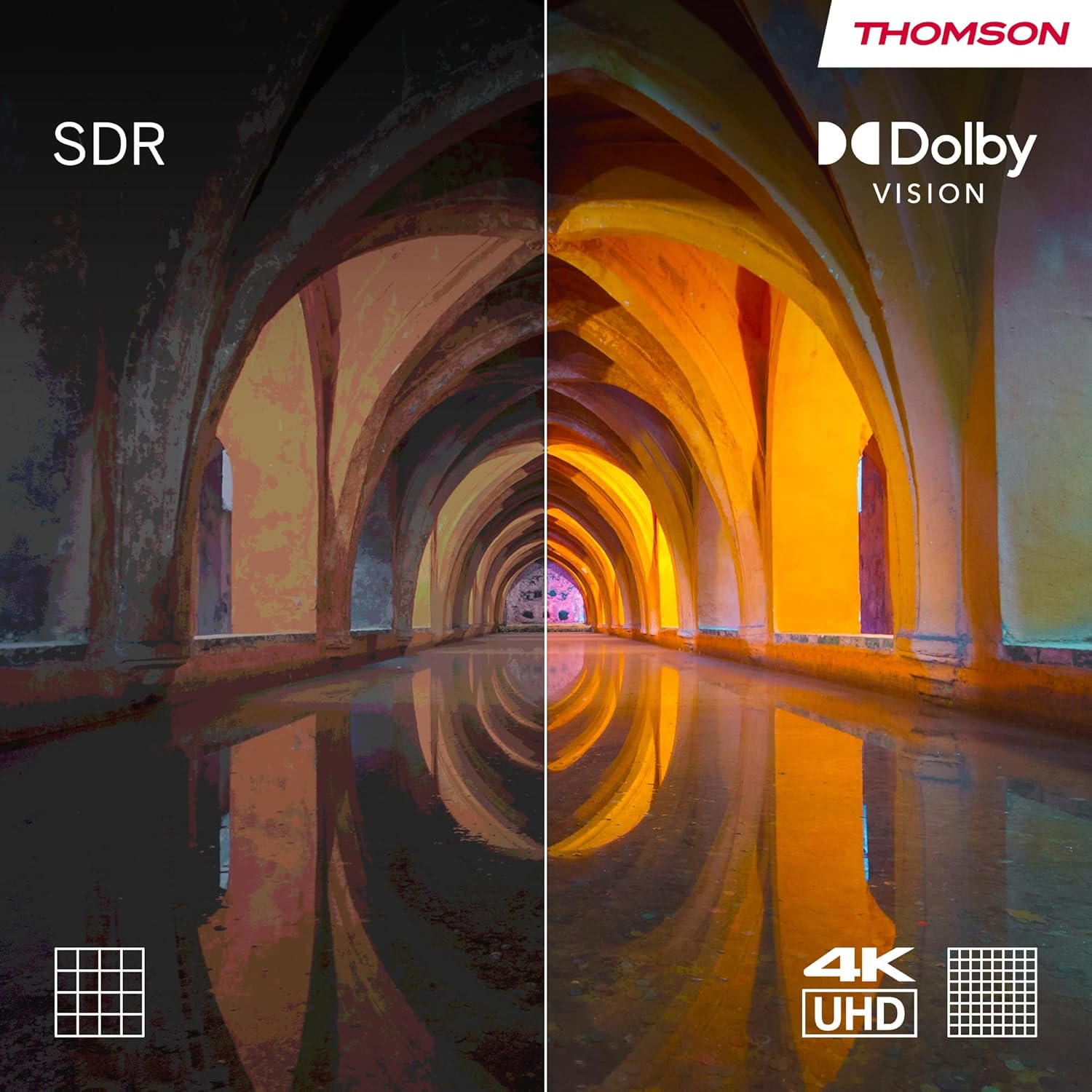
- Dolby Vision / HDR10: Enhances brightness, contrast, and color accuracy for a more realistic and dynamic viewing experience.

4.4 Sound Settings
The TV features integrated speakers with Dolby Audio and Dolby Atmos support for dynamic and immersive sound.

- Dolby Audio: Provides clear and powerful sound.
- Dolby Atmos: Creates a dynamic, multi-dimensional sound experience that fills the room. For the full effect, a compatible external sound system may be required.
4.5 Triple Tuner Usage
The integrated triple tuner allows you to receive television signals from various sources:
- Terrestrial Antenna (DVB-T2): For free-to-air digital broadcasts.
- Cable (DVB-C): For digital cable television services.
- Satellite (DVB-S2): For digital satellite television services.
During initial setup, the TV will guide you through scanning for available channels based on your connection type.
5. Maintenance
5.1 Cleaning the Screen
To clean the screen, gently wipe it with a soft, lint-free cloth. For stubborn marks, slightly dampen the cloth with water or a specialized screen cleaner. Never spray cleaner directly onto the screen.
5.2 Cleaning the Casing
Wipe the TV casing with a soft, dry cloth. Do not use abrasive cleaners or solvents.
5.3 General Care
- Unplug the TV from the power outlet before cleaning or moving it.
- Avoid blocking ventilation openings.
- Do not place heavy objects on the TV.
6. Troubleshooting
If you encounter problems with your TV, refer to the following common issues and solutions:
| Problem | Possible Solution |
|---|---|
| No power | Check if the power cord is securely plugged into the TV and the wall outlet. Ensure the outlet is functional. |
| No picture, but sound is present | Check the input source. Ensure external devices are powered on and connected correctly. |
| No sound, but picture is present | Check the volume level and mute settings. Verify audio cable connections for external sound systems. |
| Remote control not working | Replace the batteries. Ensure there are no obstructions between the remote and the TV's IR sensor. |
| Smart TV features (Google TV) are slow or buggy | Restart the TV by unplugging it for a few minutes. Check your internet connection. If issues persist, consider performing a factory reset via the TV's settings menu. |
| Poor picture quality (e.g., 'shadow' effects) | Adjust picture settings (brightness, contrast, sharpness). Ensure the input source is providing a high-quality signal. For streaming, check internet speed. |
7. Specifications
Below are the technical specifications for the THOMSON 50QG4S14 QLED Google Smart TV:
| Feature | Specification |
|---|---|
| Screen Size | 50 Inches (126 Centimeters) |
| Display Technology | QLED |
| Resolution | 4K UHD (3840 x 2160 pixels) |
| Refresh Rate | 60 Hz |
| HDR Support | Dolby Vision, HDR10 |
| Smart TV Platform | Google TV with Google Assistant, Google Cast |
| Connectivity | Wi-Fi, Bluetooth 5.1 |
| HDMI Ports | 4 (including 1x HDMI 2.1 with eARC) |
| USB Ports | 3 (1x USB 3.0, 2x USB 2.0) |
| Audio Output | Digital Optical Audio Out |
| Sound Technology | Dolby Audio, Dolby Atmos |
| Tuner Type | Triple Tuner (DVB-T2/C/S2) |
| VESA Mounting Standard | 200 x 200 mm |
| Dimensions (W x H x D) | 111 x 68 x 8 cm (with stand) |
| Weight | 10.7 Kilograms |
| Model Year | 2025 |

8. Warranty and Support
8.1 Warranty Information
Your THOMSON television comes with a comprehensive 3-year manufacturer's warranty. This warranty covers defects in materials and workmanship under normal use. Please retain your proof of purchase for warranty claims.
8.2 Customer Support
For technical assistance, troubleshooting beyond this manual, or warranty service, please contact THOMSON customer support. Refer to the official THOMSON website or your purchase documentation for contact details specific to your region.


