
cellularline BTIONWATCHPRORK
Cellularline ION PRO ROUND Smartwatch User Manual
Model: BTIONWATCHPRORK
1. Introduction
The Cellularline ION PRO ROUND Smartwatch is designed to integrate seamlessly into your daily routine, offering advanced features for communication, health monitoring, and fitness tracking. This manual provides detailed instructions to help you set up, operate, and maintain your smartwatch effectively.

Image 1.1: Cellularline ION PRO ROUND Smartwatch
2. What's in the Box
Upon unpacking your Cellularline ION PRO ROUND Smartwatch, please ensure all the following components are present:
- Cellularline ION PRO ROUND Smartwatch
- Charging Cable
- Instruction Manual
3. Setup
3.1. Initial Charging
Before first use, fully charge your smartwatch. Connect the provided charging cable to the charging port on the back of the smartwatch and plug the USB end into a compatible power adapter (not included) or a computer's USB port. A full charge typically takes approximately 3 hours.

Image 3.1: Smartwatch displaying charging status, indicating long-lasting battery life.
3.2. App Installation
To unlock the full functionality of your smartwatch, download and install the Cellularline ION app on your smartphone. The app is compatible with both iOS and Android devices. You can find the app by scanning the QR code provided on the product packaging or by searching for "Cellularline ION" in your device's app store.
3.3. Device Pairing
- Ensure your smartwatch is charged and powered on.
- Enable Bluetooth on your smartphone.
- Open the Cellularline ION app and follow the on-screen instructions to add a new device.
- Select your ION PRO ROUND Smartwatch from the list of available Bluetooth devices.
- Confirm the pairing request on both your smartphone and smartwatch if prompted.
4. Operating Instructions
4.1. Basic Navigation
The smartwatch features a 1.38-inch TFT Full Touch display. Swipe left, right, up, or down to navigate through menus, notifications, and widgets. Tap to select items or confirm actions. The side button typically serves as a home button or to wake/sleep the screen.

Image 4.1: High-definition 1.38-inch display of the smartwatch.
4.2. Call Management
With Bluetooth connectivity, you can answer calls directly from your smartwatch. When a call comes in, the smartwatch will display the caller ID. Tap the green icon to answer or the red icon to reject the call. You can also initiate calls through the app.
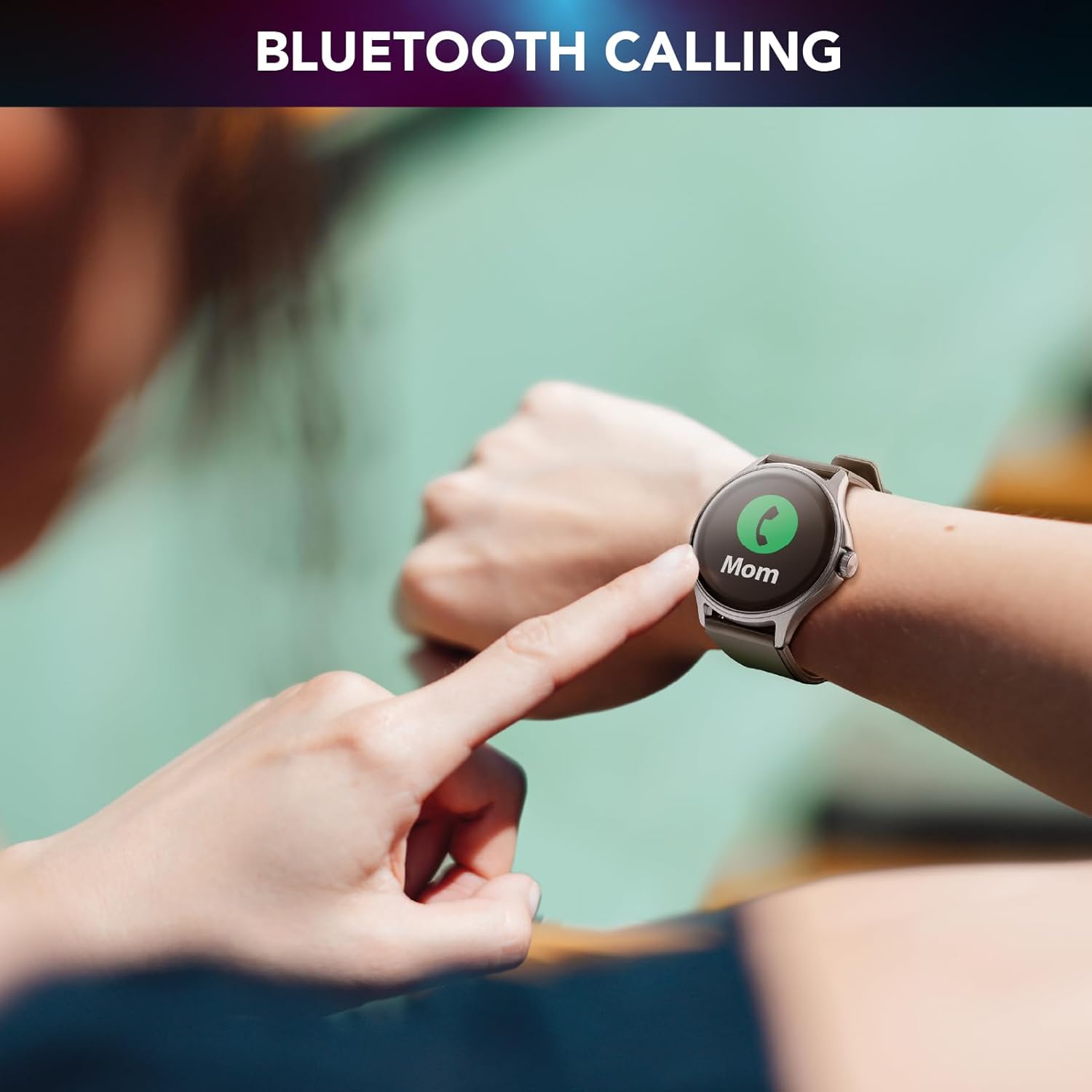
Image 4.2: Bluetooth calling feature in use.
4.3. Activity and Wellness Monitoring
The smartwatch continuously monitors various health and fitness metrics:
- Pedometer: Tracks your daily steps.
- Heart Rate: Monitors your heart rate throughout the day.
- Blood Pressure: Provides estimates of your blood pressure.
- Blood Oxygen (SpO2): Measures your blood oxygen levels.
- Sleep Tracking: Analyzes your sleep patterns and quality.
- Stress Monitoring: Helps track your stress levels.
- Calories: Estimates calories burned based on activity.

Image 4.3: Heart rate and sleep monitoring features.
4.4. Fitness Modes
The smartwatch supports various fitness modes to track specific activities, including walking, running, climbing, and general fitness exercises. Select the appropriate mode before starting your workout for accurate data collection.

Image 4.4: Smartwatch displaying various fitness modes.
4.5. Notifications
Once paired with your smartphone, the smartwatch will display real-time notifications for calls, messages, and app alerts. Swipe down from the top of the screen to view your notification history.
4.6. Find My Phone
If your paired smartphone is misplaced, use the "Find My Phone" feature on your smartwatch to make your phone ring, helping you locate it quickly.
5. Maintenance
5.1. Cleaning
To clean your smartwatch, gently wipe the screen and body with a soft, dry, lint-free cloth. For stubborn smudges, slightly dampen the cloth with water. Avoid using harsh chemicals or abrasive materials, as these can damage the device.
5.2. Water and Dust Resistance
The Cellularline ION PRO ROUND Smartwatch is certified IP67, meaning it is resistant to dust and can withstand immersion in water up to 1 meter for 30 minutes. While it is suitable for daily wear and light water exposure (e.g., hand washing, rain), it is not recommended for swimming, showering, or diving.

Image 5.1: Smartwatch demonstrating IP67 waterproof and dustproof capabilities.
6. Troubleshooting
If you encounter issues with your smartwatch, refer to the following common problems and solutions:
- Device not turning on: Ensure the smartwatch is fully charged. Connect it to the charger and wait a few minutes before attempting to power it on again.
- Unable to pair with smartphone: Make sure Bluetooth is enabled on your phone and the smartwatch is within range. Restart both devices and try pairing again through the Cellularline ION app.
- Inaccurate health data: Ensure the smartwatch is worn snugly on your wrist, not too tight or too loose. Clean the sensor on the back of the device. Note that health monitoring features are for reference only and not for medical diagnosis.
- Notifications not appearing: Check app permissions on your smartphone to ensure the Cellularline ION app has access to notifications. Verify that notifications are enabled within the smartwatch settings and the app.
- Short battery life: Reduce screen brightness, disable unnecessary features, and ensure background app usage is optimized on your phone.
If problems persist, consult the Cellularline support website or contact customer service for further assistance.
7. Specifications
| Feature | Detail |
|---|---|
| Model Name | BTIONWATCHPRORK |
| Display | 1.38-inch TFT Full Touch |
| Connectivity | Bluetooth |
| Operating System | Wear OS (compatible with iOS and Android app) |
| Battery Capacity | 300 mAh Lithium Polymer |
| Battery Life | Up to 7 days |
| Charging Time | Approximately 3 hours |
| Water & Dust Resistance | IP67 |
| Sensors | Heart Rate, Blood Pressure, Blood Oxygen |
| Weight | 100 g |
| Dimensions | 16.3 x 9 x 3.2 cm (packaging) |
8. Warranty and Support
For information regarding the product warranty, please refer to the warranty card included in your product packaging or visit the official Cellularline website. For technical support, frequently asked questions, or to contact customer service, please visit the Cellularline support page:
Related documentsBTIONWATCHPRORK


Ask a question about this manual
Ask about setup, troubleshooting, compatibility, parts, safety, or missing instructions. Manuals+ will review the question and use this page’s manual context to help answer it.